How to Color-Code the SharePoint Calendar
- George Apostolov
- 05 Sep 2025
Guide
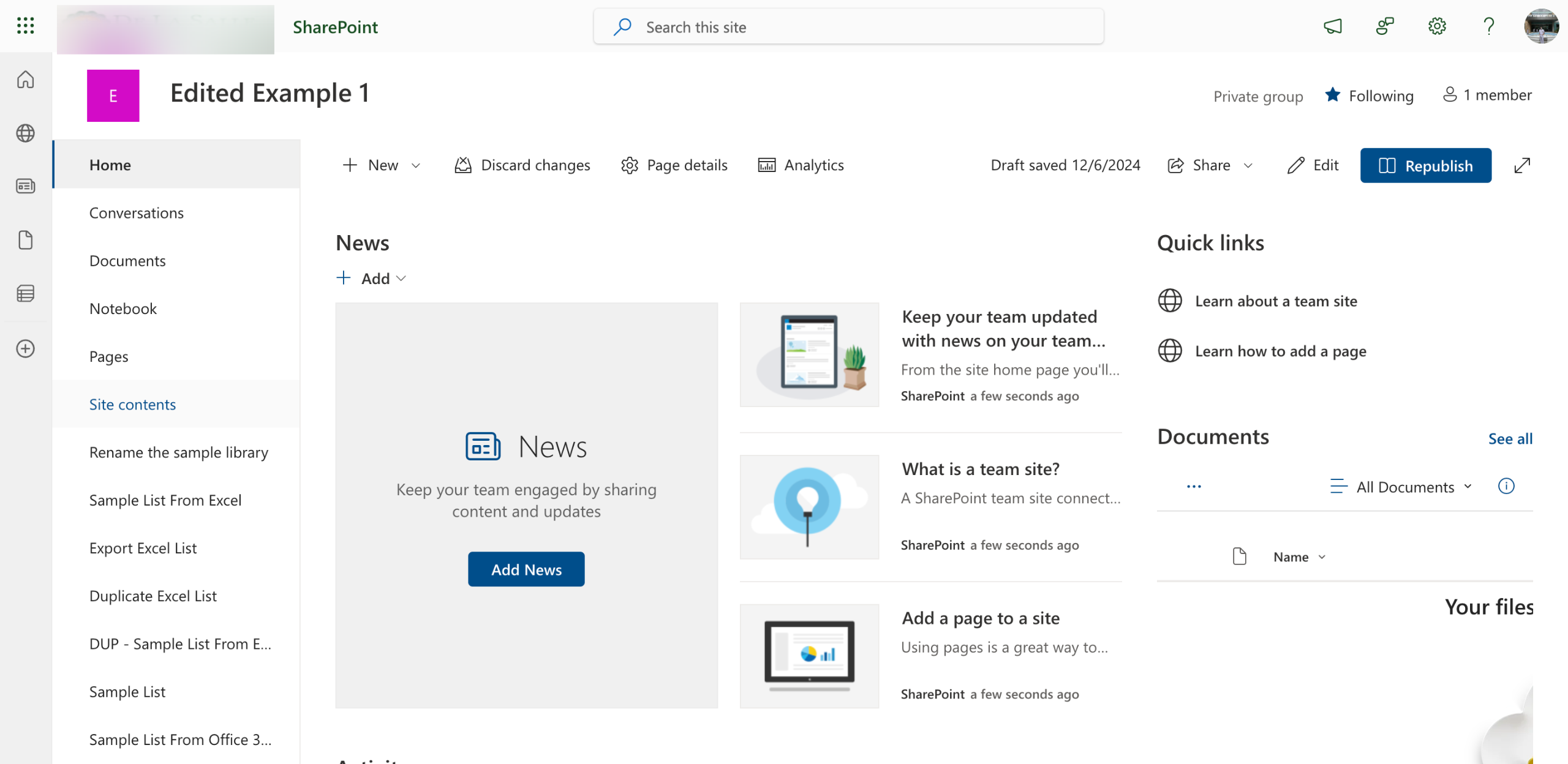
On your SharePoint calendar's main dashboard, head over to the top menu bar and click 'Calendar'.
After that, select the 'Calendars Overlay' option inside the Manage Views tab.
Tap 'New Calendar' to proceed.
Subsequently, provide all the necessary information. One by one, add the specific calendar name, description, and color you prefer to use.
Go to the Web URL section afterwards, then tap 'Resolve'.
Next, click the 'List' and 'List View' menus to specify the items you wish to color-code.
Finally, tap 'OK' to save the changes and enable your color-coded SharePoint calendar.

Create your first interactive demo in minutes
No credit card required • Start building today