How to Push Todoist Completed Tasks to Google Sheets Through Zapier
- George Apostolov
- 05 Sep 2025
Guide
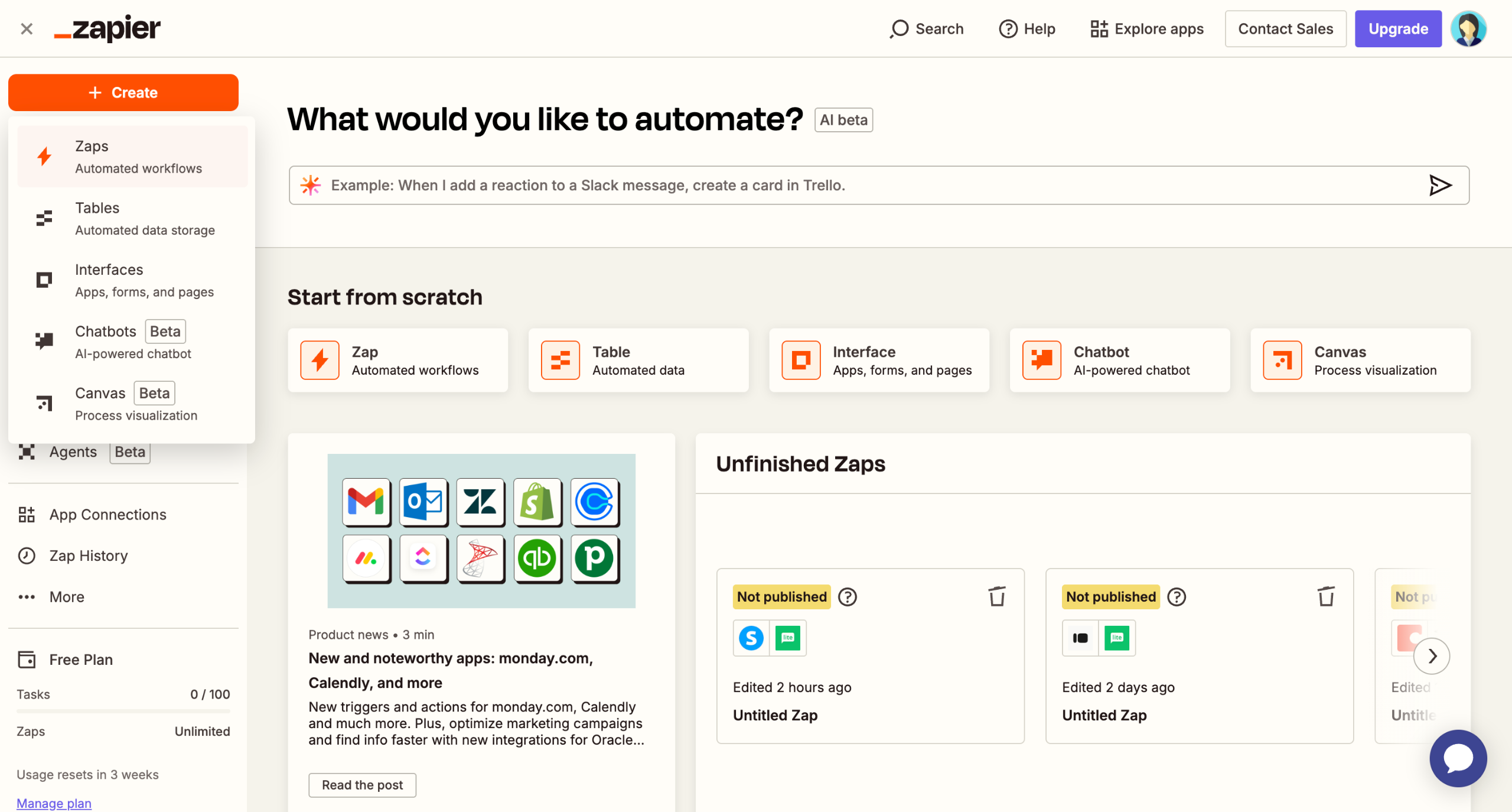
From your 'Zapier' dashboard, select 'Zap'.
Click on the 'Trigger' field to select the event.
Choose 'Todoist' as the trigger app.
Select a trigger event such as 'New Completed Task'.
Authorize your Todoist account.
Select the project you want to monitor.
Click 'Test trigger' and ensure a recently completed task appears during the test.
Search and set the action app as 'Google Sheets'.
Select the action event 'Create Spreadsheet Row'.
Connect and authorize your Google account.
Select the spreadsheet you want to use. Choose the specific worksheet. Click 'Continue'.
Click 'Test step' to verify that the data is added to your Google Sheet.
Once the test is successful, click 'Publish'.

Create your first interactive demo in minutes
No credit card required • Start building today