How to Add Instagram Feed to Wordpress
- George Apostolov
How to Add Instagram Feed to Wordpress: step-by-step guide
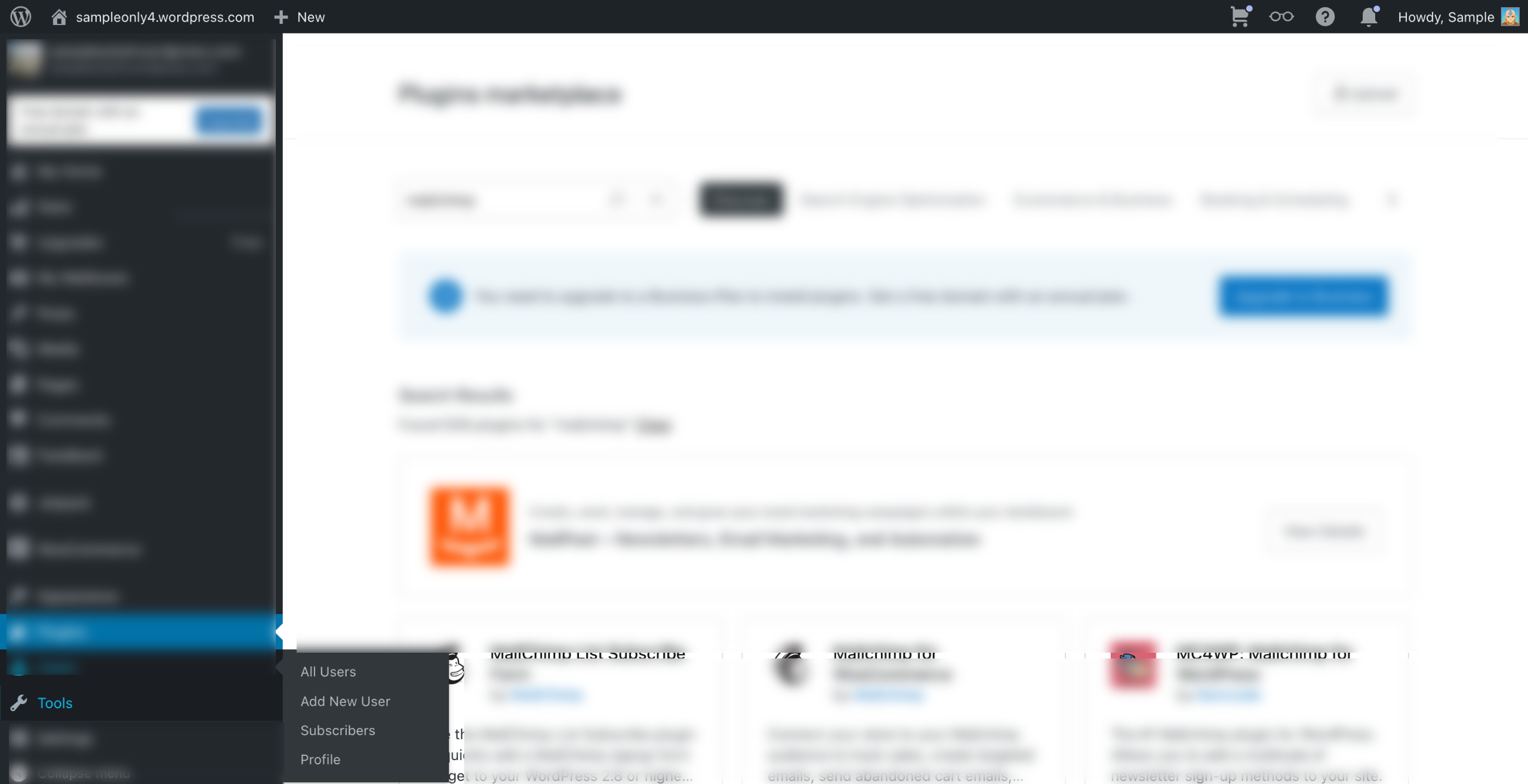
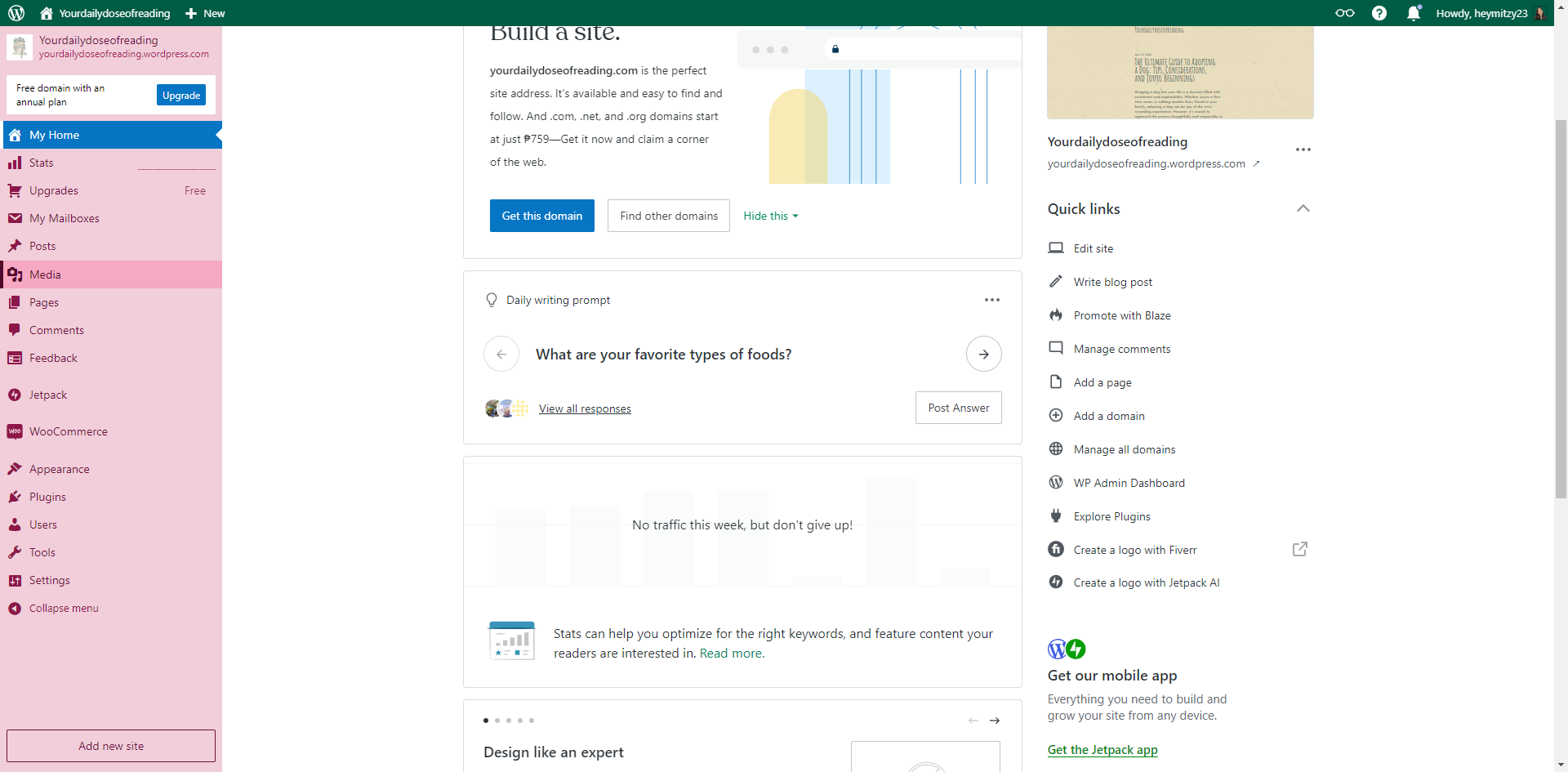
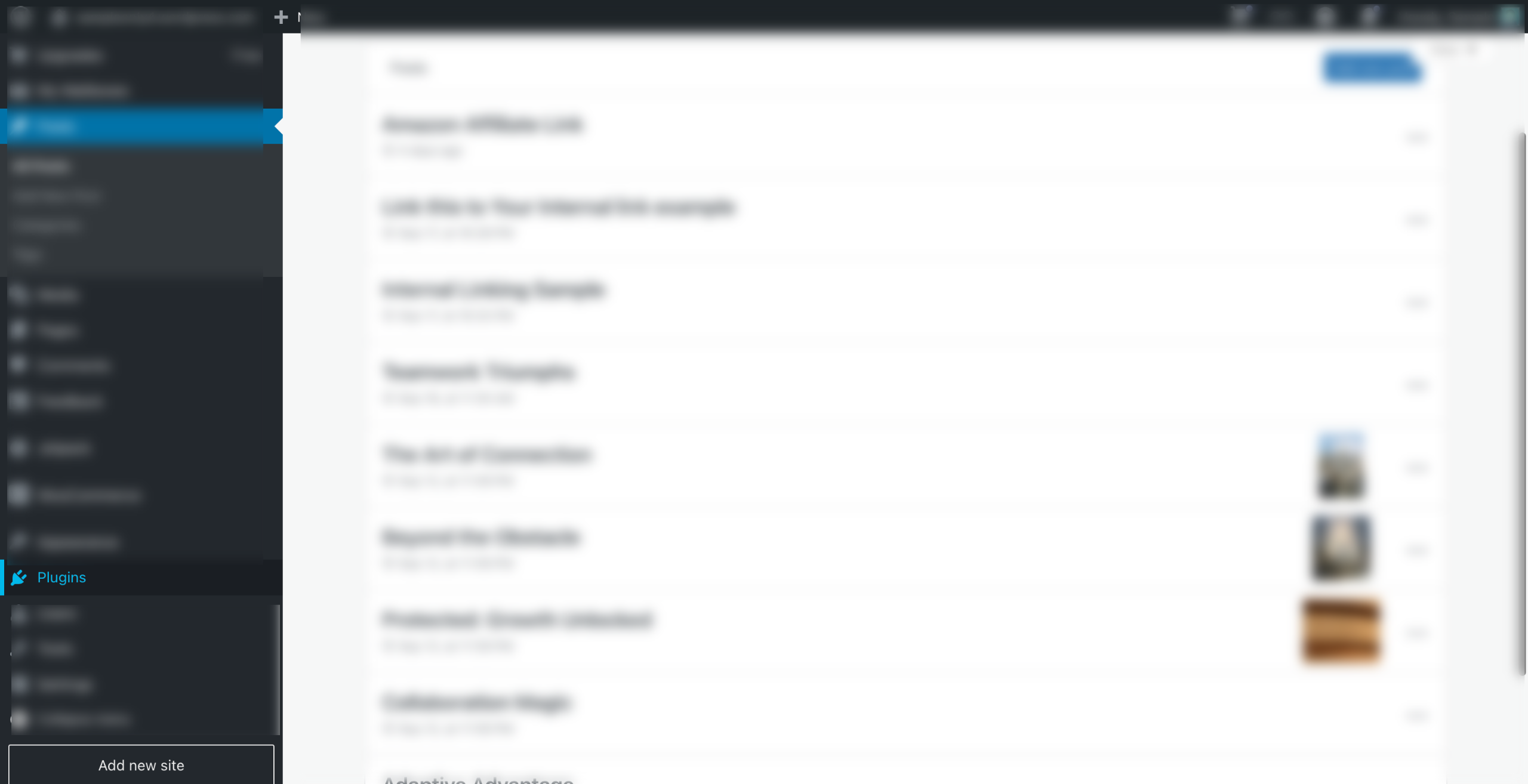
Head over to your WordPress Dashboard and click on Plugins to add new plugin.
In the search bar, type “wpzoom social feed” and click on it.
Once you find the plugin, click Install Now, and then hit Activate once it’s installed.
You’ll notice a new Instagram Widget section in the left sidebar. Click on Instagram Widget > Users, then hit the Connect with Instagram button.
You’ll be asked to grant permission for the plugin to display your Instagram feeds. Just click Allow.
Return to the Instagram Widget > Users section, hover over the three dots icon and click the Edit user link.
Here you can add a profile picture, name, and bio info for your account manually.
In your WordPress Dashboard, go to Instagram Widget > Feeds and click on the Add New Feed button.
Click the Select an Account button.
Select the Instagram account you want to use for the feed.
You’ll see various configuration options to make your feed look just right.
Click the Design tab to customize the style and layout of your feed. Adjust the overall appearance to match your website’s vibe, then click Save.
Switch to the Embed tab. You’ll find several options to embed your Instagram feed on your website. You can use a shortcode, a block, or add the Instagram feed as a widget—whatever works best for you!
Quick answer: To add an Instagram feed to WordPress, install and activate the wpzoom social feed plugin, connect your Instagram account, configure and design your new feed, and embed it on your website using a shortcode, block, or widget.
About this WordPress tutorial
Display your Instagram photos on your WordPress site by installing the plugin, connecting your account, and embedding the feed using a block or shortcode. This guide shows how to add Instagram Feed to Wordpress in 13 steps, starting with "Head over to your WordPress Dashboard and click on Plugins to add new plugin" and finishing with "Switch to the Embed tab. You’ll find several options to embed your Instagram feed on yo...". The interactive demo above is a click-through copy of the real WordPress interface, so you can rehearse each step before doing it in your own account.
Frequently asked questions
How many steps does it take to add Instagram Feed to Wordpress?
13 steps. Each one is listed in order above, and the demo highlights exactly where to click.
Can I try it without changing my own account?
Yes. Clicking through the demo doesn't touch your WordPress data or settings. Once you know the flow, repeat it in your own workspace.
This tutorial is filed under WordPress and Instagram. Related guides: How to add internal links in wordpress, How to Add Mailchimp to Wordpress and How to Add Outbound Links in Wordpress. Last reviewed 05 Oct 2026.

Create your first interactive demo in minutes
No credit card required • Start building today