How to Backup Jira and Confluence
- George Apostolov
How to Backup Jira and Confluence: step-by-step guide
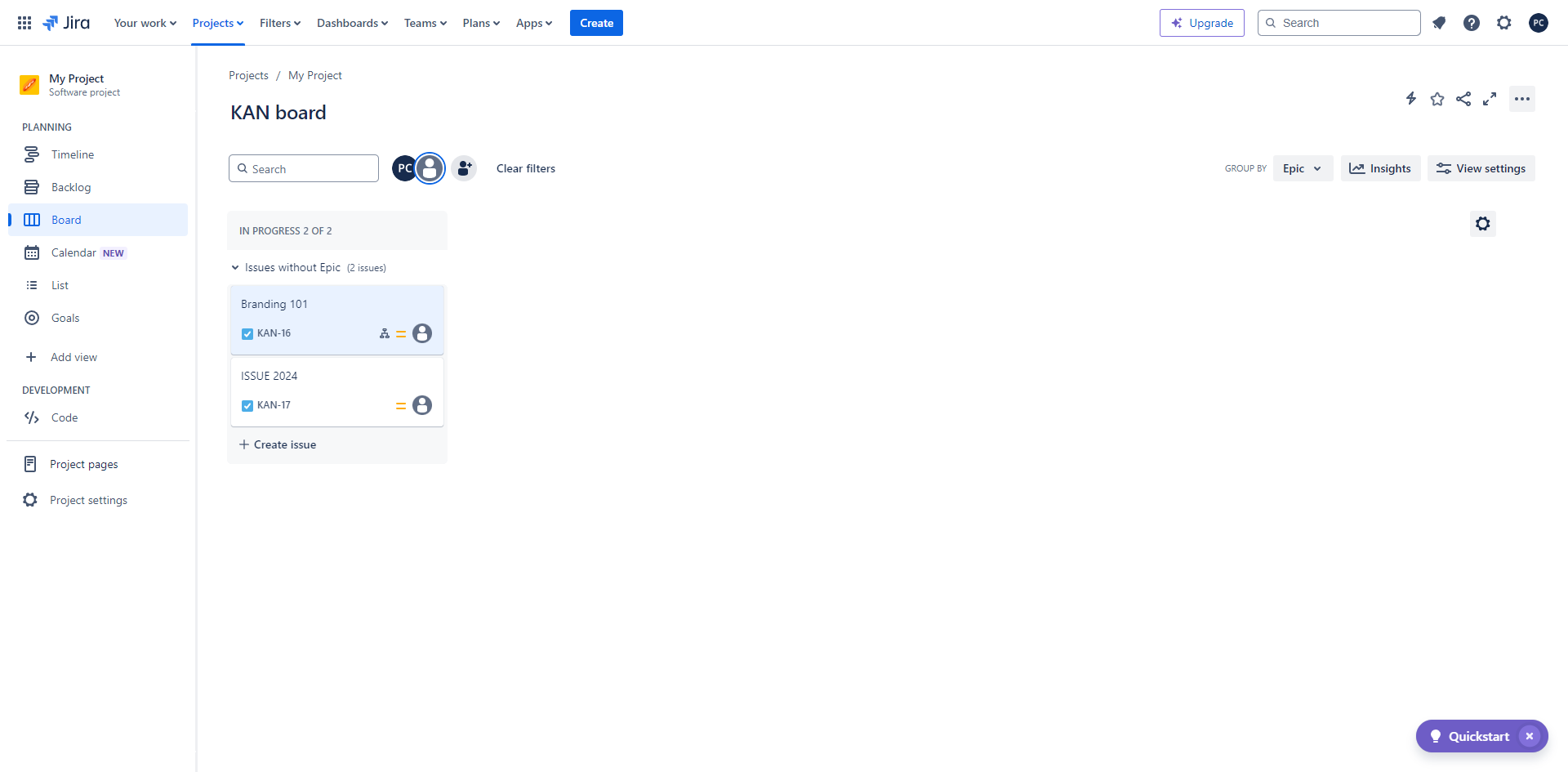
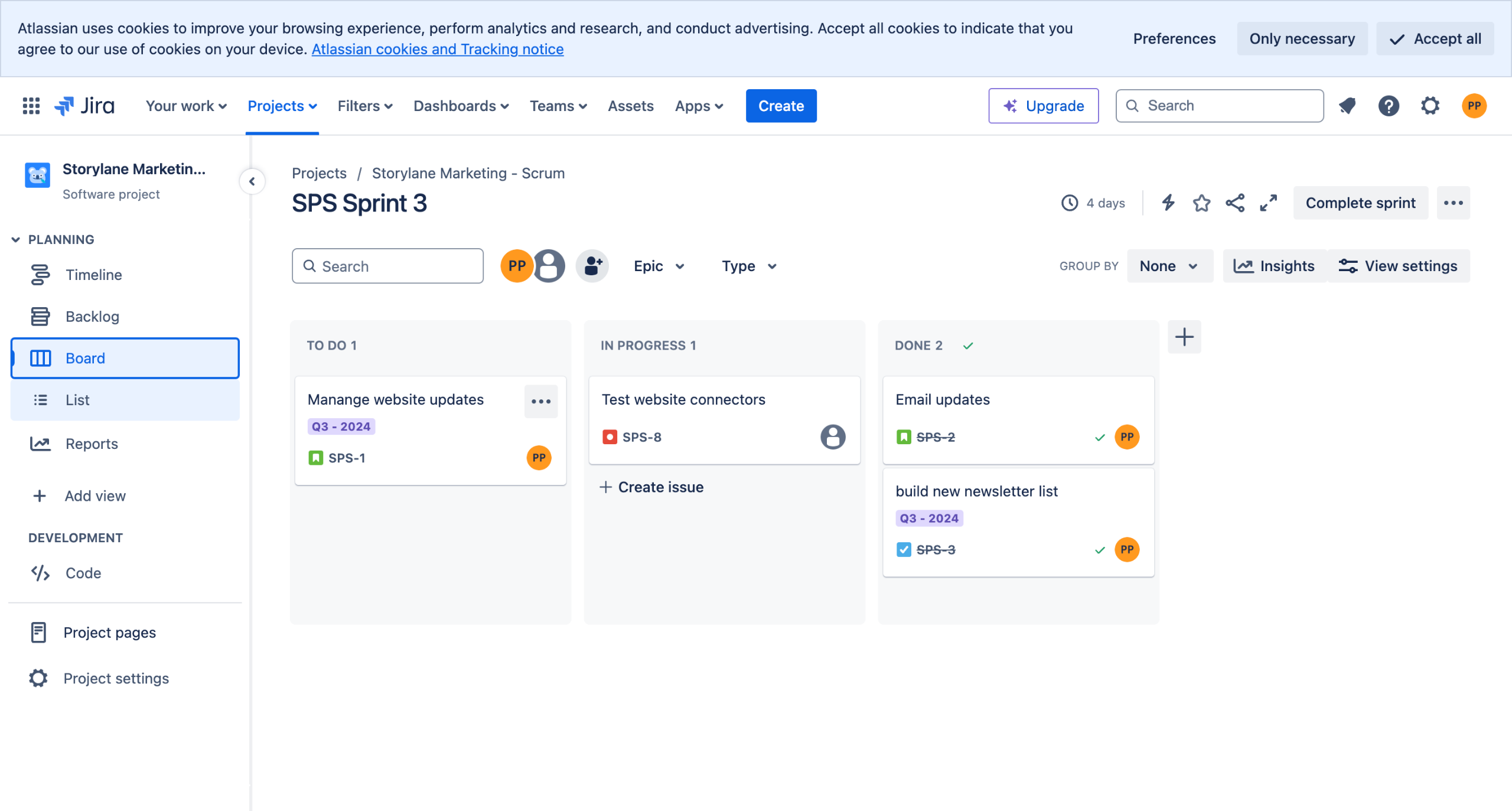
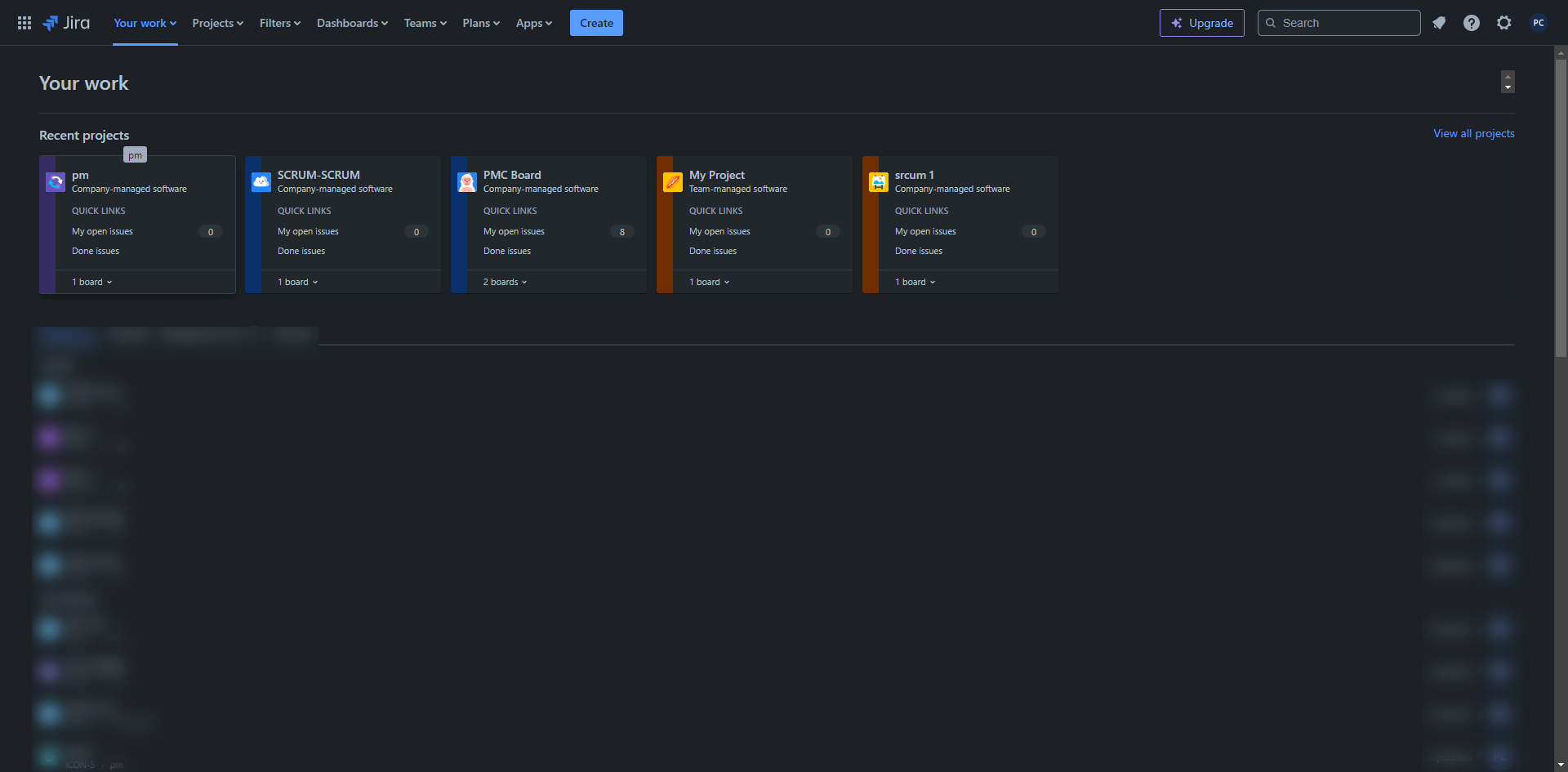
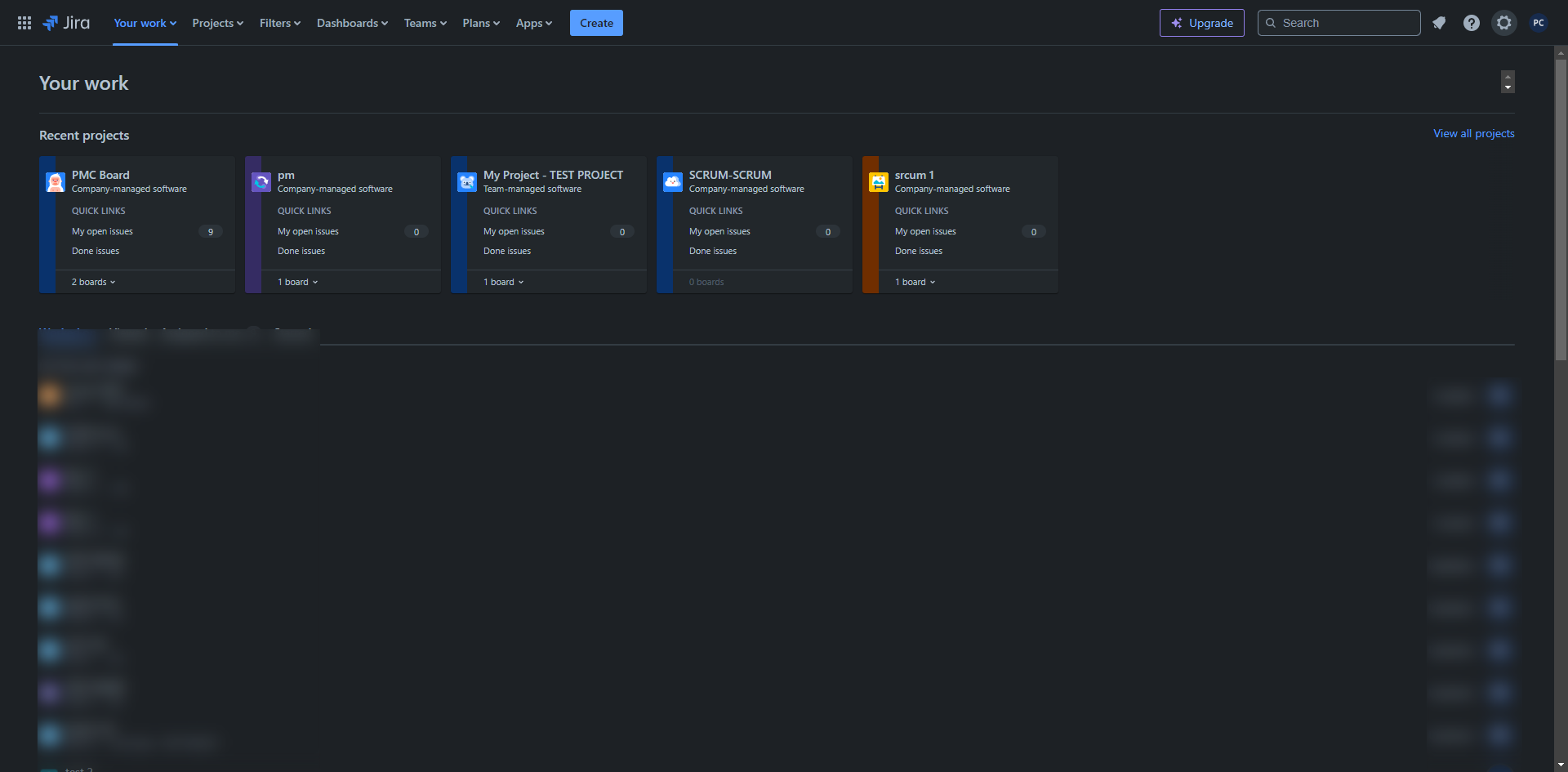
Navigate to the Jira administration console by clicking the gear icon.
Select 'System'.
Go to 'Import and export', click 'Backup manager'.
Click on 'Create backup for cloud'. This will generate an XML file of your Jira data.
Once the backup is complete, download the backup file to your local machine.
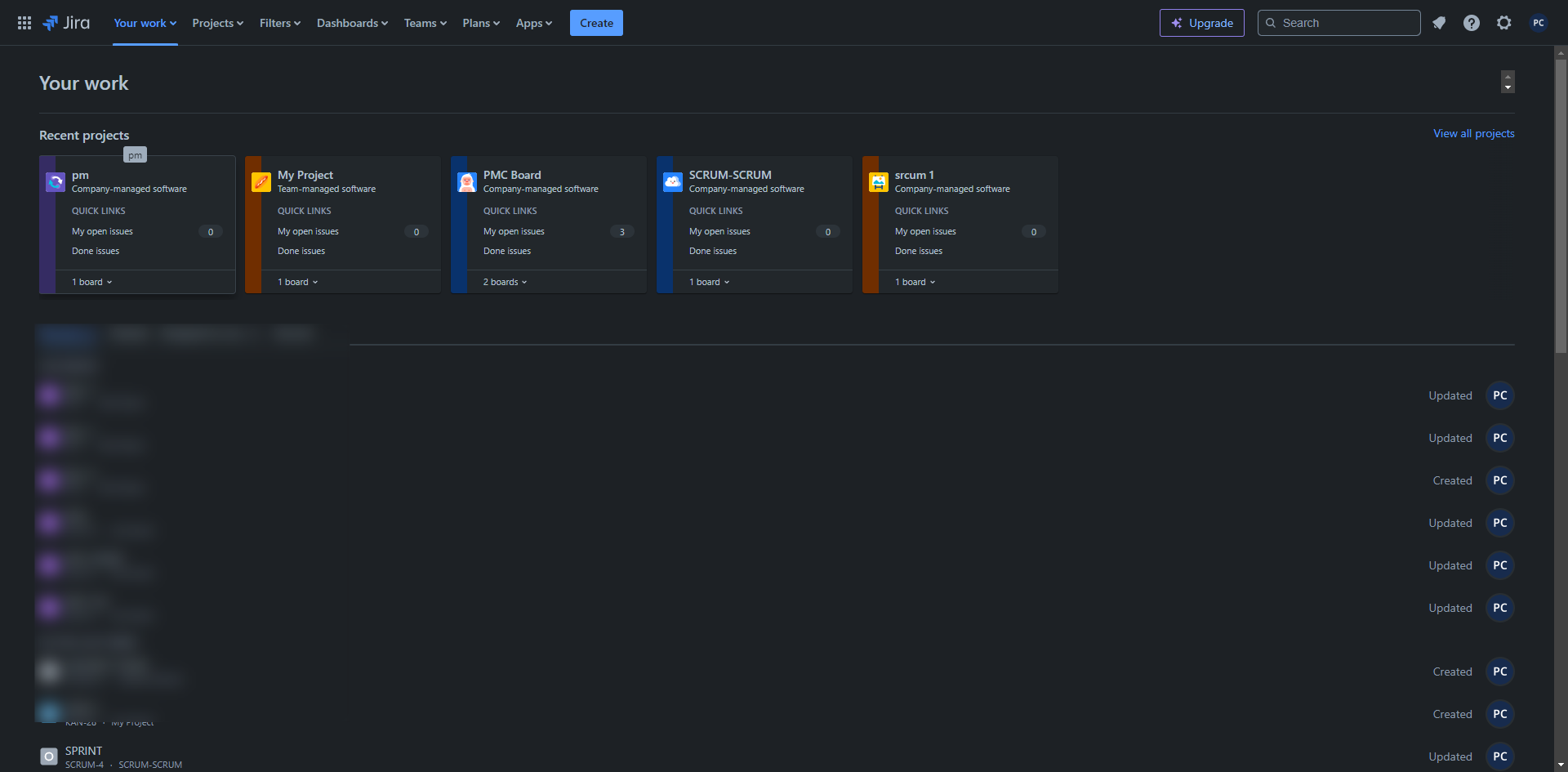
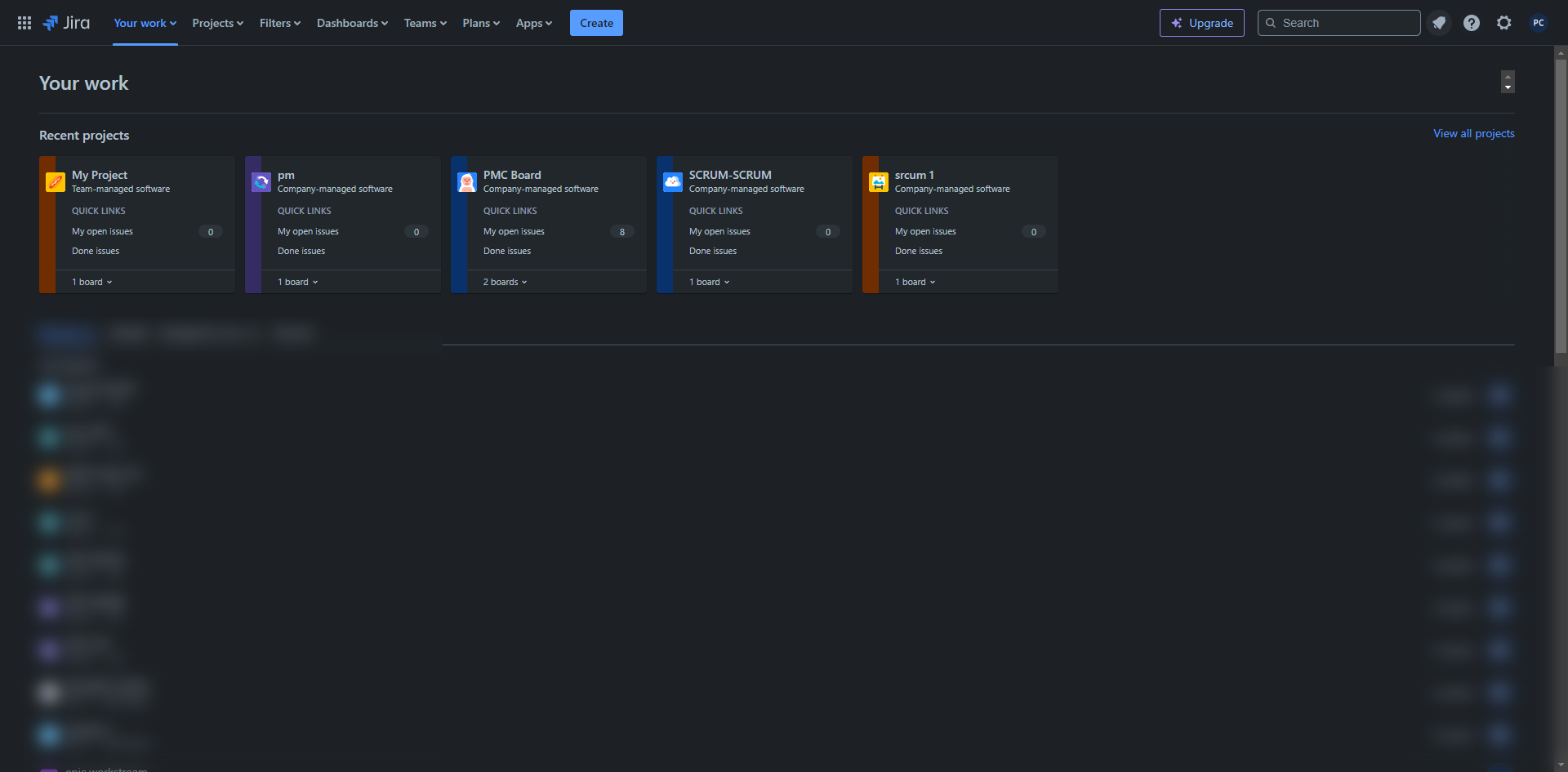
To access your confluence page, click the menu.
Select 'Confluence'.
Access your confluence settings by clicking the gear icon.
Select 'Data management'.
Click 'Backup manager'.
Select 'Backup for Cloud'.
Once the backup is complete, download the generated file.
Quick answer: To back up Jira and Confluence, navigate to the Jira administration console to generate and download an XML cloud backup, then access Confluence settings via the menu to create and download a cloud backup file.
About this Jira tutorial
Secure your enterprise data by generating and downloading cloud backups for both Jira and Confluence using the built-in administration tools. This guide shows how to backup Jira and Confluence in 12 steps, starting with "Navigate to the Jira administration console by clicking the gear icon" and finishing with "Once the backup is complete, download the generated file". The interactive demo above is a click-through copy of the real Jira interface, so you can rehearse each step before doing it in your own account.
Frequently asked questions
How many steps does it take to backup Jira and Confluence?
12 steps. Each one is listed in order above, and the demo highlights exactly where to click.
Can I try it without changing my own account?
Yes. Clicking through the demo doesn't touch your Jira data or settings. Once you know the flow, repeat it in your own workspace.
This tutorial is filed under Jira and Confluence. Related guides: How to Bulk Clone Issues in Jira, How to Bulk Move Issues in Jira and How to bulk update in jira. Last reviewed 05 Oct 2026.

Create your first interactive demo in minutes
No credit card required • Start building today