How to Build Social Media Calendars in Coda with Buffer
How to Build Social Media Calendars in Coda with Buffer: step-by-step guide
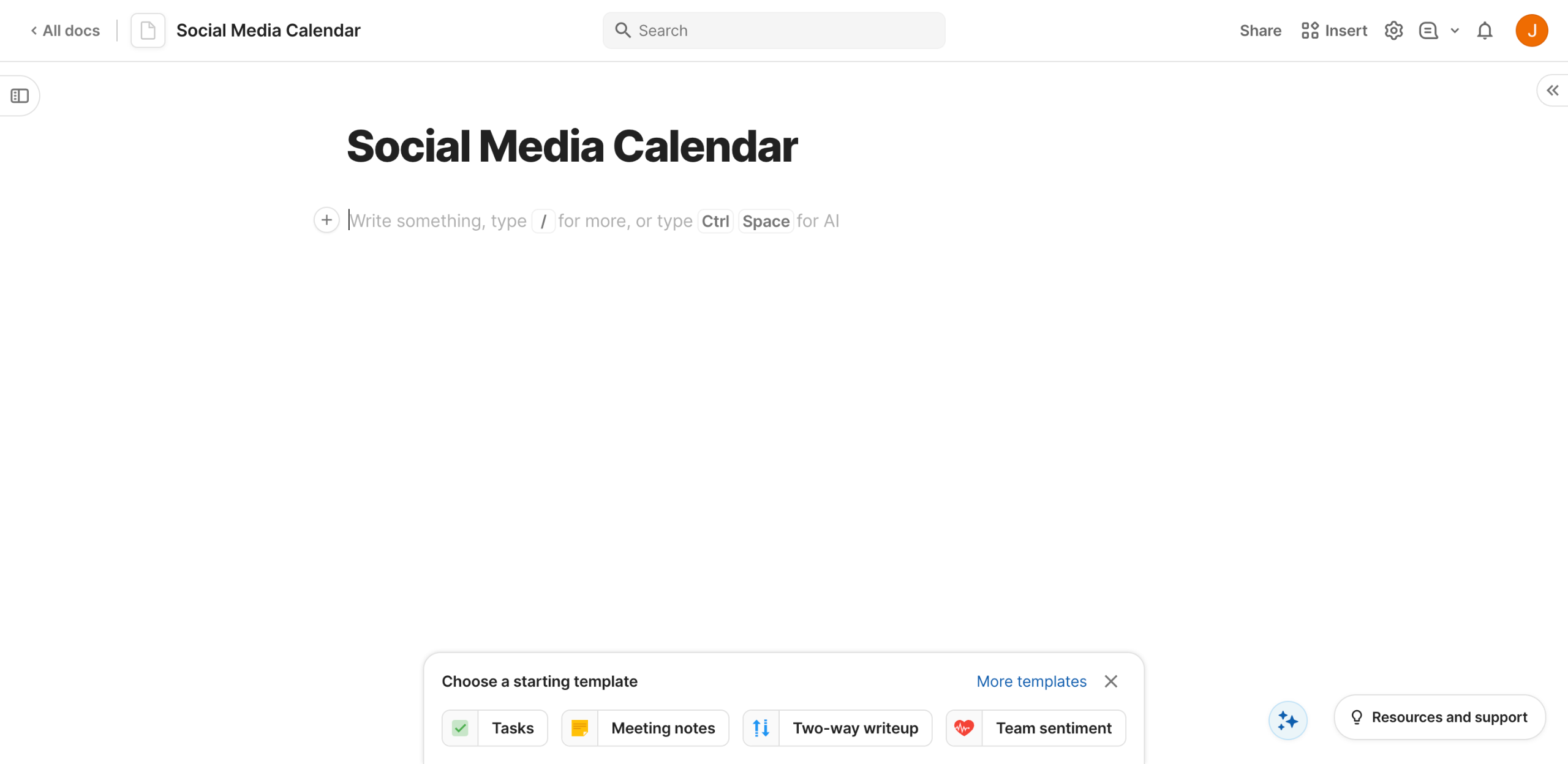
Inside your Coda doc, click the 'Insert' icon to get started.
Select 'Grid' from the list of options.
After that, tap 'Add Column' to insert as many columns as you need.
Likewise, click 'Add Row' to insert as many rows as you need.
As for the columns, it's recommended to label each cell with the corresponding posting day. To do that, simply click the cell and start typing.
On the one hand, the rows are intended for content labels. Do the same thing by adding the necessary labels to their respective cells.
After that, highlight the column labels and then click the 'Text Formatting' or 'Cell Color' option to customize their style based on your preference.
Repeat the same series of steps if you want to apply the same customization to the row labels and other parts of your social media calendar.
Following that, it's time to add content to your social media calendar. Simply click the cell and enter the corresponding text.
Review the design and the content of your social media calendar. Check every detail and make certain changes if necessary.
Finally, go to your Buffer's Publish dashboard and click 'New' to schedule the posts accordingly. Use your social media calendar in Coda to manually encode the content into Buffer's Create Post panel.
Quick answer: To build social media calendars in Coda with Buffer, insert a grid, add columns and rows, label posting days and content, customize styles, enter text, and schedule posts using Buffer's Publish dashboard.
About this Coda tutorial
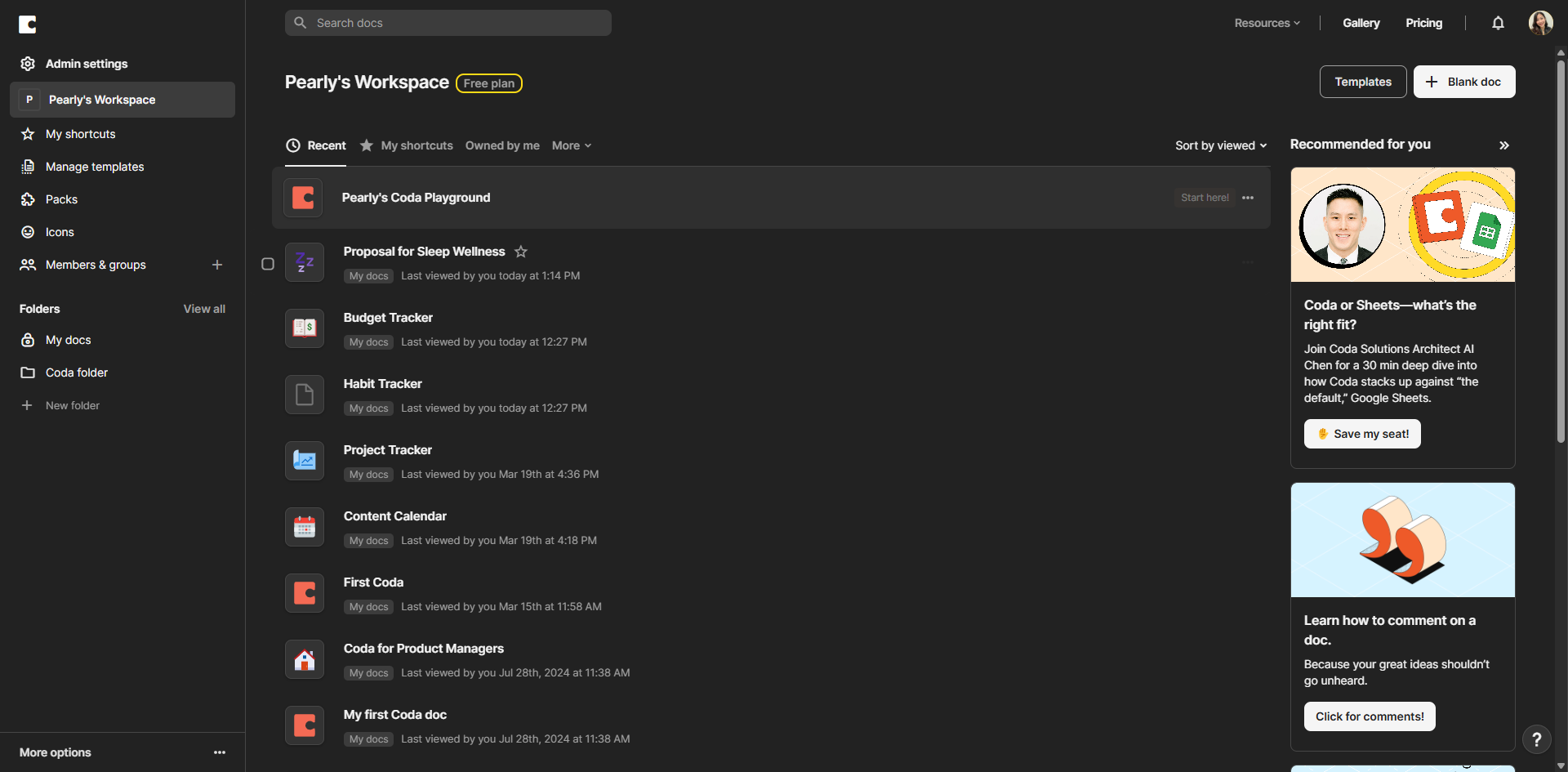
Create and schedule social media calendars efficiently using Coda grids and Buffer publishing tools. This guide shows how to build Social Media Calendars in Coda with Buffer in 11 steps, starting with "Inside your Coda doc, click the 'Insert' icon to get started" and finishing with "Finally, go to your Buffer's Publish dashboard and click 'New' to schedule the posts ac...". The interactive demo above is a click-through copy of the real Coda interface, so you can rehearse each step before doing it in your own account.
Frequently asked questions
How many steps does it take to build Social Media Calendars in Coda with Buffer?
11 steps. Each one is listed in order above, and the demo highlights exactly where to click.
Can I try it without changing my own account?
Yes. Clicking through the demo doesn't touch your Coda data or settings. Once you know the flow, repeat it in your own workspace.
This tutorial is filed under Coda and Buffer. Related guides: How to Calculate Averages in Coda, How to Calculate Sums in Coda and How to Change Text Colors in Coda. Last reviewed 05 Oct 2026.

Create your first interactive demo in minutes
No credit card required • Start building today