How to capture landing pages to Figma using Web to Figma
- George Apostolov
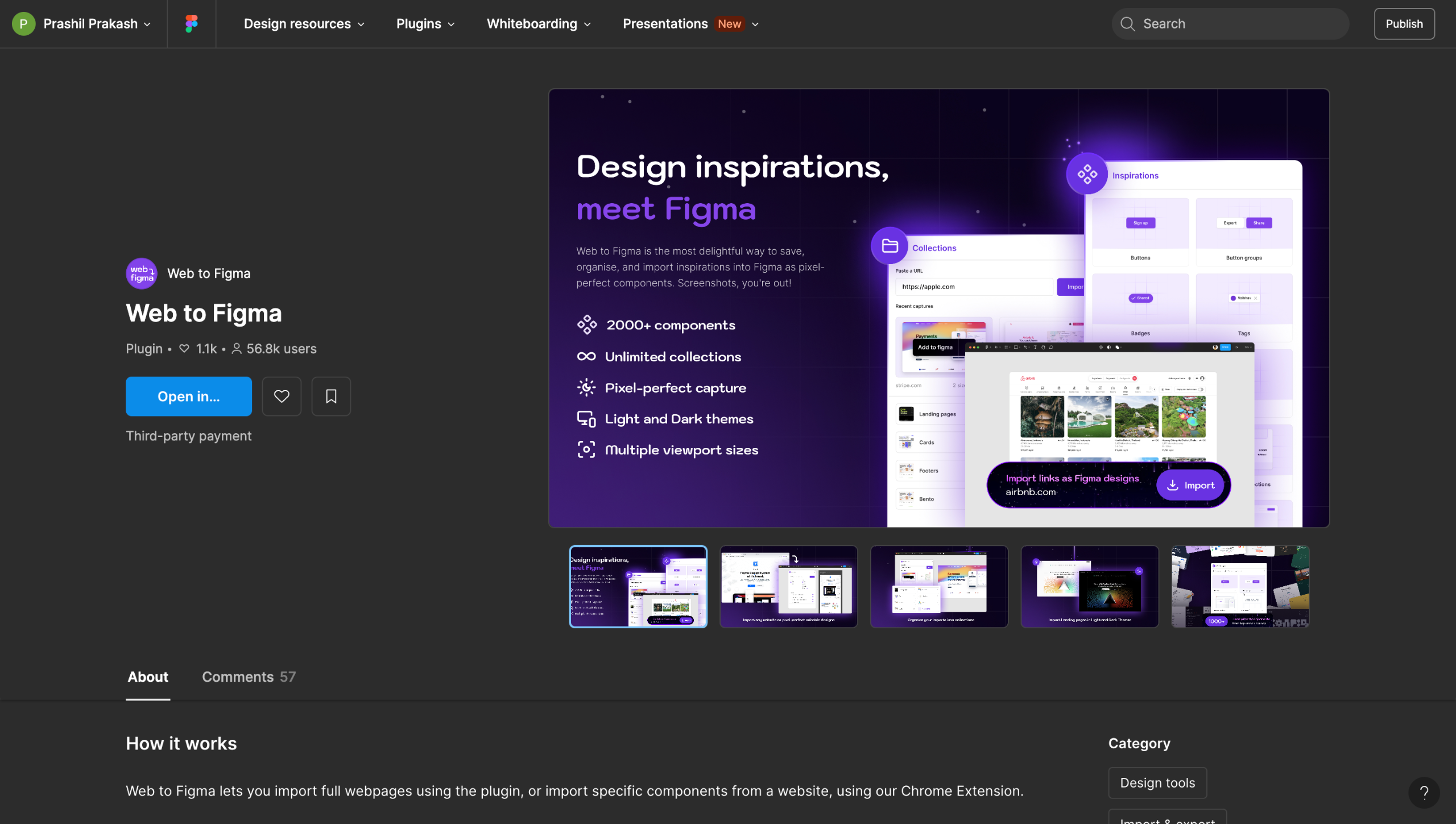
How to capture landing pages to Figma using Web to Figma: step-by-step guide
Welcome to Web to Figma Capture pages and components and import them into Figma as editable designs. No more screenshots.
Right-click on your Figma board and select Plugins>Web to Figma.
Enter the website URL of the page you want to capture and hit Import.
W2F will take about a minute to capture the page and convert them into editable elements.
You will get a prompt once the import is finished.
Your captured webpage design has successfully been copied to your Figma board!
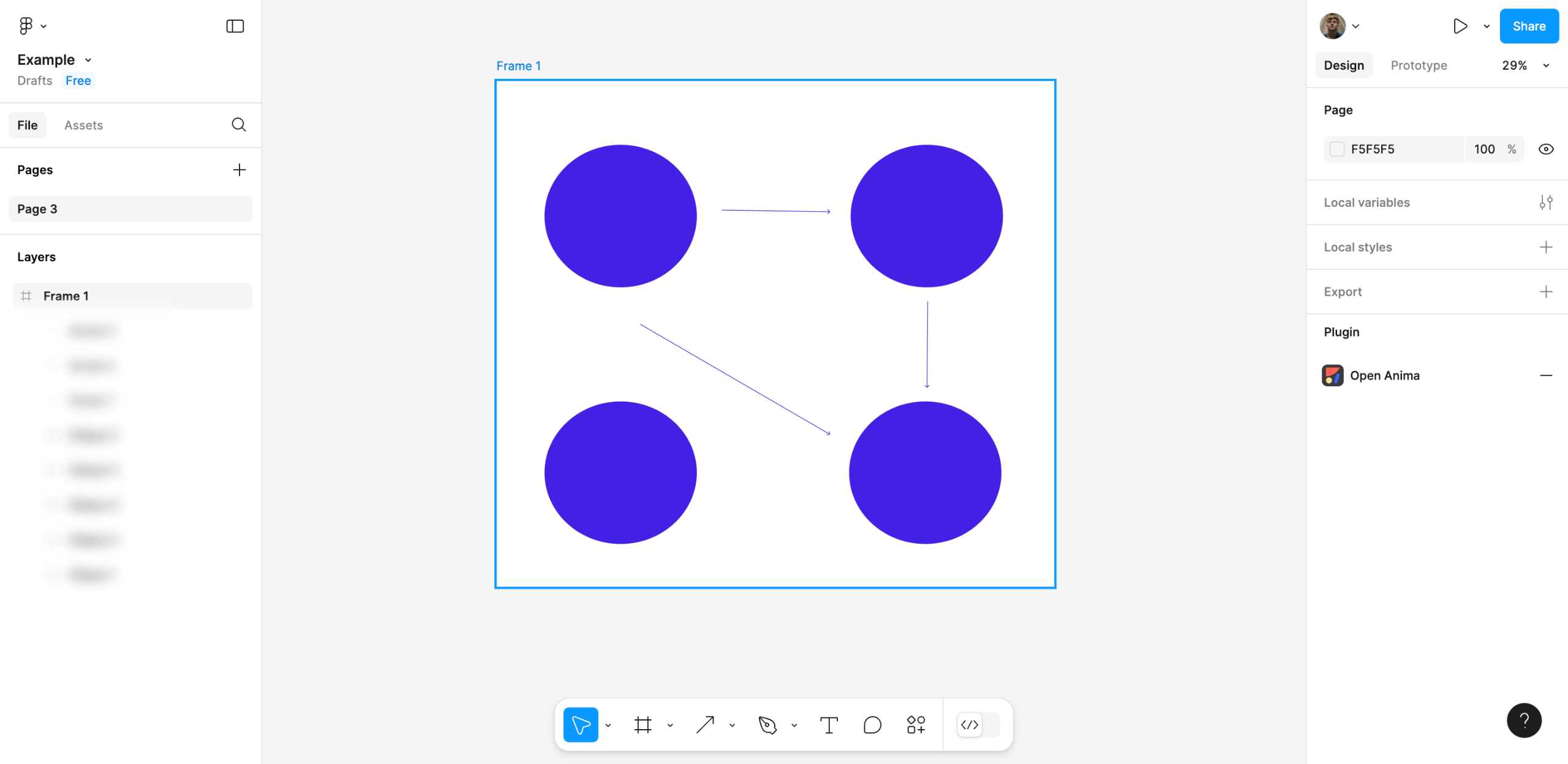
You can see all the website's design components in the left sidebar.
You can Select and Edit components just like a regular Figma element.
Everything is neatly grouped under layers to make the editing process easy.
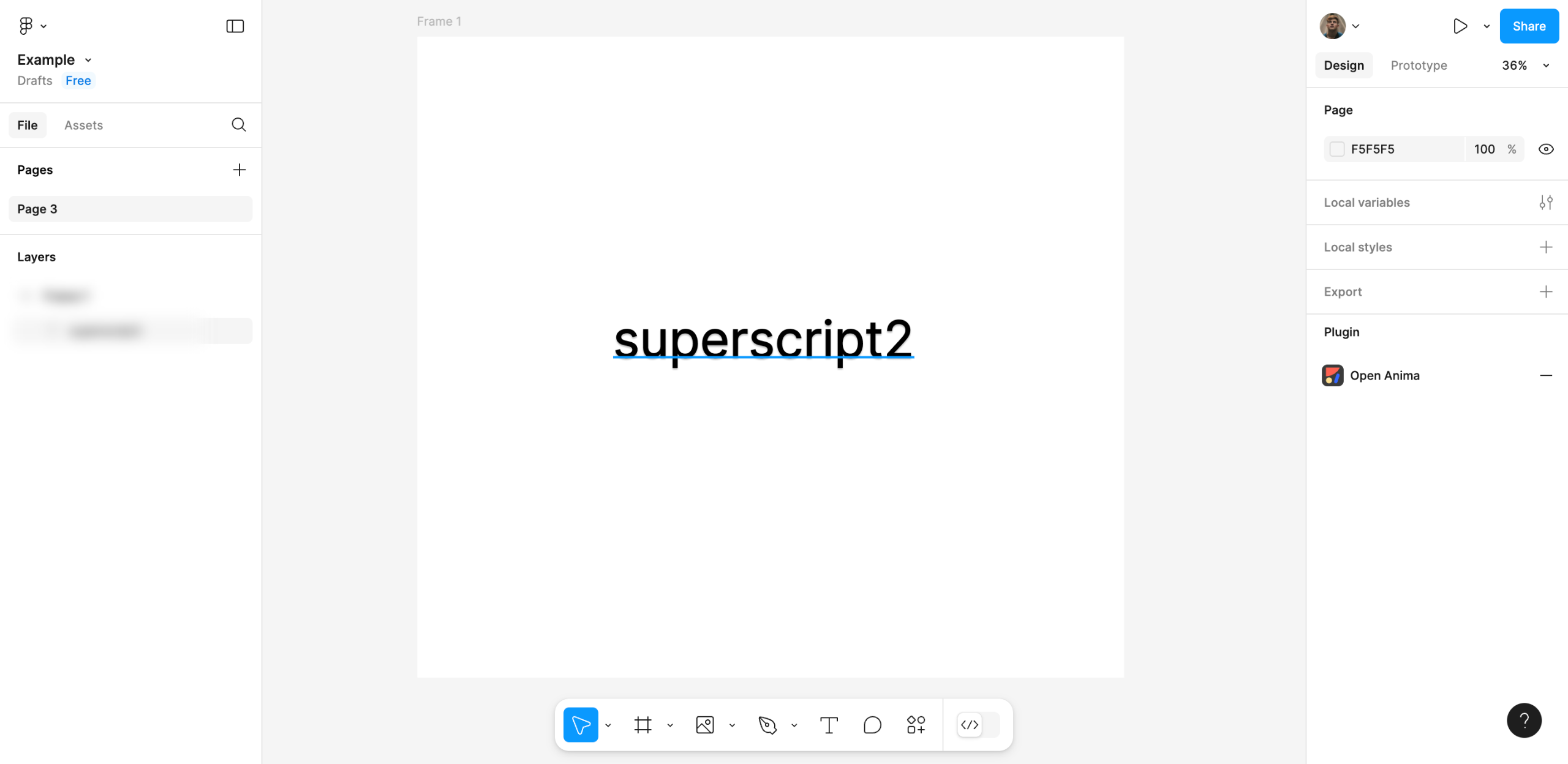
You can select and perform Text Edits with ease.
Just like this!
Images and backdrops can easily be selected and resized.
Just like that!
Wanna Get Started with Web to Figma?
Quick answer: To capture landing pages to Figma using Web to Figma, open the plugin from your Figma board, enter the website URL, and click Import. Wait for the page to convert into editable elements, then select, edit, and resize components, images, and text using the neatly grouped layers in the left sidebar.
About this Figma tutorial
Import live web pages into Figma as editable designs using Web to Figma. Convert URLs into organized layers, text, and components instantly. This guide shows how to capture landing pages to Figma using Web to Figma in 14 steps, starting with "Welcome to Web to Figma Capture pages and components and import them into Figma as edit..." and finishing with "Wanna Get Started with Web to Figma?". The interactive demo above is a click-through copy of the real Figma interface, so you can rehearse each step before doing it in your own account.
Frequently asked questions
How many steps does it take to capture landing pages to Figma using Web to Figma?
14 steps. Each one is listed in order above, and the demo highlights exactly where to click.
Can I try it without changing my own account?
Yes. Clicking through the demo doesn't touch your Figma data or settings. Once you know the flow, repeat it in your own workspace.
This tutorial is filed under Figma. Related guides: How to Change the Background Color of Figma Pages, How to Combine Shapes in Figma and How to Convert a Figma Frame to HTML. Last reviewed 05 Oct 2026.

Create your first interactive demo in minutes
No credit card required • Start building today