How to Connect Basecamp To-Dos to Slack Notifications using Zapier
- George Apostolov
- 05 Sep 2025
Guide
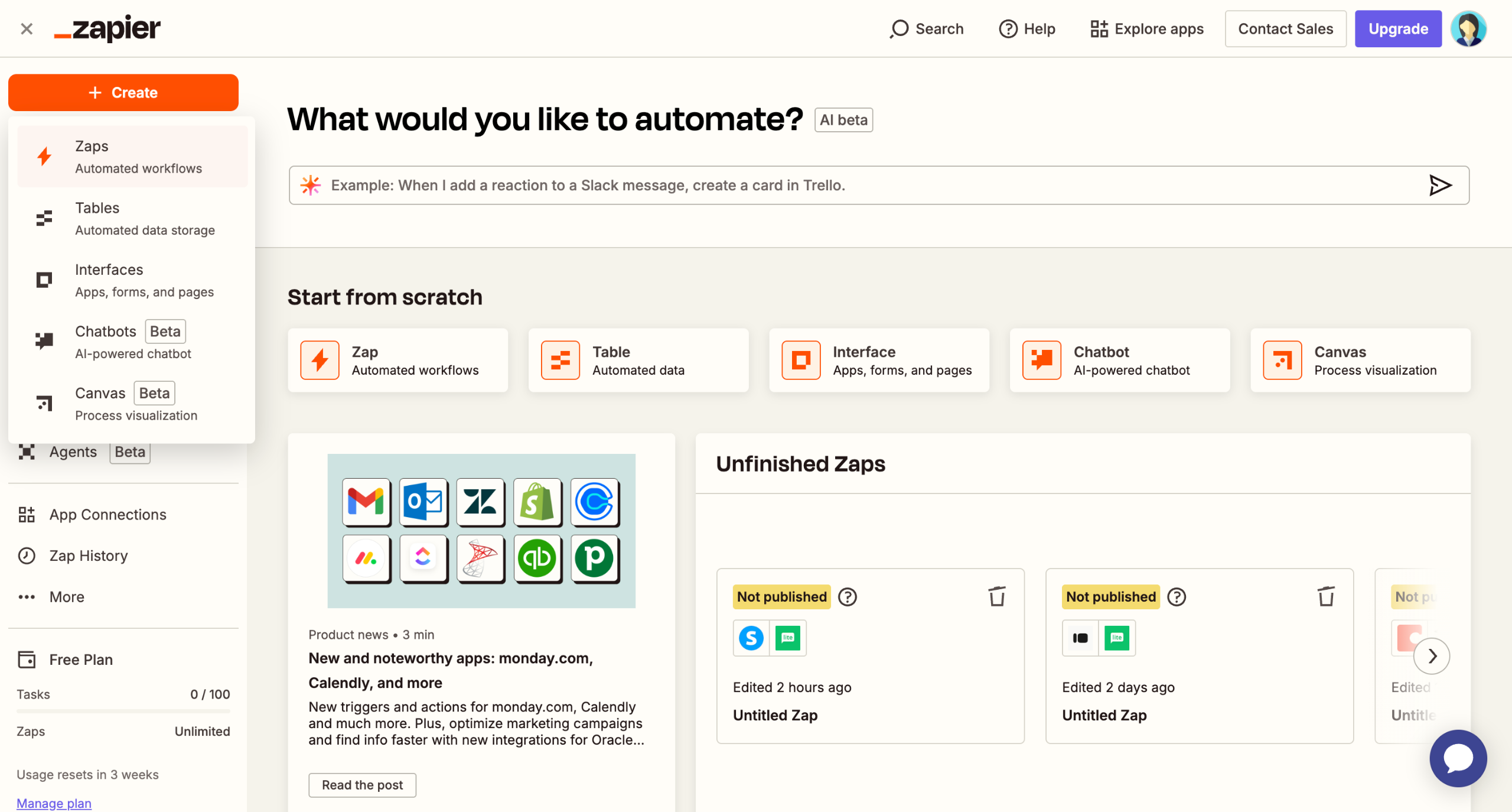
From your 'Zapier' dashboard, select 'Zap'.
Click on the 'Trigger' field to select the event.
Search for and select 'Basecamp'.
Select 'New To-Do' as your trigger event.
Click 'Yes, I'll allow access' to grant access to Zapier.
Select the specific Basecamp project and to-do list you want to monitor and click 'Continue'.
Click 'Test trigger' to create a sample to-do in Basecamp to verify Zapier can pull the data.
Search for and select 'Slack'.
Select an action event.
Connect your Slack account.
Configure the action details and click 'Continue'.
Click 'Test step'.
Once the test is successful, click 'Publish'.

Create your first interactive demo in minutes
No credit card required • Start building today