How to Coordinate the Posting Schedules With or Without Buffer's Team Features
- George Apostolov
How to Coordinate the Posting Schedules With or Without Buffer's Team Features: step-by-step guide
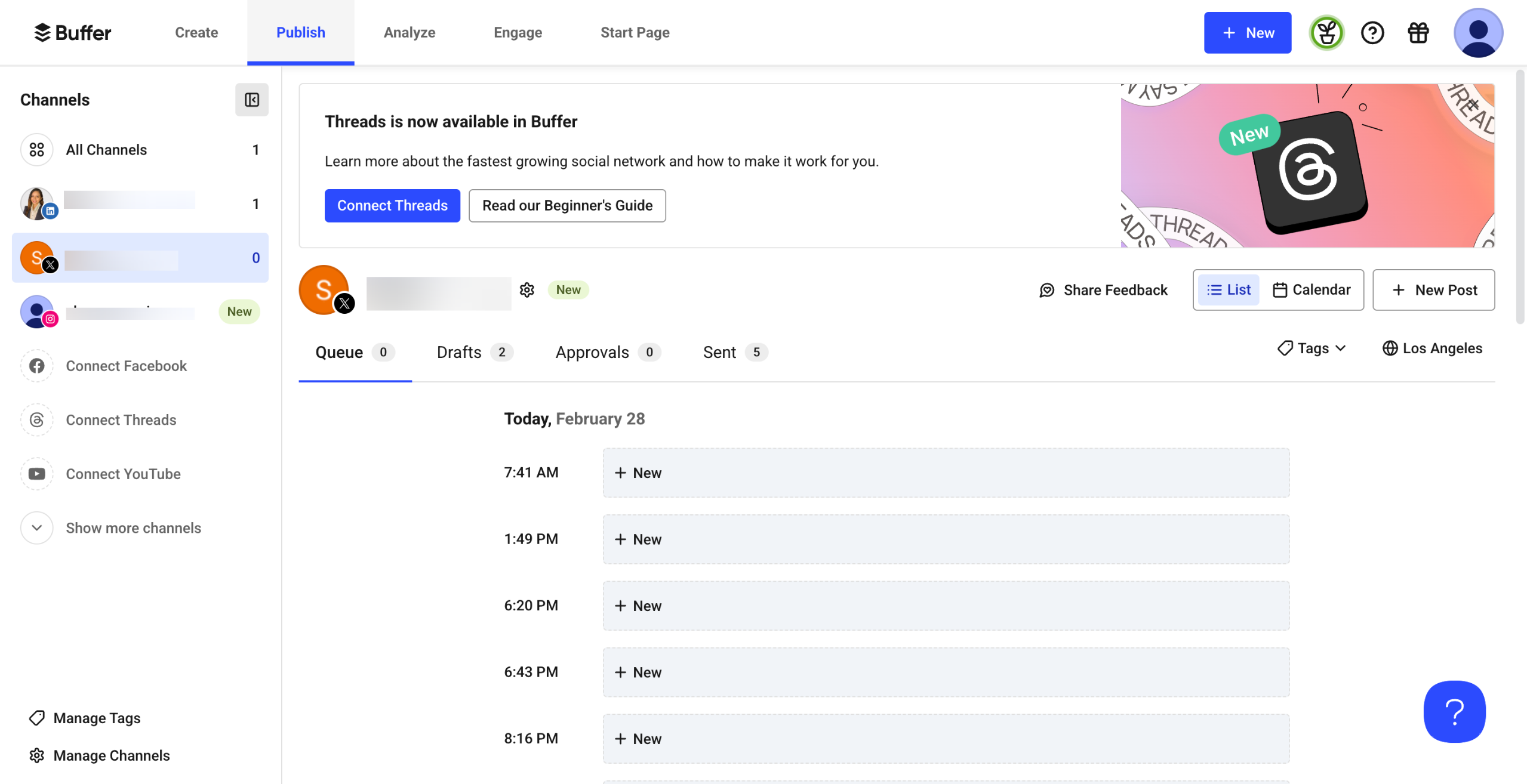
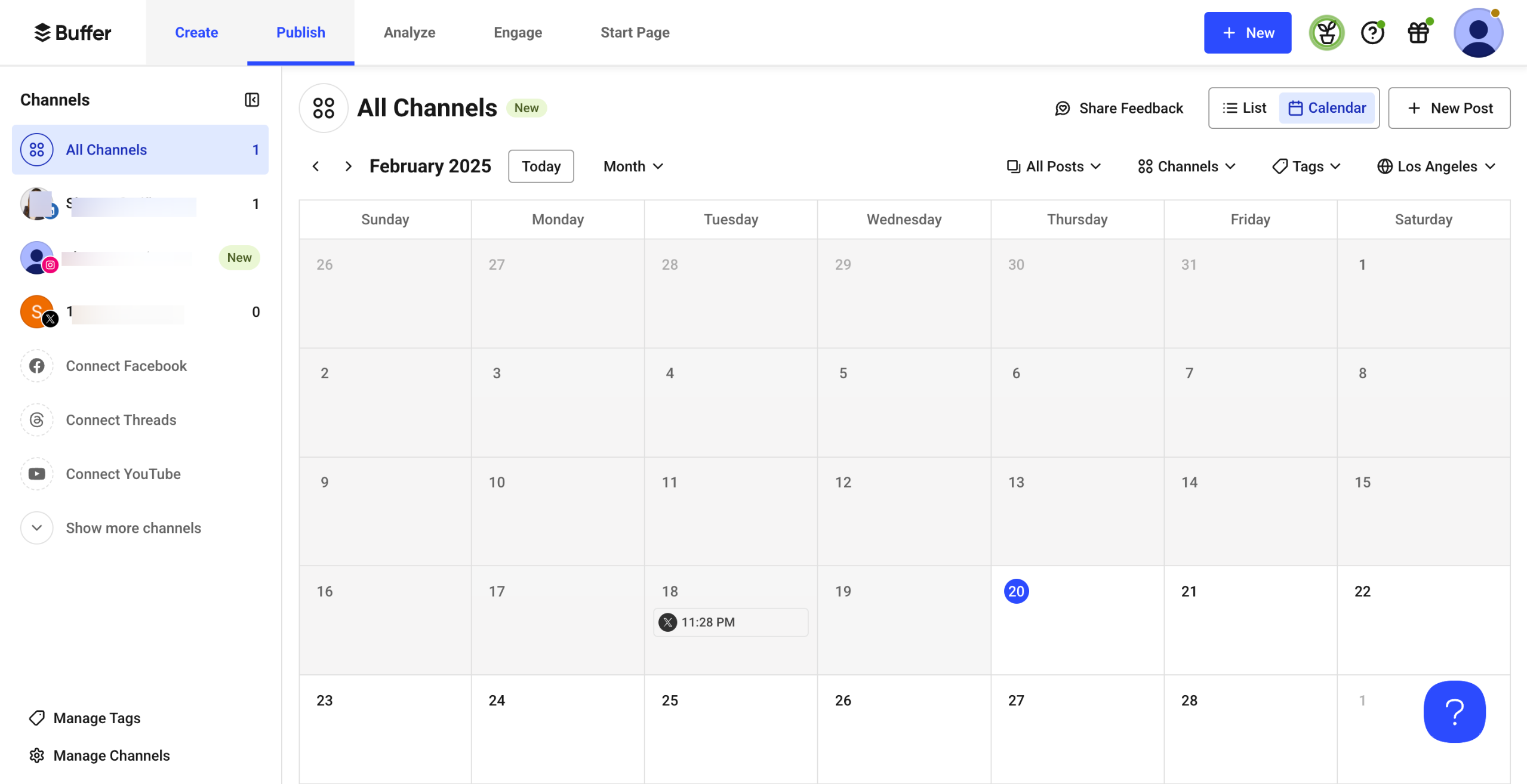
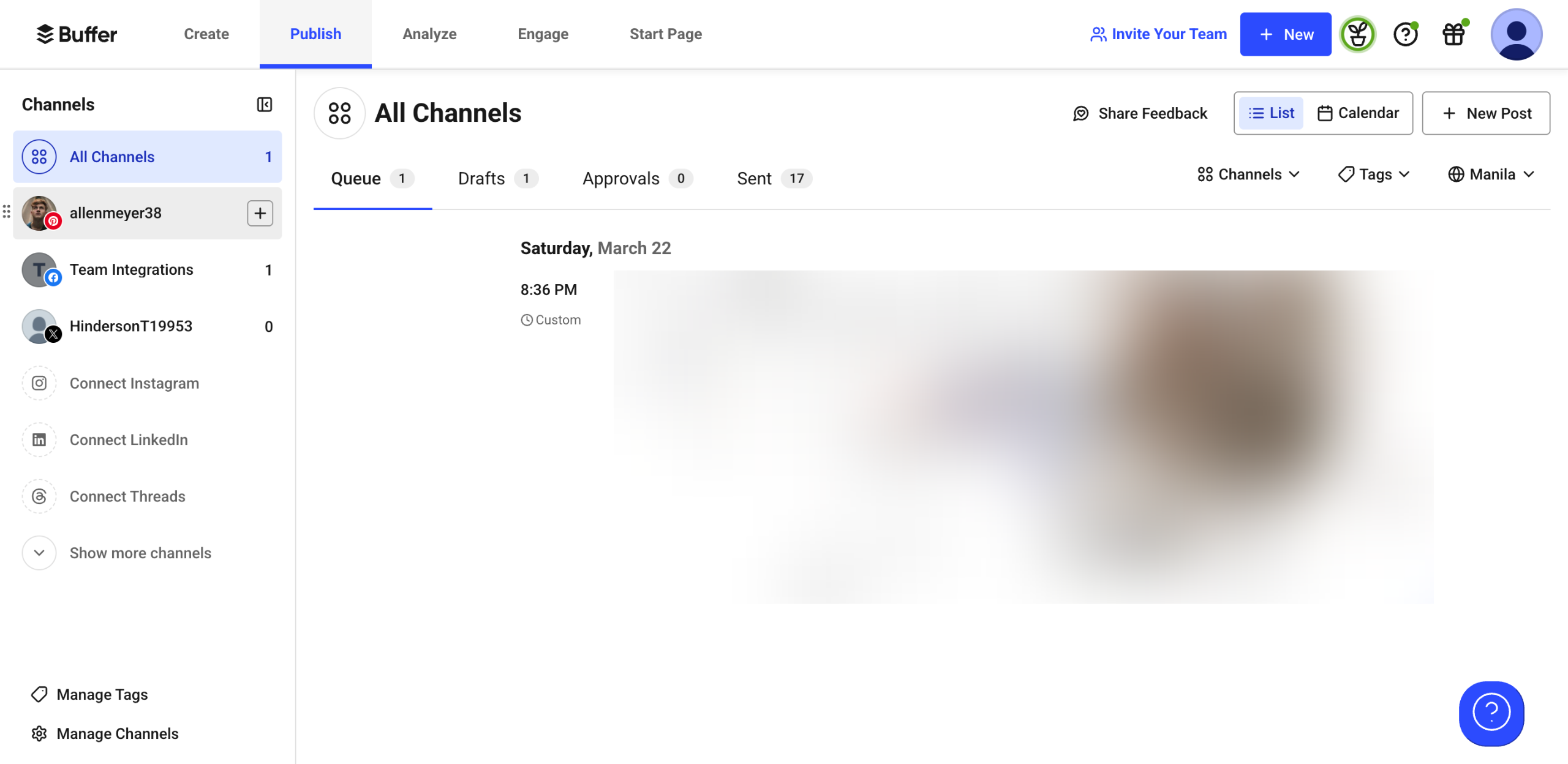
Inside Buffer's Publish tab, navigate to the left-side panel and select the channel with the posting schedules you want to coordinate.
After that, click 'More' at the top-right corner.
Choose 'Manage Time Slots' from the list of options.
Following that, scroll down to the Posting Times schedule and start choosing the days you want to include in your schedule. If you want to remove a day from the roster, simply switch off its corresponding toggle button.
As for the posting time, tap the 'X' icon next to the default schedules you want to delete.
If you want to edit them instead, simply click the hour, minute, and time notation menus to set them according to your liking.
Repeat the same series of steps until the time slots are filled out correctly.
Once done, click the 'Back to Channel' icon beside Settings to return to the Queue page.
After completing these steps, the posting schedule in the Queue dashboard will be updated based on your input. Now, the posting schedules will be coordinated properly with or without Buffer's team features.
Quick answer: To coordinate posting schedules in Buffer, select your channel in the Publish tab, open Manage Time Slots, and adjust your active days and posting times. Finally, return to your Queue page to apply the updated schedule across your dashboard.
About this Buffer tutorial
Coordinate your social media posting schedules easily in Buffer by managing time slots and updating posting times directly from your Queue dashboard. This guide shows how to coordinate the Posting Schedules With or Without Buffer's Team Features in 9 steps, starting with "Inside Buffer's Publish tab, navigate to the left-side panel and select the channel wit..." and finishing with "After completing these steps, the posting schedule in the Queue dashboard will be updat...". The interactive demo above is a click-through copy of the real Buffer interface, so you can rehearse each step before doing it in your own account.
Frequently asked questions
How many steps does it take to coordinate the Posting Schedules With or Without Buffer's Team Features?
9 steps. Each one is listed in order above, and the demo highlights exactly where to click.
Can I try it without changing my own account?
Yes. Clicking through the demo doesn't touch your Buffer data or settings. Once you know the flow, repeat it in your own workspace.
This tutorial is filed under Buffer. Related guides: How to Copy Content From Google Docs to Buffer, How to Copy Post Links in Buffer and How to Copy Posts in Buffer. Last reviewed 05 Oct 2026.

Create your first interactive demo in minutes
No credit card required • Start building today