How to Create Continuous Forms MS Access
- George Apostolov
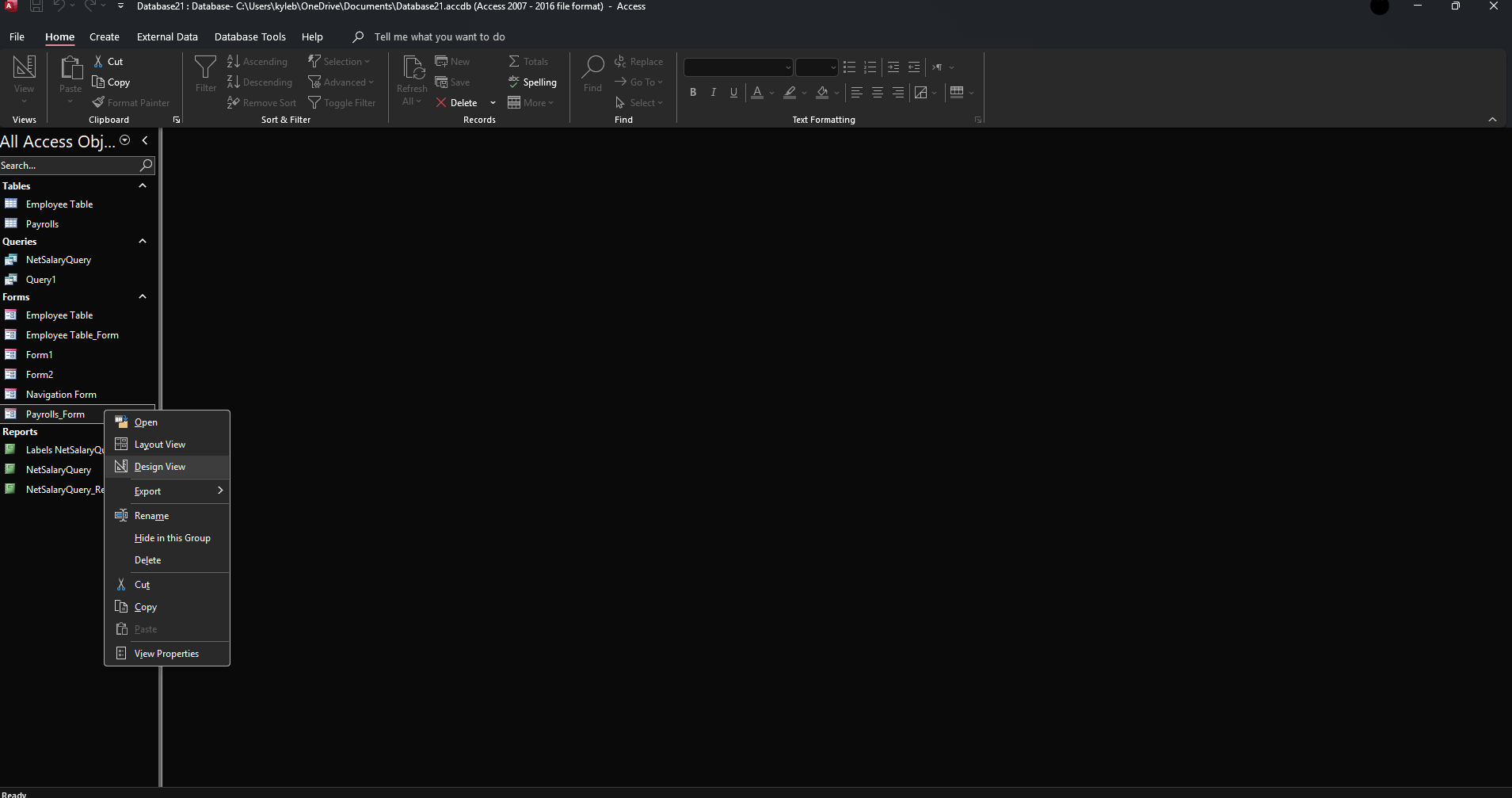
How to Create Continuous Forms MS Access: step-by-step guide
Go to the 'Navigation Pane' and right-click on the form that you want to create a continuous form and select 'Design View'.
Open the 'Property Sheet' for the form, go to the 'Default View' section and select 'Continuous Form'.
Set the 'Scroll Bars' property to 'Vertical or Both' to allow scrolling if you have more records than can fit on the screen.
Click on the save icon to save the changes.
You should now see multiple records displayed in a continuous layout, with each record appearing on a new line.
Quick answer: To create continuous forms in Microsoft Access, open the form in Design View, change the Default View property to Continuous Form, and set the Scroll Bars to Vertical or Both. Finally, save the changes to display multiple records in a continuous layout.
About this tutorial
Display multiple records in a continuous layout by adjusting the form properties in the app. This guide shows how to create Continuous Forms MS Access in 5 steps, starting with "Go to the 'Navigation Pane' and right-click on the form that you want to create a conti..." and finishing with "You should now see multiple records displayed in a continuous layout, with each record...". The interactive demo above is a click-through copy of the real product interface, so you can rehearse each step before doing it in your own account.
Frequently asked questions
How many steps does it take to create Continuous Forms MS Access?
5 steps. Each one is listed in order above, and the demo highlights exactly where to click.
Can I try it without changing my own account?
Yes. Clicking through the demo doesn't touch your data or settings. Once you know the flow, repeat it in your own workspace.

Create your first interactive demo in minutes
No credit card required • Start building today