How To Do Distribution in Power BI
- George Apostolov
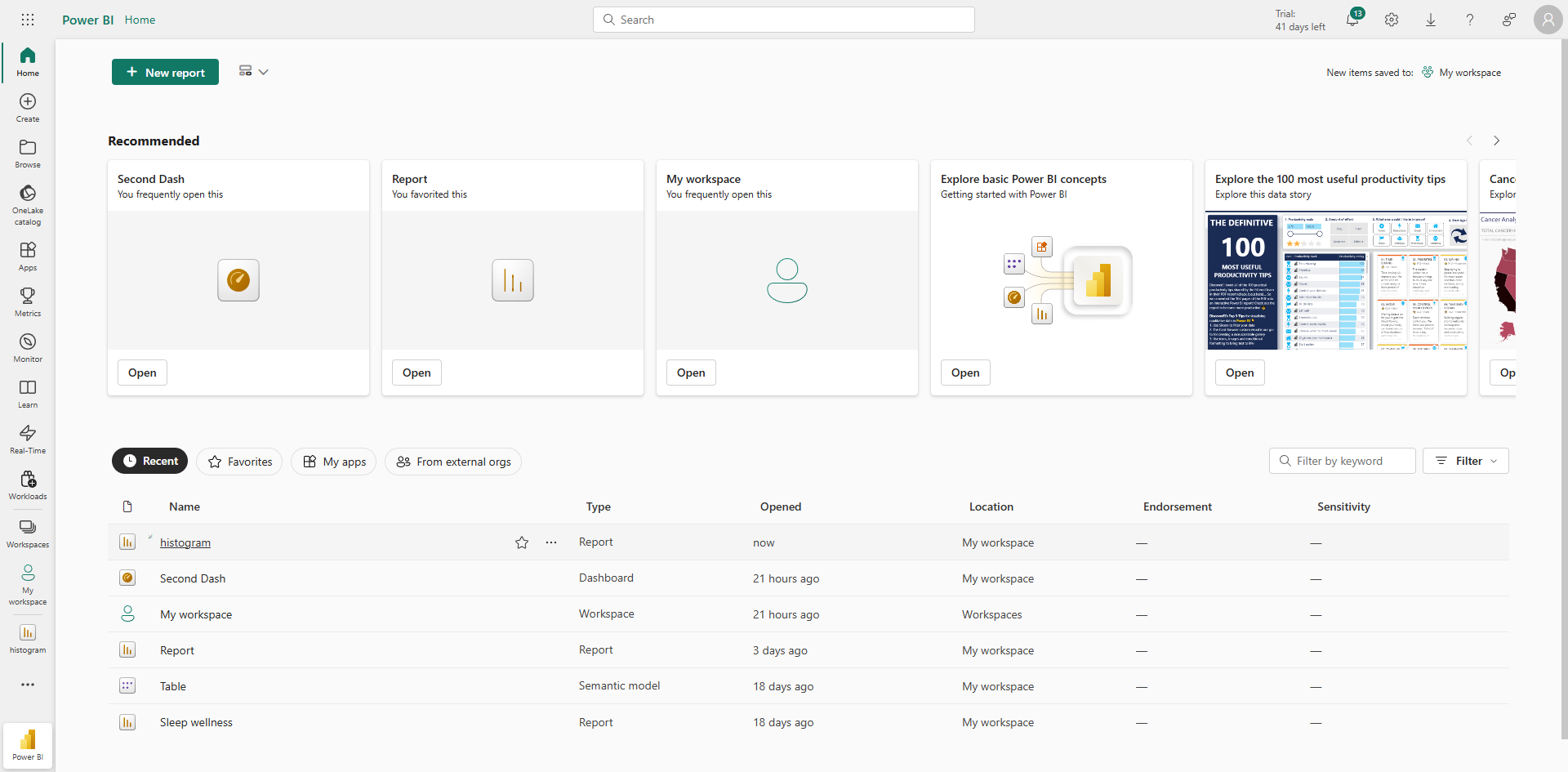
How To Do Distribution in Power BI: step-by-step guide
Navigate to your dataset in Power BI that you want to create a distribution visualization for.
Click 'Edit' to enter edit mode where you can customize your distribution visualization settings.
Access additional formatting options by clicking the three-dot menu in the visualizations pane.
Select 'Get more visuals' to explore distribution chart options not included in the standard visuals.
Type ‘Histogram' in the search bar to find relevant visualization types for showing data distributions.
Choose 'Histogram Chart' from the options - it's the perfect visual for showing how your data is distributed across ranges.
Click 'Add' to include the histogram visualization in your Power BI report.
Drag the numeric field you want to analyze into the 'Values' area of the visualization pane.
Select your newly created histogram chart to activate the formatting options specific to distribution analysis.
Power BI automatically calculates the distribution by counting data points in each bin. You can adjust bin sizes in the formatting pane for more detailed analysis.
Quick answer: To create a distribution visualization in Power BI, navigate to your dataset, enter edit mode, and get more visuals from the three-dot menu. Search for and add the Histogram Chart, drag your numeric field into the Values area, and adjust the bin sizes in the formatting pane.
About this Power BI tutorial
Build and customize data distribution charts in Power BI by importing a histogram, mapping numeric fields, and adjusting bin sizes. This guide shows how to do Distribution in Power BI in 10 steps, starting with "Navigate to your dataset in Power BI that you want to create a distribution visualizati..." and finishing with "Power BI automatically calculates the distribution by counting data points in each bin....". The interactive demo above is a click-through copy of the real Power BI interface, so you can rehearse each step before doing it in your own account.
Frequently asked questions
How many steps does it take to do Distribution in Power BI?
10 steps. Each one is listed in order above, and the demo highlights exactly where to click.
Can I try it without changing my own account?
Yes. Clicking through the demo doesn't touch your Power BI data or settings. Once you know the flow, repeat it in your own workspace.
This tutorial is filed under Power BI. Related guides: How to Download a Power BI Report as a PDF, How to Download Power BI Desktop and How to Drill-Down in Power BI. Last reviewed 05 Oct 2026.

Create your first interactive demo in minutes
No credit card required • Start building today