How To Make Grid Responsive Webflow
- George Apostolov
How To Make Grid Responsive Webflow: step-by-step guide
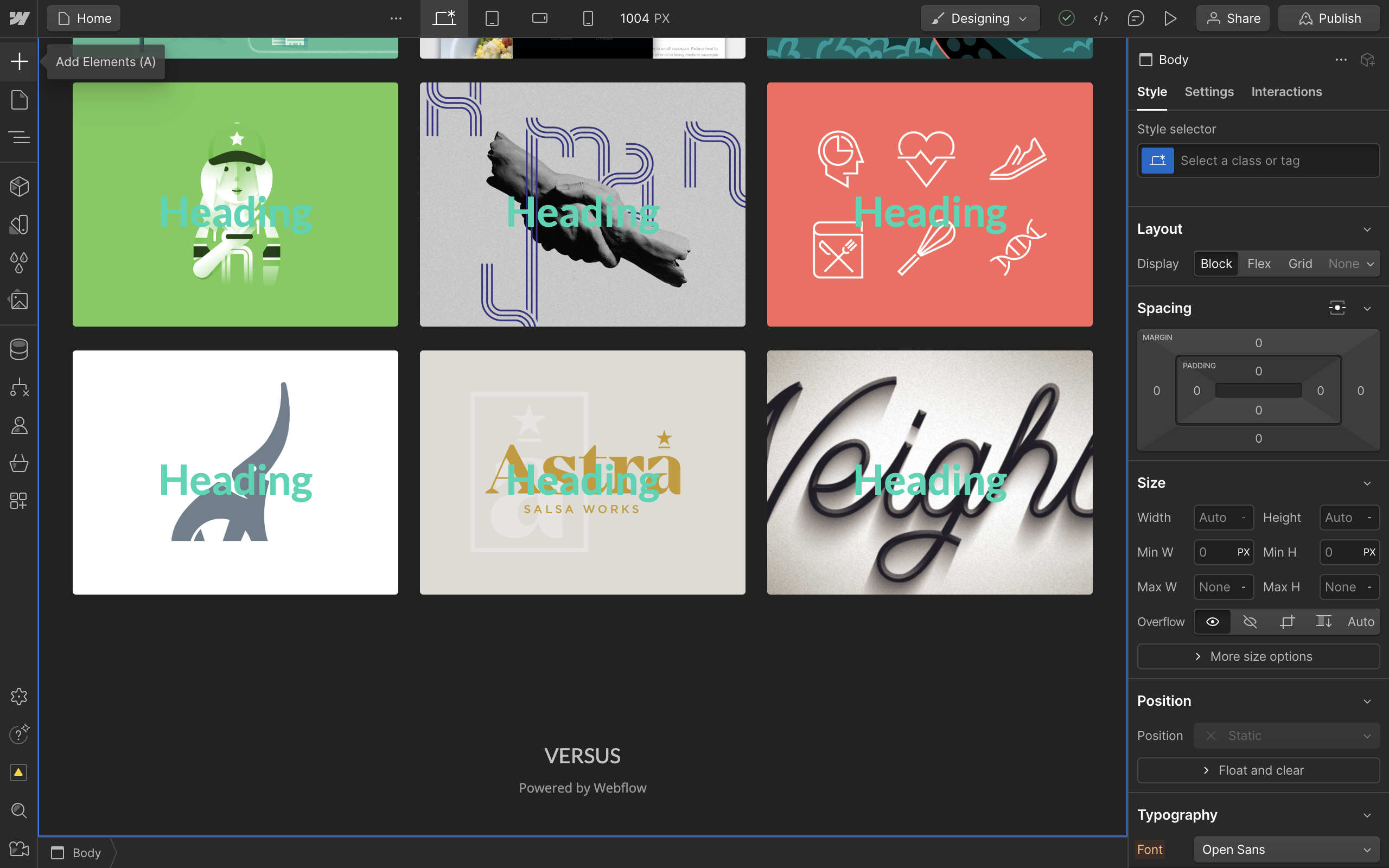
To begin, from inside your Webflow designer, go to the Add Elements section in the left sidebar menu.
Locate or search for the Grid element and drag it onto your project.
Now that we have a grid, populate it with content like Images.
To add an image simply drag and drop.
You can align the content of your grid from the Layout section on the right sidebar menu.
Once you have a populated grid, use the Preview button the top right to check its responsiveness.
You can adjust the width of the canvas using the handle on the right side.
Notice that your default Grid is not very responsive and stacks together on smaller screens.
Back inside the designer, select the grid and then locate the Layout section on the right sidebar menu.
Reduce the number of rows and columns to the lowest which is 1. This does not delete any content, instead, Webflow auto-generates the necessary space in rows and columns to fit the content.
You can adjust the direction for fill which controls if more columns or rows are created.
Go back into the Preview mode.
Notice how two columns are created to fit the content when more space is available.
And it collapses into a single column in lower width screens, making your grid responsive.
Quick answer: To make a grid responsive in Webflow, add a Grid element from the left sidebar, populate it with images, adjust the layout settings to reduce rows and columns to 1, and use the preview mode to test canvas width adjustments.
About this Webflow tutorial
Create a fully responsive grid design in Webflow by adjusting layout settings and testing responsiveness in preview mode. This guide shows how to make Grid Responsive Webflow in 14 steps, starting with "To begin, from inside your Webflow designer, go to the Add Elements section in the left..." and finishing with "And it collapses into a single column in lower width screens, making your grid responsive". The interactive demo above is a click-through copy of the real Webflow interface, so you can rehearse each step before doing it in your own account.
Frequently asked questions
How many steps does it take to make Grid Responsive Webflow?
14 steps. Each one is listed in order above, and the demo highlights exactly where to click.
Can I try it without changing my own account?
Yes. Clicking through the demo doesn't touch your Webflow data or settings. Once you know the flow, repeat it in your own workspace.
This tutorial is filed under Webflow. Related guides: How To Make Navbar Sticky Webflow, How To Move Elements In Webflow and How To Preview In Webflow. Last reviewed 05 Oct 2026.

Create your first interactive demo in minutes
No credit card required • Start building today