Salesforce - Merge Leads
- George Apostolov
Salesforce - Merge Leads: step-by-step guide
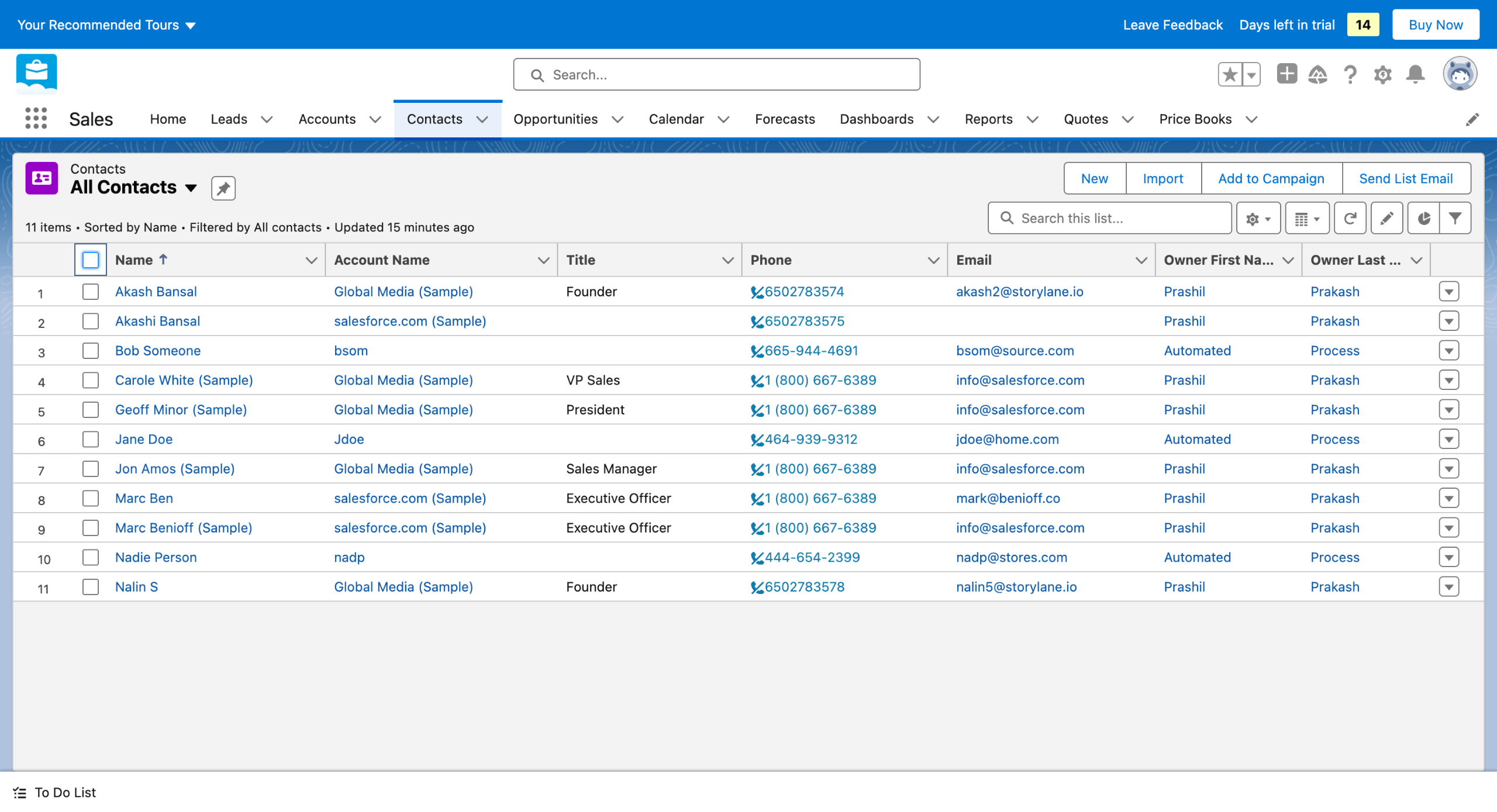
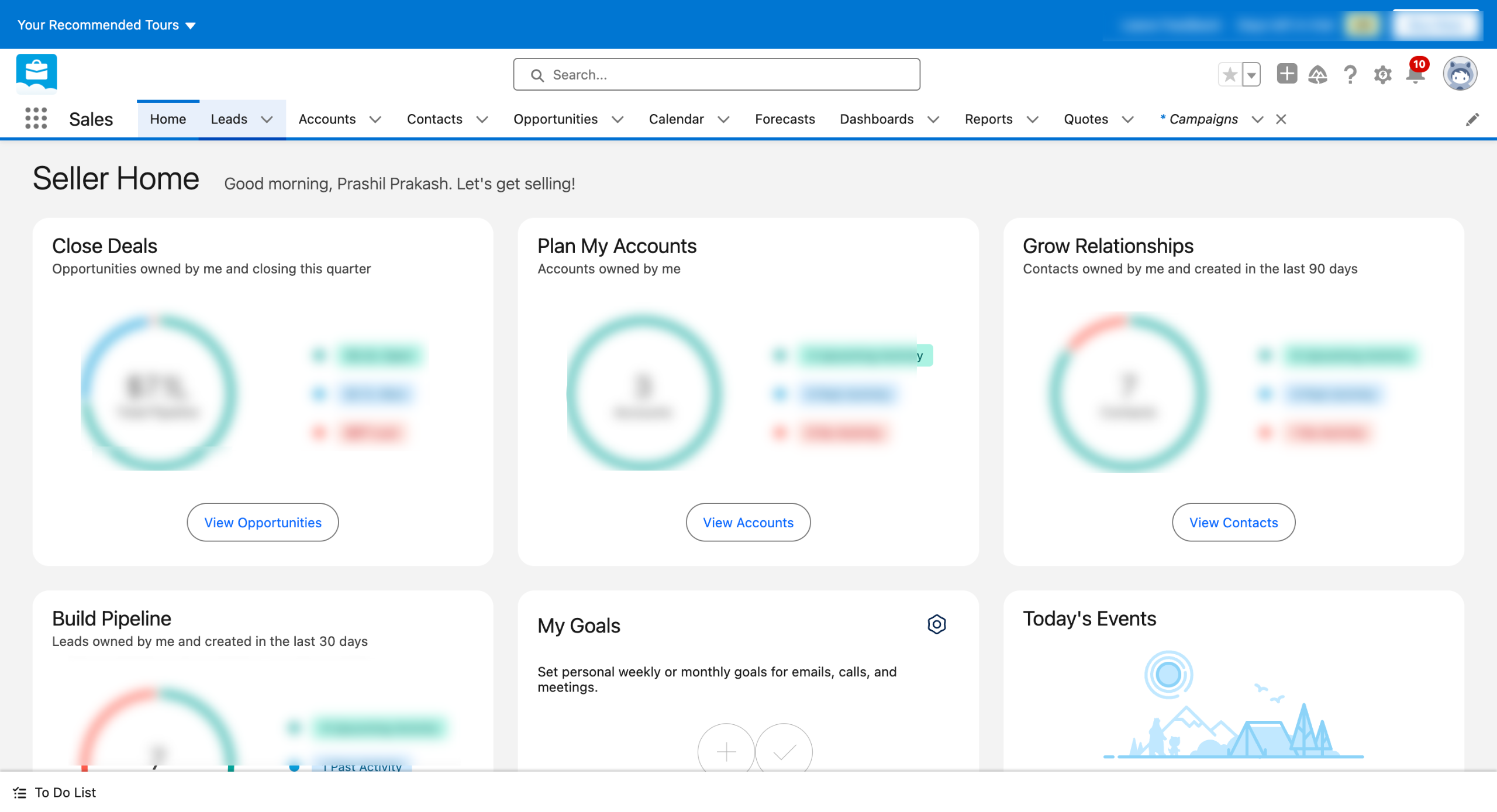
Head over to Leads in the top menu bar.
Select the duplicate lead that you want to merge.
Salesforce will automatically give you a prompt saying your lead is a duplicate.
Click on the View Duplicates in the prompt.
Make sure both the boxes for the duplicate leads are checked. And hit Next.
Compare the leads and hit Save.
And finally, on the Confirm merge page, hit Merge.
You will see a success prompt saying your leads were merged.
Quick answer: To merge leads in Salesforce, go to Leads, select the duplicate, click View Duplicates, check the lead boxes, and hit Next. Compare the leads, click Save, and confirm the merge. A success prompt confirms the completion.
About this Salesforce tutorial
Combine duplicate leads efficiently in Salesforce by comparing records, selecting the right information, and confirming the merge. This guide covers salesforce - Merge Leads in 8 steps, starting with "Head over to Leads in the top menu bar" and finishing with "You will see a success prompt saying your leads were merged". The interactive demo above is a click-through copy of the real Salesforce interface, so you can rehearse each step before doing it in your own account.
Frequently asked questions
How many steps does salesforce - Merge Leads take?
8 steps. Each one is listed in order above, and the demo highlights exactly where to click.
Can I try it without changing my own account?
Yes. Clicking through the demo doesn't touch your Salesforce data or settings. Once you know the flow, repeat it in your own workspace.
This tutorial is filed under Salesforce. Related guides: Salesforce - How to Refresh a Salesforce Sandbox, Salesforce - how to reset salesforce authenticator and Salesforce - How to Schedule a Report in Salesforce. Last reviewed 05 Oct 2026.

Create your first interactive demo in minutes
No credit card required • Start building today