How to Set Up Google Search Console WordPress
- George Apostolov
How to Set Up Google Search Console WordPress: step-by-step guide
Make sure you are logged in to your WordPress and Google account.
Search for "Google Search Console" on Google and choose "Google Search Console Tools."
Select the "Start now" button.
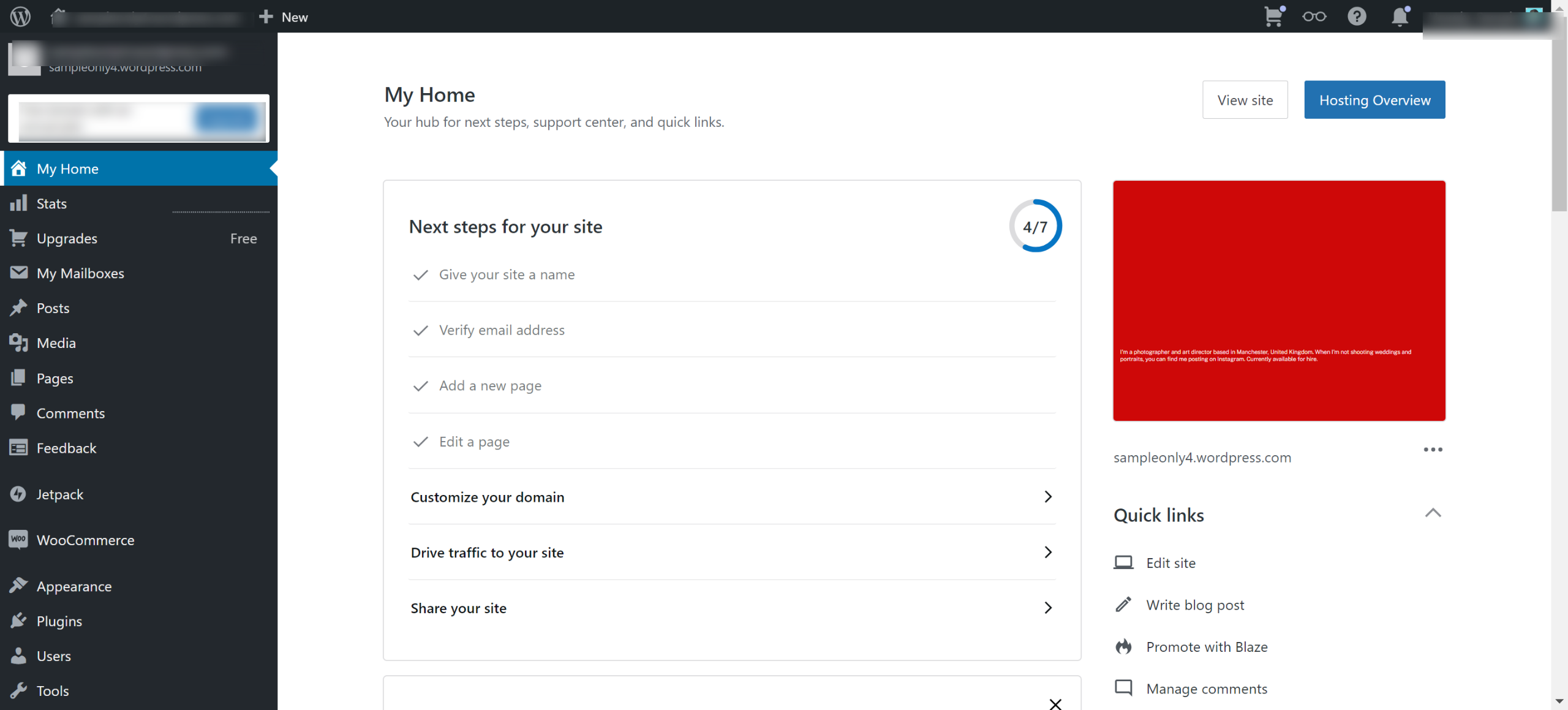
Go back to WordPress to get your site address and paste it here.
On your Dashboard go to "Settings" and click "General."
Copy your "Site address."
Paste it here and click "CONTINUE."
Click "VERIFY" and choose your preference with how you want to go over the verification process.
Select "COPY" and go back to your WordPress dashboard. You will need this meta tag for the later steps moving forward.
In your toolbar, navigate to "Plugins" and select "Add New."
Search for "WPCode" and install and activate.
After activating the plugin, navigate to "Code Snippets" and click on "Header and Footer."
Paste the meta tag link you copied a while ago and click the "Save Changes" button on the top right. Then go back to your "Google search console" tab.
Click on "VERIFY."
Once verified, click "GO TO PROPERTY."
Click the "START" button to begin navigating your Google Search Console.
Quick answer: To set up Google Search Console for your WordPress site, log in to both accounts, search for Google Search Console, and click Start now. Enter your site address, verify ownership using a meta tag plugin, and save your changes to complete the setup process and access your property.
About this Google tutorial
Connect Google Search Console to your WordPress site by verifying your URL with a meta tag and completing the property setup. This guide shows how to set Up Google Search Console WordPress in 16 steps, starting with "Make sure you are logged in to your WordPress and Google account" and finishing with "Click the 'START' button to begin navigating your Google Search Console". The interactive demo above is a click-through copy of the real Google interface, so you can rehearse each step before doing it in your own account.
Frequently asked questions
How many steps does it take to set Up Google Search Console WordPress?
16 steps. Each one is listed in order above, and the demo highlights exactly where to click.
Can I try it without changing my own account?
Yes. Clicking through the demo doesn't touch your Google data or settings. Once you know the flow, repeat it in your own workspace.
This tutorial is filed under Google and WordPress. Related guides: How to Set Up Recurring Data Imports Into Coda Using Google Sheets, Google Analytics - Share a Dashboard and How to Sync Better Proposals with Google Sheets Using Zapier. Last reviewed 05 Oct 2026.

Create your first interactive demo in minutes
No credit card required • Start building today