How Can I Send My SurveyMonkey to Responders
- George Apostolov
How Can I Send My SurveyMonkey to Responders: step-by-step guide
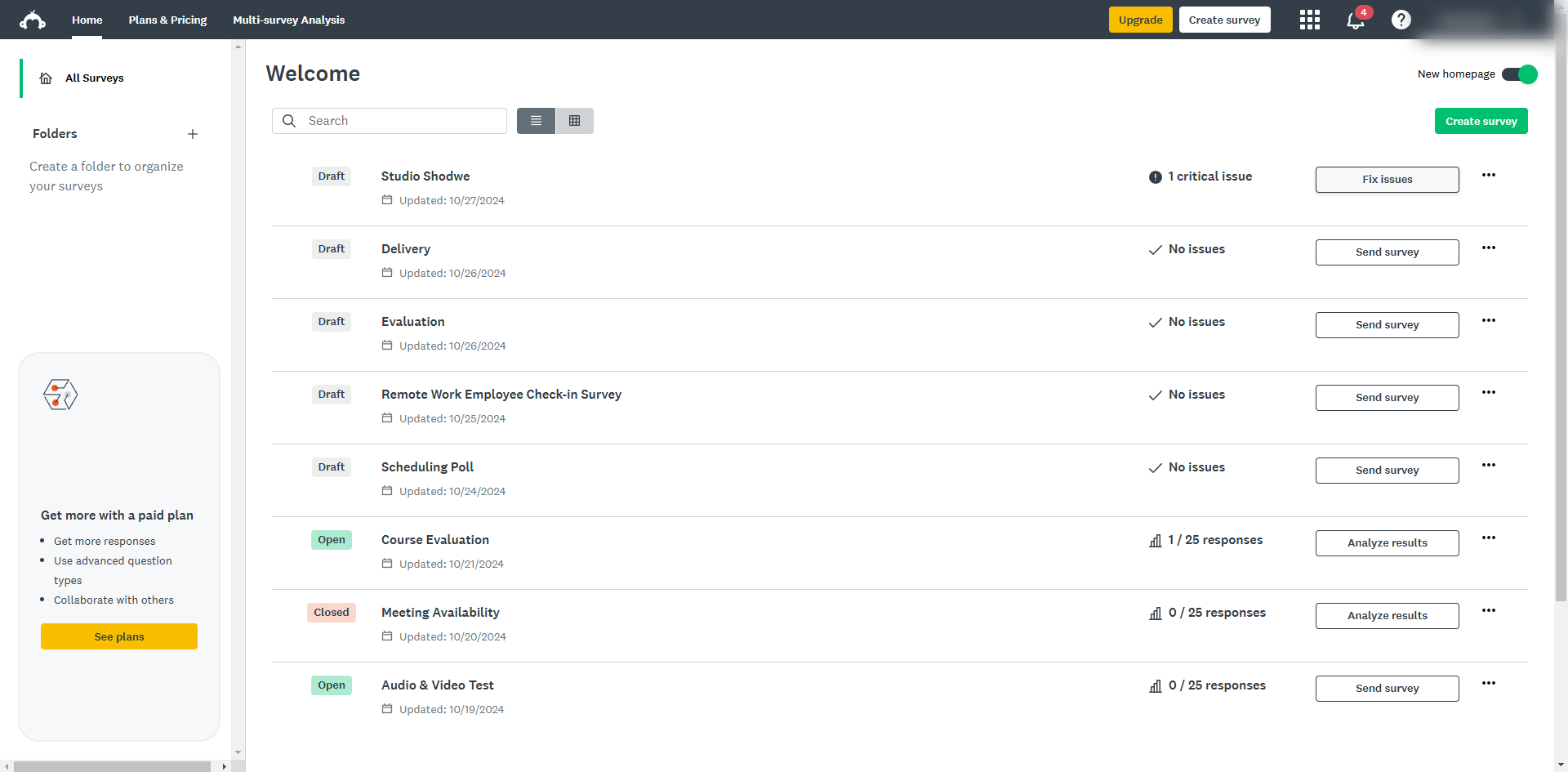
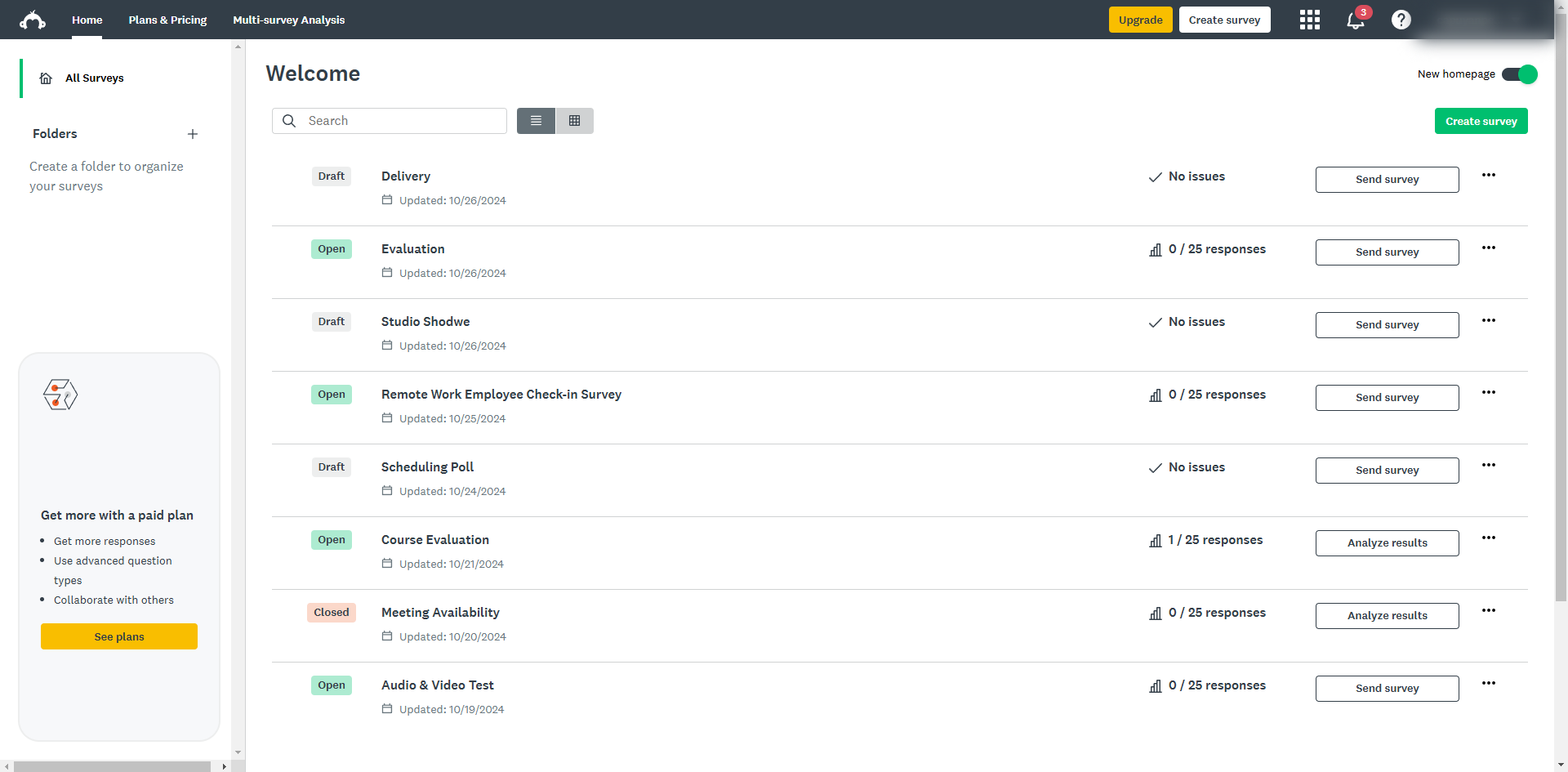
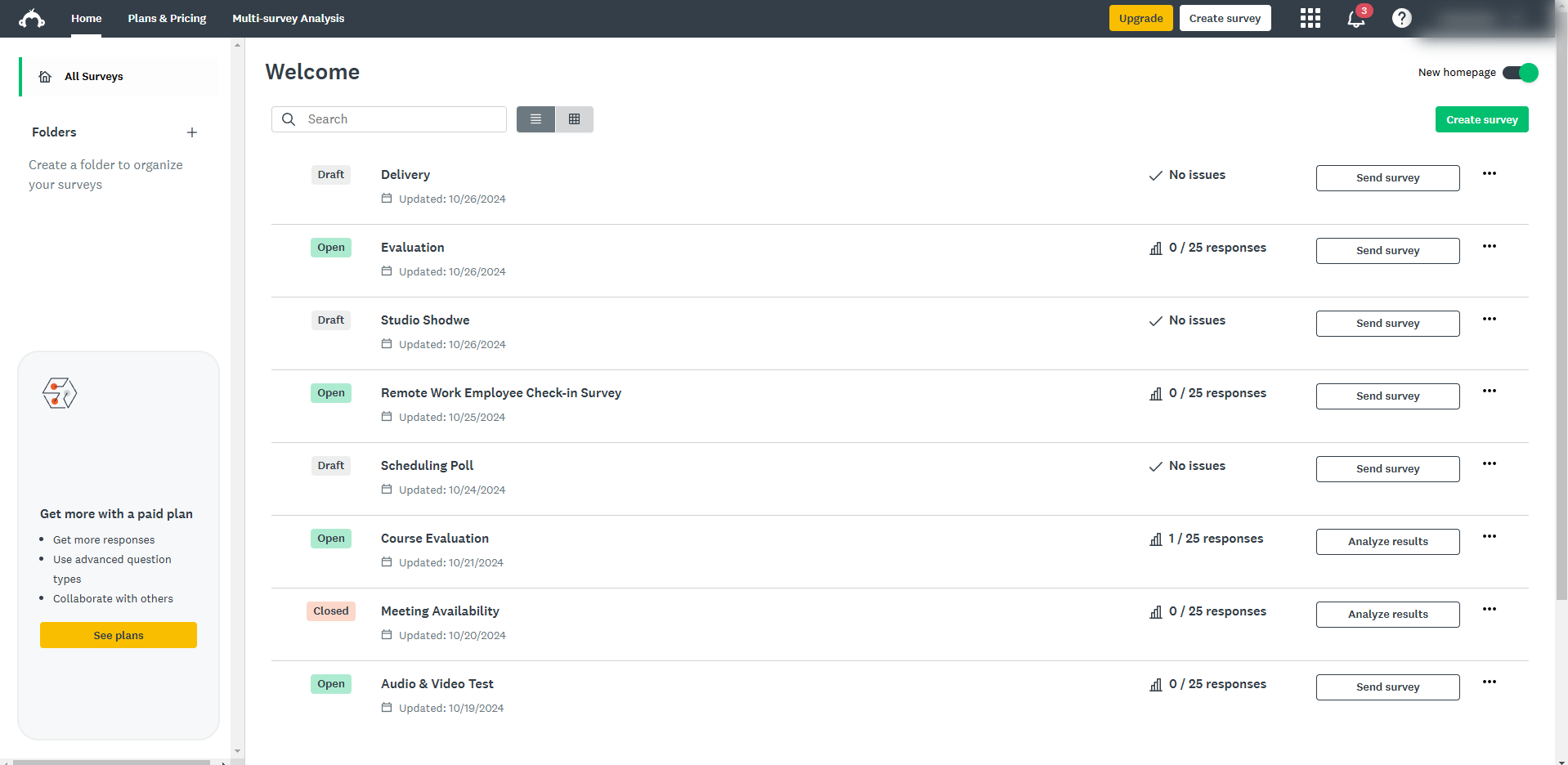
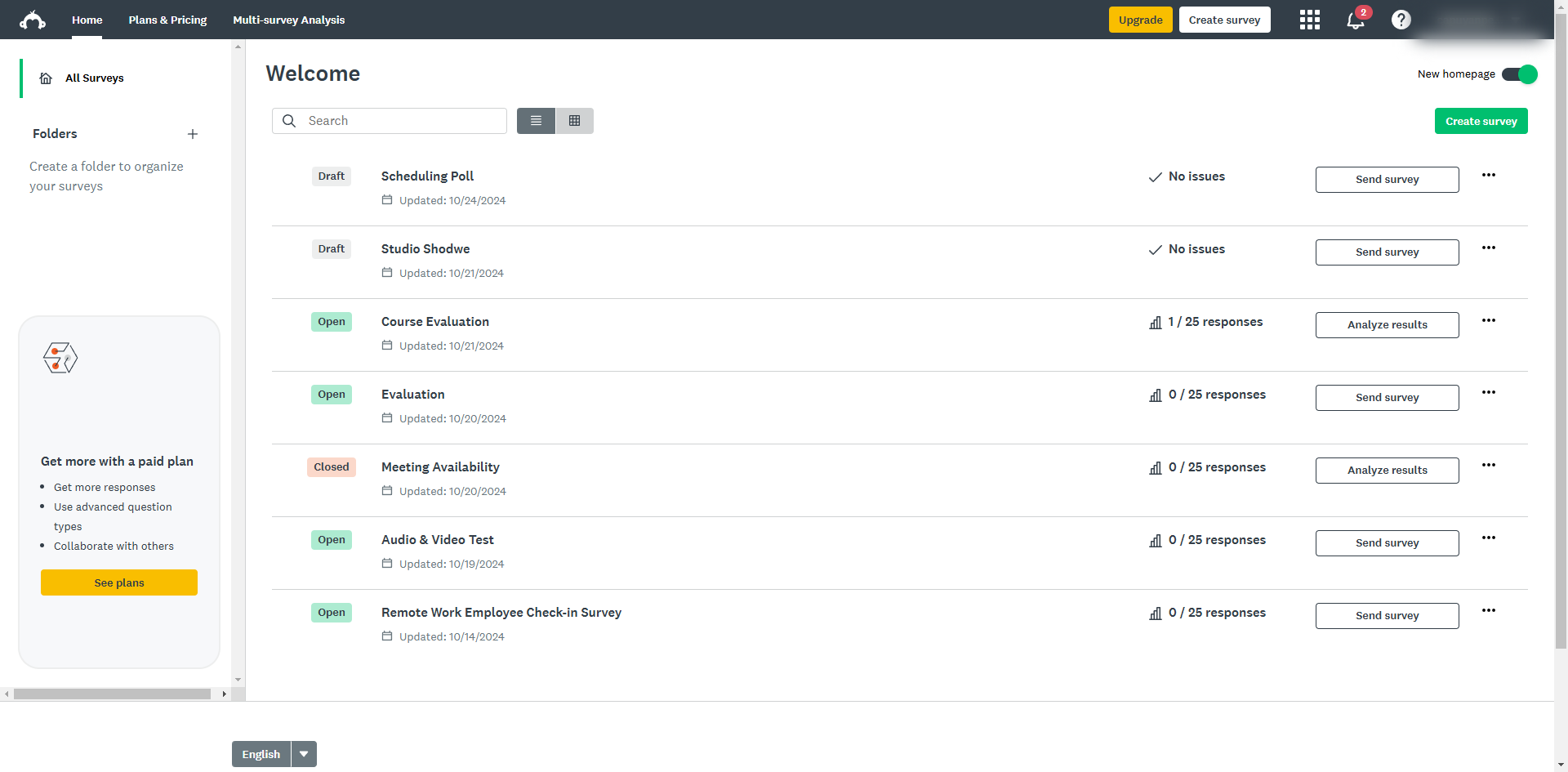
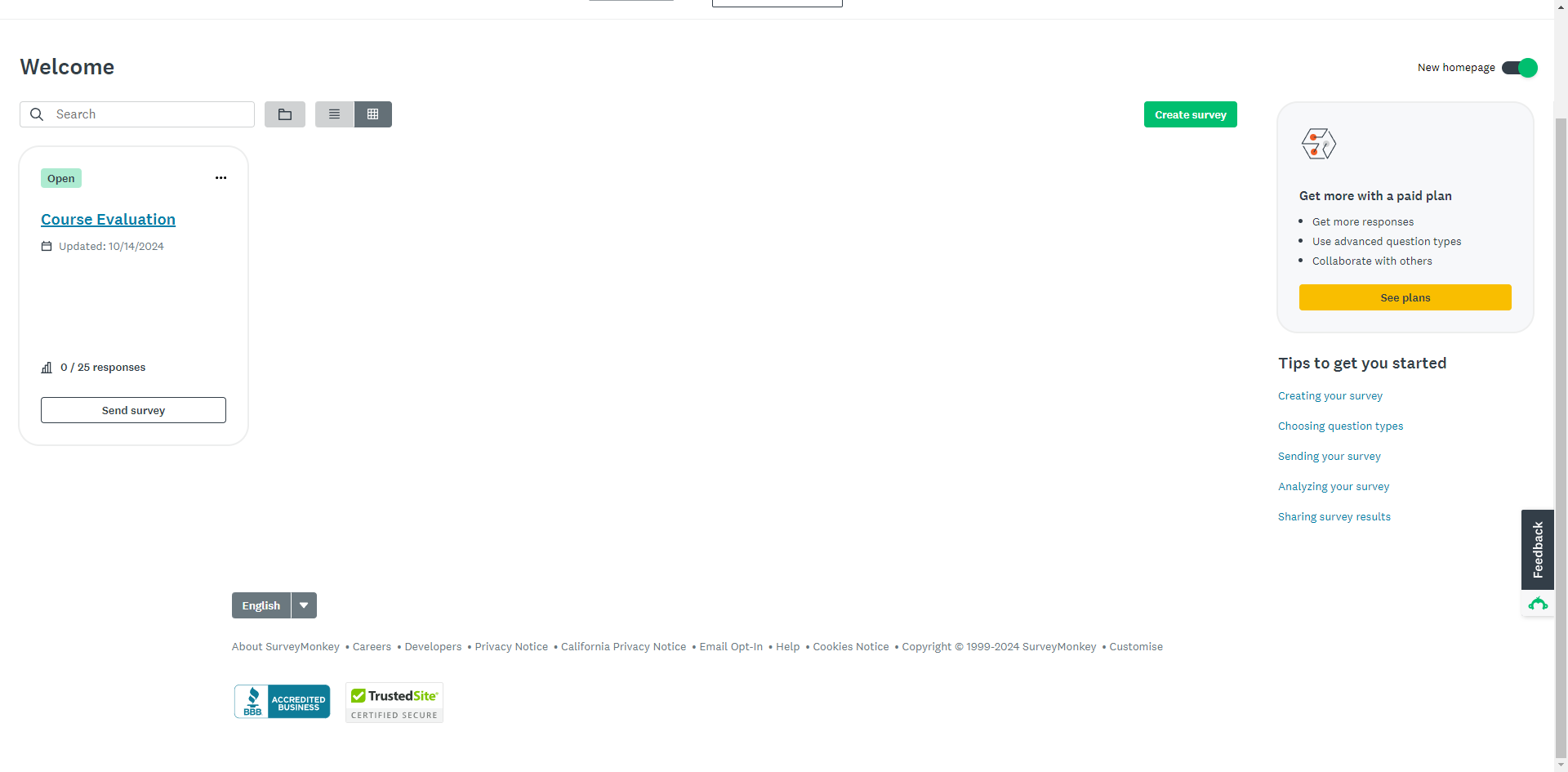
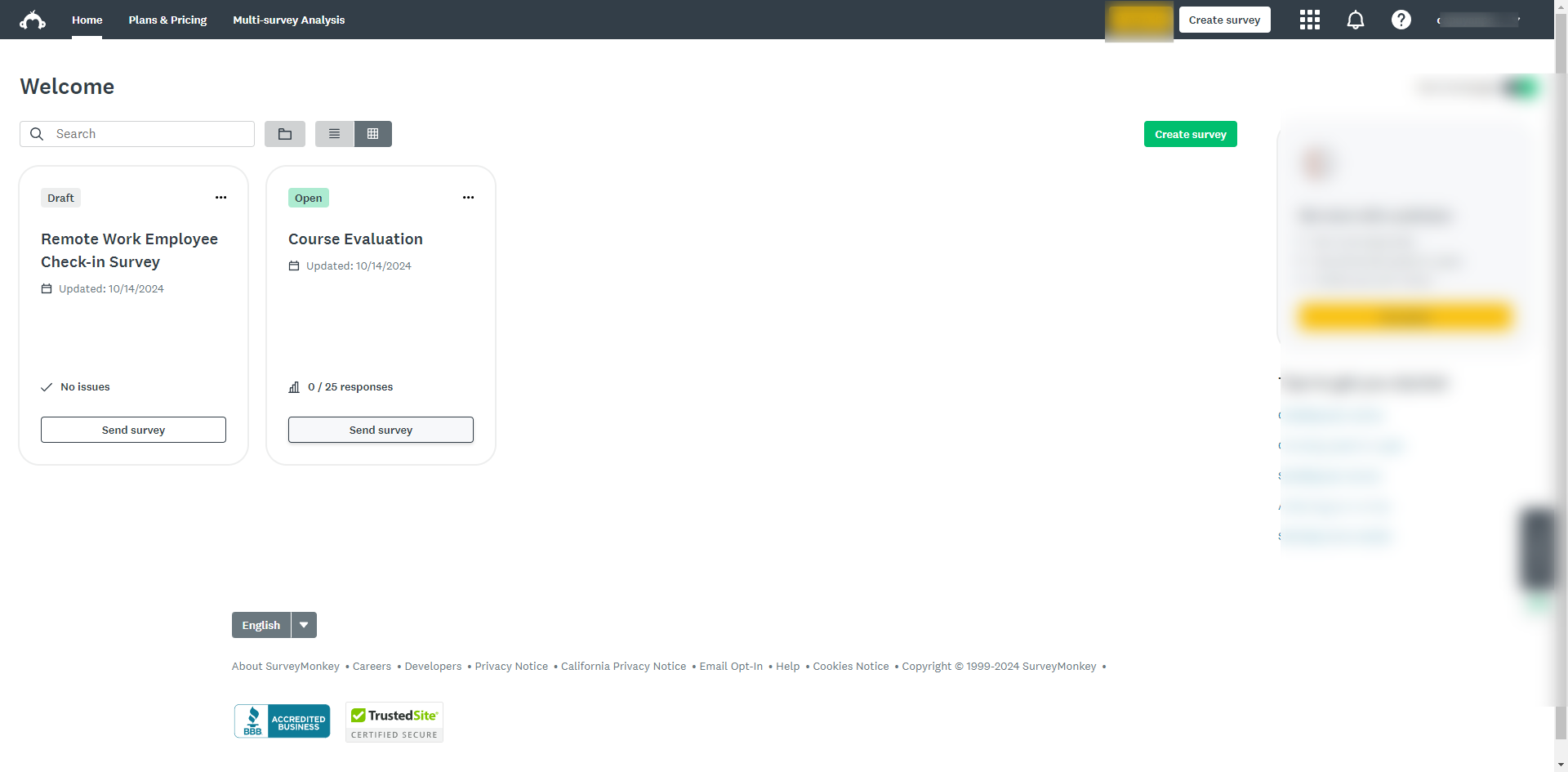
Navigate to the survey that you want to send to your responders and click 'Send survey'.
Click on the 'Collect Responses' tab in the survey builder.
Click 'Share a survey link'.
If you prefer to share via link, this creates a unique link to your survey that you can share via email or social media.
You can download a QR code for your survey link if you want respondents to scan and take the survey on their mobile devices.
Click 'Embed on a site' if you choose to embed your survey.
Select how to embed your survey on a site by using the options provided.
Click 'Send by text' if you have phone numbers and want to send the survey via SMS.
If you don’t have your own list of respondents to get the feedback you need, you can buy responses through SurveyMonkey Audience.
Click 'Post on social media' to post your survey anywhere you want.
Click the icon to share the survey link on platforms like Facebook, Twitter, or LinkedIn.
If you prefer to send the survey by email it will create an 'Email Invitation Collector' for your survey.
Select 'Embed in a mobile app' if you want to receive the in-app customer experience feedback.
Select 'Add data manually' if you want to input responses to your surveys.
You may also use the 'Kiosk mode' useful for offline survey distribution.
Quick answer: To send your survey to responders in SurveyMonkey, click Send survey and the Collect Responses tab. Then, choose to share a survey link, download a QR code, embed on a site, send by text, buy responses through Audience, post on social media, send by email, embed in a mobile app, add data manually, or use Kiosk mode.
About this SurveyMonkey tutorial
Distribute your SurveyMonkey questionnaire using links, QR codes, email, text, social media, website embedding, mobile apps, or offline kiosk mode. This guide covers how Can I Send My SurveyMonkey to Responders in 15 steps, starting with "Navigate to the survey that you want to send to your responders and click 'Send survey'" and finishing with "You may also use the 'Kiosk mode' useful for offline survey distribution". The interactive demo above is a click-through copy of the real SurveyMonkey interface, so you can rehearse each step before doing it in your own account.
Frequently asked questions
How many steps does how Can I Send My SurveyMonkey to Responders take?
15 steps. Each one is listed in order above, and the demo highlights exactly where to click.
Can I try it without changing my own account?
Yes. Clicking through the demo doesn't touch your SurveyMonkey data or settings. Once you know the flow, repeat it in your own workspace.
This tutorial is filed under SurveyMonkey. Related guides: How Do I Change a SurveyMonkey Survey Into Quiz Mode, How Do I Get Rid of Unwanted Dropdowns in SurveyMonkey and How Do I Know Who Responded in SurveyMonkey. Last reviewed 05 Oct 2026.

Create your first interactive demo in minutes
No credit card required • Start building today