Salesforce - How to Activate DKIM Key in Salesforce
- George Apostolov
Salesforce - How to Activate DKIM Key in Salesforce: step-by-step guide
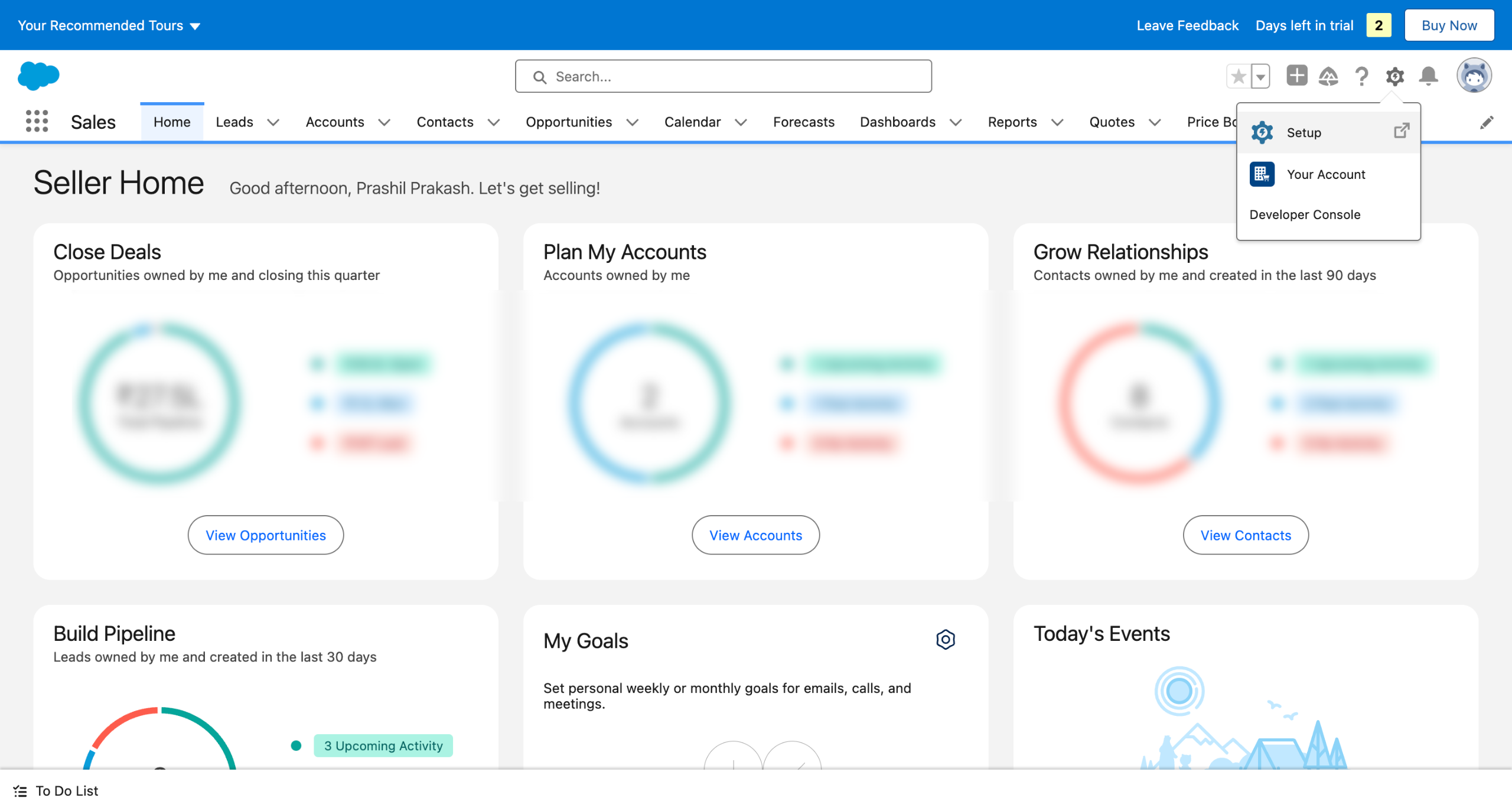
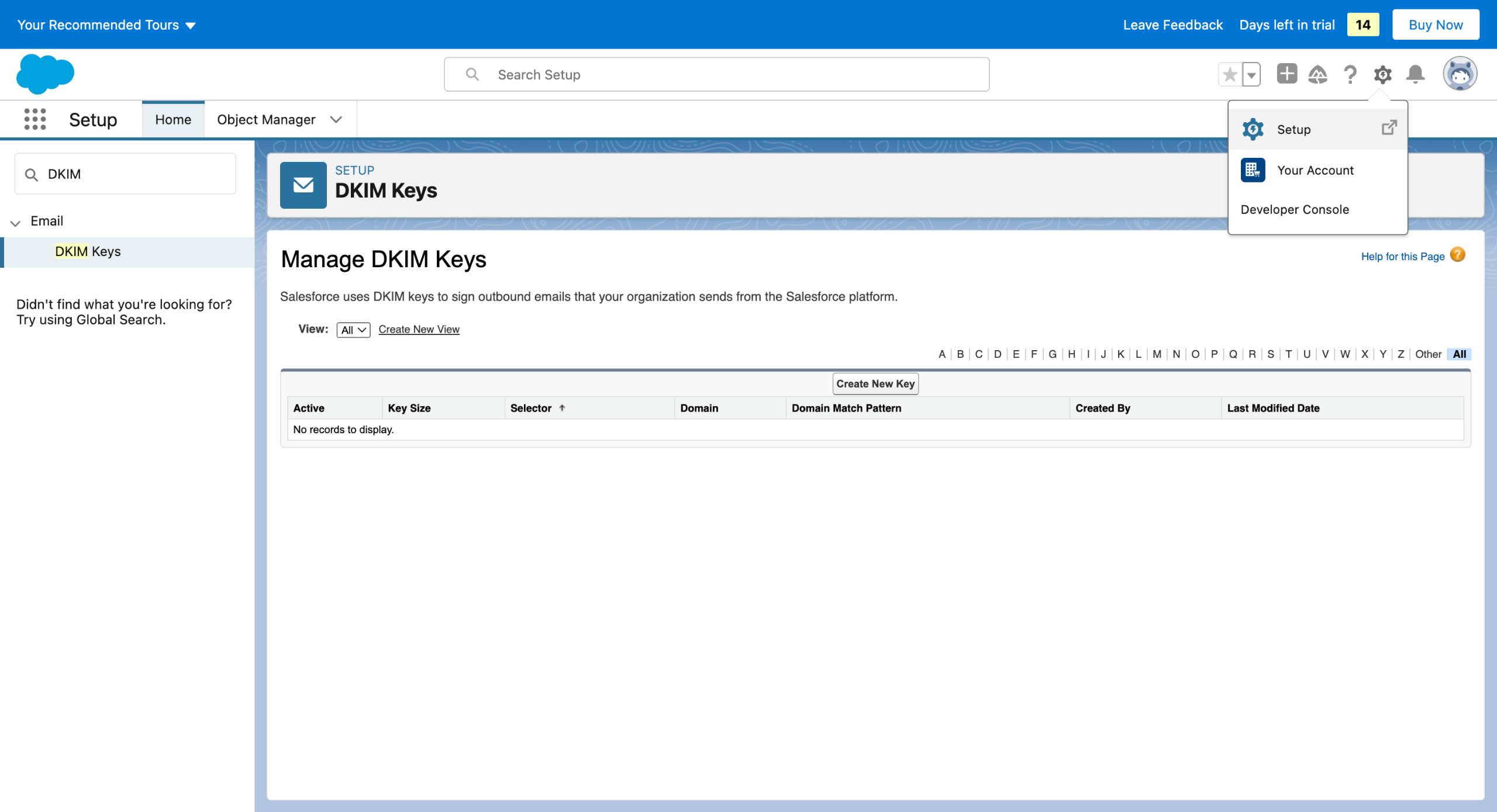
Go to Setup on the top right.
Search for DKIM Keys in the Quick Find.
Make a new key by clicking on the Create New Key button.
Fill in the DKIM Key Details.
Enter details like your Domain, Selector, and Alternate Selector. (Hover over the "i" button for context)
You can select the Key size based on the security regulations of the organisation.
Wait till the keys get published.
After the keys get published, you will see CNAME records that are available to be copied to your DNS for your domain.
Now, move to your DNS Provider (like Cloudflare) and select your domain. (Ex: "example.com") Then, Navigate to DNS Settings and Add the Primary CNAME Record.
For example, CNAME Record shows: <st1._domainkey.example.com IN CNAME st1.jpdc2t.custdkim.salesforce.com> In the "Name" field, enter the Host Name for the primary CNAME record (Ex st1._domainkey.example.com) In the "Content" field, enter CNAME Record (Ex- st1.jpdc2t.custdkim.salesforce.com) Repeat the process and Add an Alternate CNAME Record.
Quick answer: To activate a DKIM Key in Salesforce, go to Setup, search for DKIM Keys, and create a new key. Fill in the domain, selector, alternate selector, and key size details. Once published, copy the primary and alternate CNAME records to your DNS provider's settings.
About this Salesforce tutorial
Activate your DKIM key in Salesforce by configuring key details, publishing records, and adding CNAME entries to your DNS provider. This guide covers salesforce - How to Activate DKIM Key in Salesforce in 10 steps, starting with "Go to Setup on the top right" and finishing with "For example, CNAME Record shows: <st1._ domainkey.example.com IN CNAME st1.jpdc2t.custd...". The interactive demo above is a click-through copy of the real Salesforce interface, so you can rehearse each step before doing it in your own account.
Frequently asked questions
How many steps does salesforce - How to Activate DKIM Key in Salesforce take?
10 steps. Each one is listed in order above, and the demo highlights exactly where to click.
Can I try it without changing my own account?
Yes. Clicking through the demo doesn't touch your Salesforce data or settings. Once you know the flow, repeat it in your own workspace.
This tutorial is filed under Salesforce. Related guides: Salesforce - How to activate trigger in Salesforce, Salesforce - How to Add a Button in Salesforce Lightning and Salesforce - How to Add a Chart to a Salesforce Report. Last reviewed 05 Oct 2026.

Create your first interactive demo in minutes
No credit card required • Start building today