How to Add Adsense to Joomla
- George Apostolov
How to Add Adsense to Joomla: step-by-step guide
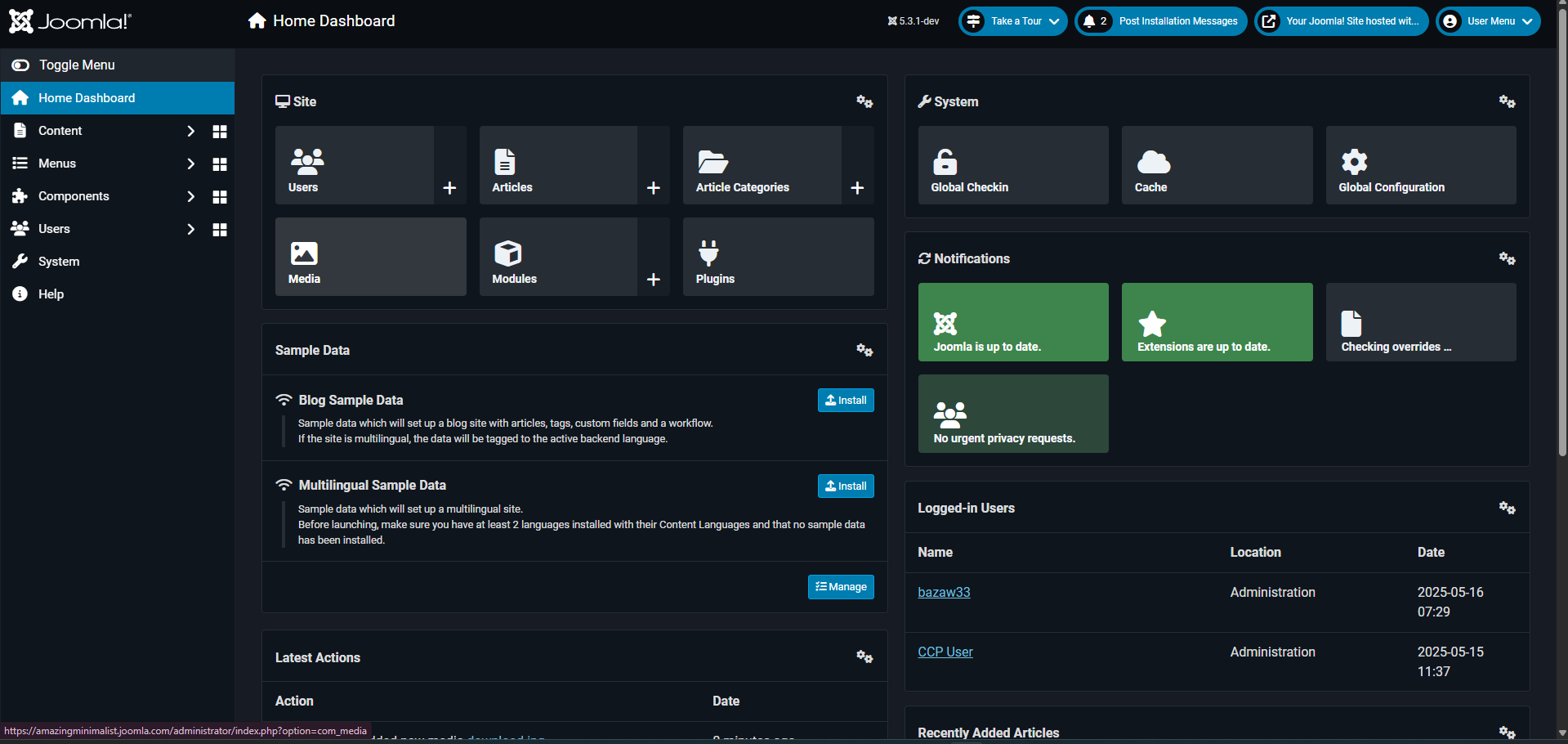
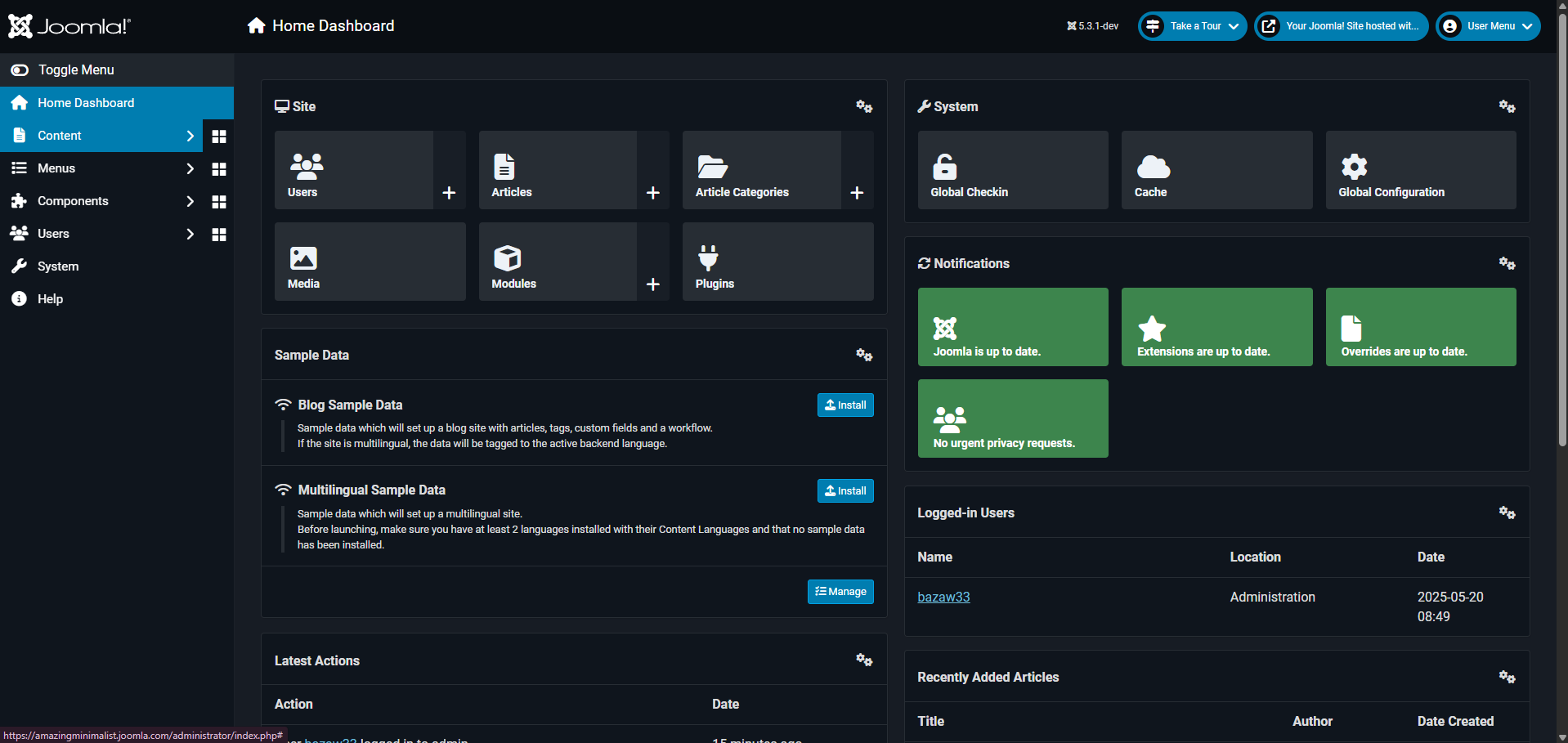
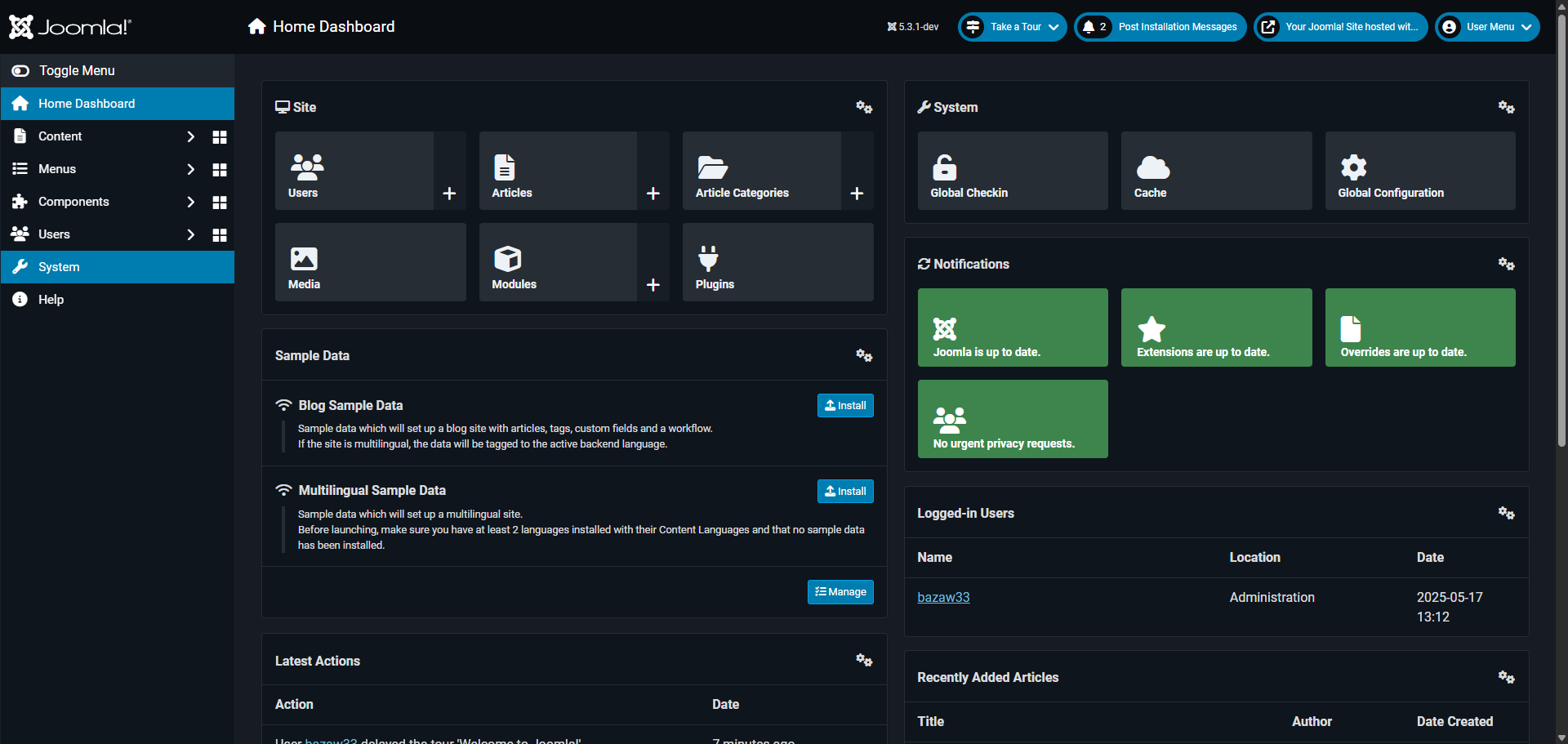
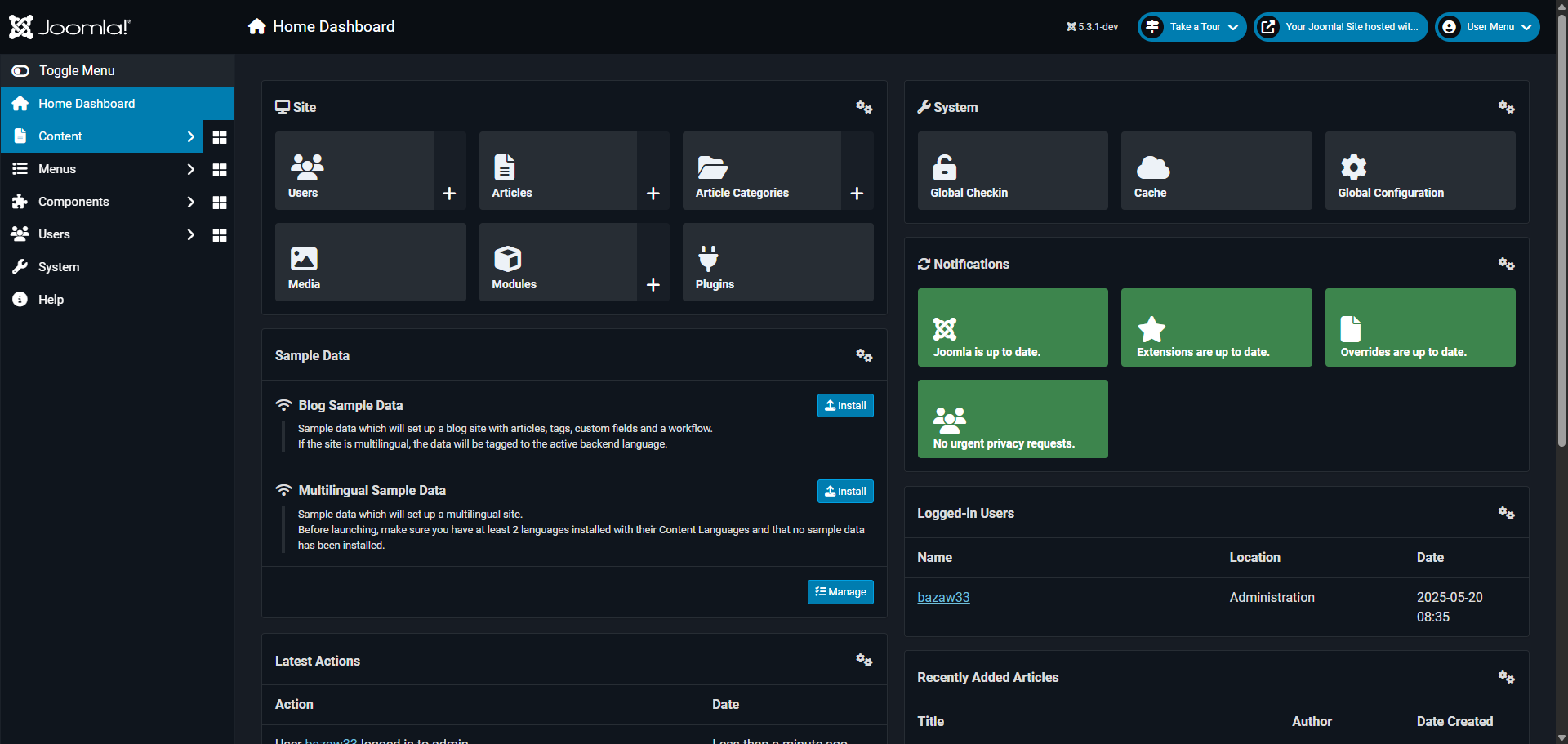
Navigate to the 'Content' menu to begin managing your site elements.
Access 'Site Modules' to manage the modular components of your Joomla website.
Start creating a custom module by selecting '+ New'.
Choose the WYSIWYG custom module type for flexible content creation.
Access advanced editing options with the 'Toggle Editor' button.
Enter your custom HTML or content in this editing area.
Customize your module settings in this configuration area.
Choose a position for your Adsense by clicking the drop-down arrow.
Position your module in the 'Below Top' area for optimal visibility.
Define where your module appears with 'Menu Assignment' settings.
Control module visibility by selecting specific pages or site-wide display.
Click 'Save & Close' to finalize your custom module by saving changes and returning to the dashboard.
Quick answer: To add Adsense to your Joomla site, navigate to the Content menu, access Site Modules, and click New. Choose the custom module type, toggle the editor, enter your HTML, and configure settings. Select the Below Top position, assign menus to control visibility, and click Save and Close.
About this Joomla tutorial
Place AdSense on your Joomla website by creating a custom module, positioning it below the top area, and configuring page visibility. This guide shows how to add Adsense to Joomla in 12 steps, starting with "Navigate to the 'Content' menu to begin managing your site elements" and finishing with "Click 'Save & Close' to finalize your custom module by saving changes and returning to...". The interactive demo above is a click-through copy of the real Joomla interface, so you can rehearse each step before doing it in your own account.
Frequently asked questions
How many steps does it take to add Adsense to Joomla?
12 steps. Each one is listed in order above, and the demo highlights exactly where to click.
Can I try it without changing my own account?
Yes. Clicking through the demo doesn't touch your Joomla data or settings. Once you know the flow, repeat it in your own workspace.
This tutorial is filed under Joomla. Related guides: How to Add an Image in Joomla, How to Add Google Analytics to Joomla and How to Add New Template in Joomla. Last reviewed 05 Oct 2026.

Create your first interactive demo in minutes
No credit card required • Start building today