Salesforce - how to add banner in salesforce
- George Apostolov
Salesforce - how to add banner in salesforce: step-by-step guide
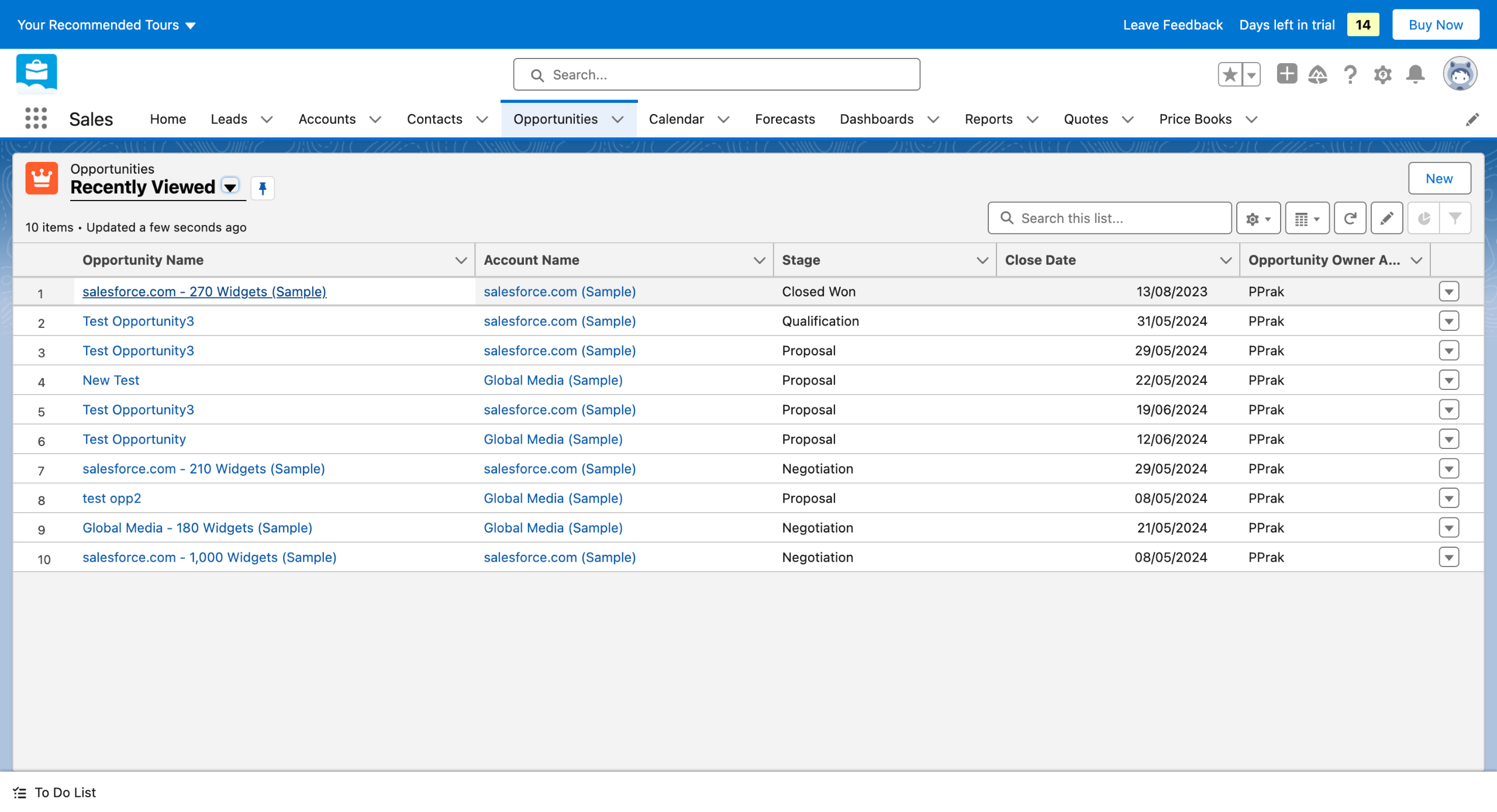
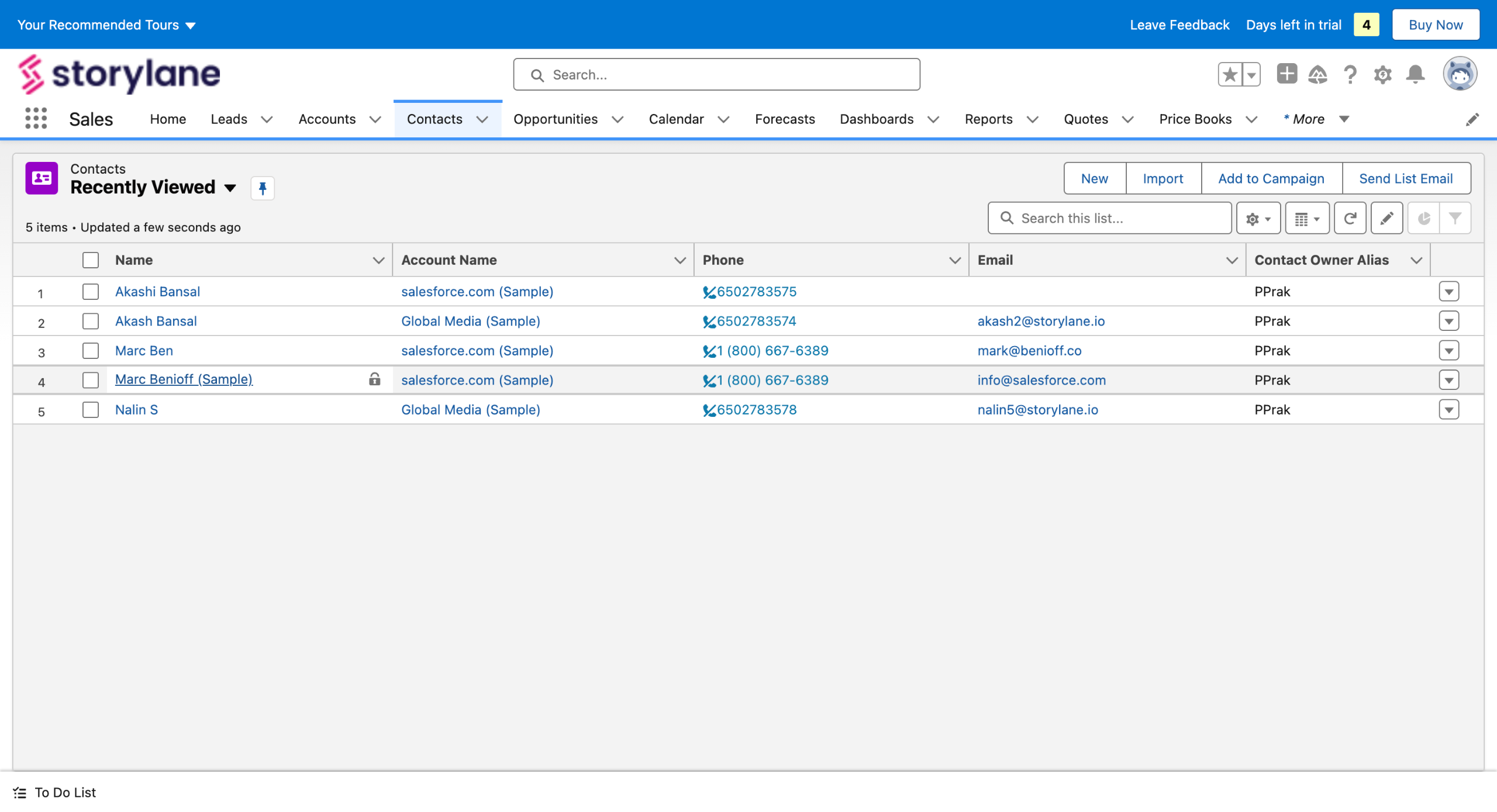
Head over to the Contacts page and open any contact.
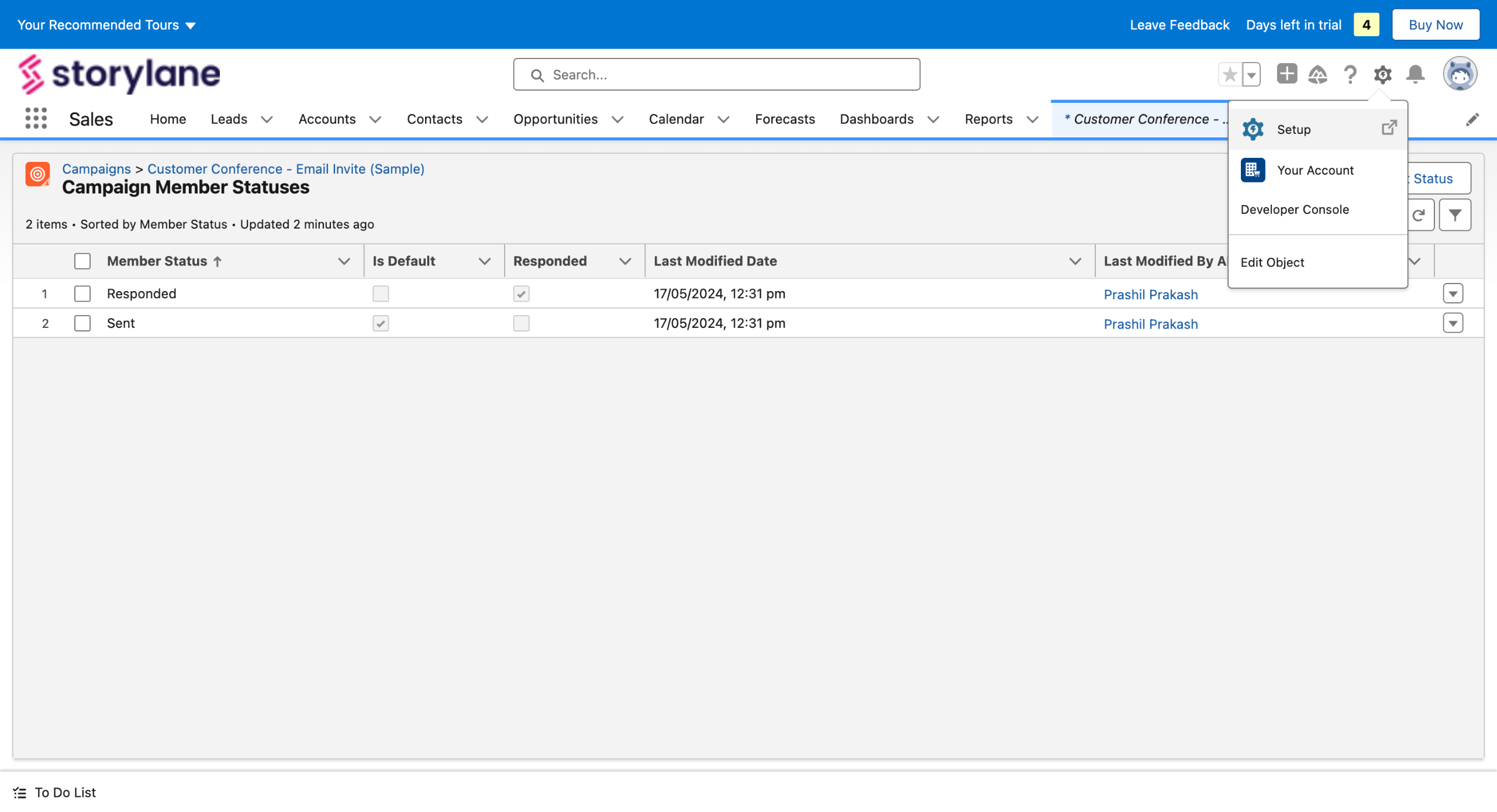
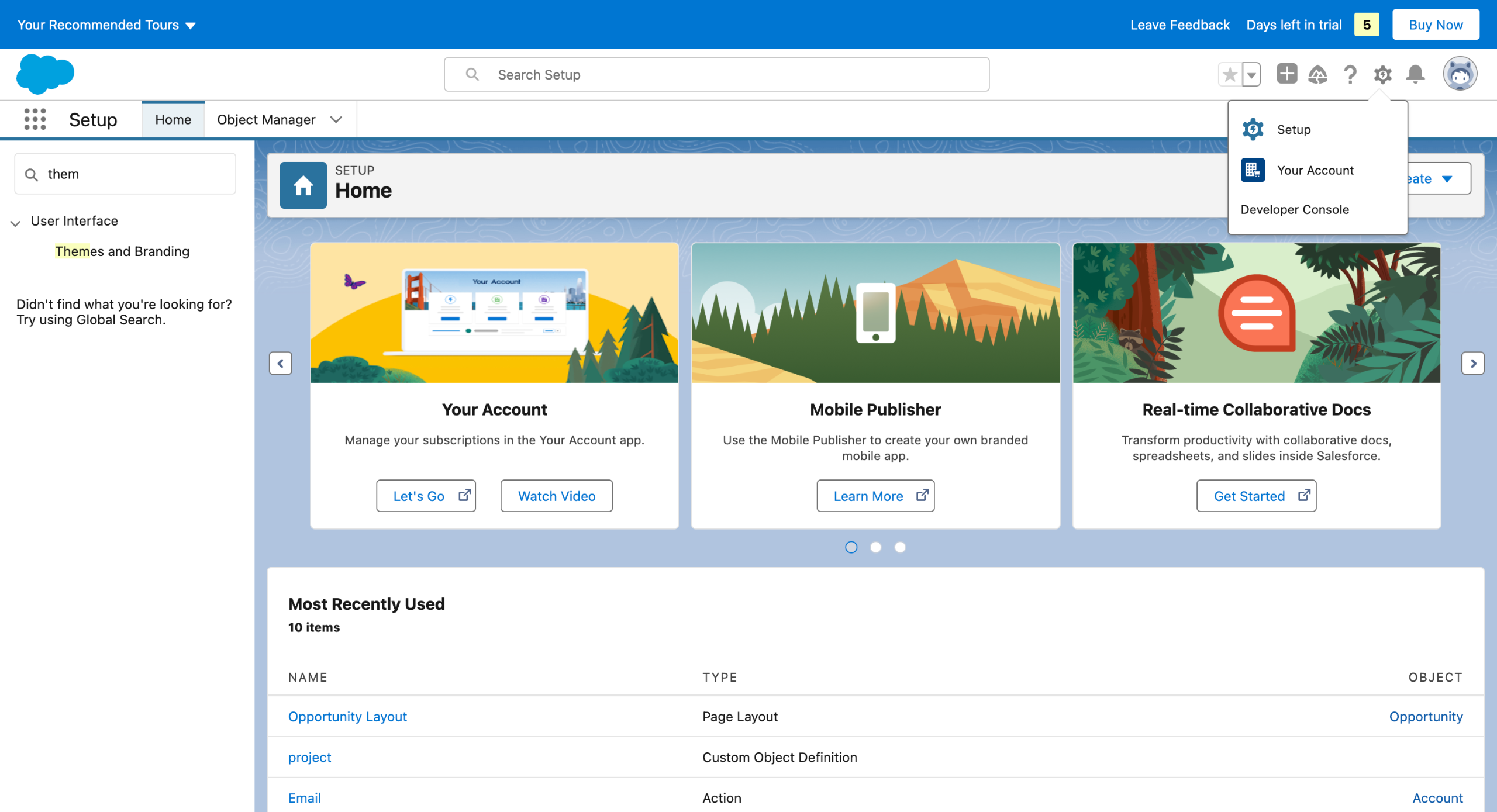
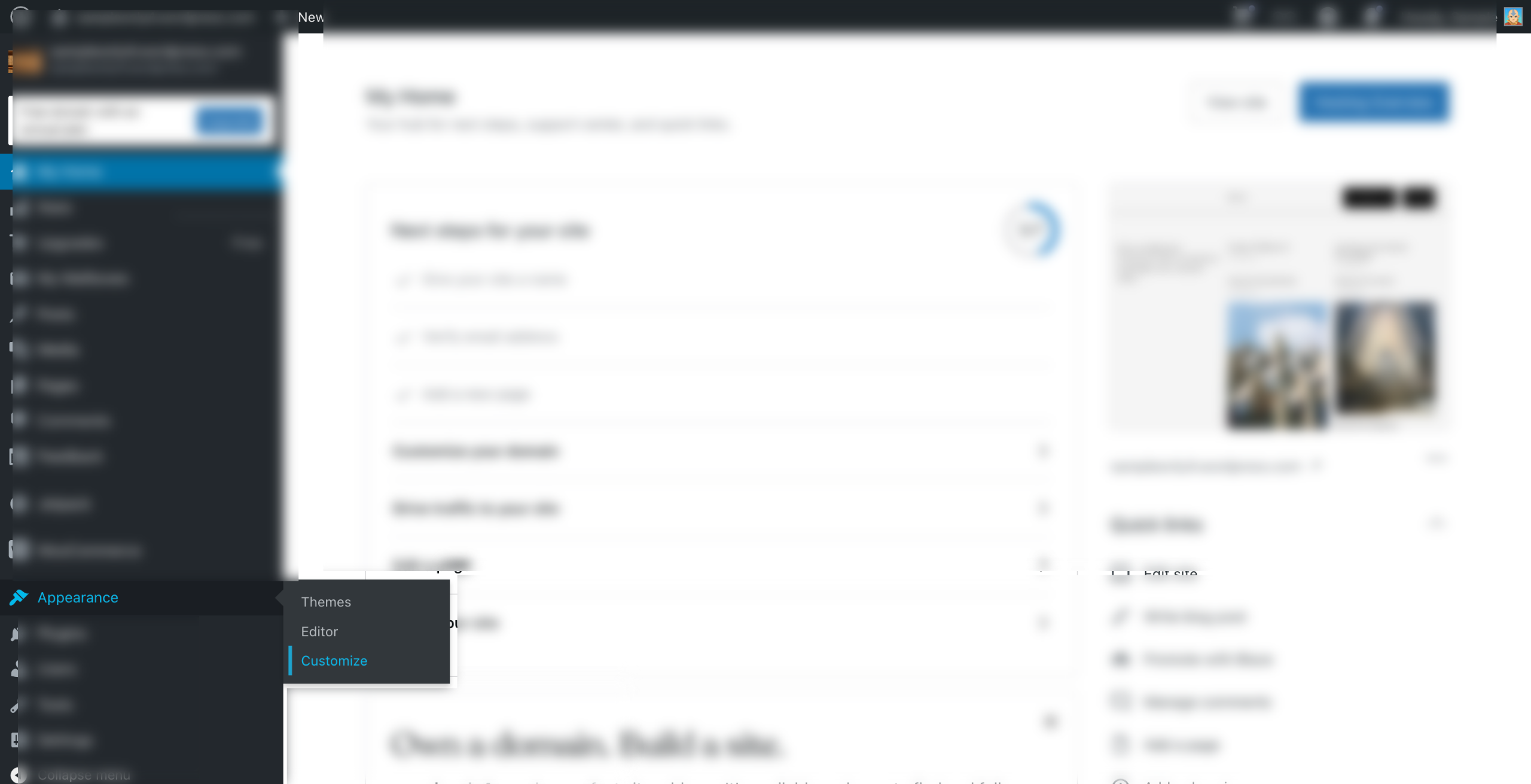
Head over to Gear icon on the top-right and click on Edit Page.
Select Rich Text From the left pane components. Drag it to the interface.
And drop it where you want.
Enter your banner text here in the right column.
You can change the Device view to arrange your components according to the device on which your contacts are viewed.
Set filters to define where the banners will be visible by clicking on the Add filter button.
Add filter criteria (Eg; Banner would be visible for contacts with Mailing Country: USA)
Keep the Display as card checked.
Hit Save and Activate.
Quick answer: To add a banner in Salesforce, open a contact, click the Gear icon, and select Edit Page. Drag the Rich Text component to the interface, enter your banner text, adjust device views, and set filter criteria. Finally, keep Display as card checked and hit Save and Activate.
About this Salesforce tutorial
Create and display custom banners on contact pages in Salesforce by adding rich text components, setting visibility filters, and saving your changes. This guide covers salesforce - how to add banner in salesforce in 10 steps, starting with "Head over to the Contacts page and open any contact" and finishing with "Hit Save and Activate". The interactive demo above is a click-through copy of the real Salesforce interface, so you can rehearse each step before doing it in your own account.
Frequently asked questions
How many steps does salesforce - how to add banner in salesforce take?
10 steps. Each one is listed in order above, and the demo highlights exactly where to click.
Can I try it without changing my own account?
Yes. Clicking through the demo doesn't touch your Salesforce data or settings. Once you know the flow, repeat it in your own workspace.
This tutorial is filed under Salesforce. Related guides: Salesforce - How to Add Campaign Member Status in Salesforce, Salesforce - How to Add Company Logo to Salesforce Lightning and Salesforce how to add contact roles in salesforce. Last reviewed 05 Oct 2026.

Create your first interactive demo in minutes
No credit card required • Start building today