Google Analytics - Search console to wordpress
- George Apostolov
Google Analytics - Search console to wordpress: step-by-step guide
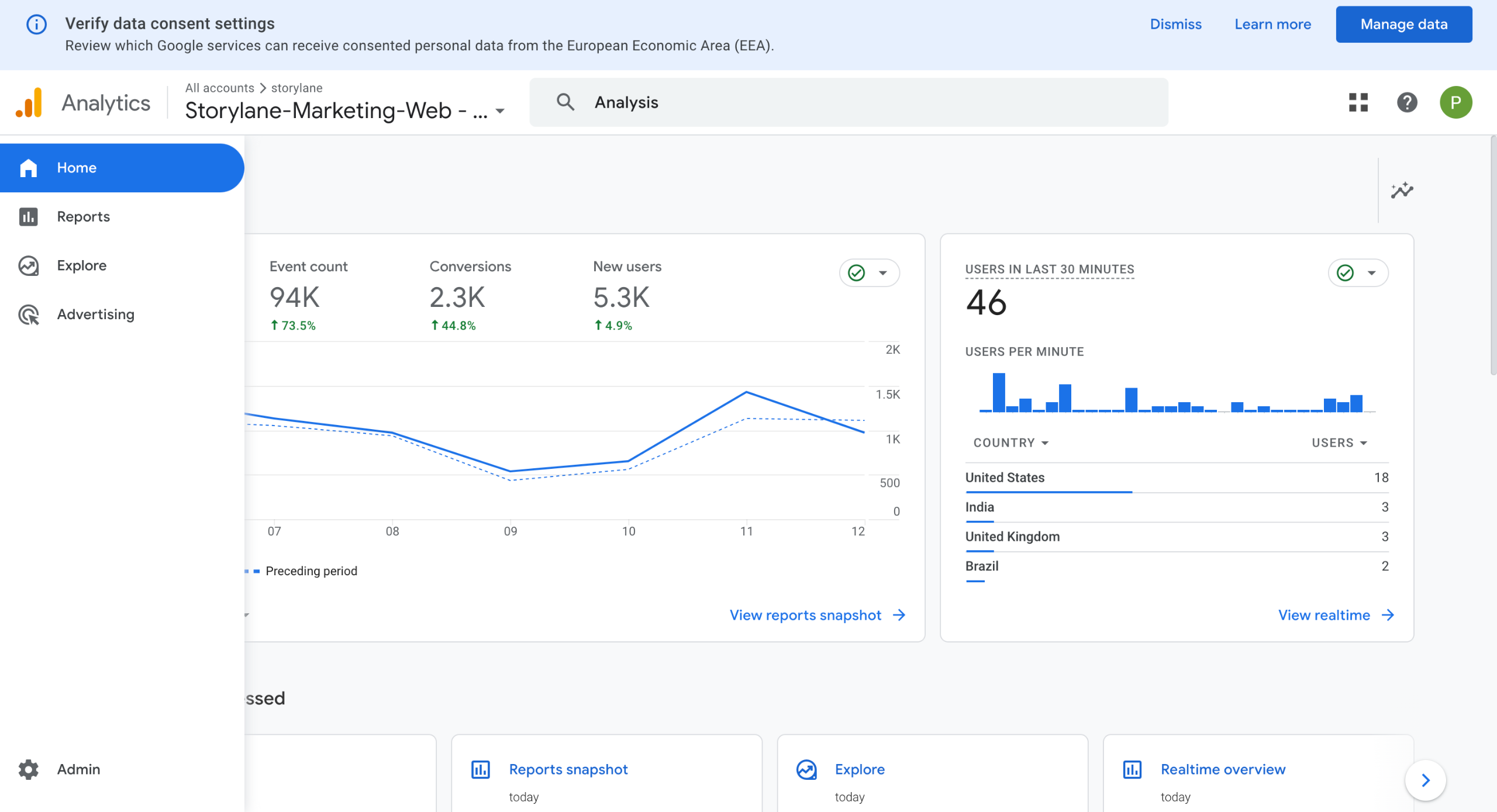
Go to Admin on the left pane.
Under Product links, click on Search Console links.
Click on Link.
Click on Choose accounts.
Click on Add a property.
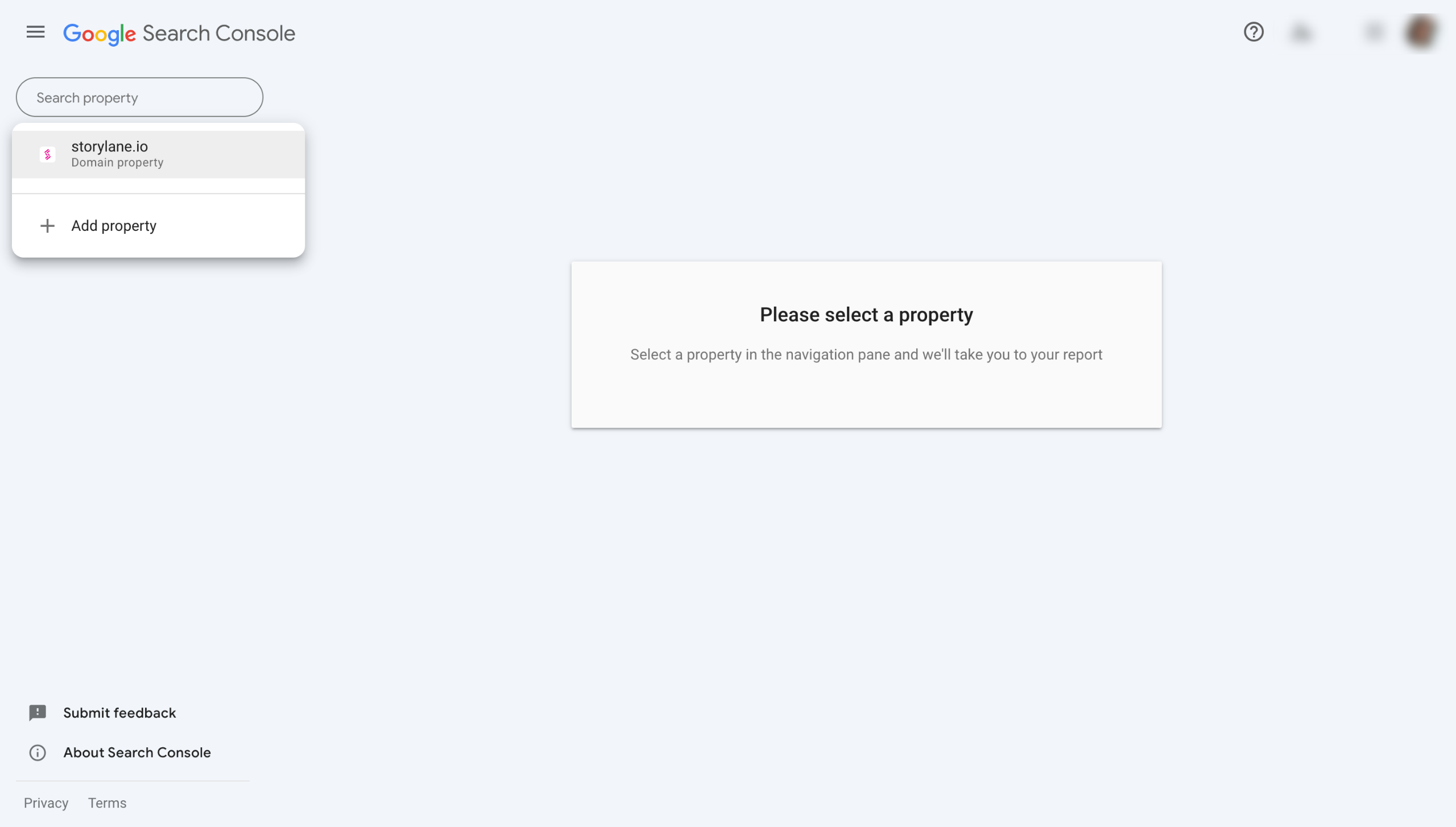
Use the search bar to find your property.
After selecting your property hit Next.
Then click on Select to select a Web Stream.
And click on Submit.
You will get a message saying LINK CREATED.
Now Go back to the main screen and go to Reports>Library.
Find Search Console under Collections; Click on three dots to find Publish and click on it to publish.
Now, let's install the MonsterInsights plugin. You will need a paid (Plus or above) account for it.
Subscribe to MonsterInsights - Plus Plan.
Download Monster Insights. A zip file will be downloaded.
Go to your WordPress Dashboard and go to Plugins>Add New.
Click on Upload Plugins.
Upload the Zip file you downloaded from MonsterInsights.
Click on the Save and Continue button.
Add your license key and Connect MonsterInsights. (You will find it on your email)
Finally, click on the Connect MonsterInsights button to connect it to Google Analytics.
And hit Complete Connection.
Hit Save and continue.
Turn on all the tracking options.
Click on Finish Setup & Exit Wizard.
Go to Google Analytics>Admin>Data settings>Data Retention and increase Data Retention from 2 months to 14 months.
Head back to WordPress and click on Insights in the left pane
Click on the Search console tab to find the Search Console Reports on your WordPress account.
Quick answer: To connect Google Search Console to WordPress using Google Analytics, link your Search Console property to a web stream and publish the Search Console collection in Analytics. Then, install the MonsterInsights plugin on your WordPress site, connect your license key, and complete the setup wizard to view Search Console reports.
About this Google tutorial
Integrate Google Search Console with WordPress via Google Analytics and MonsterInsights to easily view your search reports directly on your site. This guide covers google Analytics - Search console to wordpress in 28 steps, starting with "Go to Admin on the left pane" and finishing with "Click on the Search console tab to find the Search Console Reports on your WordPress ac...". The interactive demo above is a click-through copy of the real Google interface, so you can rehearse each step before doing it in your own account.
Frequently asked questions
How many steps does google Analytics - Search console to wordpress take?
28 steps. Each one is listed in order above, and the demo highlights exactly where to click.
Can I try it without changing my own account?
Yes. Clicking through the demo doesn't touch your Google data or settings. Once you know the flow, repeat it in your own workspace.
This tutorial is filed under Google and WordPress. Related guides: Google Search Console - Adding Sitemaps, How to Add the Google Analytics Tracking Code to ClickFunnels Classic and How to Add the Google Tag Manager Script to Unbounce Pages. Last reviewed 05 Oct 2026.

Create your first interactive demo in minutes
No credit card required • Start building today