How to Add Priority in ClickUp
- George Apostolov
How to Add Priority in ClickUp: step-by-step guide
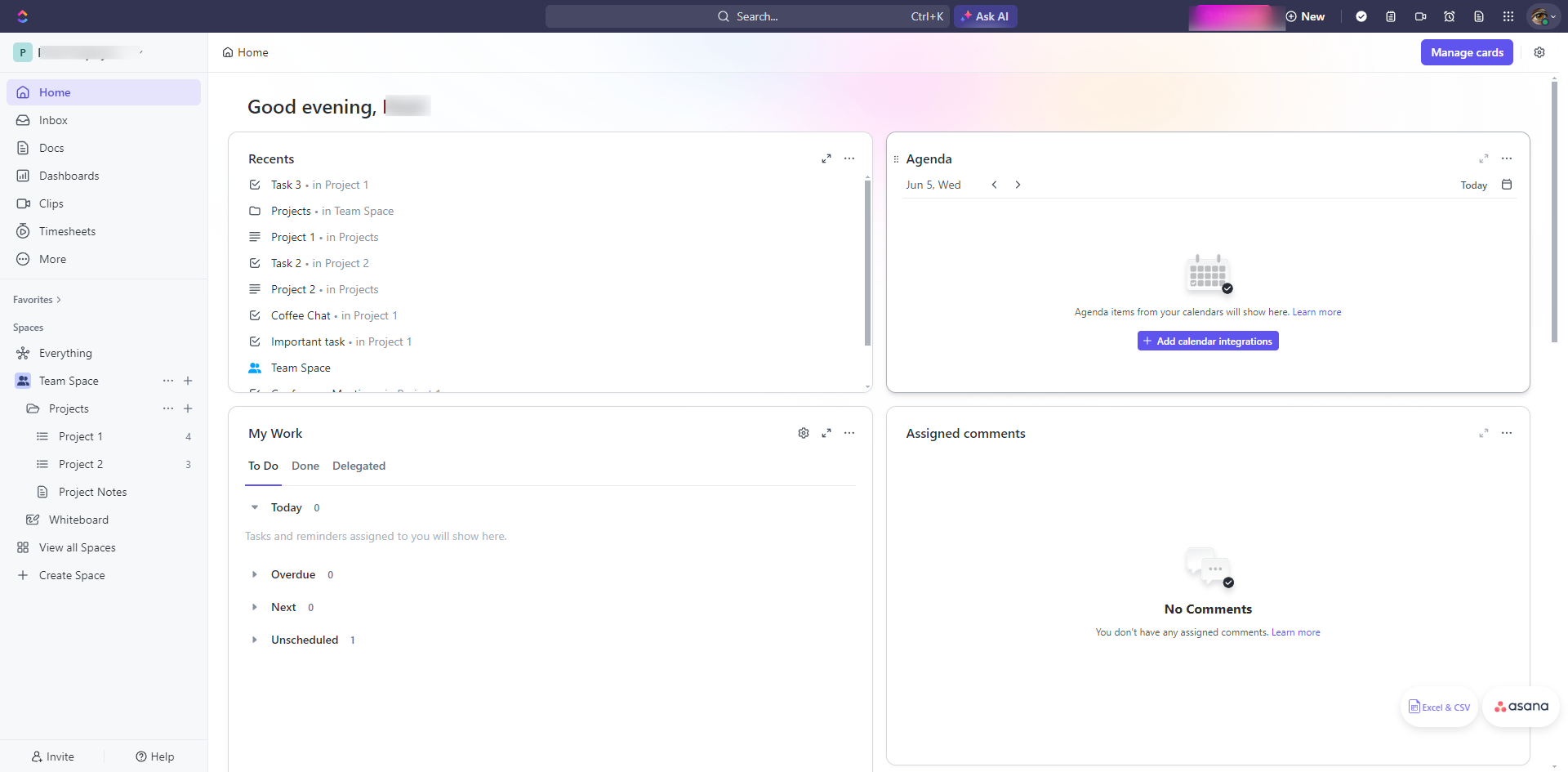
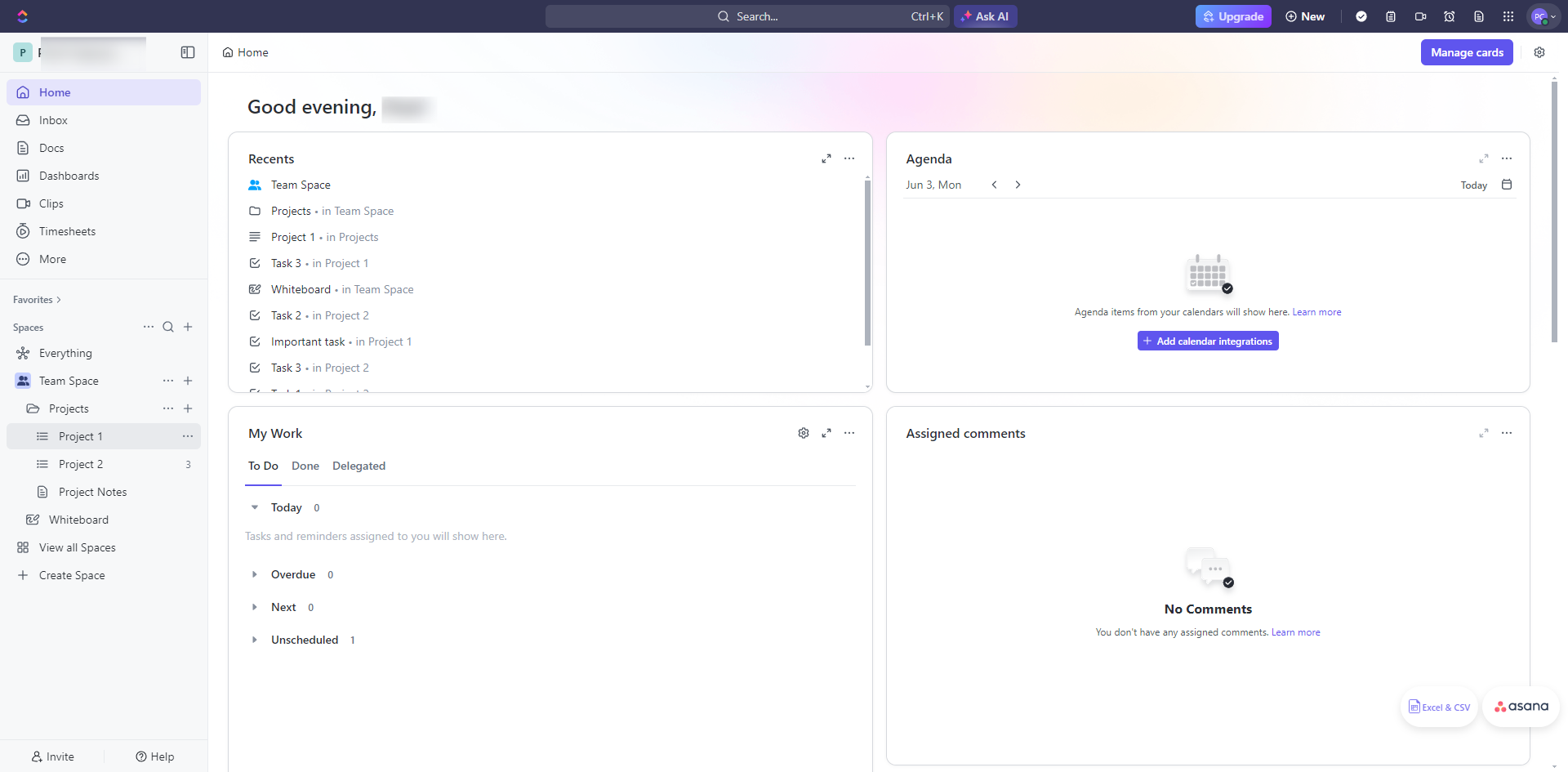
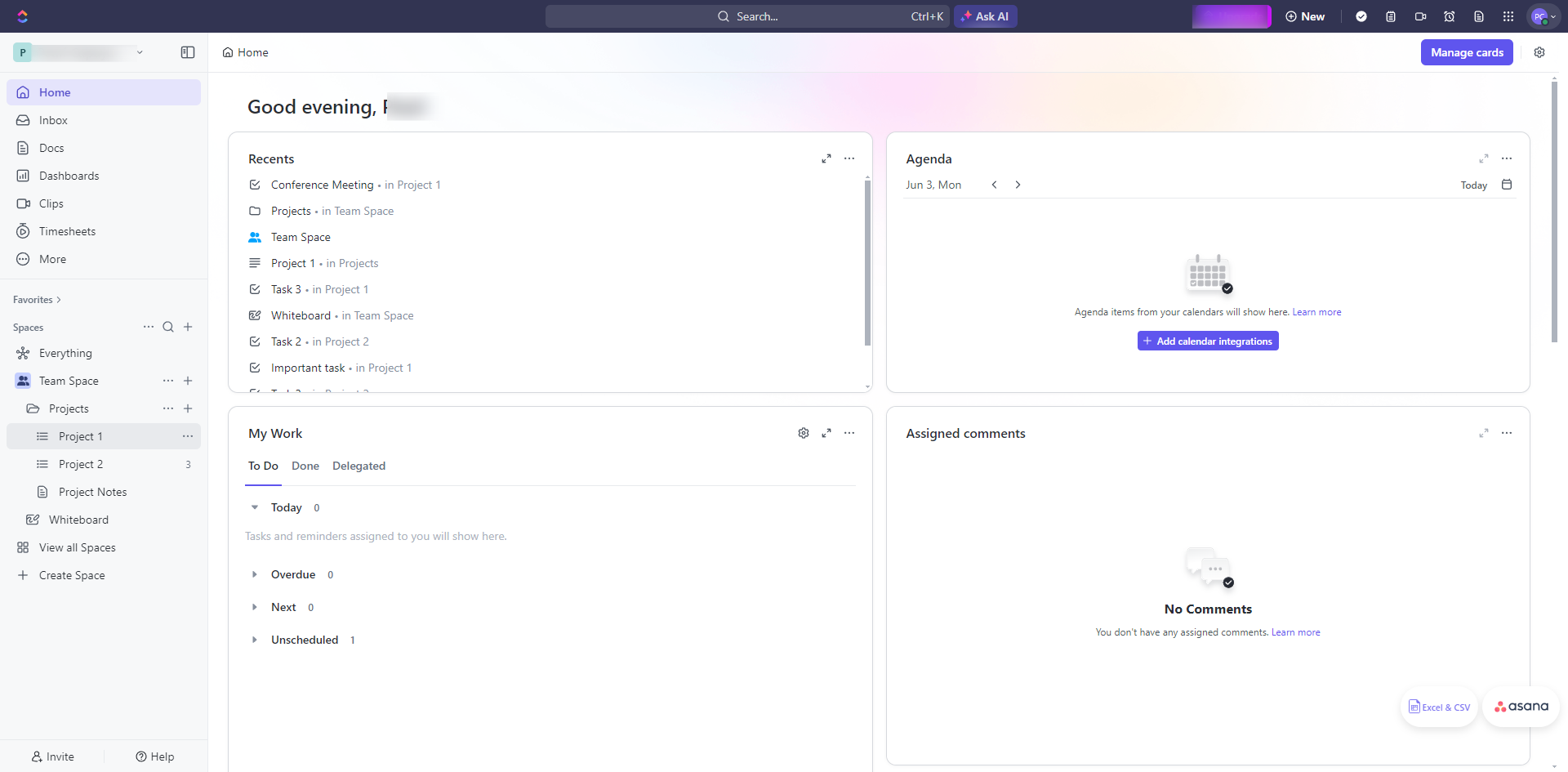
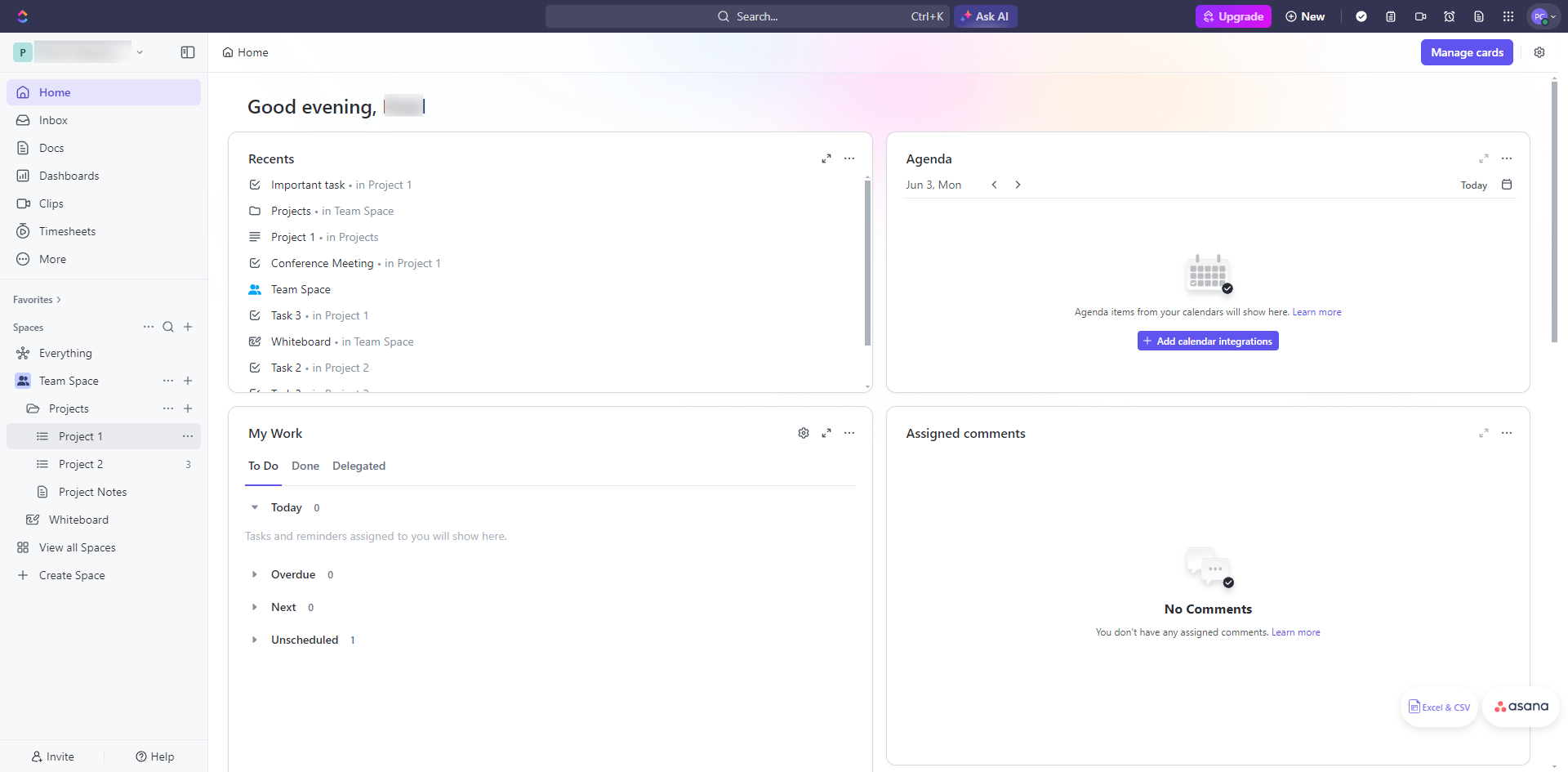
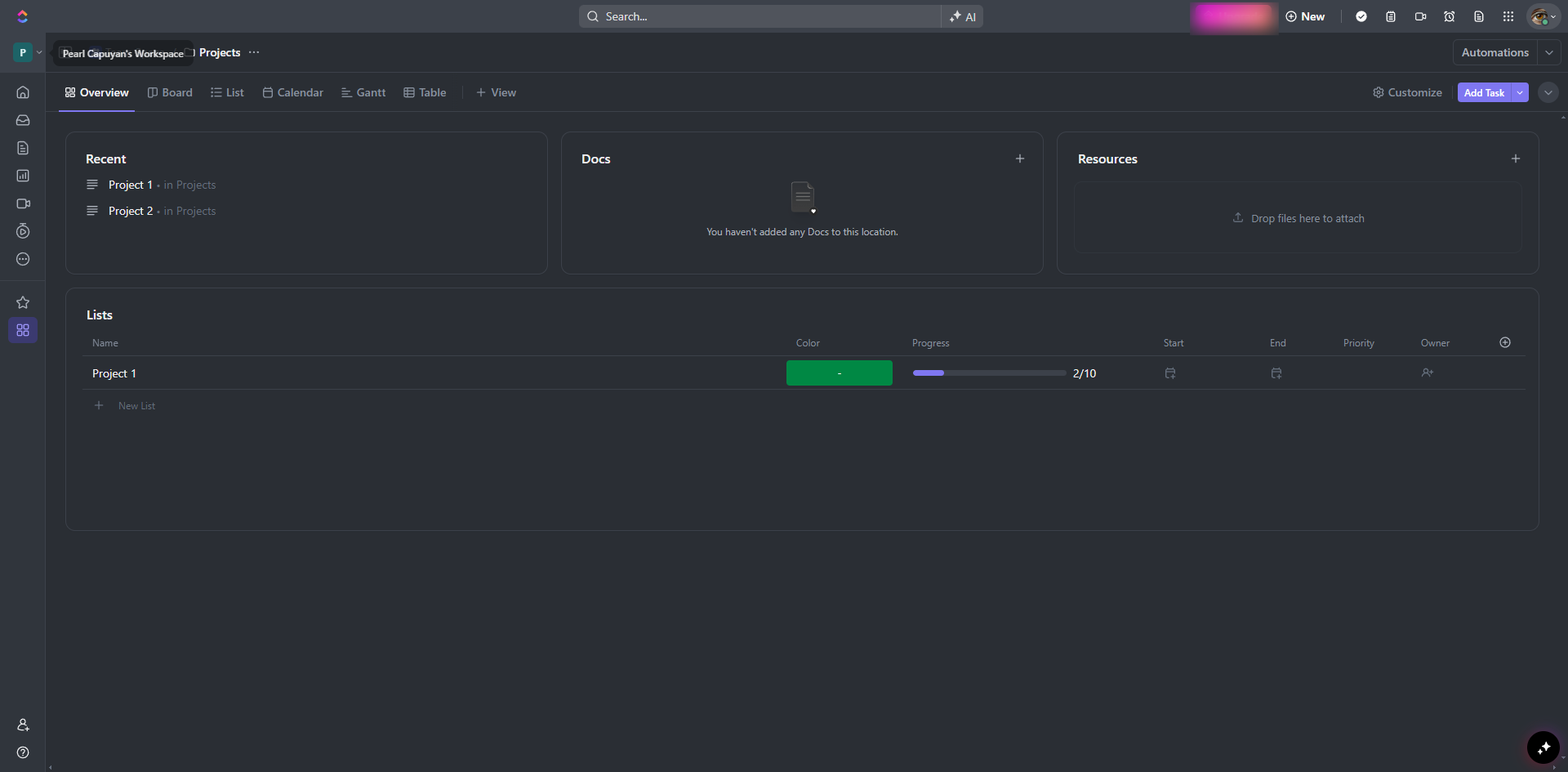
Make sure to enable priorities on your ClickUp. Click your Workspace avatar.
Click 'Apps'.
Select 'ClickApps'.
Browse or search for the 'Priorities' ClickApp.
Click the toggle to enable it in all Spaces.
Use the dropdown menu to select which Spaces to add Priorities to.
Go to the Space, Folder, or List where your tasks are located.
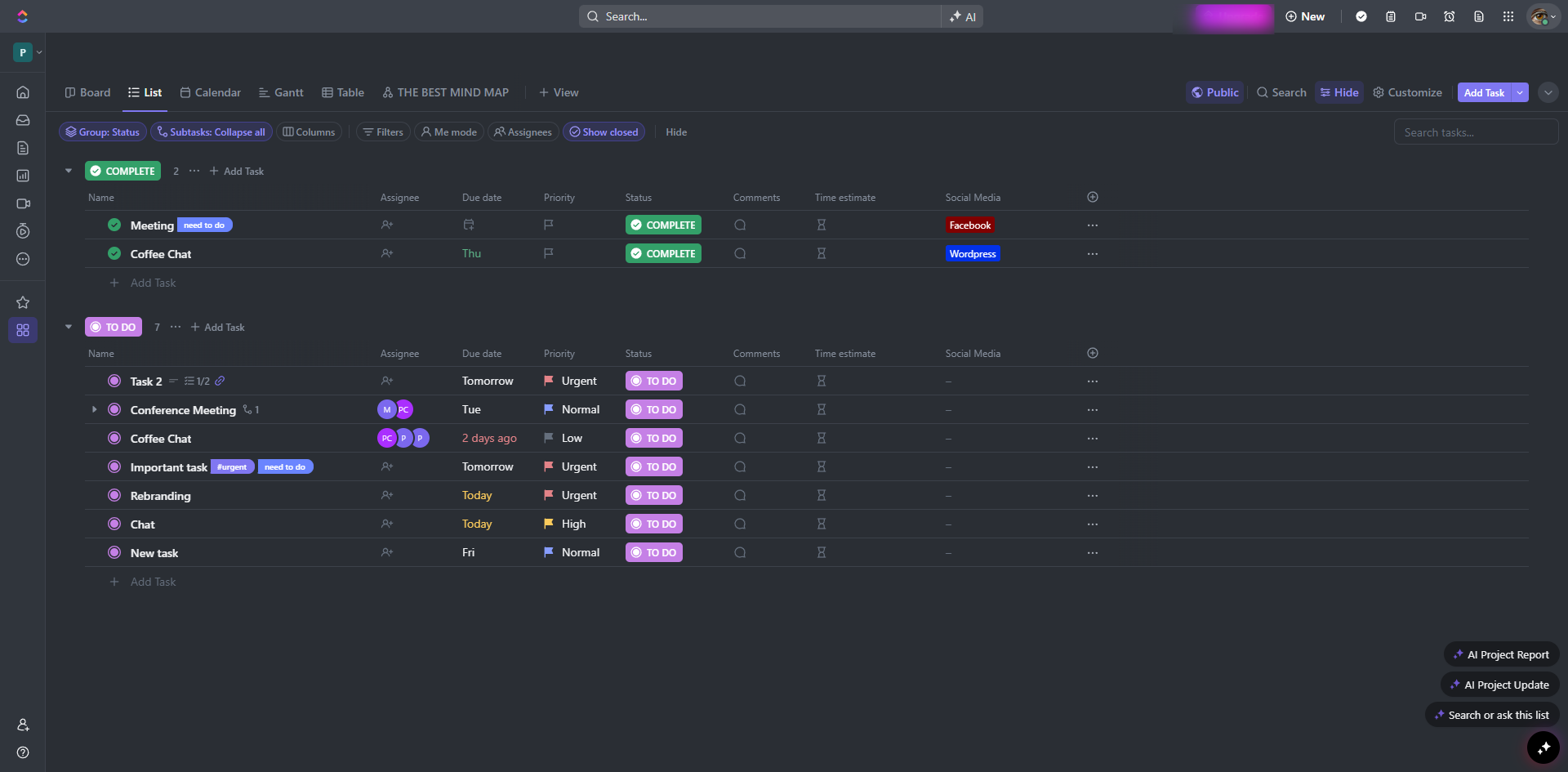
In the List view, find the task to which you want to add a priority.
Click on the priority field and select the desired priority level from the dropdown menu.
By following these steps, you can easily add and manage task priorities in ClickUp, helping you to keep your tasks organized and ensuring that the most important tasks get the attention they need.
Quick answer: To add priority in ClickUp, enable the Priorities ClickApp via your Workspace avatar, Apps, and ClickApps, toggling it for your desired Spaces. Then, navigate to your task in List view, click the priority field, and select your preferred priority level from the dropdown menu.
About this ClickUp tutorial
Organize tasks and manage importance by enabling and setting priority levels directly within your ClickUp Spaces and lists. This guide shows how to add Priority in ClickUp in 10 steps, starting with "Make sure to enable priorities on your ClickUp. Click your Workspace avatar" and finishing with "By following these steps, you can easily add and manage task priorities in ClickUp, hel...". The interactive demo above is a click-through copy of the real ClickUp interface, so you can rehearse each step before doing it in your own account.
Frequently asked questions
How many steps does it take to add Priority in ClickUp?
10 steps. Each one is listed in order above, and the demo highlights exactly where to click.
Can I try it without changing my own account?
Yes. Clicking through the demo doesn't touch your ClickUp data or settings. Once you know the flow, repeat it in your own workspace.
This tutorial is filed under ClickUp. Related guides: How to Add Someone to Clickup, How to Add Status in Clickup and How to Add Tags in Clickup. Last reviewed 05 Oct 2026.

Create your first interactive demo in minutes
No credit card required • Start building today