How to Add Row-Level Security in Power BI
- George Apostolov
How to Add Row-Level Security in Power BI: step-by-step guide
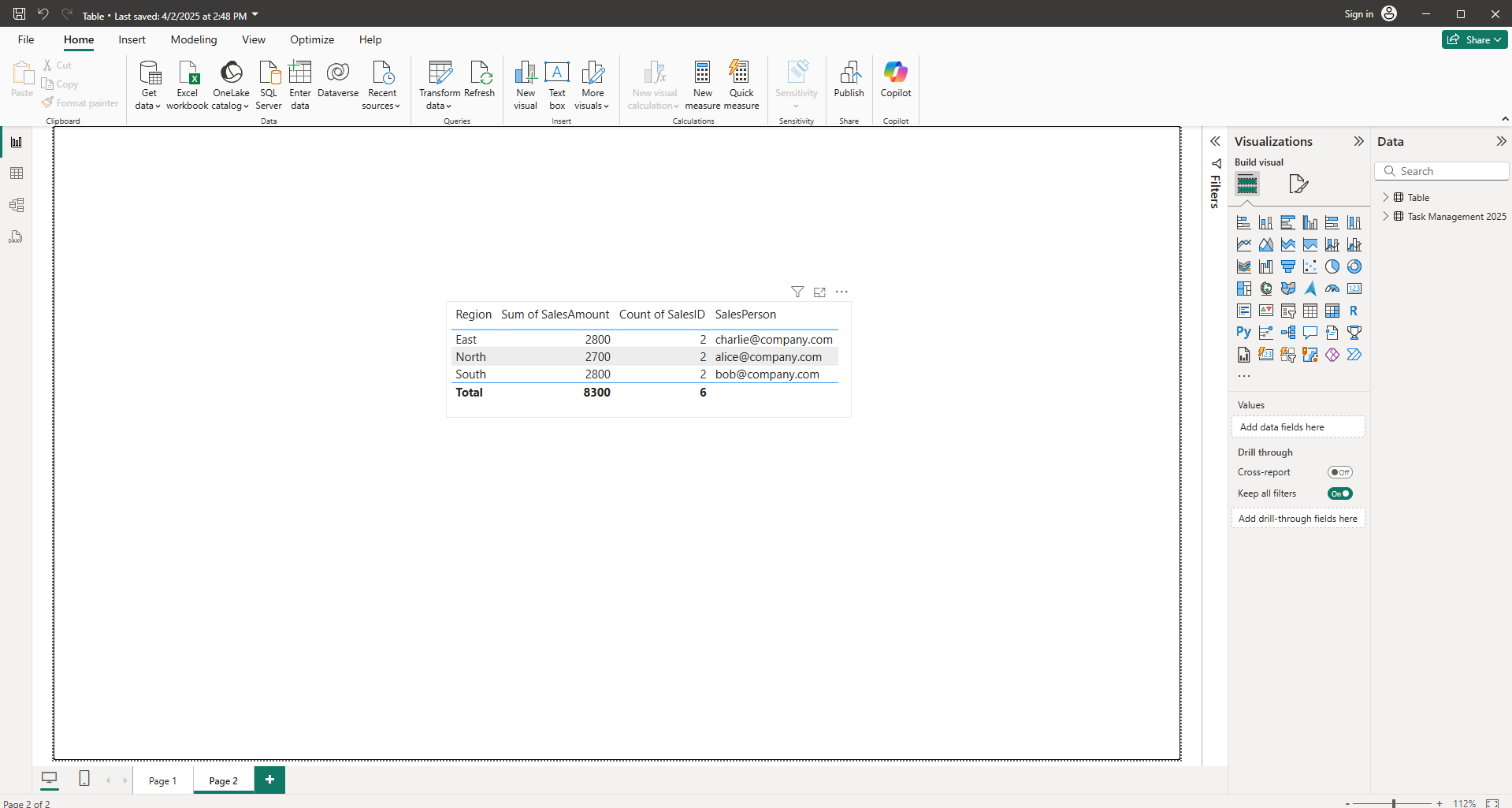
Start by navigating to the 'Modeling' tab in the Power BI Desktop ribbon. This is where all security-related options are located.
Now, select 'Manage Roles' to begin setting up your Row-Level Security. This opens the management interface for creating and editing security roles.
In the Manage Roles dialog box, click the '+ New' button to create a security role.
Give your role a descriptive name that indicates its purpose.
Select the table that contains the data you want to filter. This will be the table where your row-level security rules will be applied.
Click 'Switch to DAX editor' to create more advanced filtering conditions using DAX expressions. This gives you precise control over which rows users can access.
Enter your DAX filter expression.
Click 'Save' to apply your RLS role configuration to the model. This finalizes your security definition and makes it ready for testing.
Great job! Your Row-Level Security is now implemented. Remember to test it using 'View As' to ensure different roles see only their permitted data.
Quick answer: To add row-level security in Power BI Desktop, navigate to the Modeling tab, select Manage Roles, and create a new role. Choose the target table, switch to the DAX editor to enter your filter expression, save the configuration, and test the role using View As.
About this Power BI tutorial
Secure your data in Power BI by setting up roles, applying custom DAX filter expressions, and testing permissions. This guide shows how to add Row-Level Security in Power BI in 9 steps, starting with "Start by navigating to the 'Modeling' tab in the Power BI Desktop ribbon. This is where..." and finishing with "Great job! Your Row-Level Security is now implemented. Remember to test it using 'View...". The interactive demo above is a click-through copy of the real Power BI interface, so you can rehearse each step before doing it in your own account.
Frequently asked questions
How many steps does it take to add Row-Level Security in Power BI?
9 steps. Each one is listed in order above, and the demo highlights exactly where to click.
Can I try it without changing my own account?
Yes. Clicking through the demo doesn't touch your Power BI data or settings. Once you know the flow, repeat it in your own workspace.
This tutorial is filed under Power BI. Related guides: How to Add Subtotal in Power BI, How to Add Text to Power BI and How to Add Current Date in Power BI. Last reviewed 05 Oct 2026.

Create your first interactive demo in minutes
No credit card required • Start building today