How To Change Line Spacing In Webflow
- George Apostolov
How To Change Line Spacing In Webflow: step-by-step guide
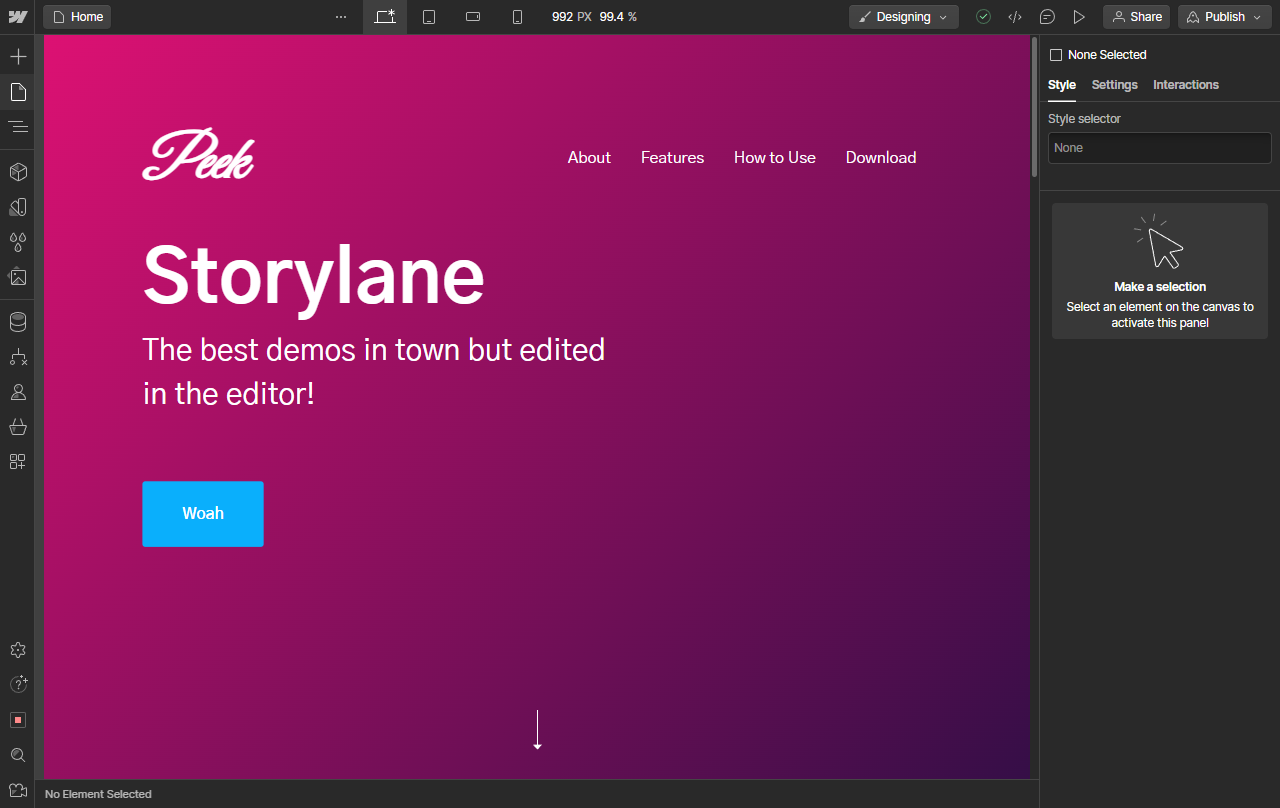
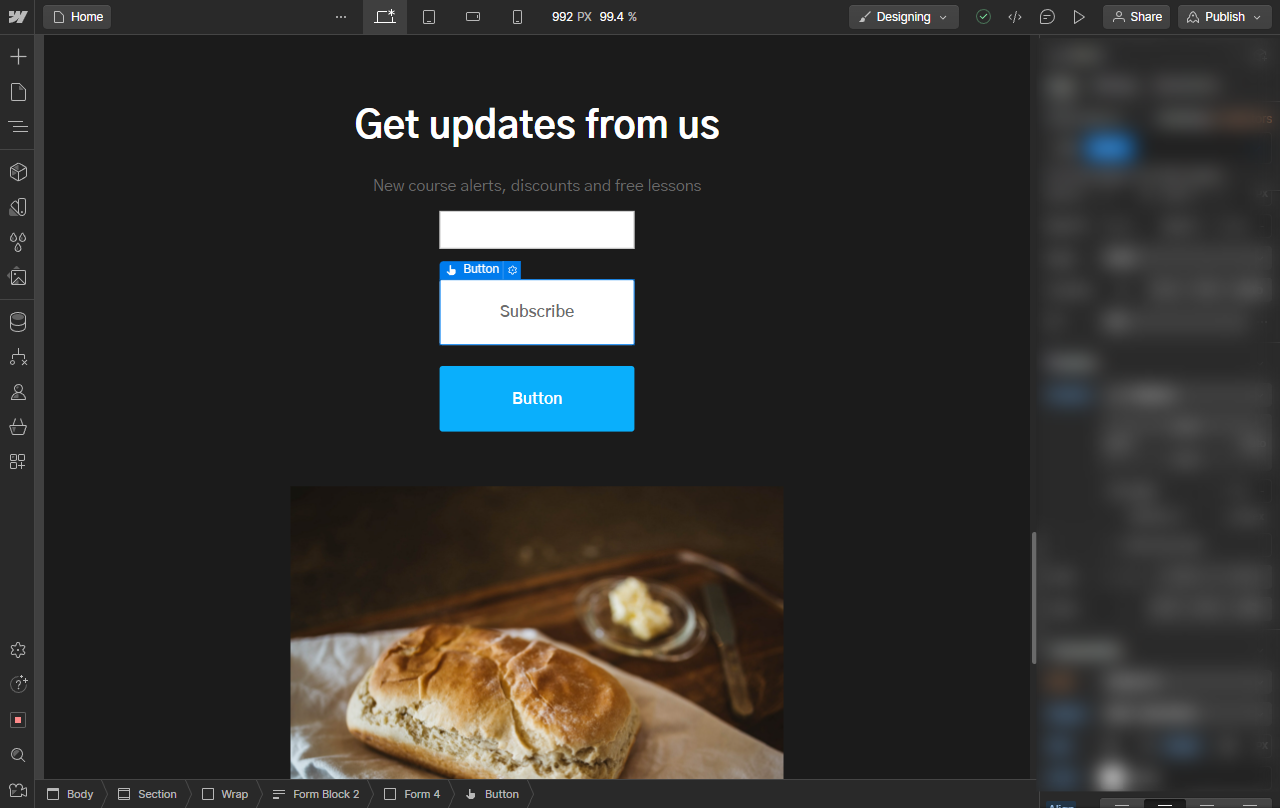
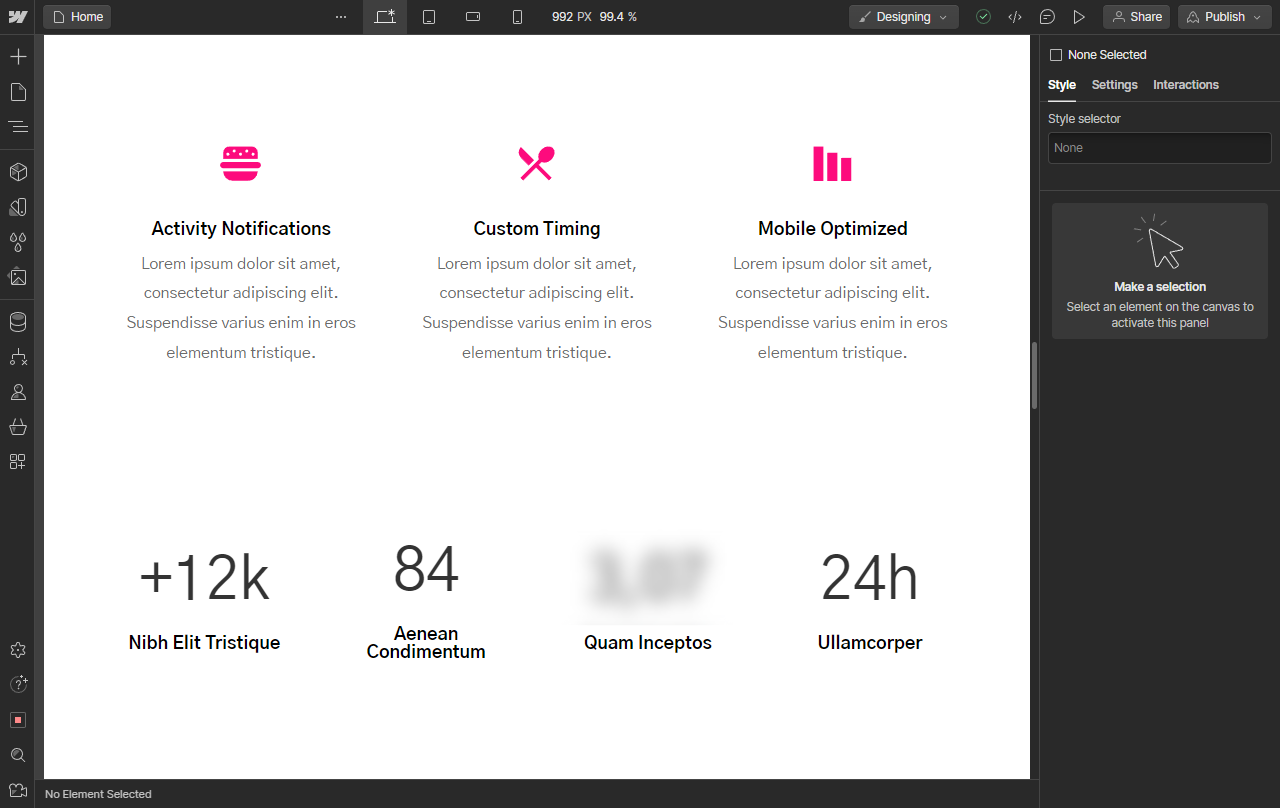
Inside your Webflow editor, use the Navigator to select the section you wish to edit properties for.
Or simply click on the element to select.
On the right side, go to the Style tab.
Scroll down to the Typography section and click to expand.
Next to Size, the Height property is what we wish to edit for Line height. Click on the unit (PX) to view options.
For this example, we will use the (-) or unitless. This functions as a basic multiplier which is great for responsive design.
Enter a value directly or use your arrow keys to increment slowly and you're done! You have set a custom line height for your selection in Webflow.
Quick answer: To change line spacing in Webflow, select your section or element in the Webflow editor, open the Style tab, and expand the Typography section. Click the unit next to Size to view options, choose the unitless option, and enter a custom value or use your arrow keys to set the line height.
About this Webflow tutorial
Adjust line spacing in Webflow by selecting an element, opening the Style tab, expanding Typography, and setting a custom unitless height value. This guide shows how to change Line Spacing In Webflow in 7 steps, starting with "Inside your Webflow editor, use the Navigator to select the section you wish to edit pr..." and finishing with "Enter a value directly or use your arrow keys to increment slowly and you're done! You...". The interactive demo above is a click-through copy of the real Webflow interface, so you can rehearse each step before doing it in your own account.
Frequently asked questions
How many steps does it take to change Line Spacing In Webflow?
7 steps. Each one is listed in order above, and the demo highlights exactly where to click.
Can I try it without changing my own account?
Yes. Clicking through the demo doesn't touch your Webflow data or settings. Once you know the flow, repeat it in your own workspace.
This tutorial is filed under Webflow. Related guides: How To Change Open Graph Image Webflow, How To Change Relative To In Webflow and How To Change Webflow Domain Name. Last reviewed 05 Oct 2026.

Create your first interactive demo in minutes
No credit card required • Start building today