How To Change Relative To In Webflow
- George Apostolov
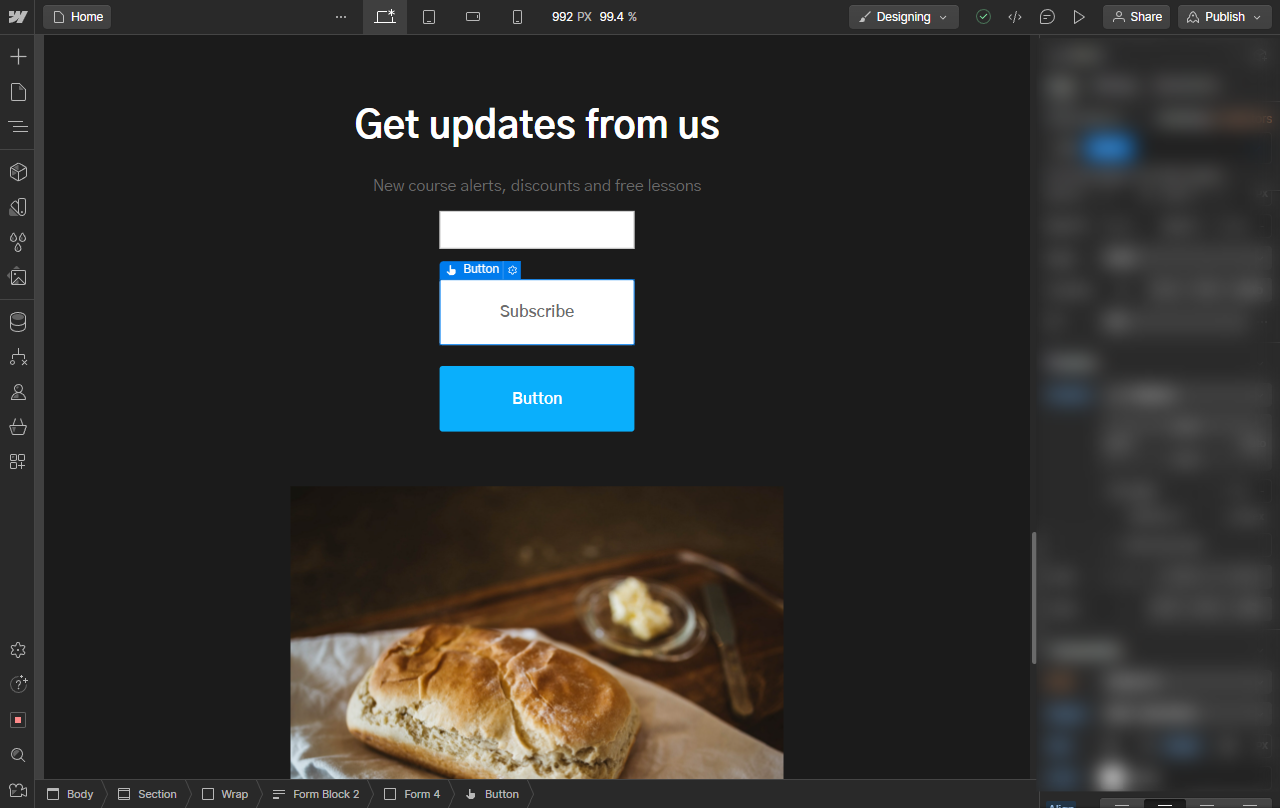
How To Change Relative To In Webflow: step-by-step guide
Select the element, section or div you wish to change the property for.
In the right sidebar menu, locate Position.
At the bottom of this section you will find the Relative to value, typically showing a marker icon in the center with the word itself. Hover on it to see the exact element highlighted.
This crosshair icon shows the center of the highlighted parent element which what the selected element is Relative to.
In order to change this, we need to note that the Position: Relative property takes its Relative to: position from the first parent element with a Relative position. So, to change this property we must change which parent element has the relative property.
Select the parent element you wish to set as relative to.
In the right sidebar menu, notice the Position is not set to relative.
Change it to Relative.
Your original element should now use its much closer parent element as its reference. To confirm this, select the original element again.
In the right sidebar menu, under Position, hover on the same Relative to property.
You will now notice that the highlighted element has now changed to the closer parent element.
Quick answer: To change relative to in Webflow, select the element and locate Position in the right sidebar. Note the current Relative to value, then select a different parent element, change its Position to Relative, and re-select the original element to confirm the updated reference parent.
About this Webflow tutorial
Adjust the relative position of elements in Webflow by updating the parent element position settings in the right sidebar. This guide shows how to change Relative To In Webflow in 11 steps, starting with "Select the element, section or div you wish to change the property for" and finishing with "You will now notice that the highlighted element has now changed to the closer parent e...". The interactive demo above is a click-through copy of the real Webflow interface, so you can rehearse each step before doing it in your own account.
Frequently asked questions
How many steps does it take to change Relative To In Webflow?
11 steps. Each one is listed in order above, and the demo highlights exactly where to click.
Can I try it without changing my own account?
Yes. Clicking through the demo doesn't touch your Webflow data or settings. Once you know the flow, repeat it in your own workspace.
This tutorial is filed under Webflow. Related guides: How To Change Webflow Domain Name, How To Clone A Webflow Website and How To Connect Domain To Webflow. Last reviewed 05 Oct 2026.

Create your first interactive demo in minutes
No credit card required • Start building today