How to Change the Button Style in Constant Contact Emails
- George Apostolov
How to Change the Button Style in Constant Contact Emails: step-by-step guide
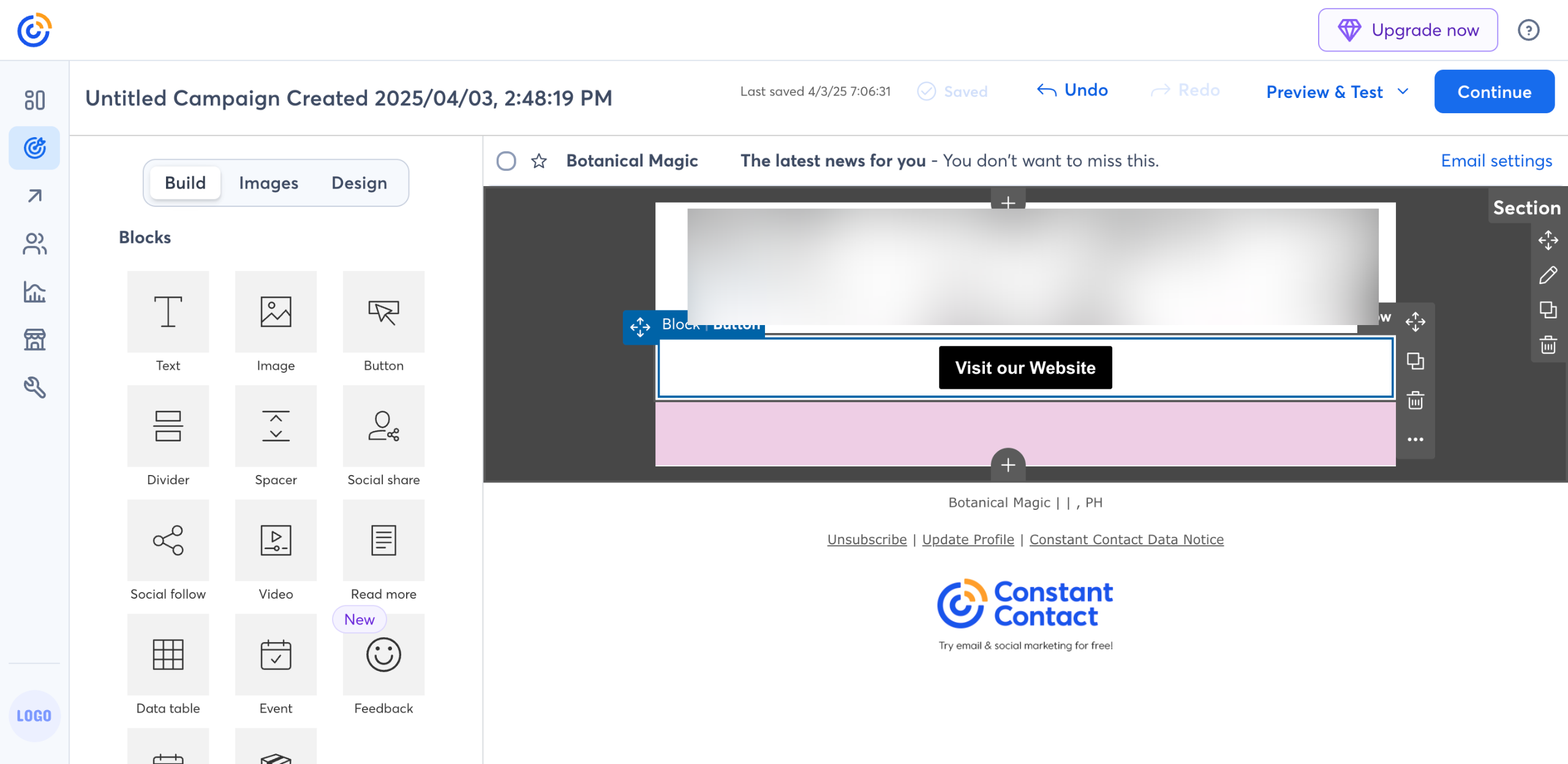
Inside Constant Contact's email editor, find and select the button you want to edit.
After that, head over to the left-side panel and configure the available settings based on your preference. To get started, click the selector next to 'Button Color' and pick your preferred option.
Adjust the 'Button Radius' setting if you wish to apply rounded corners. Simply enter a specific value into the provided input field or tap the increase and decrease buttons to make your desired changes.
In case you want to add a visible border around the button, switch on the toggle button next to 'Apply Folder'. Subsequently, specify your preferred color and width.
With regard to spacing, reconfigure the 'Vertical Padding' and 'Horizontal Padding' settings to make your desired adjustments. Just enter a specific input or tap the increase and decrease buttons to proceed.
To add a 'Vertical Margin' or 'Horizontal Margin', simply switch on the toggle button next to them. Likewise, do the same thing if you wish to enable the 'Full Width' option.
Finally, the default button style in your Constant Contact email will be changed based on your input.
Quick answer: To change the button style in Constant Contact, select the button in the email editor, adjust color, radius, and border settings in the left-side panel, reconfigure padding and margin options as needed, and the default style will update automatically.
About this tutorial
Customize your email button styles in the app by editing colors, borders, padding, and margins using the left-side settings panel. This guide shows how to change the Button Style in Constant Contact Emails in 7 steps, starting with "Inside Constant Contact's email editor, find and select the button you want to edit" and finishing with "Finally, the default button style in your Constant Contact email will be changed based...". The interactive demo above is a click-through copy of the real product interface, so you can rehearse each step before doing it in your own account.
Frequently asked questions
How many steps does it take to change the Button Style in Constant Contact Emails?
7 steps. Each one is listed in order above, and the demo highlights exactly where to click.
Can I try it without changing my own account?
Yes. Clicking through the demo doesn't touch your data or settings. Once you know the flow, repeat it in your own workspace.

Create your first interactive demo in minutes
No credit card required • Start building today