Appcues slack integration
- George Apostolov
Appcues slack integration: step-by-step guide
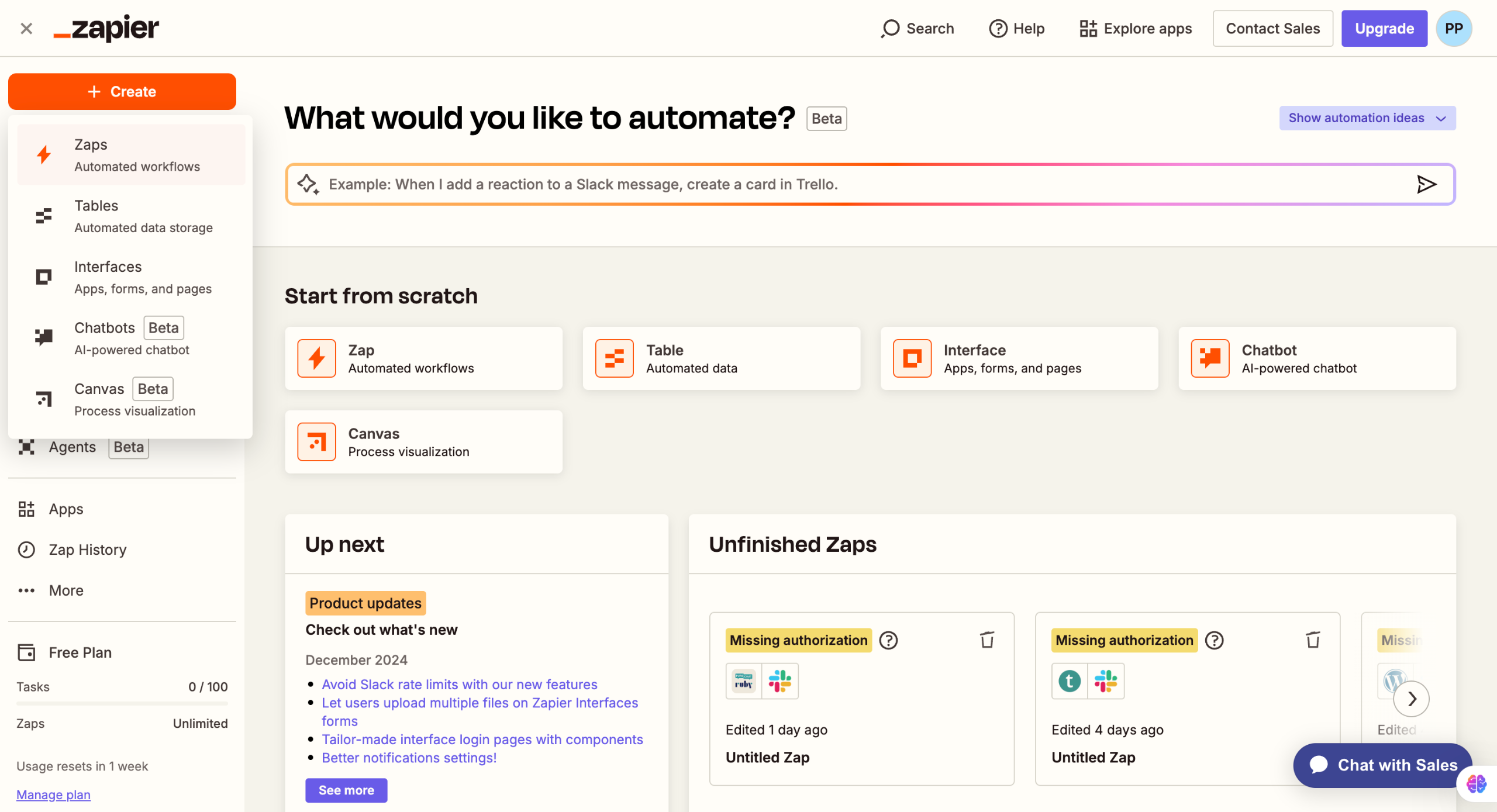
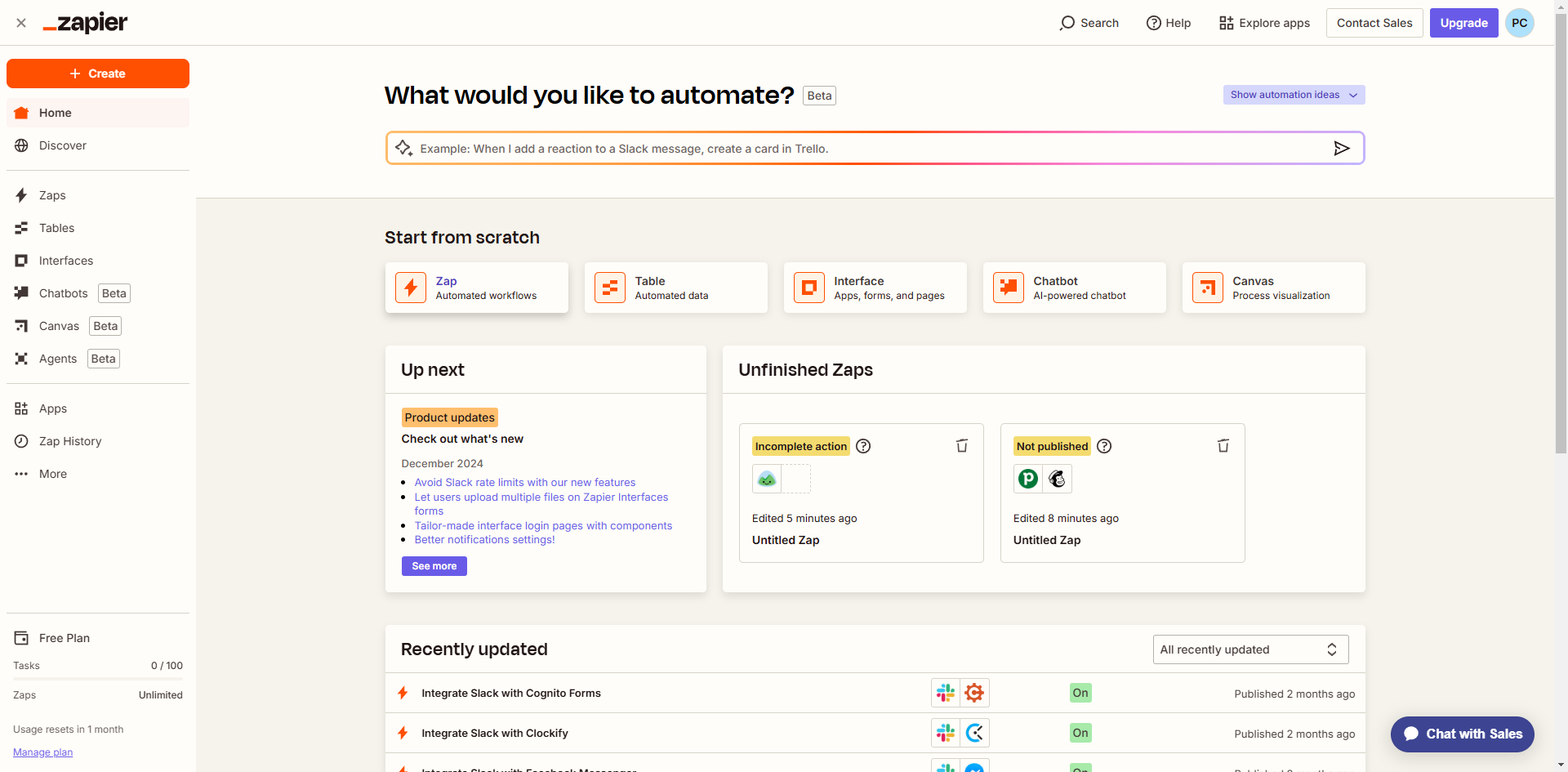
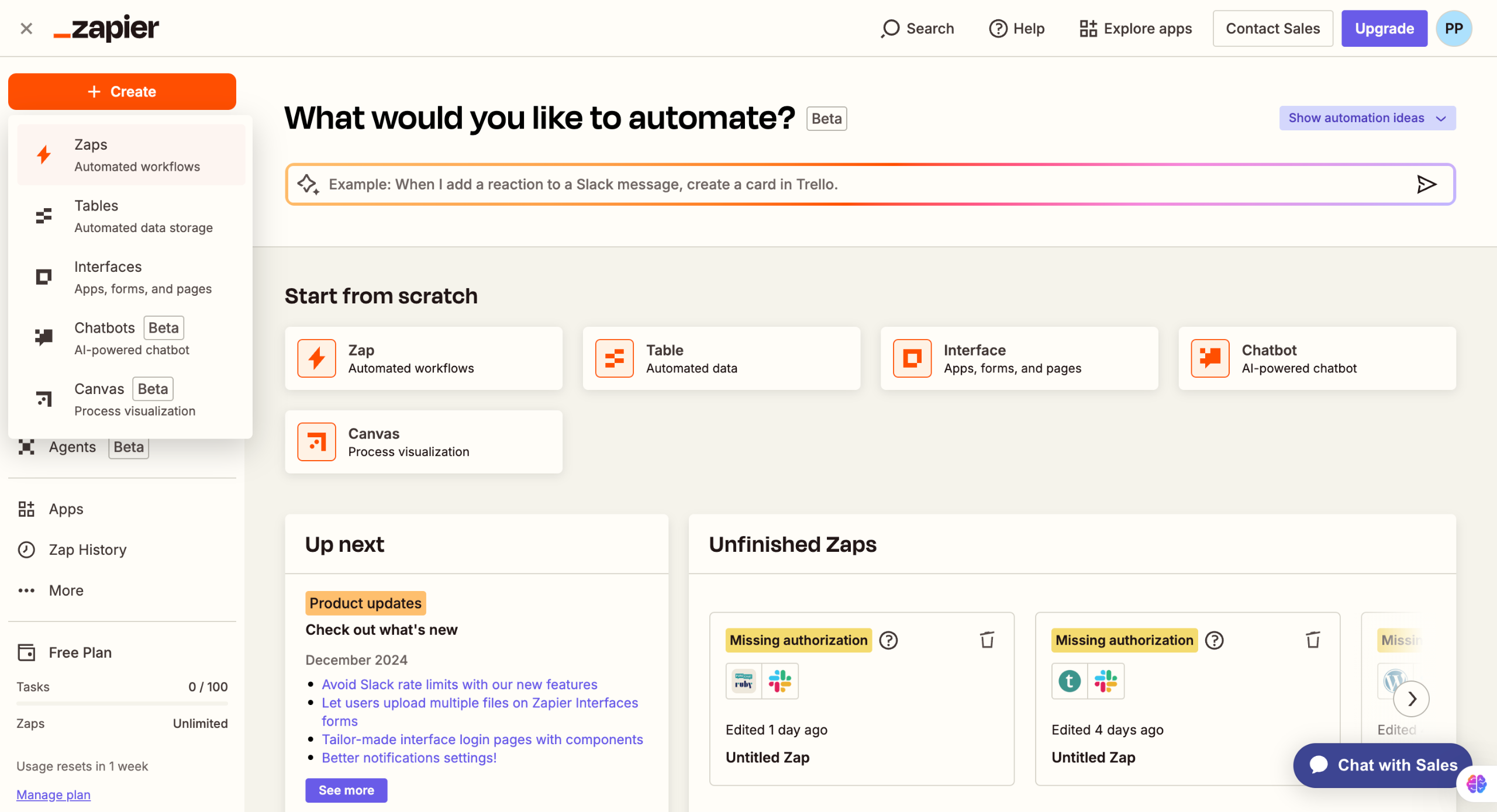
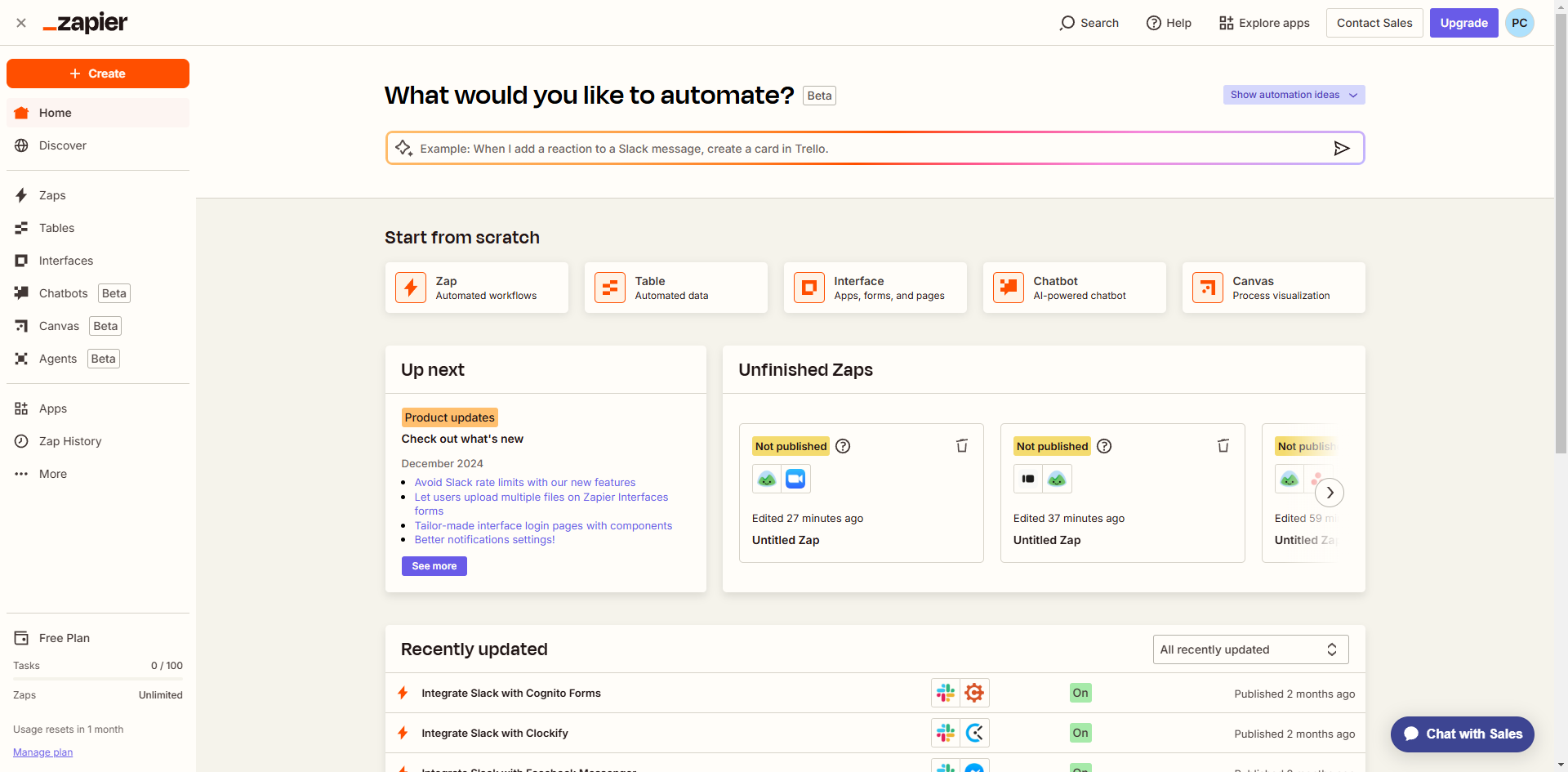
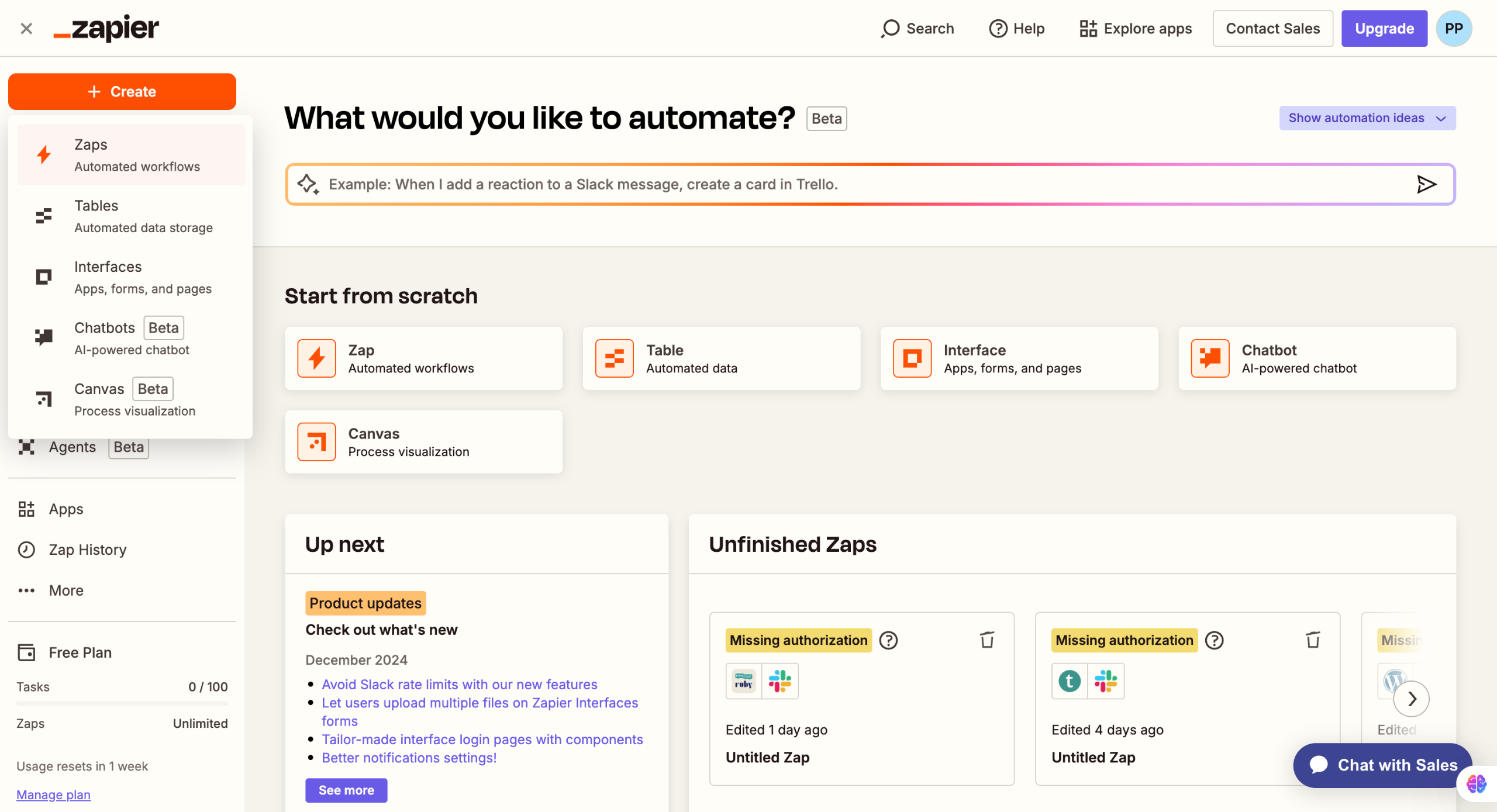
Hit Create > Zap on the left sidebar.
Click on the Trigger to define the trigger event.
Select Appcues from the listed apps.
Select the Trigger event as Checklist Dismissed.
Click on Account to connect your Appcues account.
Sign in to your Appcues account in the pop-up. Enter your Account ID, API Key and Secret.
Now, select your Action event.
And search for Slack.
As for the Action, choose Send Channel Message.
Next, connect your Slack account if it's not connected.
Finally, Publish to establish the connection.
Quick answer: To integrate Appcues with Slack, create a Zap and set the trigger event as Checklist Dismissed by connecting your Appcues account with your Account ID, API Key, and Secret. Next, select Slack as the action, choose Send Channel Message, connect your Slack account, and publish the integration.
About this Slack tutorial
Connect Appcues to Slack using Zapier by setting up the Checklist Dismissed trigger and sending channel messages to your team. This guide covers appcues slack integration in 11 steps, starting with "Hit Create > Zap on the left sidebar" and finishing with "Finally, Publish to establish the connection". The interactive demo above is a click-through copy of the real Slack interface, so you can rehearse each step before doing it in your own account.
Frequently asked questions
How many steps does appcues slack integration take?
11 steps. Each one is listed in order above, and the demo highlights exactly where to click.
Can I try it without changing my own account?
Yes. Clicking through the demo doesn't touch your Slack data or settings. Once you know the flow, repeat it in your own workspace.
This tutorial is filed under Slack. Related guides: Aprova slack integration, How to Connect Asana to Slack and How to Connect Basecamp To-Dos to Slack Notifications using Zapier. Last reviewed 05 Oct 2026.

Create your first interactive demo in minutes
No credit card required • Start building today