How to Count the Words in Microsoft Excel
- George Apostolov
How to Count the Words in Microsoft Excel: step-by-step guide
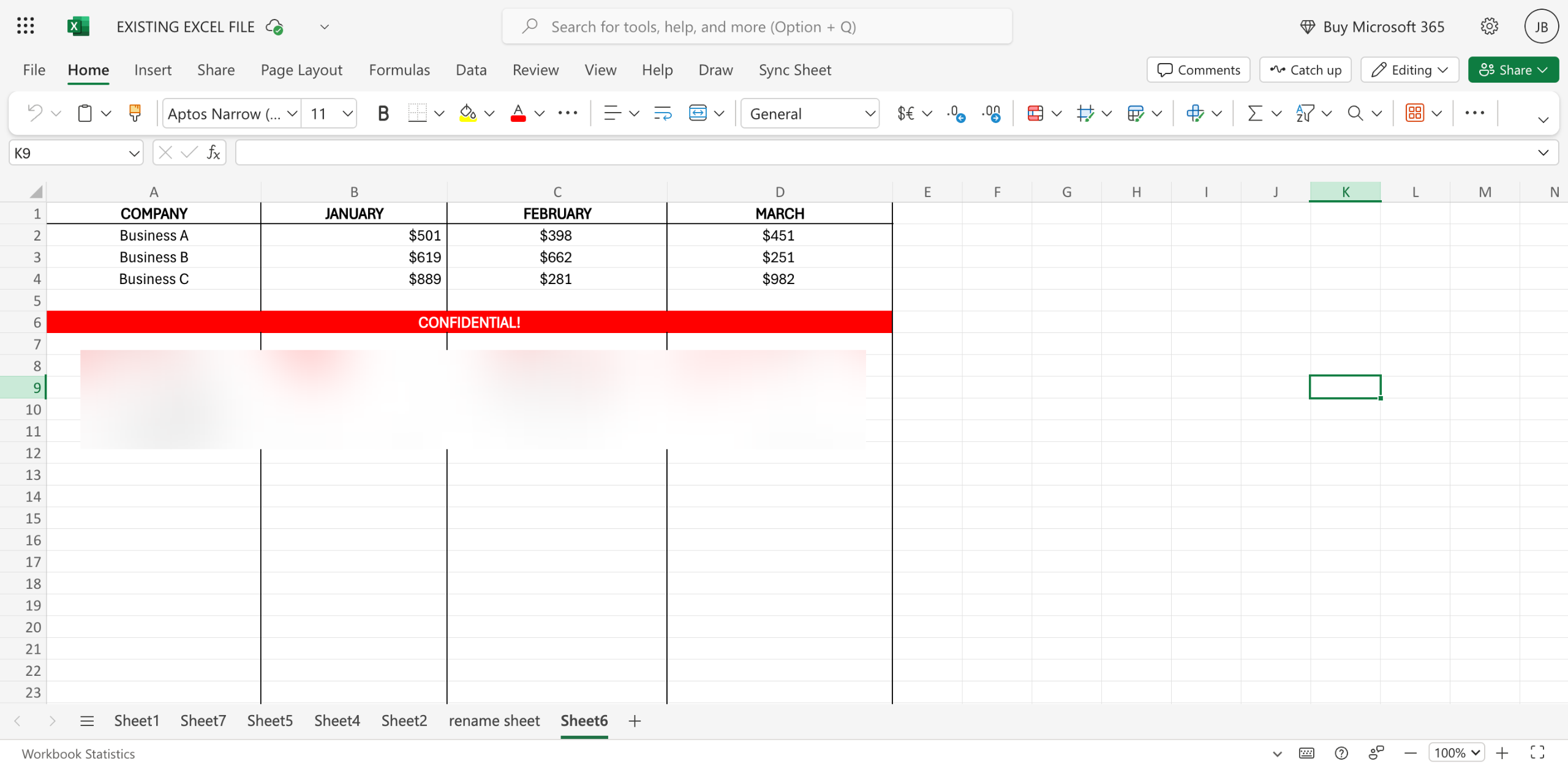
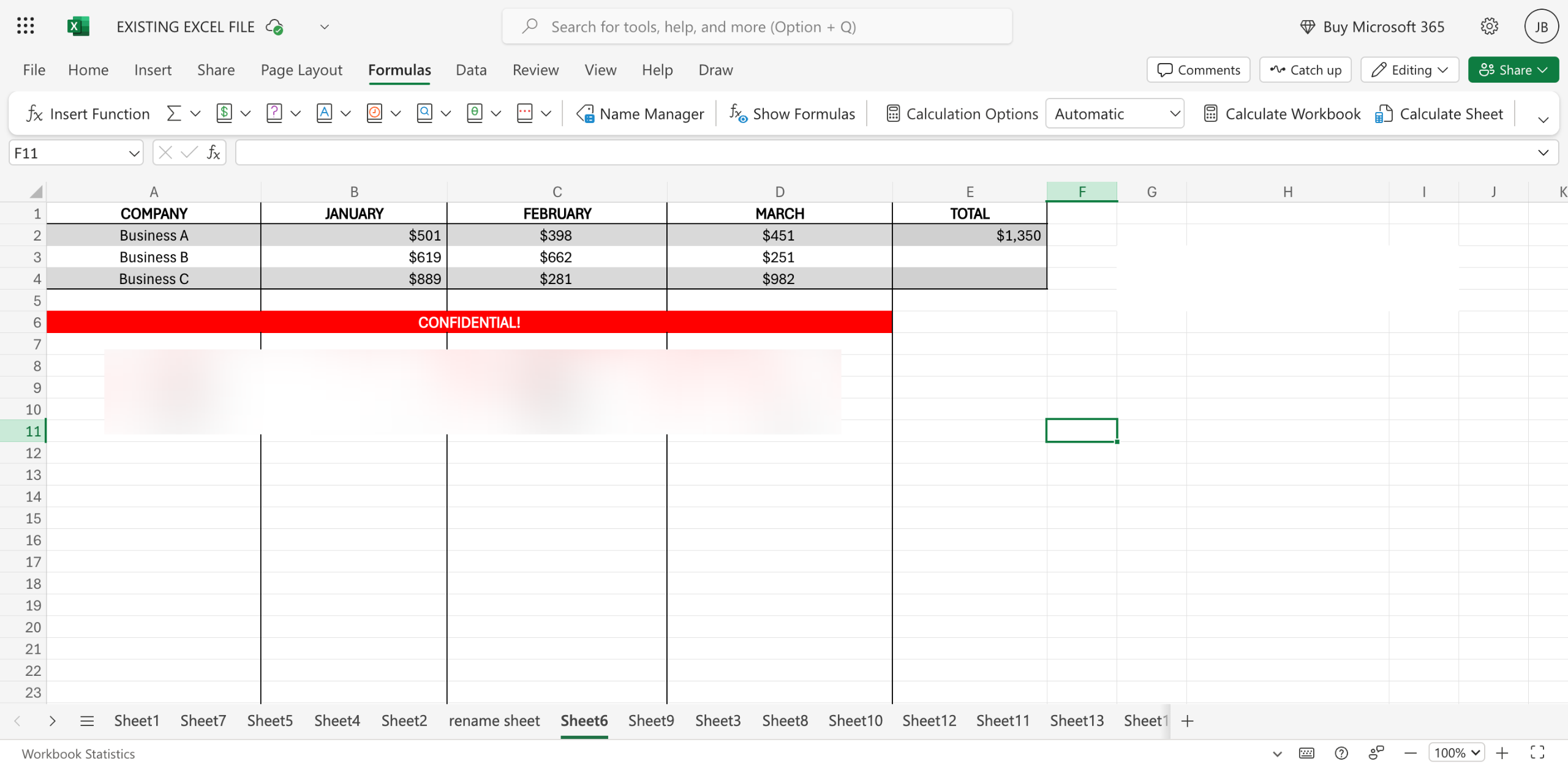
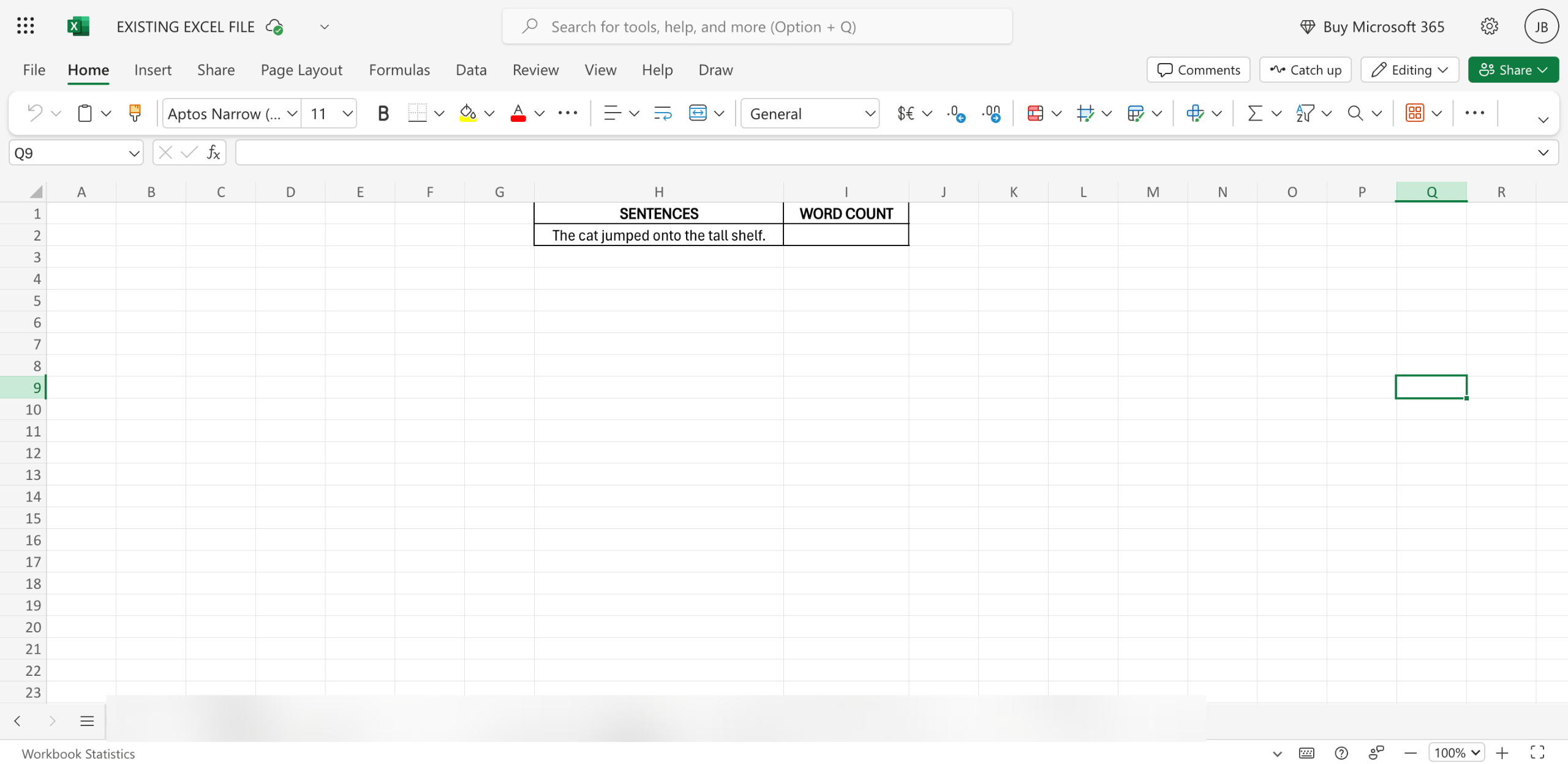
Inside your Microsoft Excel worksheet, select the cell where you intend to show the formula and then type an 'Equals' (=) sign.
Type 'Len' afterwards, then select it from the suggested results.
Subsequently, add the TRIM function. Simply type 'TRIM' and choose it from the suggested results.
Select the cell containing the text you wish to count.
Following that, end the first part of the formula with two closing parentheses.
Type a 'Minus' (-) sign afterwards to proceed further.
Enter another LEN function into your formula. Once again, type 'LEN' and select it from the suggested results.
After that, add the Substitute function by simply typing 'Substitute' and choosing it from the suggested results.
Once again, select the cell that contains the text you wish to count and type a 'Comma' (,).
Add two 'Quotation Marks' with one space in between (" ") to denote a single space. Subsequently, enter a 'Comma' (,) one more time.
Following that, add another pair of quotation marks. However, delete the spaces in between ("") to indicate that you're excluding the spaces from the word count. End the formula with two closing parentheses and insert '+1' at the very end.
Once done, tap anywhere around your worksheet to run the formula and process the result.
After completing these steps, the text from the selected cell will be counted accordingly.
Quick answer: To count words in Microsoft Excel, select a cell and type an equals sign, add the LEN and TRIM functions, select the text cell, add two closing parentheses, a minus sign, another LEN function, a Substitute function, the text cell again with a comma, a space inside quotation marks, another comma, empty quotation marks, two closing parentheses, and plus one, then tap the worksheet.
About this Microsoft tutorial
Calculate word counts in Microsoft Excel easily by building a custom formula using LEN, TRIM, and Substitute functions step by step. This guide shows how to count the Words in Microsoft Excel in 13 steps, starting with "Inside your Microsoft Excel worksheet, select the cell where you intend to show the for..." and finishing with "After completing these steps, the text from the selected cell will be counted accordingly". The interactive demo above is a click-through copy of the real Microsoft interface, so you can rehearse each step before doing it in your own account.
Frequently asked questions
How many steps does it take to count the Words in Microsoft Excel?
13 steps. Each one is listed in order above, and the demo highlights exactly where to click.
Can I try it without changing my own account?
Yes. Clicking through the demo doesn't touch your Microsoft data or settings. Once you know the flow, repeat it in your own workspace.
This tutorial is filed under Microsoft and Excel. Related guides: How to Create a Chart in Microsoft Excel, How to Create a Custom Formula in MS Excel and How to Create a Gantt Chart in Microsoft Planner. Last reviewed 05 Oct 2026.

Create your first interactive demo in minutes
No credit card required • Start building today