How to Create a Brand Voice Guide GPT
- George Apostolov
How to Create a Brand Voice Guide GPT: step-by-step guide
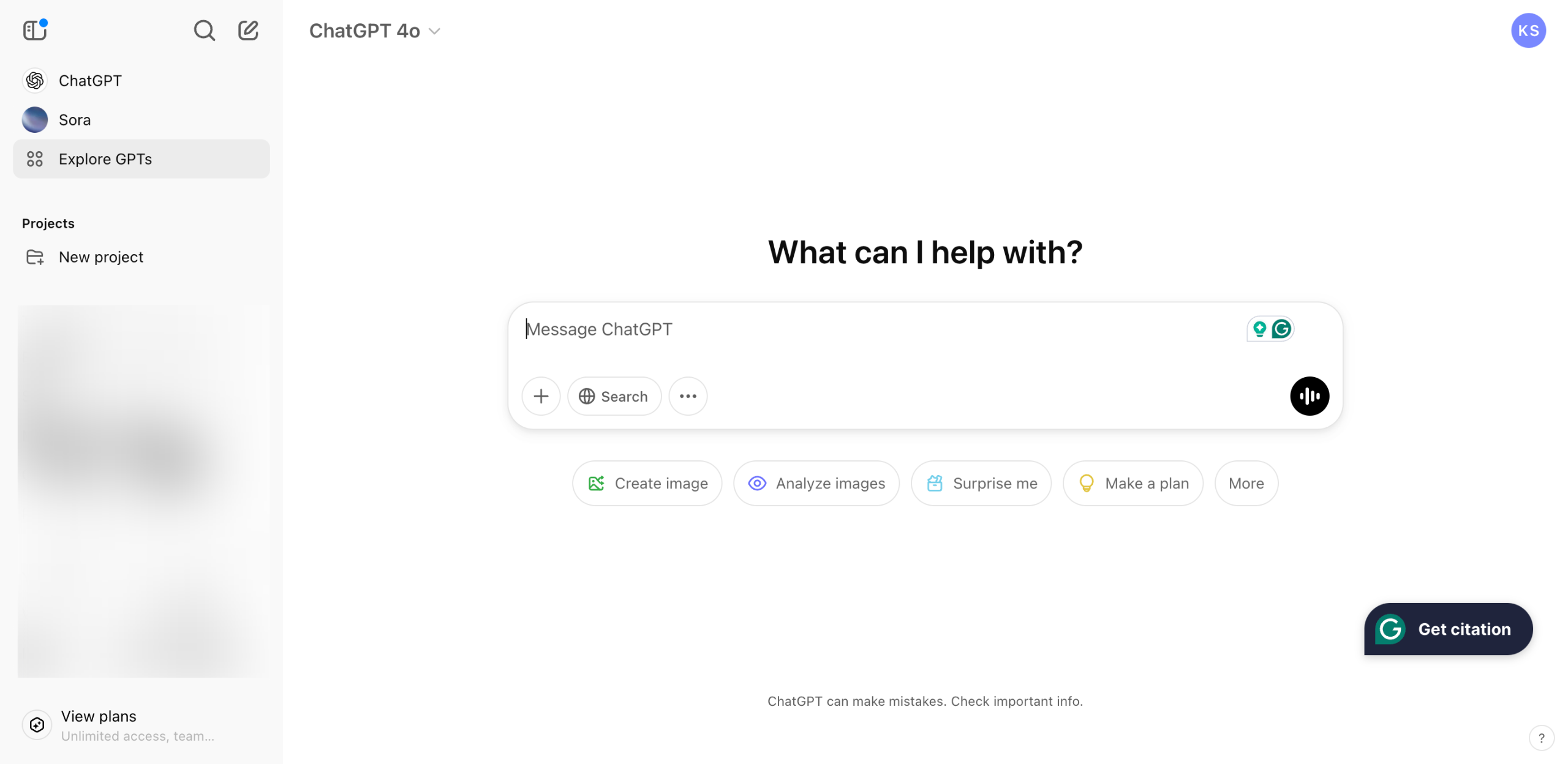
On ChatGPT's main interface, navigate to the left-side panel and click 'Explore GPTs'.
Tap the 'Create' button at the top-right corner to get started.
After that, switch the tab from Create to 'Configure'.
Set a distinctive display photo that represents your brand voice guide GPT. Simply click the 'Add' icon and choose the specific image file you wish to use.
Subsequently, assign a unique GPT 'Name' and 'Description'. Enter the details into their respective input fields.
Come up with detailed and comprehensive guidelines that describe the purpose, behavior, function, and capability of the brand voice guide you wish to create. Type them into the 'Instructions' input field.
Add a few text prompt examples related to the brand voice guide. Type them one by one into the 'Conversation Starters' input field.
If you want to add extra references from external sources, scroll down to the Knowledge section and click 'Upload Files'. Import the documents that contain the data you want to use.
Browse the Capabilities section afterwards, then tick the checkbox beside the GPT functions you want to enable. At the same time, you may configure several Actions if you intend to integrate your brand voice guide GPT with third-party apps.
Once done, head over to the Preview Area and test out your brand voice guide GPT for the first time. Enter a text prompt into the provided input box and click 'Submit'.
Review the initial performance of your custom GPT for the brand voice guide. If you're satisfied with the result, click 'Create' at the top-right corner.
Specify your preferred access configuration, then click 'Save'.
After completing these steps, your brand voice guide GPT will be created and published.
Quick answer: To create a brand voice guide GPT on ChatGPT, explore GPTs, click Create, switch to Configure, add a display photo, name, description, instructions, conversation starters, and knowledge files. Enable capabilities, test the preview, click Create, set access, and save to publish.
About this tutorial
Build your own custom brand voice guide in the app by configuring instructions, knowledge, capabilities, and settings, then publish. This guide shows how to create a Brand Voice Guide GPT in 13 steps, starting with "On ChatGPT's main interface, navigate to the left-side panel and click 'Explore GPTs'" and finishing with "After completing these steps, your brand voice guide GPT will be created and published". The interactive demo above is a click-through copy of the real product interface, so you can rehearse each step before doing it in your own account.
Frequently asked questions
How many steps does it take to create a Brand Voice Guide GPT?
13 steps. Each one is listed in order above, and the demo highlights exactly where to click.
Can I try it without changing my own account?
Yes. Clicking through the demo doesn't touch your data or settings. Once you know the flow, repeat it in your own workspace.

Create your first interactive demo in minutes
No credit card required • Start building today