How to Create a Design System in Figma
- George Apostolov

How to Create a Design System in Figma: step-by-step guide
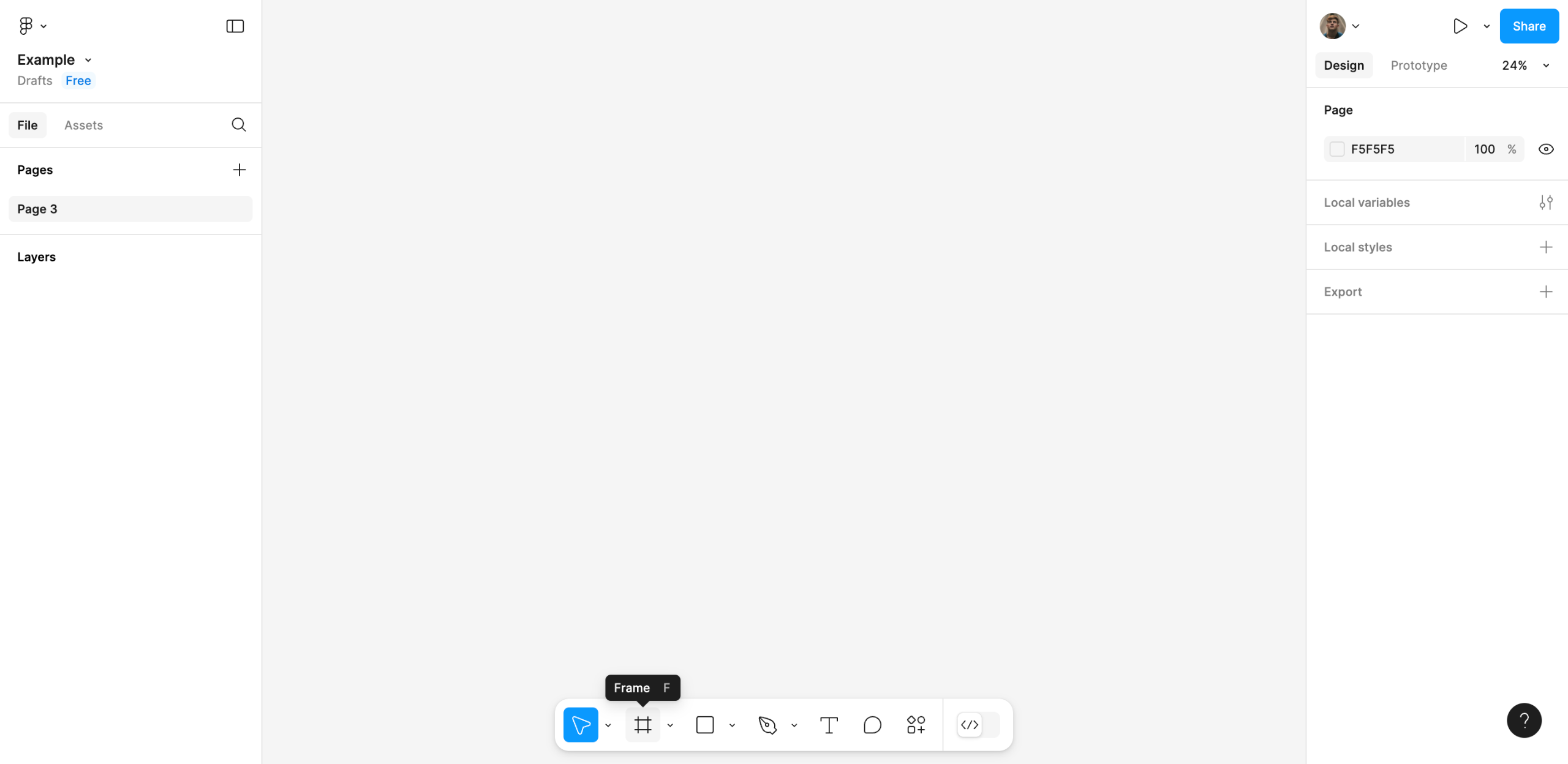
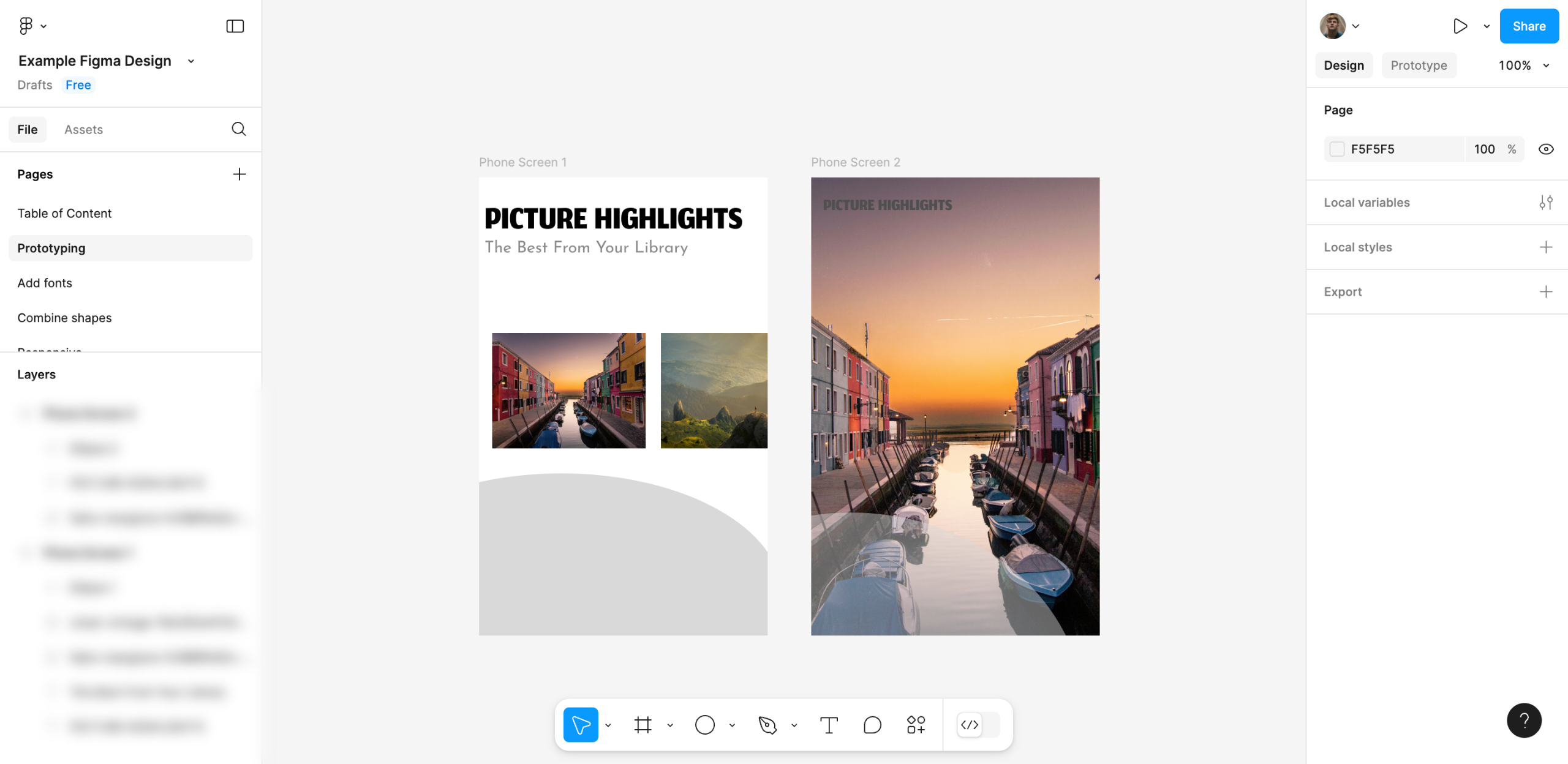
Navigate to the bottom section of your design canvas and then click 'Frame'.
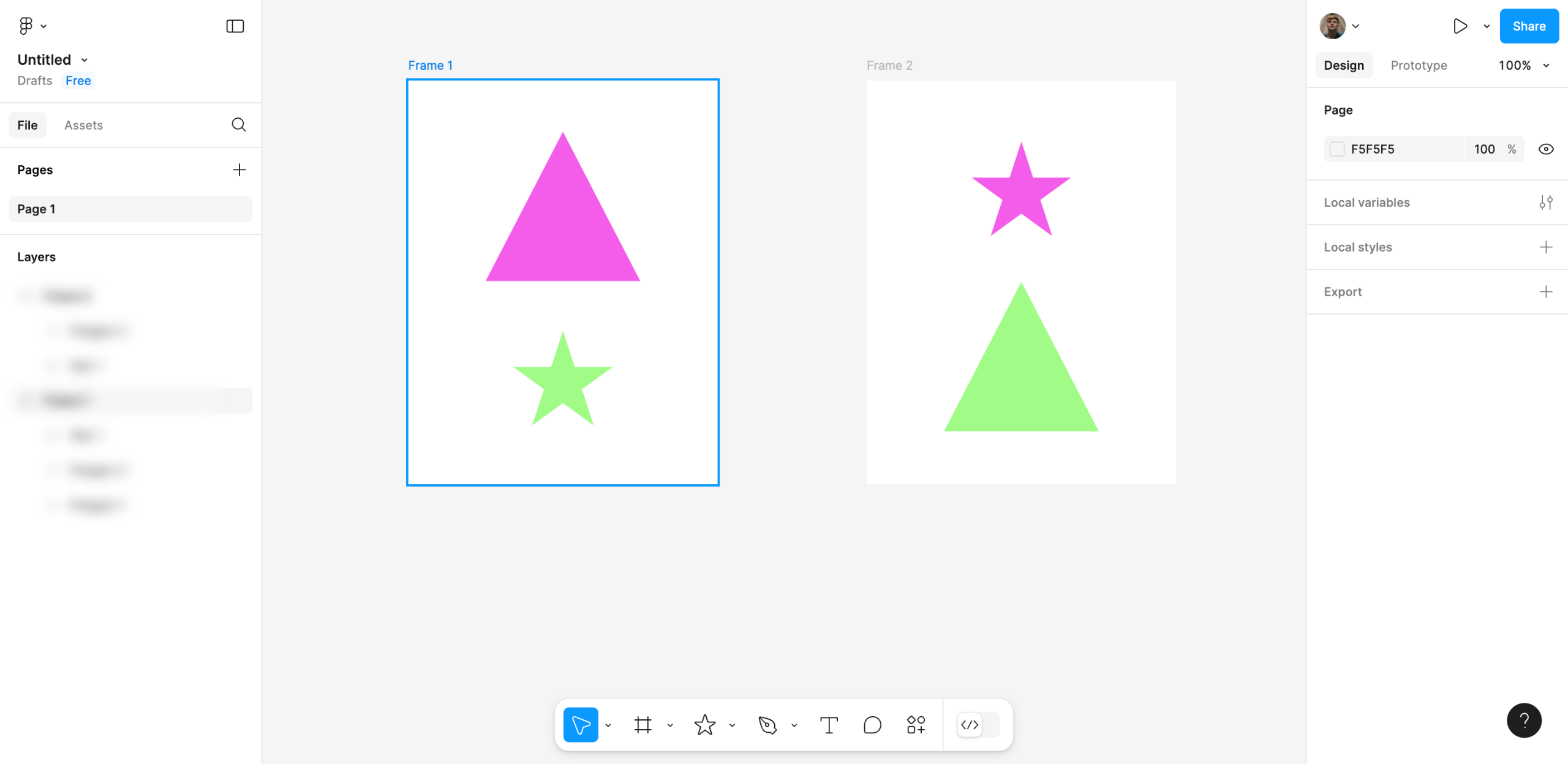
Following that, use your mouse cursor to draw a frame somewhere around the canvas.
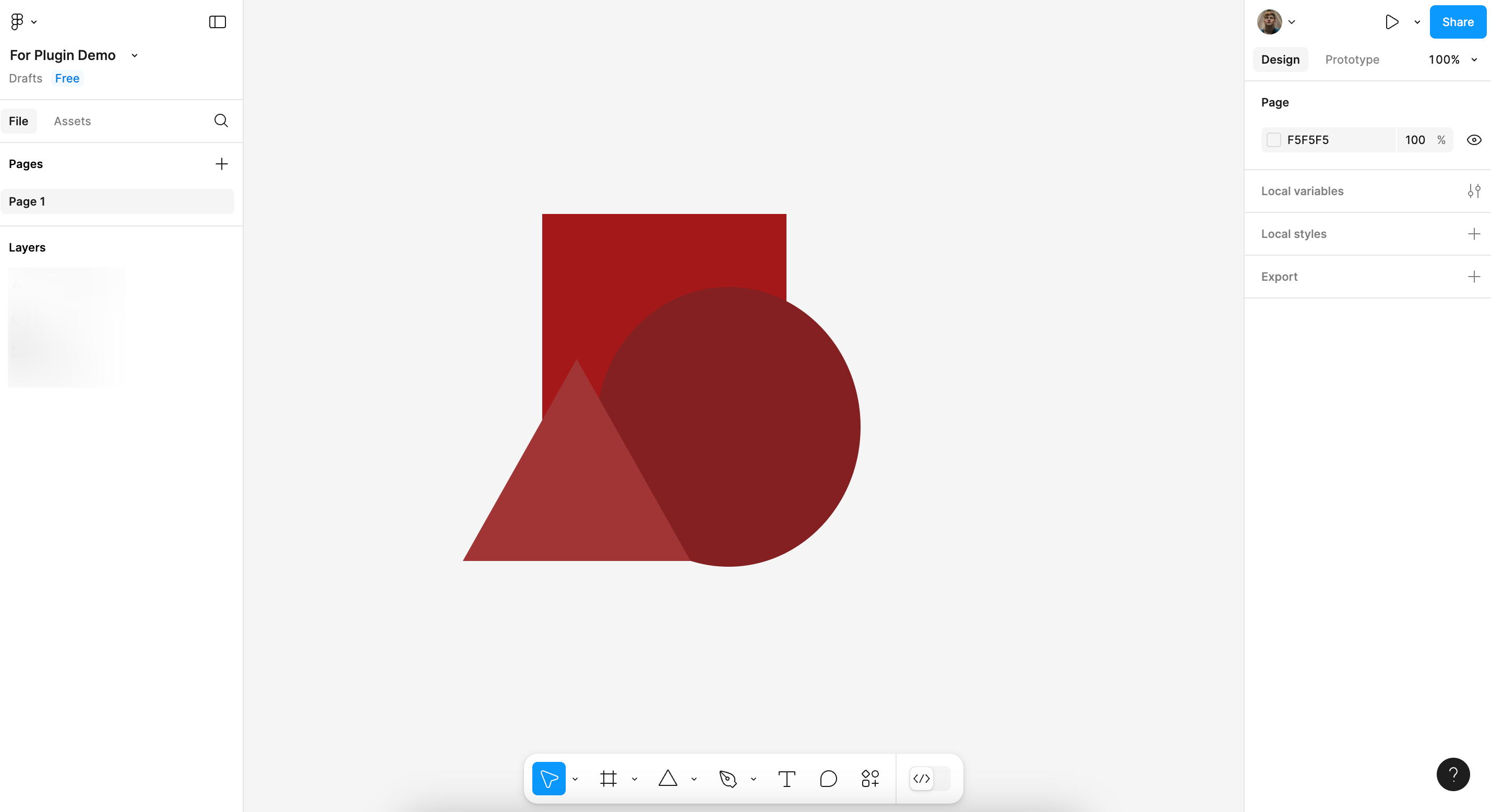
Head back to the menu bar at the bottom section and use the given options to add the essential elements of your design system to the canvas. For instance, you may insert shapes, texts, images, and the like.
One by one, arrange the assets according to your creative concept. At the same time, make all the necessary adjustments to fit them perfectly within the frame.
After that, select the assets individually and then access the right-side panel to further customize their designs. For instance, you may change their Position, Layout, Appearance, Visual Effects, and other similar settings.
Finally, tap the 'Share' button at the top-right corner to send a copy of the design system to your team members.
Quick answer: To create a design system in Figma, draw a frame on the canvas, add essential elements from the bottom menu, arrange and adjust the assets within the frame, customize their designs using the right-side panel, and tap the Share button to send it to your team.
About this Figma tutorial
Build and share a design system in Figma by drawing a frame, adding elements, arranging assets, and customizing designs for your team. This guide shows how to create a Design System in Figma in 6 steps, starting with "Navigate to the bottom section of your design canvas and then click 'Frame'" and finishing with "Finally, tap the 'Share' button at the top-right corner to send a copy of the design sy...". The interactive demo above is a click-through copy of the real Figma interface, so you can rehearse each step before doing it in your own account.
Frequently asked questions
How many steps does it take to create a Design System in Figma?
6 steps. Each one is listed in order above, and the demo highlights exactly where to click.
Can I try it without changing my own account?
Yes. Clicking through the demo doesn't touch your Figma data or settings. Once you know the flow, repeat it in your own workspace.
This tutorial is filed under Figma. Related guides: How to Create a Figma Plugin, How to Create a Flow in Figma and How to Create a Frame in Figma. Last reviewed 05 Oct 2026.

Create your first interactive demo in minutes
No credit card required • Start building today