How To Create A Form In Pipedrive
- George Apostolov

How To Create A Form In Pipedrive: step-by-step guide
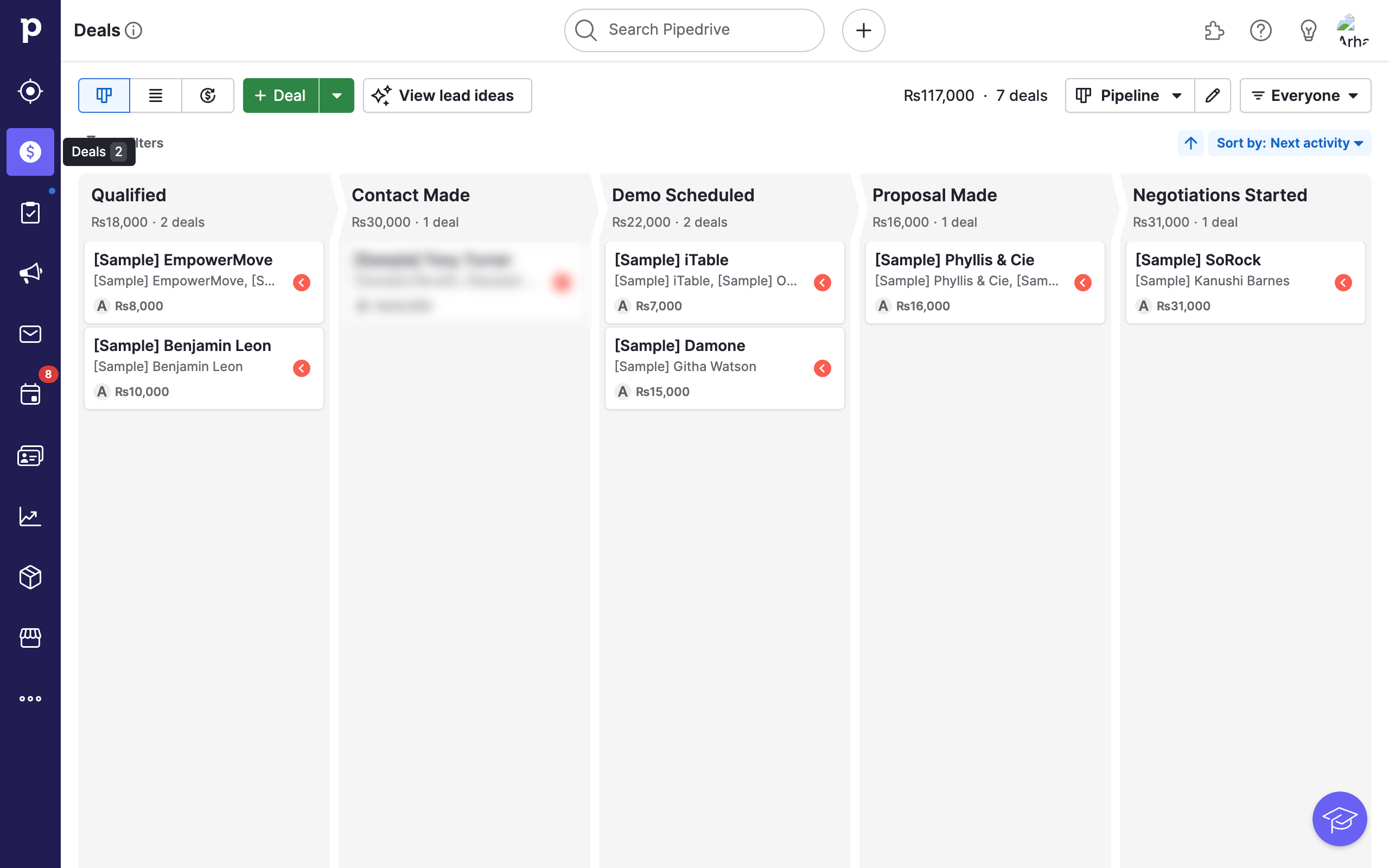
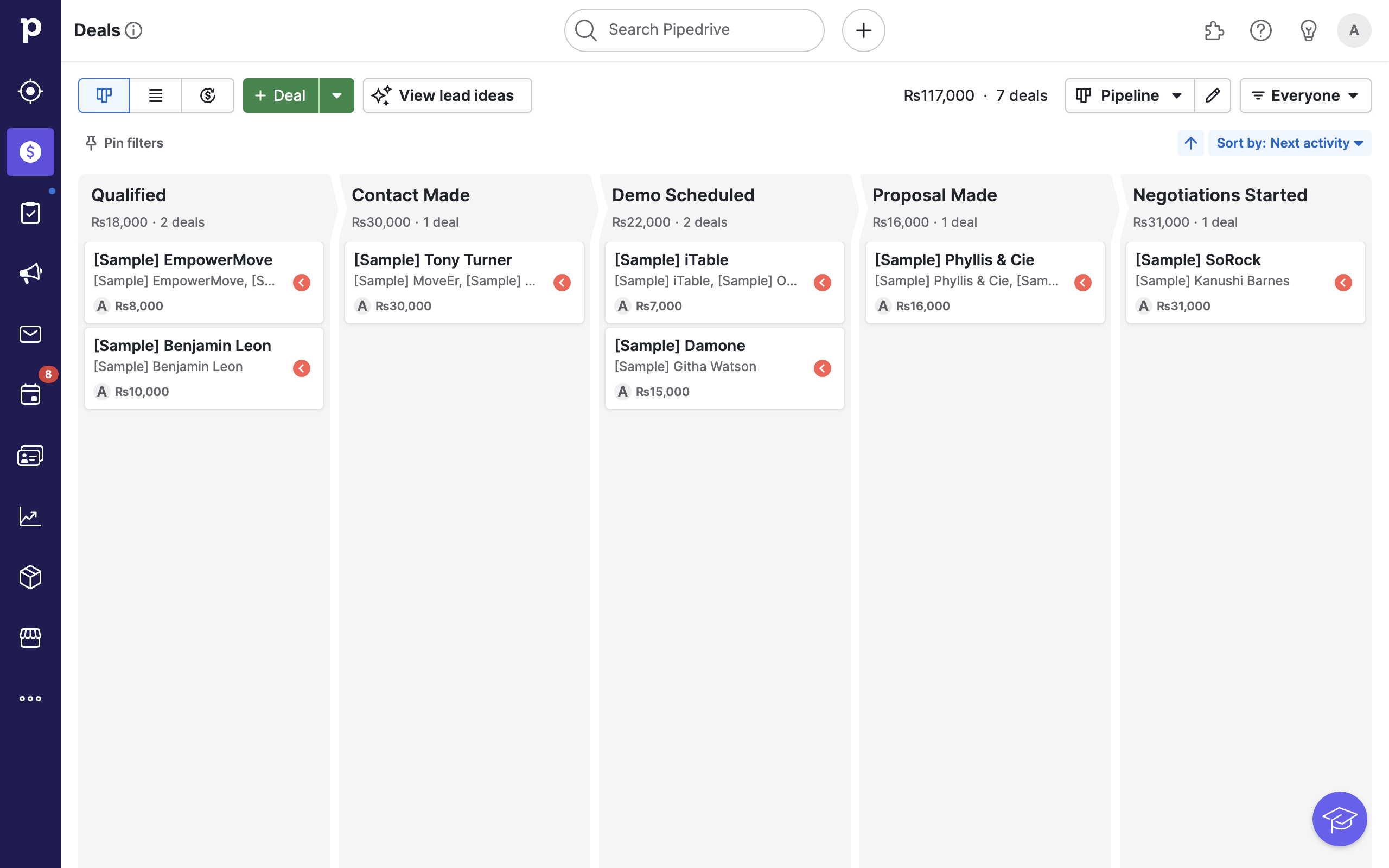
Go to the Leads tab from the left sidebar menu.
Locate and open the Web Forms option.
Note that you may be prompted to subscribe to this feature.
Otherwise, simply click on the + Try Web Forms button.
You will now have the option to pick from various templates. These can be edited later so pick the one you like best!
Once selected, click on Create form.
You will see a chart of all items in your form and plenty more options to customize your form. Feel free to explore.
You can click on the (+) icons between items to add a new field.
Select the type of field, name, etc. and click on Save.
Once your ideal form is ready, click on Save at the top right.
You now have an active web form in Pipedrive. If this was already embedded somewhere it should reflect the new changes.
Or use the three dotted icon to view more options. Click on Share and embed.
Copy the embed link or follow instructions for other methods.
Quick answer: To create a form in Pipedrive, go to the Leads tab, open Web Forms, and click Try Web Forms. Choose a template, click Create form, customize fields using the plus icons, and click Save. Finally, access Share and embed via the three-dotted icon to copy your link.
About this Pipedrive tutorial
Create and customize web forms in Pipedrive to capture leads easily. Choose templates, add custom fields, and share your active form. This guide shows how to create A Form In Pipedrive in 13 steps, starting with "Go to the Leads tab from the left sidebar menu" and finishing with "Copy the embed link or follow instructions for other methods". The interactive demo above is a click-through copy of the real Pipedrive interface, so you can rehearse each step before doing it in your own account.
Frequently asked questions
How many steps does it take to create A Form In Pipedrive?
13 steps. Each one is listed in order above, and the demo highlights exactly where to click.
Can I try it without changing my own account?
Yes. Clicking through the demo doesn't touch your Pipedrive data or settings. Once you know the flow, repeat it in your own workspace.
This tutorial is filed under Pipedrive. Related guides: How To Create A New Pipeline In Pipedrive, How To Create A Trigger In Pipedrive and How To Create Templates In Pipedrive. Last reviewed 05 Oct 2026.

Create your first interactive demo in minutes
No credit card required • Start building today