How To Create A Table In Webflow
- George Apostolov
How To Create A Table In Webflow: step-by-step guide
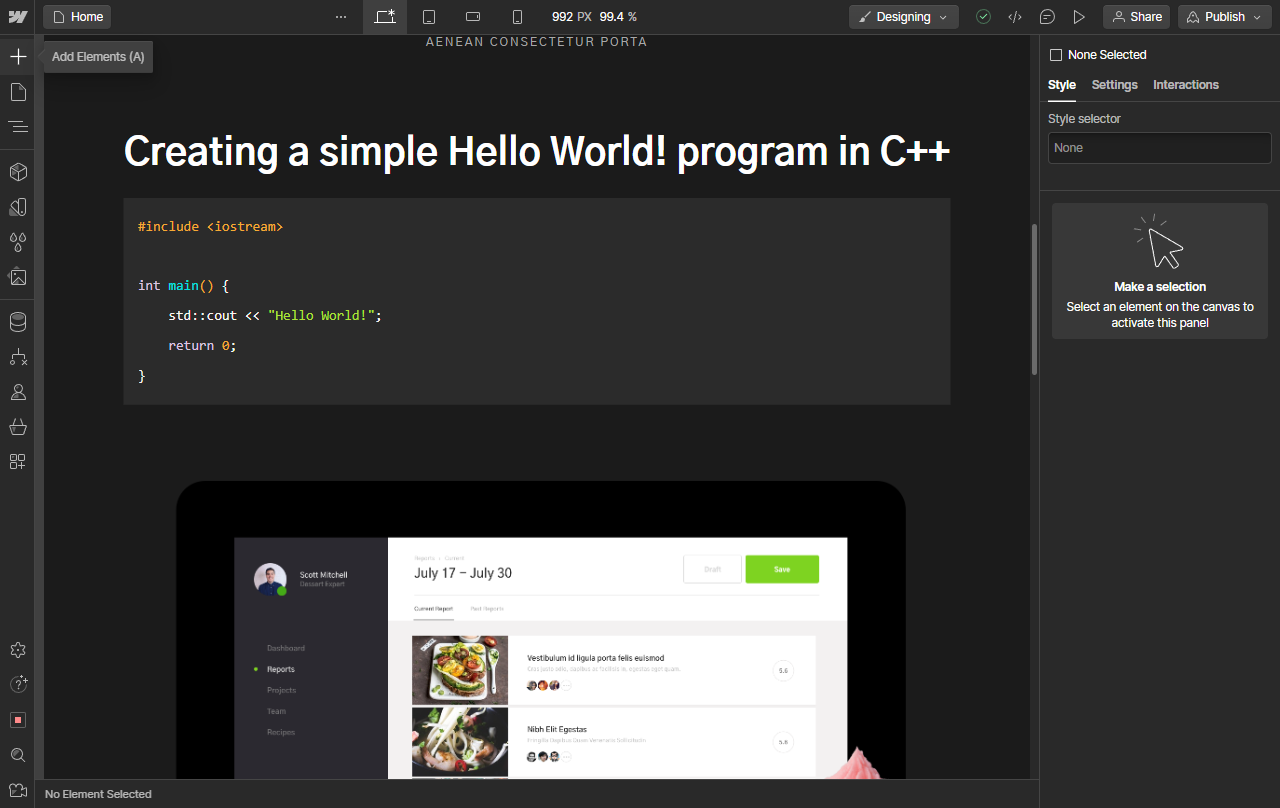
Webflow does not inherently have tables. Instead, we can use Grid to create a table format structure for our content. To add a grid, go to Add Elements in the left sidebar menu.
Scroll to the Other section or simply search for Grid.
Once you click or drag the Grid where you want it. The right sidebar menu will offer many options to customize and control it.
You can also enter a Grid Editing mode by clicking on the small grid icon for Edit Grid.
When inside this mode, you can add rows and columns using the (+) icon.
You can also customize the width of columns by dragging the edges or clicking on the heading to view options.
Also, you can also customize and adjust the spacing between rows and columns by dragging the orders or adjust both at the same time by Shift + Drag.
Click on Done at the bottom to exit mode.
Although not necessary, it is a good practice to add a Div block to each cell as a wrapper, this also allows you to nest content inside a single cell.
You can also directly add elements and assets to each cell.
To add an image for example, simply drag and drop it inside a cell.
Do the same for text blocks and other elements.
Note that you can edit each cell's content separately without affecting other cells
Also note that although the content is different, each row shares the same dimensions by default using the FR units.
Besides editing each cell, row or column individually, you can also apply settings to the entire grid.
You now have a Grid layout that resembles a tabular format in Webflow. You can continue exploring this to customize it exactly like a conventional table.
Quick answer: To create a table in Webflow, add a Grid element from the left sidebar, customize its layout and dimensions in the right sidebar or Grid Editing mode, add Div blocks and content like text or images to cells, and adjust settings as needed to form a tabular structure.
About this Webflow tutorial
Build a table structure in Webflow by using Grid elements, customizing rows and columns, and adding cell content. This guide shows how to create A Table In Webflow in 16 steps, starting with "Webflow does not inherently have tables. Instead, we can use Grid to create a table for..." and finishing with "You now have a Grid layout that resembles a tabular format in Webflow. You can continue...". The interactive demo above is a click-through copy of the real Webflow interface, so you can rehearse each step before doing it in your own account.
Frequently asked questions
How many steps does it take to create A Table In Webflow?
16 steps. Each one is listed in order above, and the demo highlights exactly where to click.
Can I try it without changing my own account?
Yes. Clicking through the demo doesn't touch your Webflow data or settings. Once you know the flow, repeat it in your own workspace.
This tutorial is filed under Webflow. Related guides: How To Delete A Component In Webflow, How To Delete Classes In Webflow and How To Delete CMS Collection Webflow. Last reviewed 05 Oct 2026.

Create your first interactive demo in minutes
No credit card required • Start building today