How to Create Content Calendars in Coda with Social Media Integrations
- George Apostolov
How to Create Content Calendars in Coda with Social Media Integrations: step-by-step guide
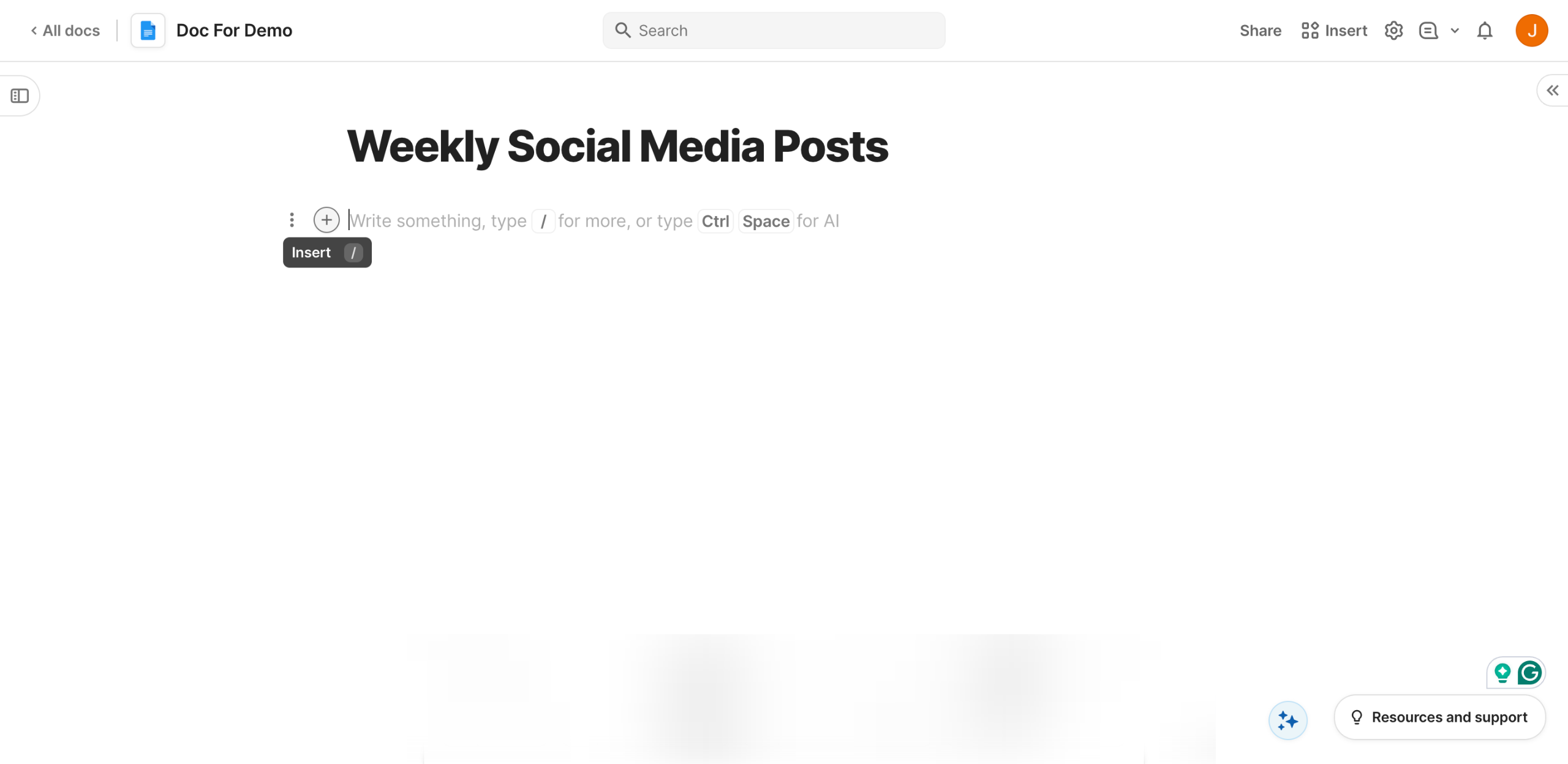
Inside the Coda doc you want to use as a social media calendar, create separate pages for each post scheduled to be published on a specific day. To do that, tap the 'Insert' button.
Choose 'Page' from the list of options.
After that, come up with a unique page name and enter it into the provided input field. It's recommended to indicate the posting day in the title.
Subsequently, type the caption of the post.
Now, it's time to integrate the page with your social media handles for convenient publication. Simply click 'Insert' at the top-right corner to get started.
Click the provided search bar, then type 'Ayrshare Magic'.
Under the More Buttons section, find 'Publish Post' and then drag it to the main workspace right below the caption.
Tap 'Connect an Account' to proceed.
Subsequently, enter your Ayrshare Magic API Key into the provided input field and then click 'Continue'.
Tap the 'Post' input field and type an equal (=) sign to open the formula panel.
Following that, select 'DocId()' from the available choices.
Enter the URL of your Coda doc inside the parentheses and quotation marks. Once done, press the 'Enter' or 'Return' key to apply the changes.
Next, click the 'Platforms' menu and select the social media channels where you wish to publish the post. Likewise, press the 'Enter' or 'Return' key to save your input.
After completing these steps, your content calendar will be created and integrated with your social media handles. If you want to publish it, simply tap the 'Publish Post' button right below the caption.
Quick answer: To create content calendars in Coda, tap Insert and select Page, enter a unique page name with the posting day, and type the caption. Next, click Insert, search for Ayrshare Magic, drag Publish Post to the workspace, connect your account with an API key, set the Post formula with your DocId, and select your social media platforms.
About this Coda tutorial
Build a social media content calendar in Coda by adding pages for scheduled posts, integrating Ayrshare Magic, and connecting your channels. This guide shows how to create Content Calendars in Coda with Social Media Integrations in 14 steps, starting with "Inside the Coda doc you want to use as a social media calendar, create separate pages f..." and finishing with "After completing these steps, your content calendar will be created and integrated with...". The interactive demo above is a click-through copy of the real Coda interface, so you can rehearse each step before doing it in your own account.
Frequently asked questions
How many steps does it take to create Content Calendars in Coda with Social Media Integrations?
14 steps. Each one is listed in order above, and the demo highlights exactly where to click.
Can I try it without changing my own account?
Yes. Clicking through the demo doesn't touch your Coda data or settings. Once you know the flow, repeat it in your own workspace.
This tutorial is filed under Coda. Related guides: How to Create Cross-Doc References in Coda, How to Create Custom Data Connections in Coda and How to Create Custom Formulas in Coda. Last reviewed 05 Oct 2026.

Create your first interactive demo in minutes
No credit card required • Start building today