How to Create Labels Microsoft Excel
- George Apostolov
How to Create Labels Microsoft Excel: step-by-step guide
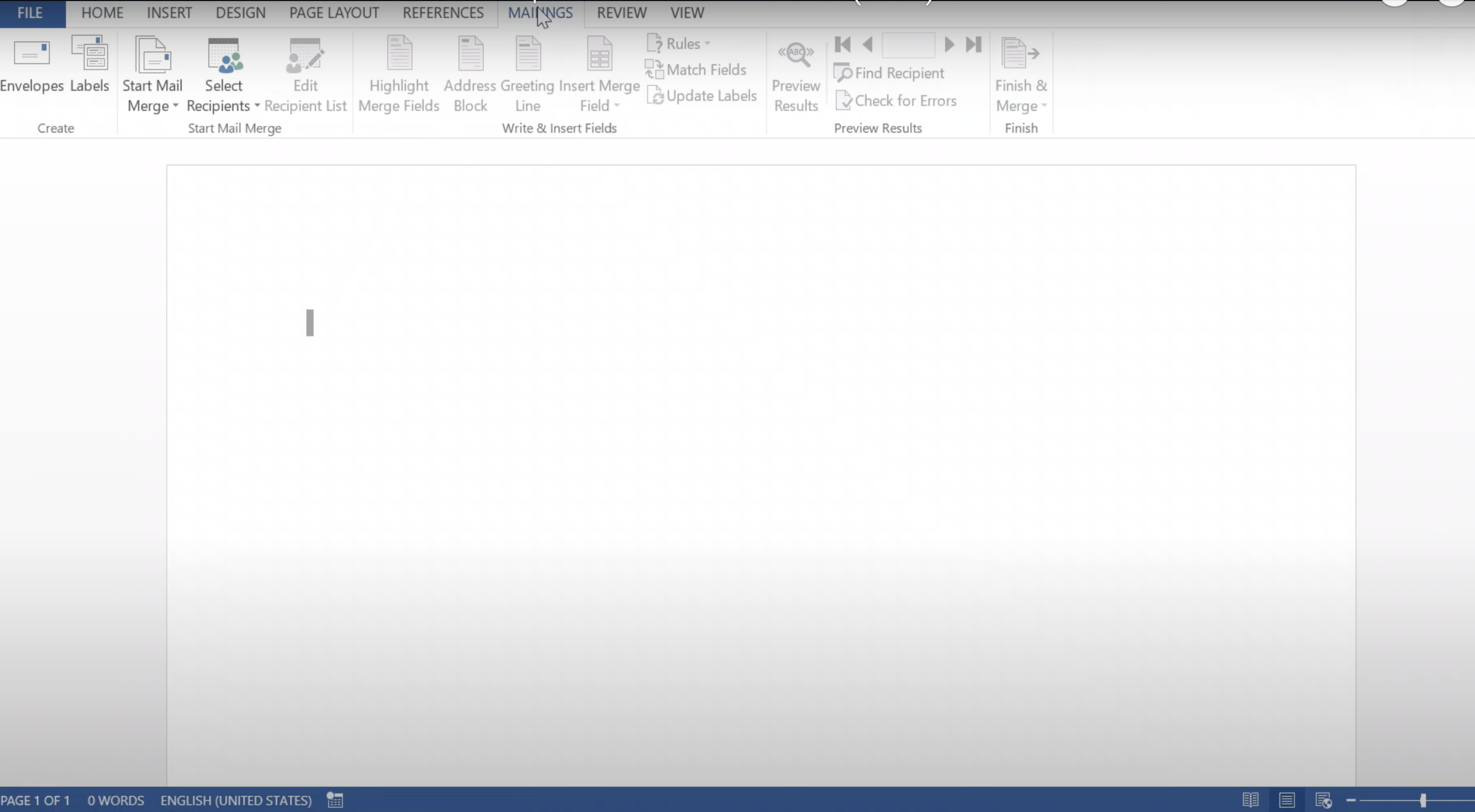
Start a new Word file and navigate to the Mailings tab.
Click Start Mail Merge > Labels.
Select the label type based on the brand and product number printed on your label sheet, then click OK.
Click Select Recipients > Use an Existing List.
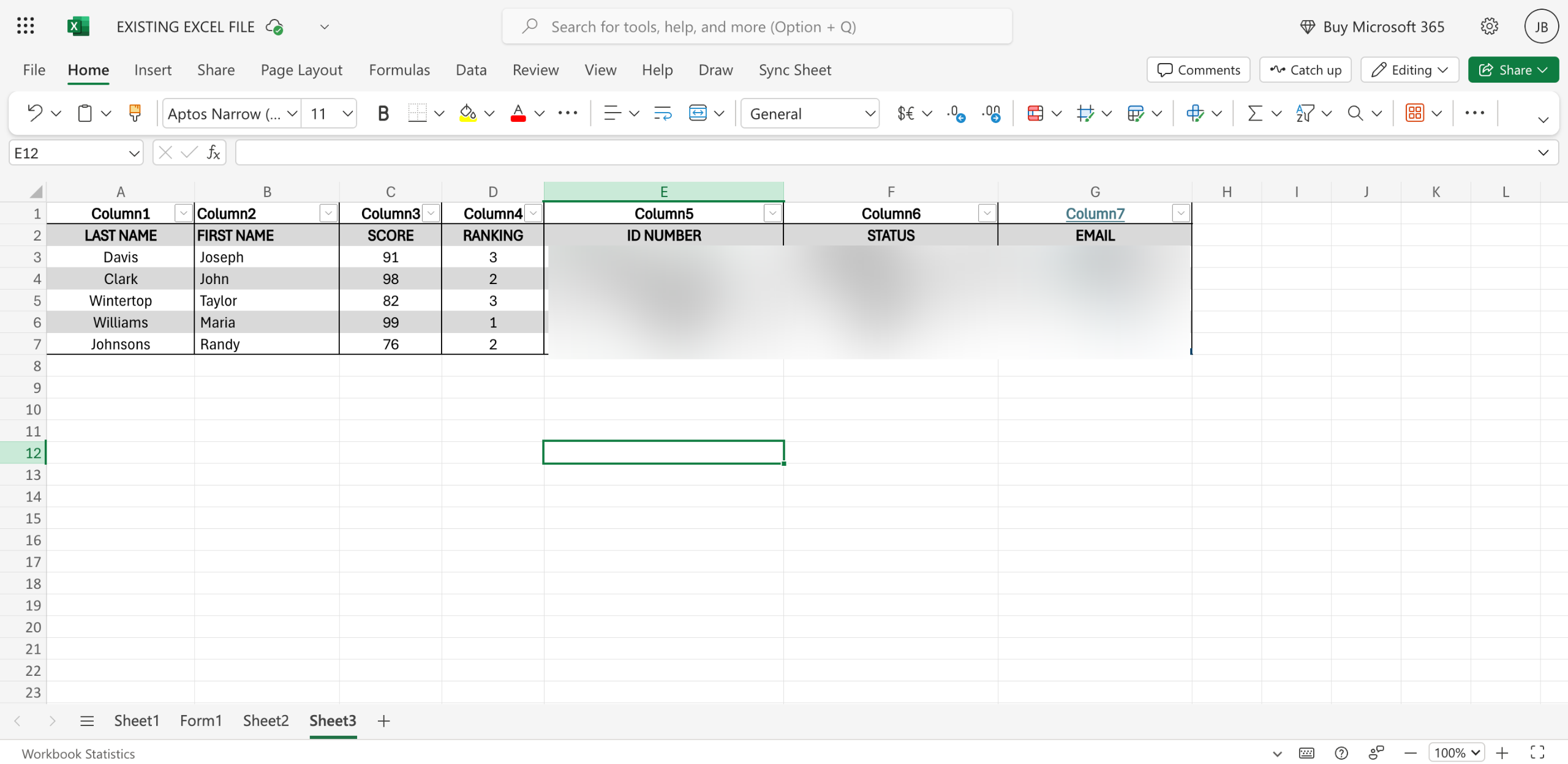
Locate your Excel file, and ensure the data is on the first sheet.
Use Insert Merge Field to add fields like First Name, Last Name, Address, and City to the label template, ensuring proper spacing between fields.
Click Update Labels to apply the format to all labels.
Select Finish & Merge > Edit Individual Documents to preview and edit the labels.
Specify the number of labels you want to print (e.g., 1–10) and click OK to print your labels.
Quick answer: To create labels in Word, navigate to the Mailings tab and select Start Mail Merge, Labels, and your label type. Next, select your Excel file via Select Recipients, use Insert Merge Field to add data, and click Update Labels. Finally, choose Finish and Merge to preview, edit, and print.
About this Microsoft tutorial
Generate Microsoft Excel data mailing labels in Word using mail merge, select recipients, insert fields, and print. This guide shows how to create Labels Microsoft Excel in 9 steps, starting with "Start a new Word file and navigate to the Mailings tab" and finishing with "Specify the number of labels you want to print (e.g., 1–10) and click OK to print your...". The interactive demo above is a click-through copy of the real Microsoft interface, so you can rehearse each step before doing it in your own account.
Frequently asked questions
How many steps does it take to create Labels Microsoft Excel?
9 steps. Each one is listed in order above, and the demo highlights exactly where to click.
Can I try it without changing my own account?
Yes. Clicking through the demo doesn't touch your Microsoft data or settings. Once you know the flow, repeat it in your own workspace.
This tutorial is filed under Microsoft and Excel. Related guides: How to Create One to Many Relationship in Microsoft Access, How to Create QR Code in Microsoft Excel and How to Create Shared Excel File in Microsoft Teams. Last reviewed 05 Oct 2026.

Create your first interactive demo in minutes
No credit card required • Start building today