How to Create Macro in MS Access
- George Apostolov
How to Create Macro in MS Access: step-by-step guide
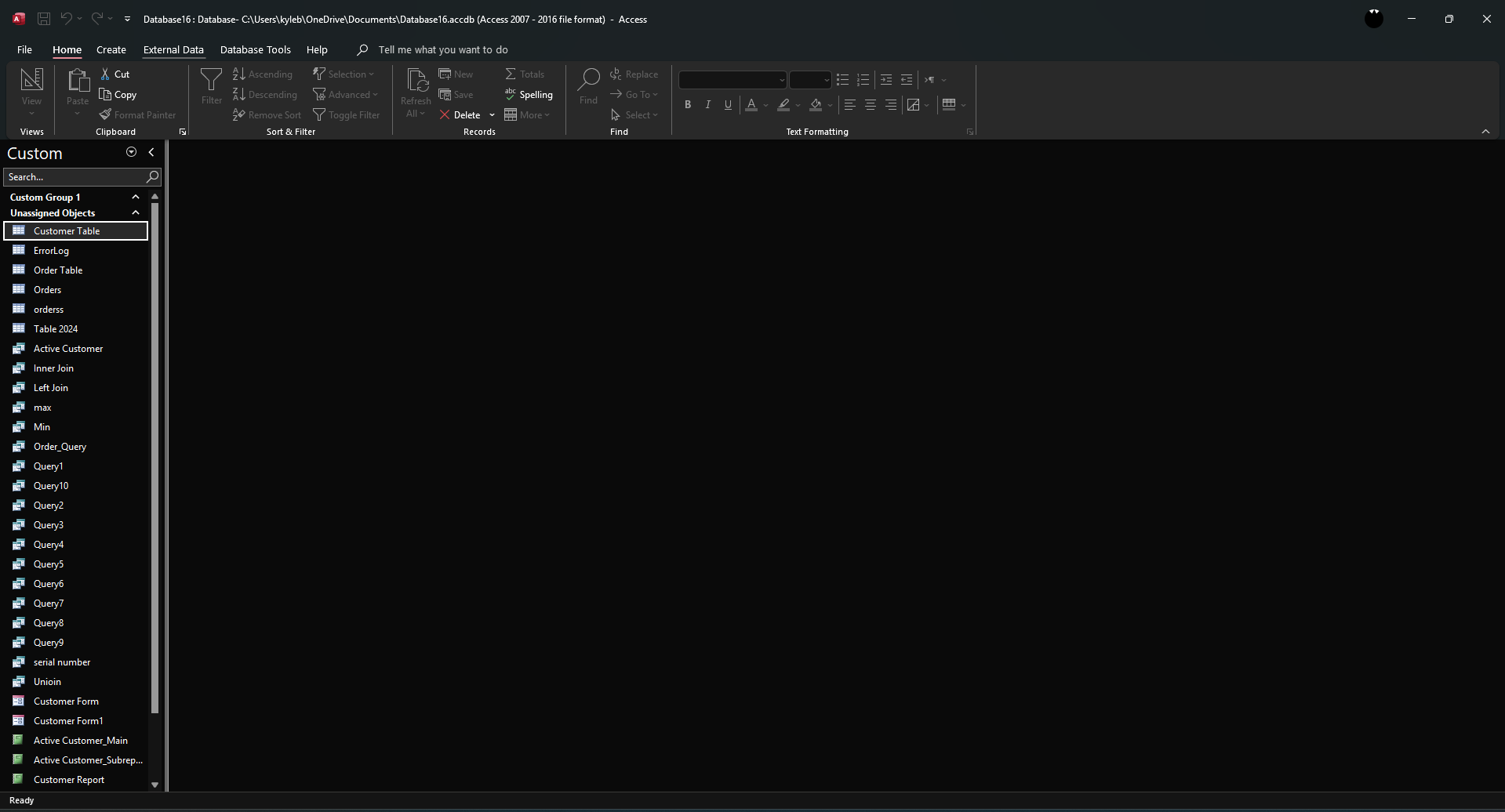
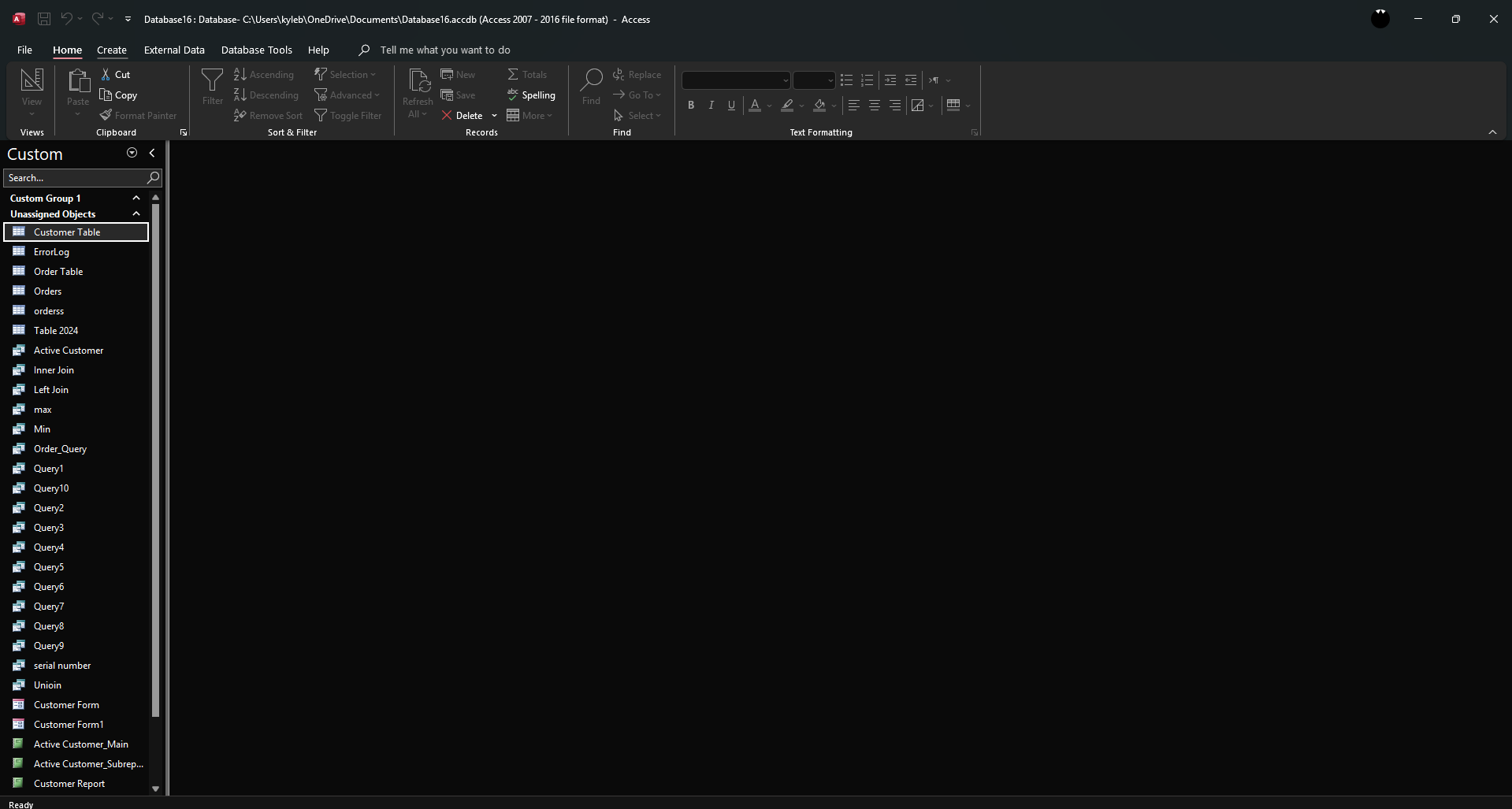
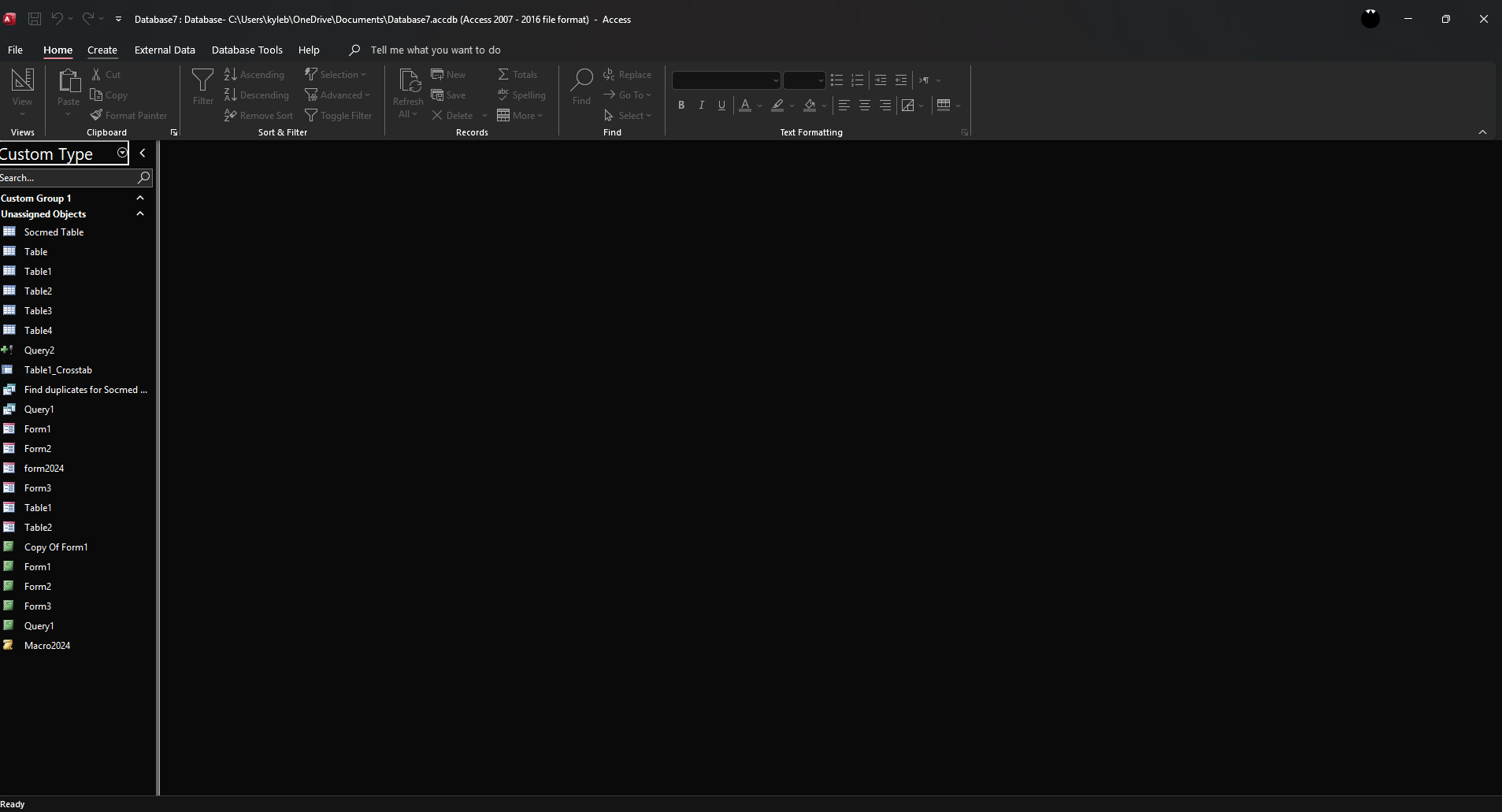
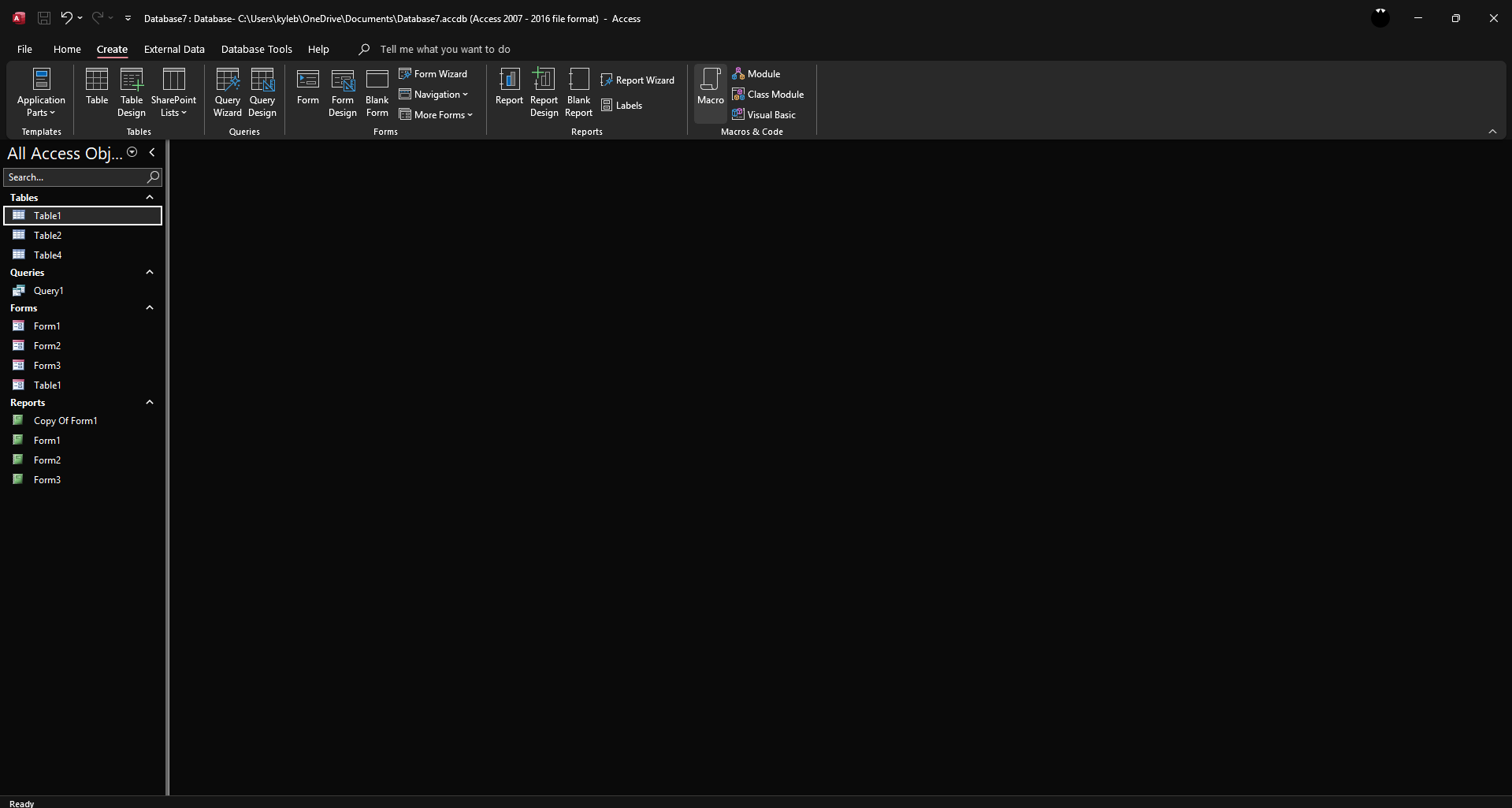
Go to the 'Create' tab on the ribbon.
Click on 'Macro' in the 'Macros & Code' group. This opens the 'Macro Designer' window.
In the dropdown under 'Action Catalog', select the desired action.
After selecting an action, configure its arguments in the provided fields such as the 'Form Name', 'View' and 'Data Mode'.
Each action will execute in sequence.
Click the 'Save' button.
Give the macro a descriptive name and click 'OK'.
Close the 'Macro Designer' and that's it, you have successfully created a macro in MS Access.
Quick answer: To create a macro in MS Access, go to the Create tab and click Macro in the Macros & Code group. Select an action from the Action Catalog, configure its arguments, and arrange actions in sequence. Finally, click Save, name the macro, click OK, and close the Macro Designer.
About this tutorial
Build automated workflows in the app by selecting actions, configuring arguments, and saving your custom sequence. This guide shows how to create Macro in MS Access in 8 steps, starting with "Go to the 'Create' tab on the ribbon" and finishing with "Close the 'Macro Designer' and that's it, you have successfully created a macro in MS A...". The interactive demo above is a click-through copy of the real product interface, so you can rehearse each step before doing it in your own account.
Frequently asked questions
How many steps does it take to create Macro in MS Access?
8 steps. Each one is listed in order above, and the demo highlights exactly where to click.
Can I try it without changing my own account?
Yes. Clicking through the demo doesn't touch your data or settings. Once you know the flow, repeat it in your own workspace.

Create your first interactive demo in minutes
No credit card required • Start building today