Salesforce - Deactivate Users
- George Apostolov
Salesforce - Deactivate Users: step-by-step guide
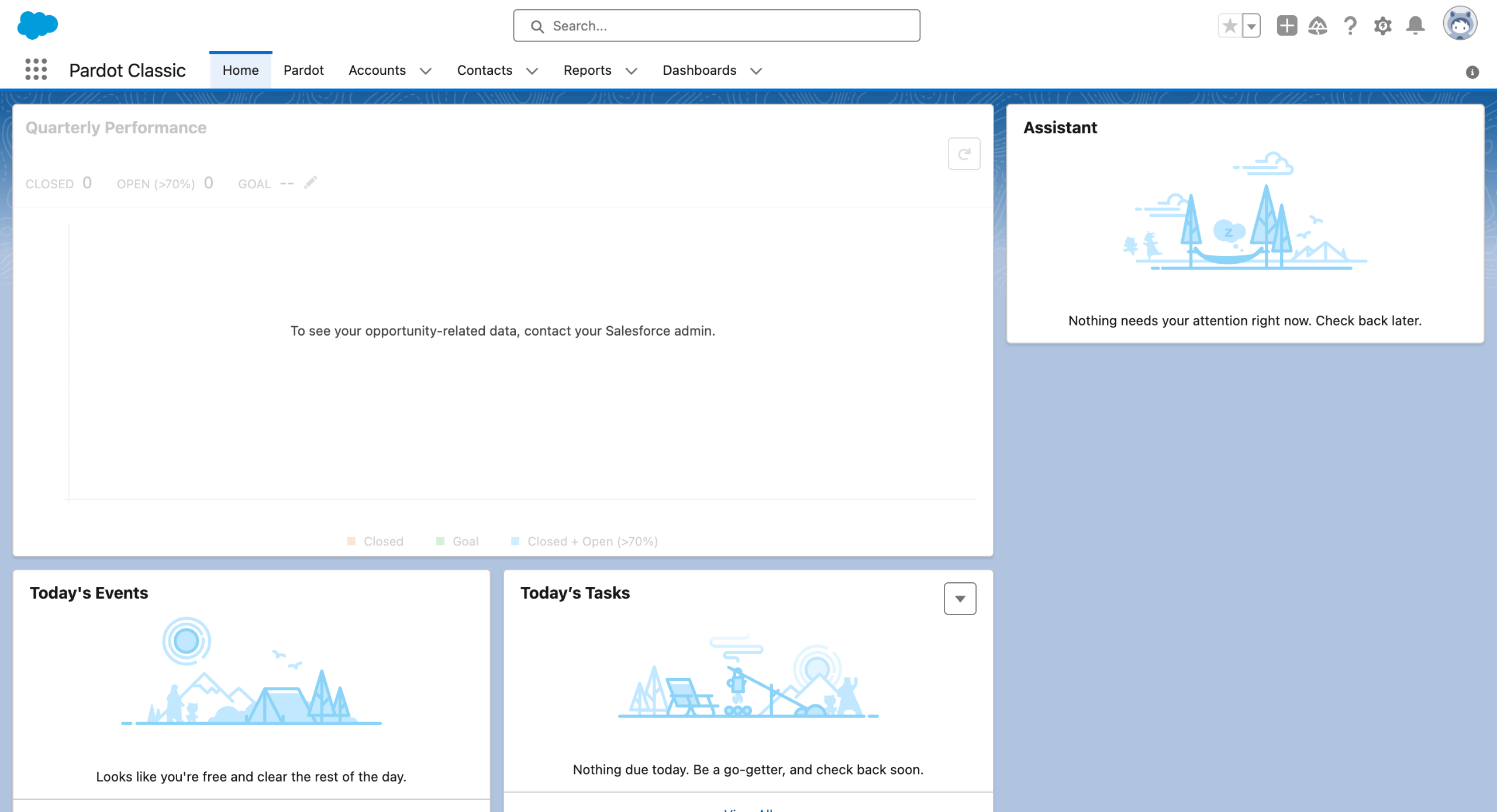
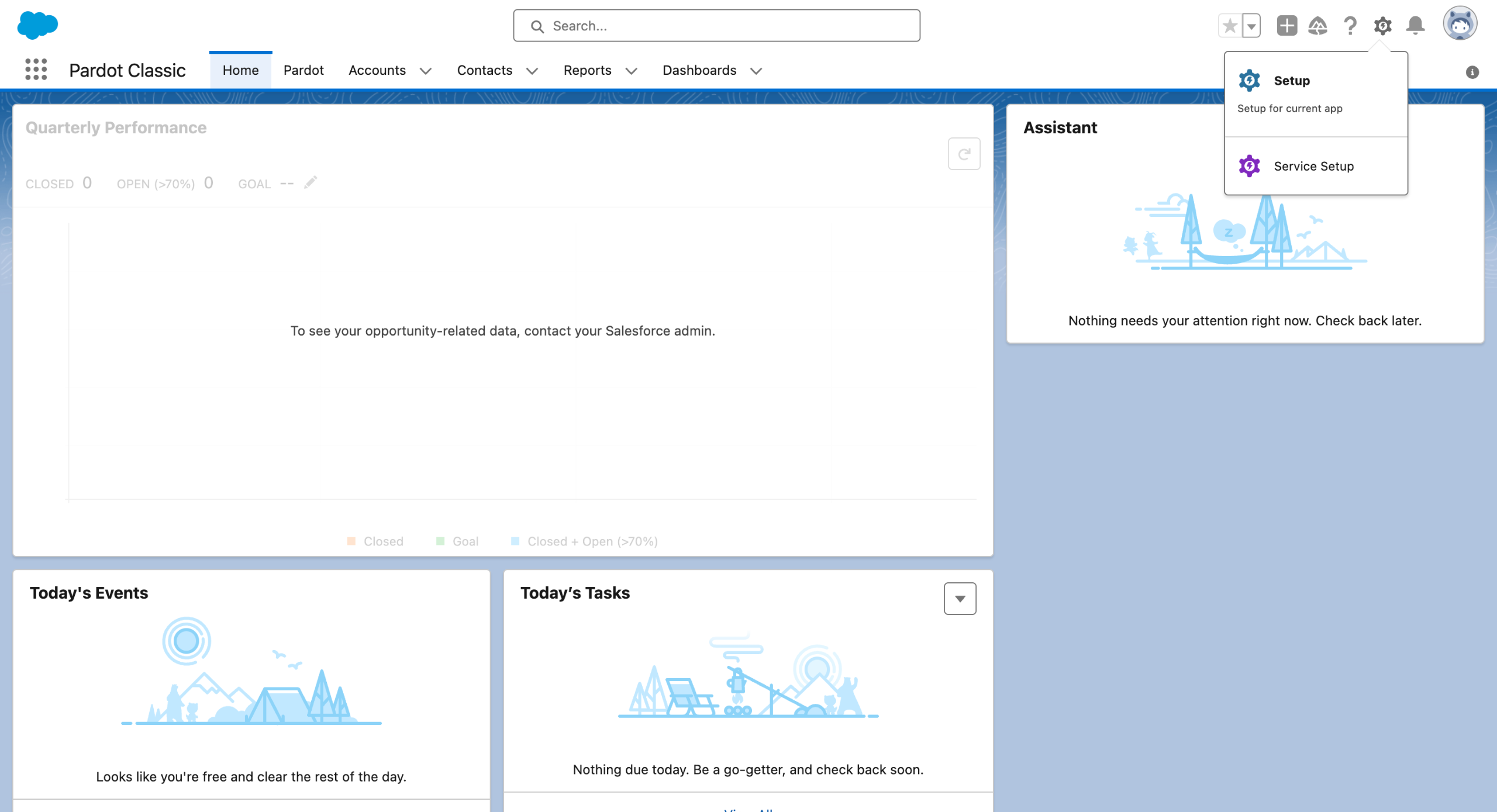
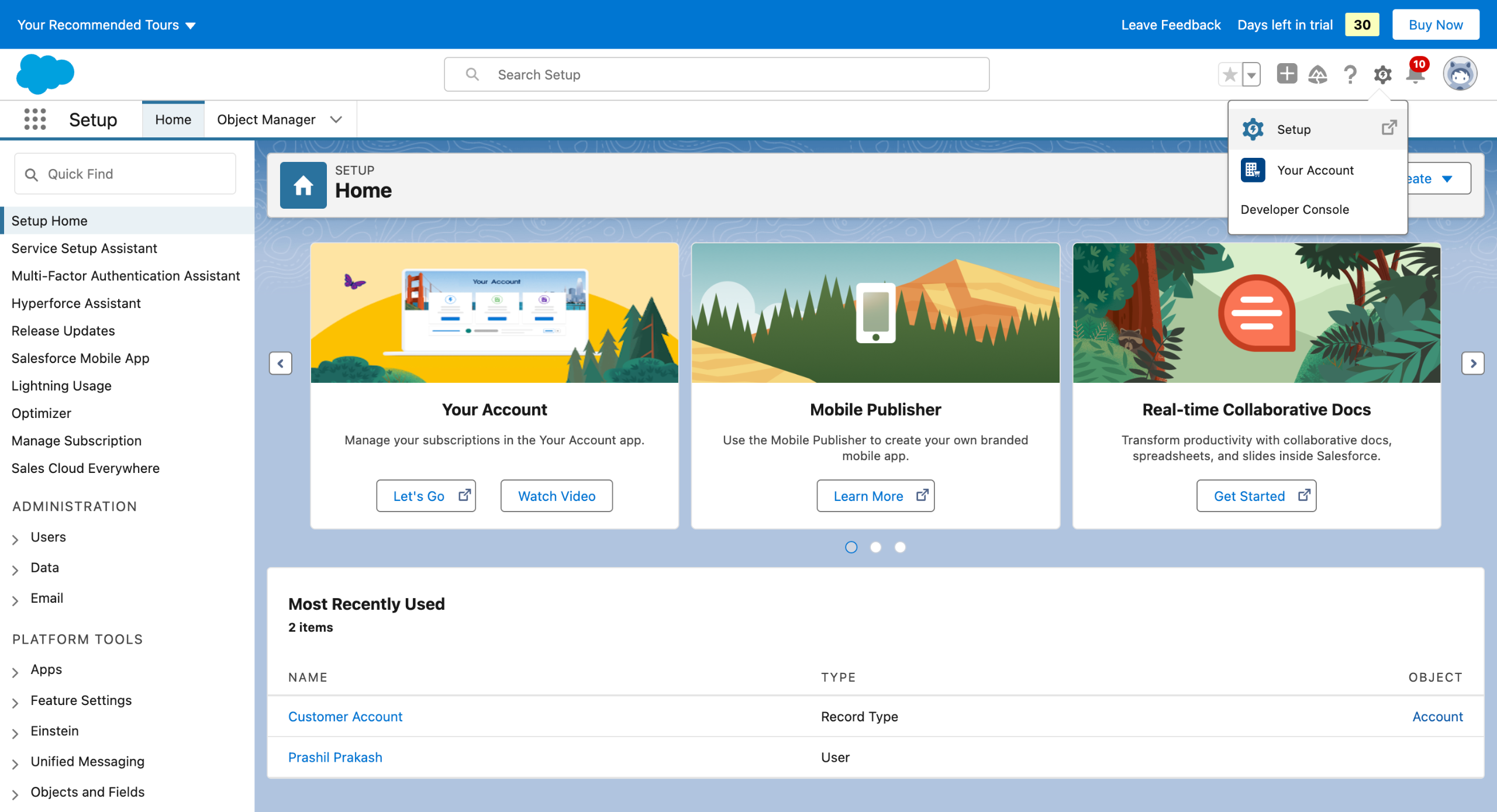
Head over to the gear icon on the top right.
Select Setup from the dropdown.
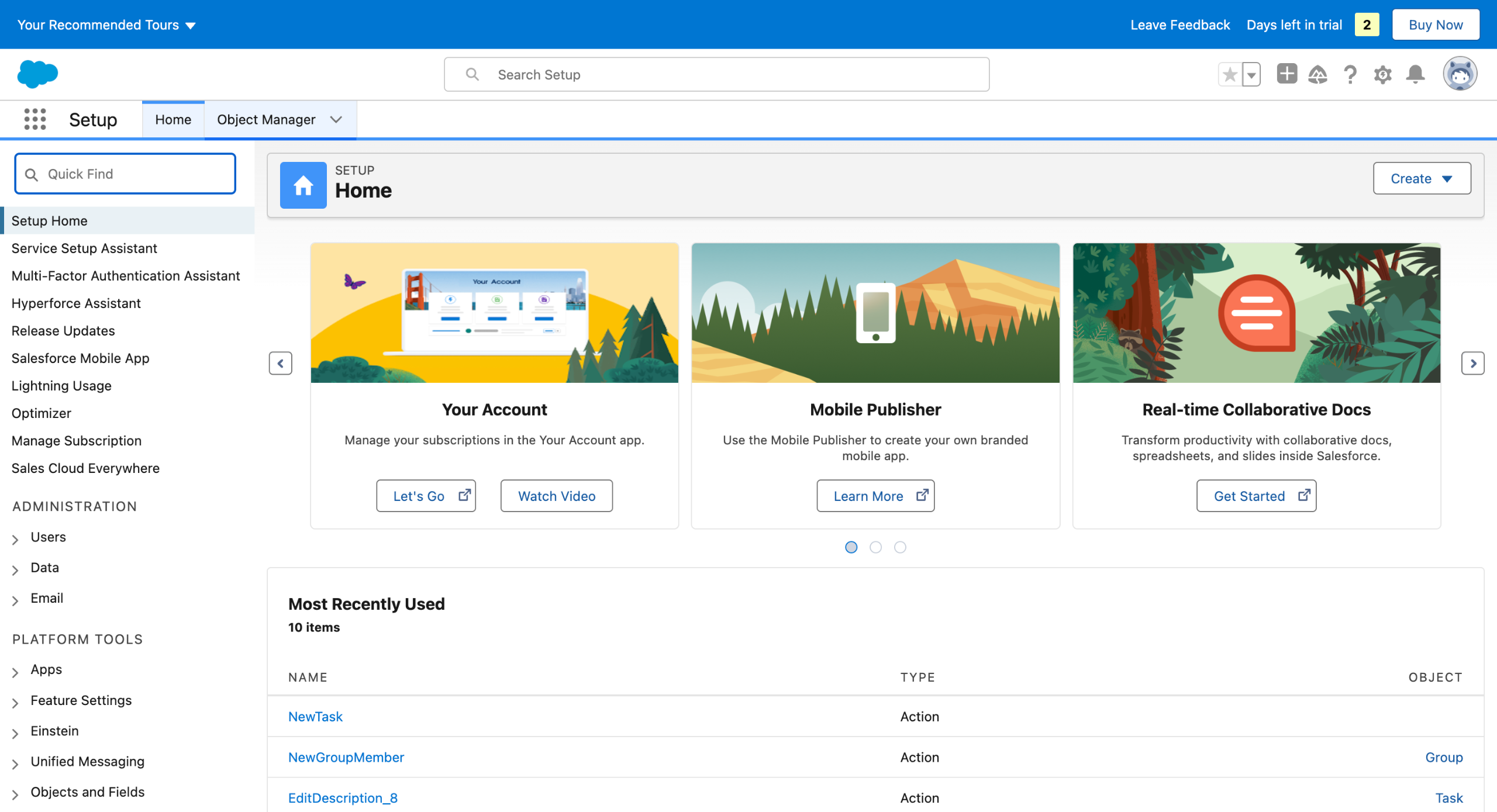
Look for Users under ADMINISTRATION in the left pane.
And select Users.
Make sure the View dropdown says All users.
Click on Edit on the left column.
The User Edit screen will open and you will see the Active box checked.
Uncheck Active box.
Clicking on the Save button at the bottom.
You will now see your selected user without the checkmark. This means the user's access to Salesforce is now deactivated.
Quick answer: To deactivate users in Salesforce, open Setup from the gear icon, navigate to Users, and select All users. Click Edit for the chosen user, uncheck the Active box, and click Save to remove their system access.
About this Salesforce tutorial
Remove system access by editing user profiles in Salesforce Setup to uncheck the Active box and save changes. This guide covers salesforce - Deactivate Users in 10 steps, starting with "Head over to the gear icon on the top right" and finishing with "You will now see your selected user without the checkmark. This means the user's access...". The interactive demo above is a click-through copy of the real Salesforce interface, so you can rehearse each step before doing it in your own account.
Frequently asked questions
How many steps does salesforce - Deactivate Users take?
10 steps. Each one is listed in order above, and the demo highlights exactly where to click.
Can I try it without changing my own account?
Yes. Clicking through the demo doesn't touch your Salesforce data or settings. Once you know the flow, repeat it in your own workspace.
This tutorial is filed under Salesforce. Related guides: Salesforce - Delete Users, Salesforce - how to delete an opportunity and Salesforce - Delete salesforce account. Last reviewed 05 Oct 2026.

Create your first interactive demo in minutes
No credit card required • Start building today