How to edit workflow in jira
- George Apostolov
How to edit workflow in jira: step-by-step guide
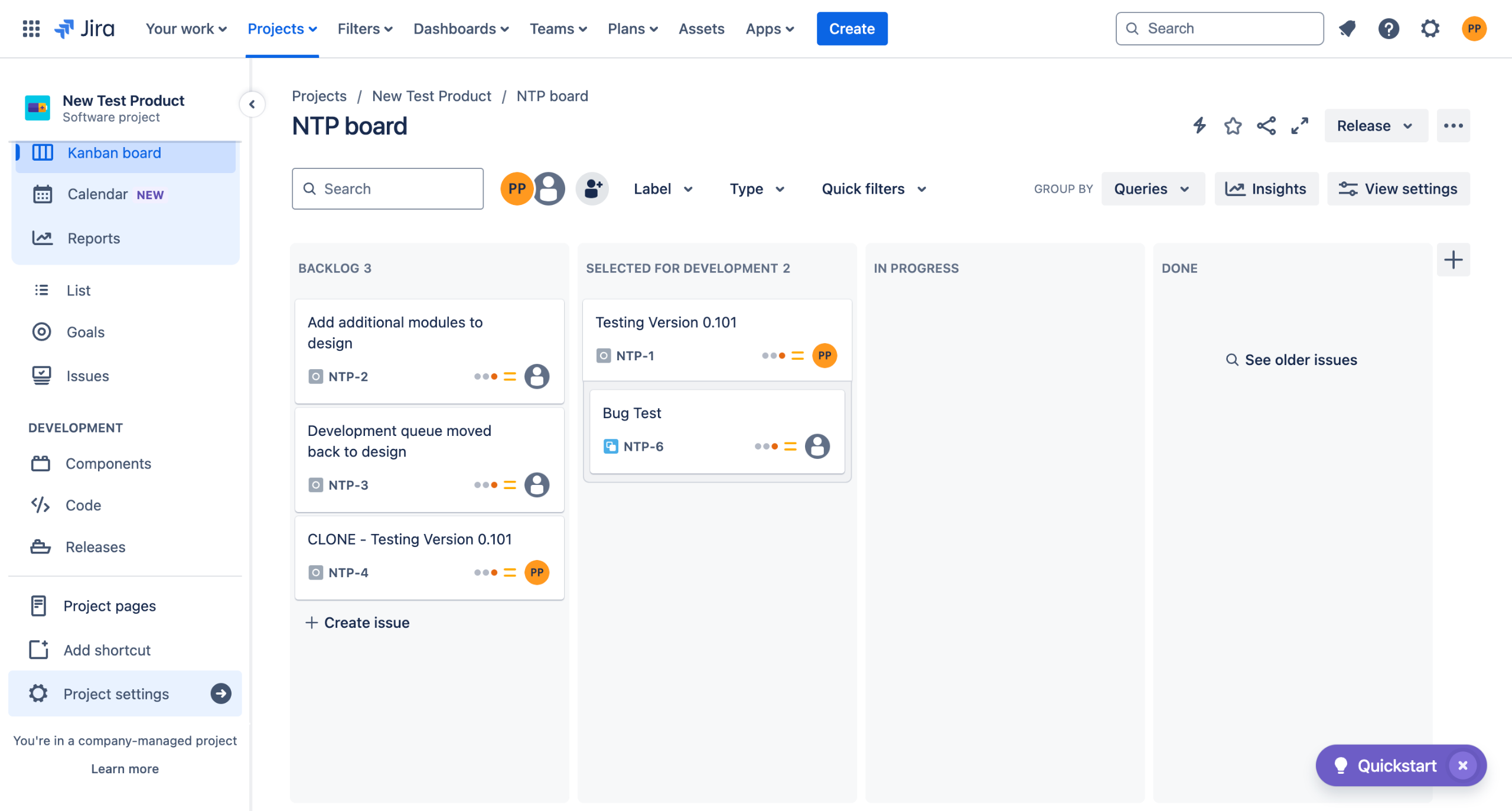
Go to Project settings in the left sidebar.
Find Workflows in the left sidebar and then click on Edit workflow.
Jira doesn't let you edit your workflows here, so we will use a workaround.
Click on Publish Draft.
Select Yes for the backup and name the Workflow as "Backup~"
Your draft is now published. Now, right-click on Workflows on the left sidebar and open it in a new tab.
Go to Inactive Workflow tab and find the inactive Backup workflow you just created.
Click on the three dots menu and hit Edit.
You can now Edit the Transitions that seem fit for you. For example, delete "All" tags from the transitions to restrict the movement of a card/task from all directions.
Name your transitions and hit add.
Your workflow is updated, but not ready.
Now, go back to the previous tab and click on Workflows schemes.
And click Edit on the earlier workflow.
Click on Add workflows and hit Add Existing.
Select the Backup workflow you built earlier and hit Next.
Select all Issue types you want in your workflow and hit finish.
Finally, hit Publish.
You will need to Associate your published workflow.
You will get a success prompt at the end.
Quick answer: To edit workflow in Jira, publish a draft, duplicate it as a backup, and edit transitions in a new tab. Then, update the workflow schemes, add the backup workflow, select issue types, publish the changes, and associate the published workflow.
About this Jira tutorial
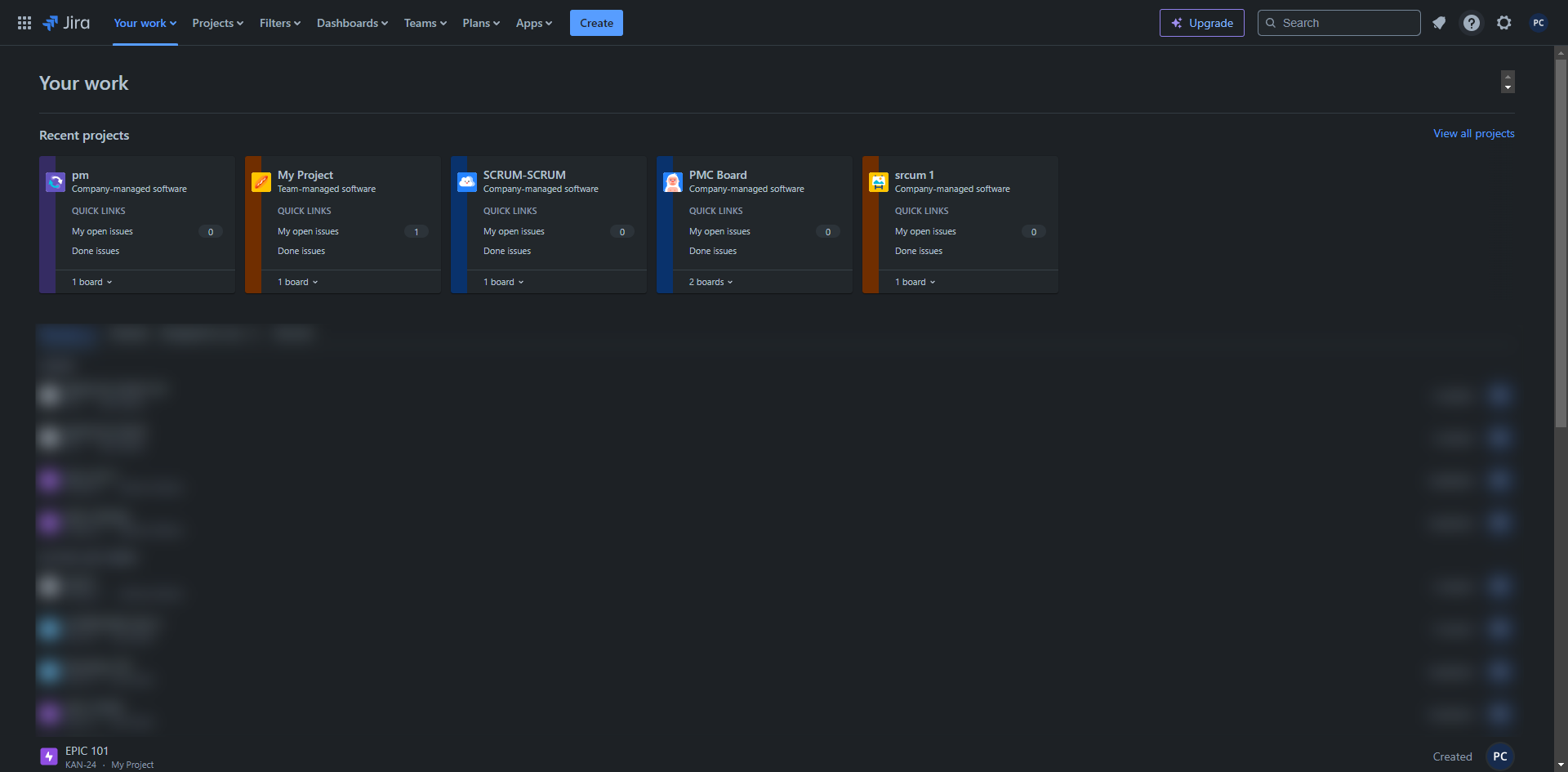
Modify and customize your Jira workflows by publishing a draft, editing transitions, updating schemes, and associating your new workflow. This guide shows how to edit workflow in jira in 19 steps, starting with "Go to Project settings in the left sidebar" and finishing with "You will get a success prompt at the end". The interactive demo above is a click-through copy of the real Jira interface, so you can rehearse each step before doing it in your own account.
Frequently asked questions
How many steps does it take to edit workflow in jira?
19 steps. Each one is listed in order above, and the demo highlights exactly where to click.
Can I try it without changing my own account?
Yes. Clicking through the demo doesn't touch your Jira data or settings. Once you know the flow, repeat it in your own workspace.
This tutorial is filed under Jira. Related guides: How to Embed Jira Dashboard in Confluence, How to embed jira in notion and How to Enable Parallel Sprints in Jira. Last reviewed 05 Oct 2026.

Create your first interactive demo in minutes
No credit card required • Start building today