How to Highlight Words in Canva
- George Apostolov
How to Highlight Words in Canva: step-by-step guide
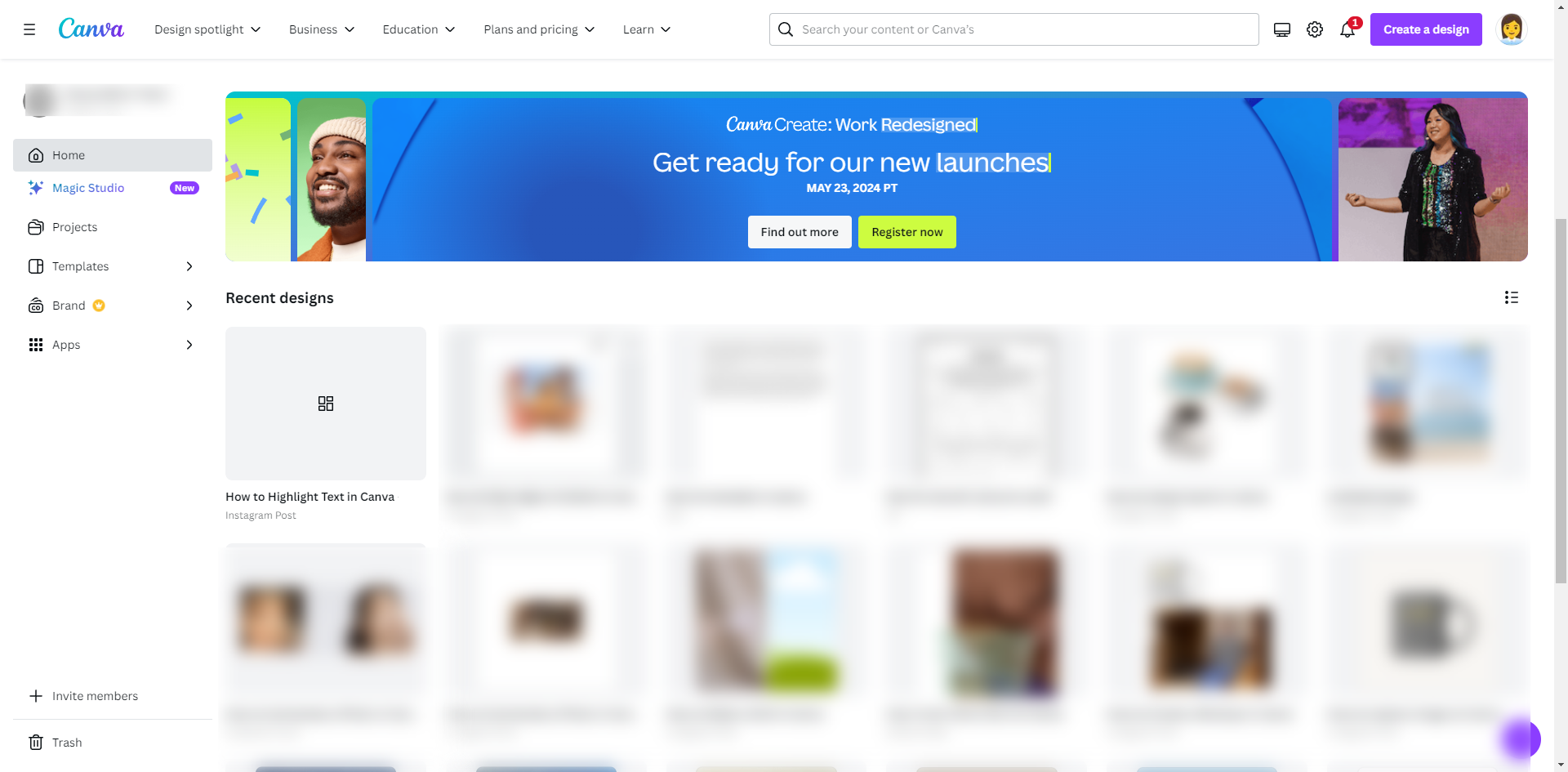
Open an existing design.
Click the text box.
Select 'Effects' located at the above toolbar.
When you click on the Effects button, the Canva text effects panel will open on the left side of your workspace.
Scroll down in the effects panel and click on the 'Background' button.
Once clicked, your text will be highlighted, and three sliders and a color options box will open below the Background button.
Customize your highlighted word. You can adjust the sliders for roundness, spread, and transparency.
If you need to choose a different color, click on the color box.
The color options panel will open – simply click on a color and the highlighted area in your workspace will be adapted accordingly.
Click 'Share' to save your work. Your highlighted word is going to give your reader the ability to easily notice and digest your information.
Quick answer: To highlight words in Canva, open an existing design, click the text box, select 'Effects' on the toolbar, and choose 'Background' in the effects panel. Finally, customize the highlight using the sliders and color options, then click 'Share' to save your work.
About this Canva tutorial
Make your text stand out by adding a background highlight in Canva. Adjust roundness, spread, transparency, and color to fit your design. This guide shows how to highlight Words in Canva in 10 steps, starting with "Open an existing design" and finishing with "Click 'Share' to save your work. Your highlighted word is going to give your reader the...". The interactive demo above is a click-through copy of the real Canva interface, so you can rehearse each step before doing it in your own account.
Frequently asked questions
How many steps does it take to highlight Words in Canva?
10 steps. Each one is listed in order above, and the demo highlights exactly where to click.
Can I try it without changing my own account?
Yes. Clicking through the demo doesn't touch your Canva data or settings. Once you know the flow, repeat it in your own workspace.
This tutorial is filed under Canva. Related guides: How to Integrate Asana with Canva, How to Integrate Canva with Airtable and How to Integrate Canva with Buffer. Last reviewed 05 Oct 2026.

Create your first interactive demo in minutes
No credit card required • Start building today