How to Import Excel into Clickup
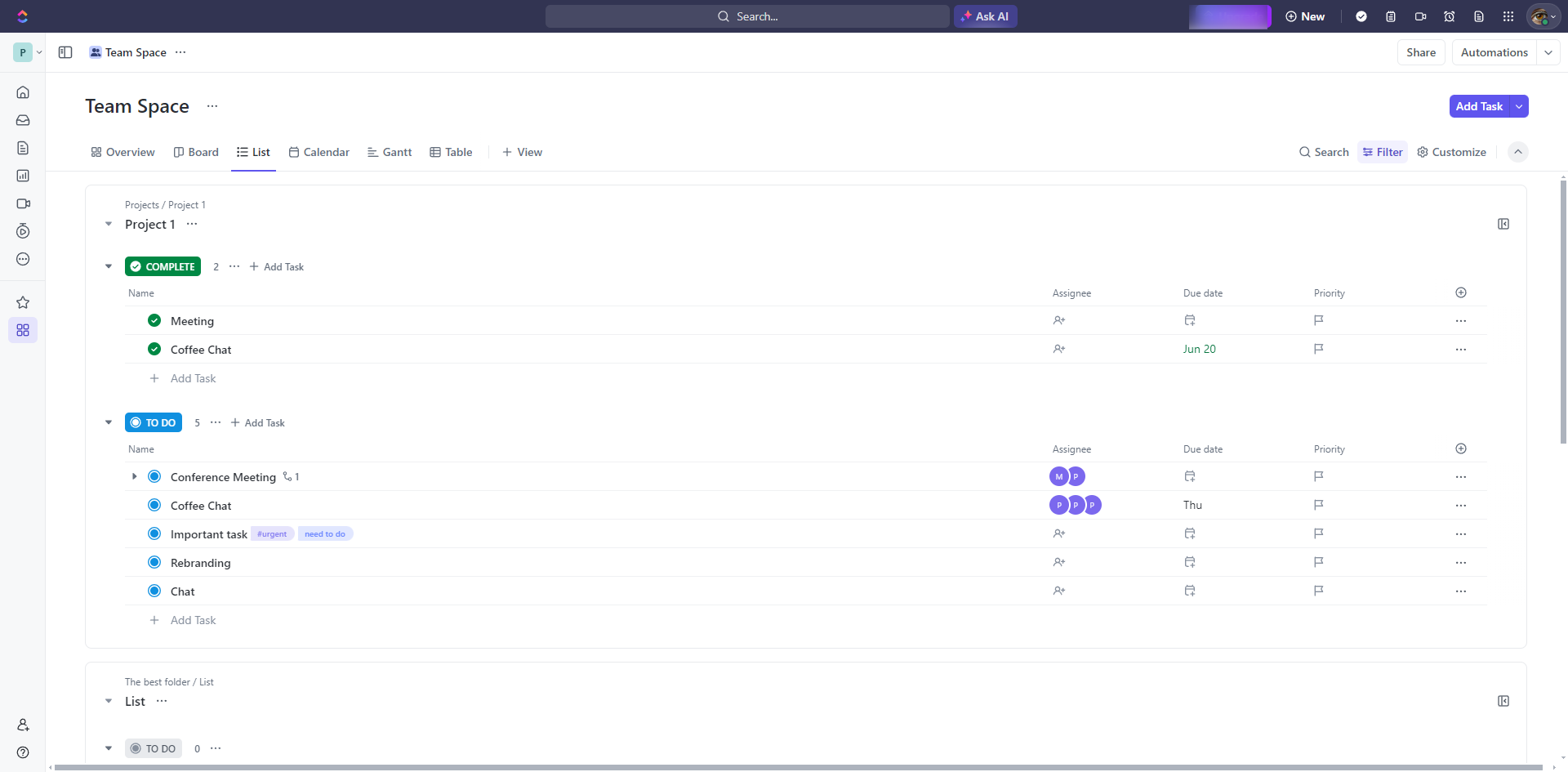
How to Import Excel into Clickup: step-by-step guide
Click on your profile avatar in the bottom left corner.
Select 'Settings' from the dropdown menu.
In the settings menu, find and click on 'Import/Export'.
Click on the 'Start Import' tab.
Choose 'CSV' from the available import options.
Click the 'Upload date from file' button to select your CSV file from your computer.
Select 'Review'.
After reviewing the data, select 'Continue'.
Click 'Yes'.
Select the Space, Folder, or List where you want to import your tasks.
Click 'Next' and ensure you have the correct destination selected to keep your data organized.
Review your mapped fields and destination. Click 'Next'.
Click 'Complete'.
A notification appears informing you that the import is in progress. To check the status, click the 'Check status' option above.
Status shows that your import is in progress.
By following these steps, you can successfully import your Excel data into ClickUp, enabling you to manage your projects and tasks efficiently within the platform.
Quick answer: To import Excel data into ClickUp, access Settings via your profile avatar, go to Import/Export, and click Start Import. Choose CSV, upload your file, review and continue, select the destination Space, Folder, or List, map your fields, and click Complete to begin the import.
About this ClickUp tutorial
Bring your spreadsheets into ClickUp by uploading CSV files, mapping fields, and selecting destinations for efficient project management. This guide shows how to import Excel into Clickup in 16 steps, starting with "Click on your profile avatar in the bottom left corner" and finishing with "By following these steps, you can successfully import your Excel data into ClickUp, ena...". The interactive demo above is a click-through copy of the real ClickUp interface, so you can rehearse each step before doing it in your own account.
Frequently asked questions
How many steps does it take to import Excel into Clickup?
16 steps. Each one is listed in order above, and the demo highlights exactly where to click.
Can I try it without changing my own account?
Yes. Clicking through the demo doesn't touch your ClickUp data or settings. Once you know the flow, repeat it in your own workspace.
This tutorial is filed under ClickUp and Excel. Related guides: How to Import Trello Board to ClickUp, How to Integrate Asana with ClickUp and How to Integrate Calendly with ClickUp. Last reviewed 05 Oct 2026.

Create your first interactive demo in minutes
No credit card required • Start building today