How to Integrate a Knowledge Base Into Intercom
- George Apostolov
How to Integrate a Knowledge Base Into Intercom: step-by-step guide
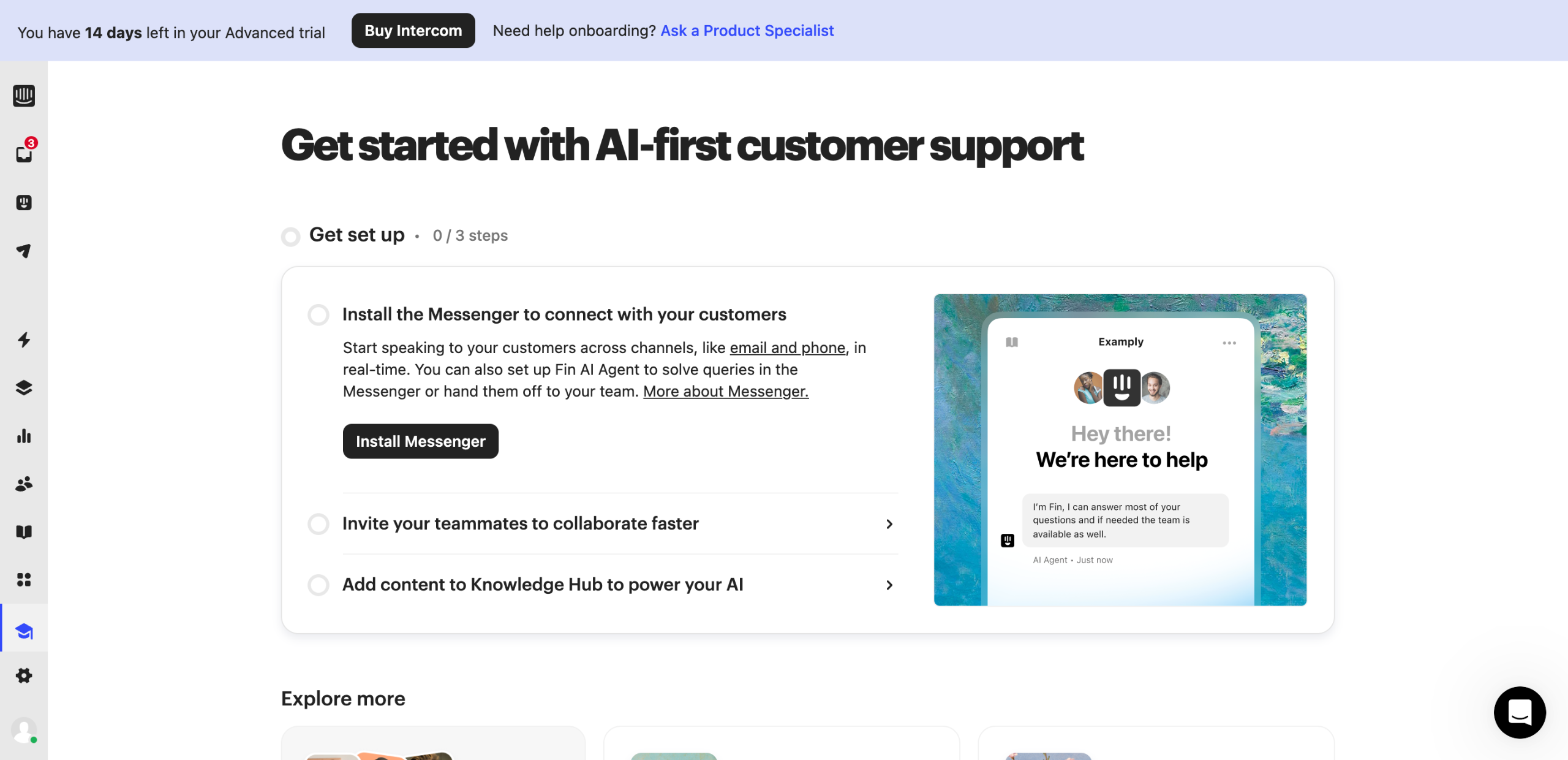
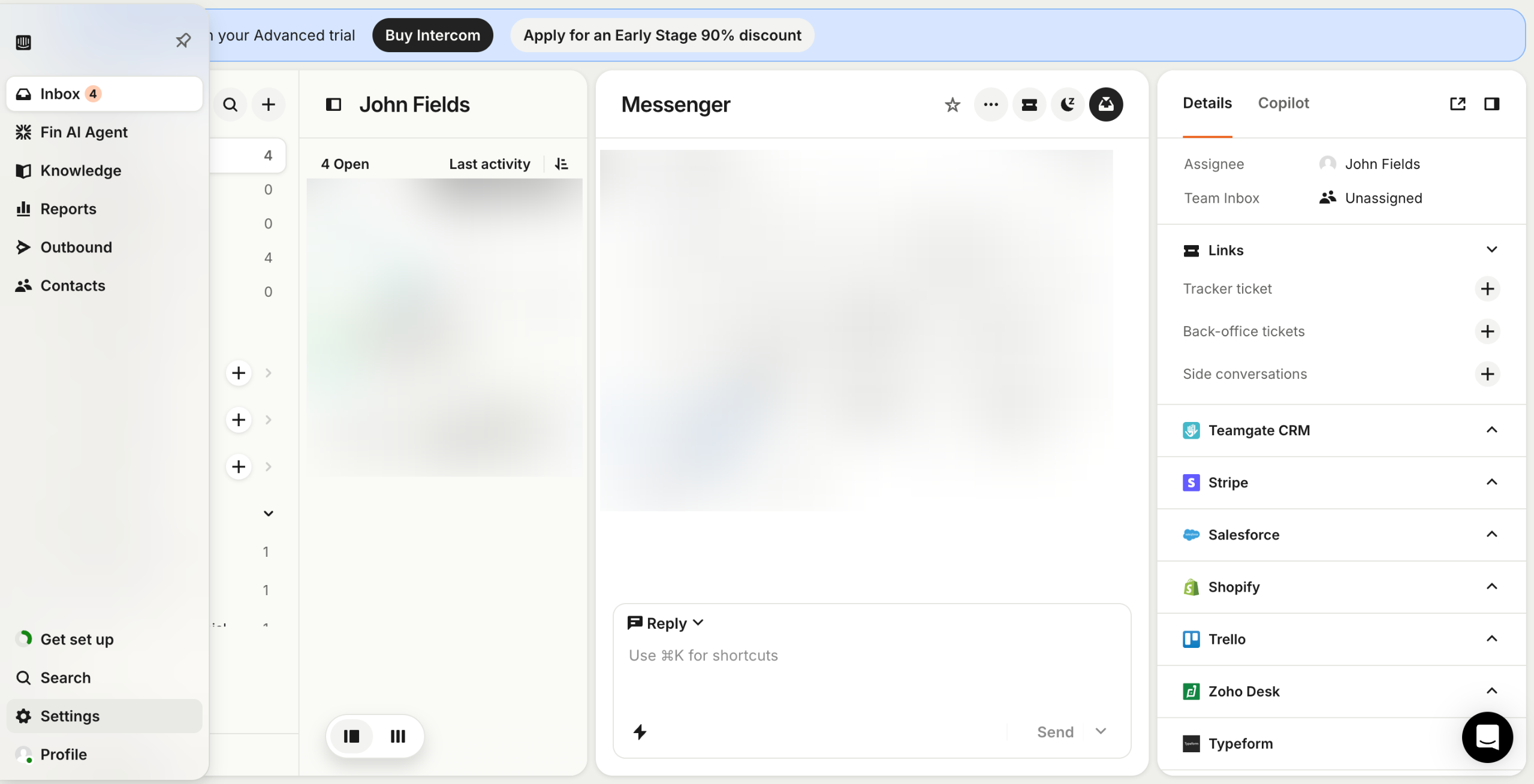
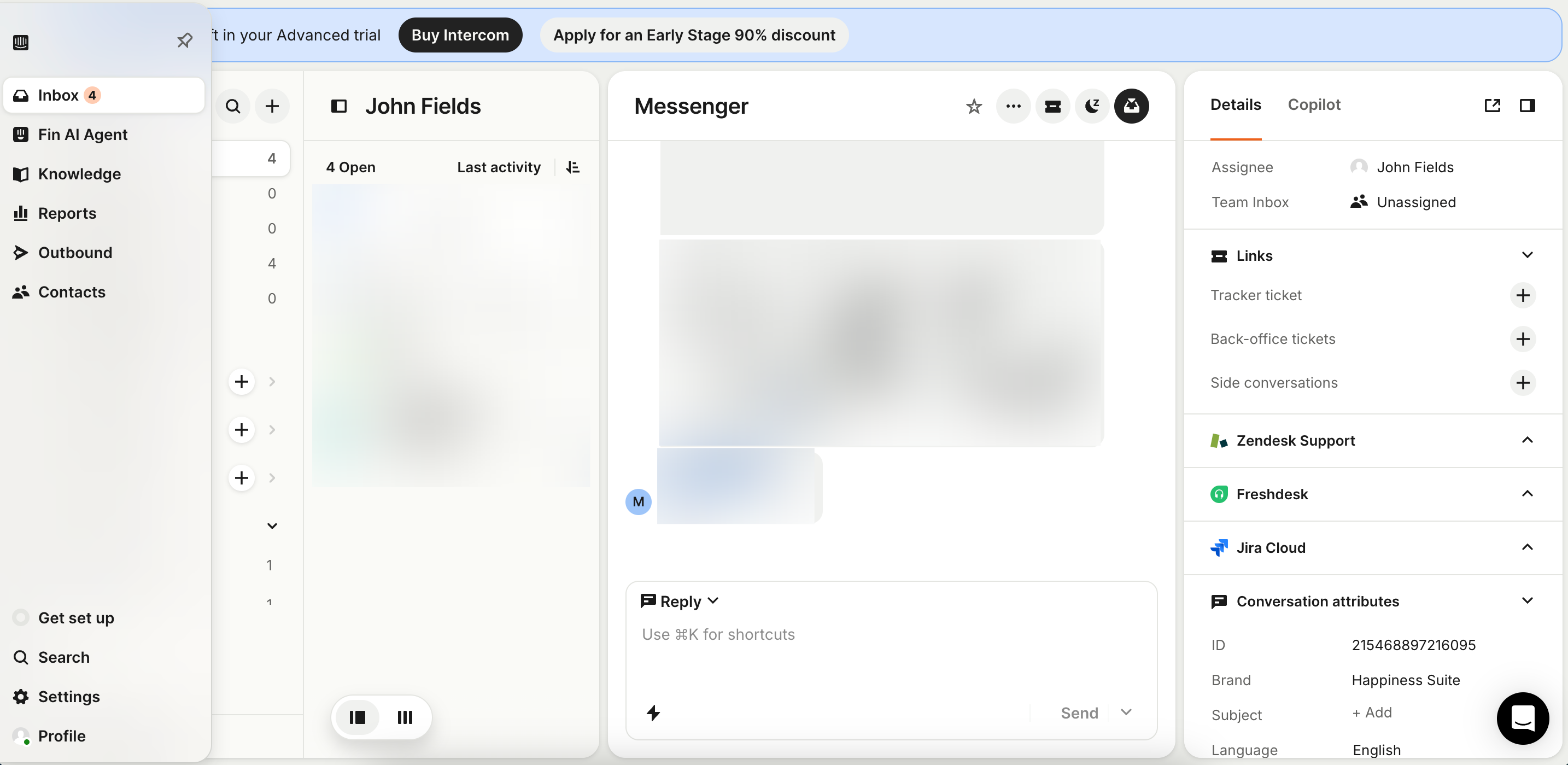
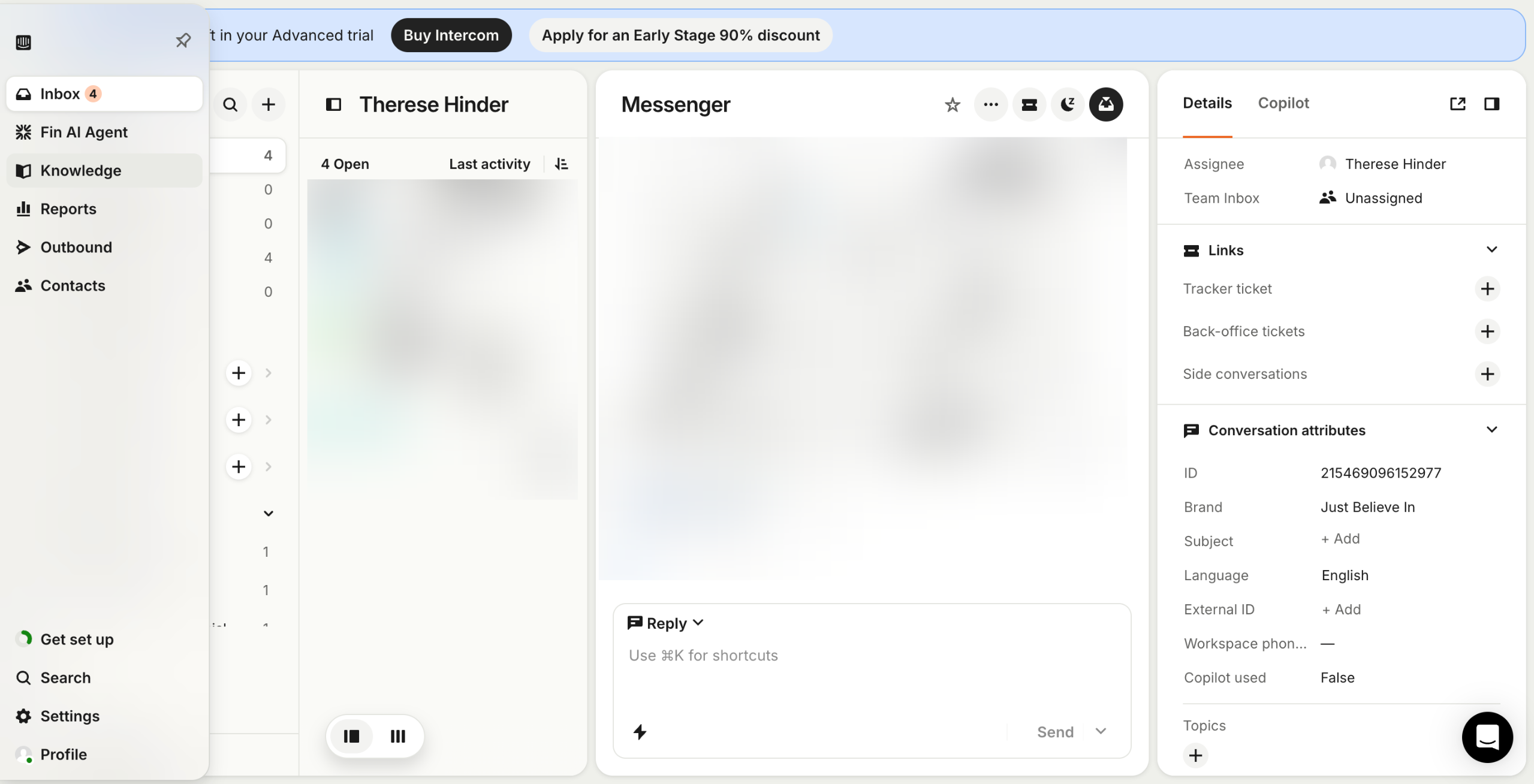
Head over to the left-side panel, then click 'Knowledge'.
Choose 'Help Center' from the list of options.
After that, click 'Set Up Your Help Center'.
Select the categories you want to cover, then click 'Create Collections'.
Review the layout of the selected collections. You can change their arrangements or add content.
Once done, click 'Configure and Style'.
Configure the general settings based on your preference. Simply tap each individual option and make your desired changes.
Subsequently, tap the 'Styling' tab and use the given options to build your preferred design.
Once done, click 'Save and Close'.
After completing these steps, the Help Center will be configured and integrated into your Intercom account. You can now add articles and guides to build your knowledge base.
Quick answer: To integrate a knowledge base into Intercom, navigate to the Knowledge section, select Help Center, and set up your categories. Then, configure the general settings and styling options before saving. Finally, your Help Center will be configured and integrated, allowing you to add articles and guides.
About this Intercom tutorial
Set up your Help Center in Intercom by configuring categories, general settings, and styling options to build your knowledge base. This guide shows how to integrate a Knowledge Base Into Intercom in 10 steps, starting with "Head over to the left-side panel, then click 'Knowledge'" and finishing with "After completing these steps, the Help Center will be configured and integrated into yo...". The interactive demo above is a click-through copy of the real Intercom interface, so you can rehearse each step before doing it in your own account.
Frequently asked questions
How many steps does it take to integrate a Knowledge Base Into Intercom?
10 steps. Each one is listed in order above, and the demo highlights exactly where to click.
Can I try it without changing my own account?
Yes. Clicking through the demo doesn't touch your Intercom data or settings. Once you know the flow, repeat it in your own workspace.
This tutorial is filed under Intercom. Related guides: How to Integrate Appcues with Intercom, How to Integrate Calendly with Intercom and How to Integrate Intercom Into a Website Using Code Snippets. Last reviewed 05 Oct 2026.

Create your first interactive demo in minutes
No credit card required • Start building today