Hubspot google ads integration
Hubspot google ads integration: step-by-step guide
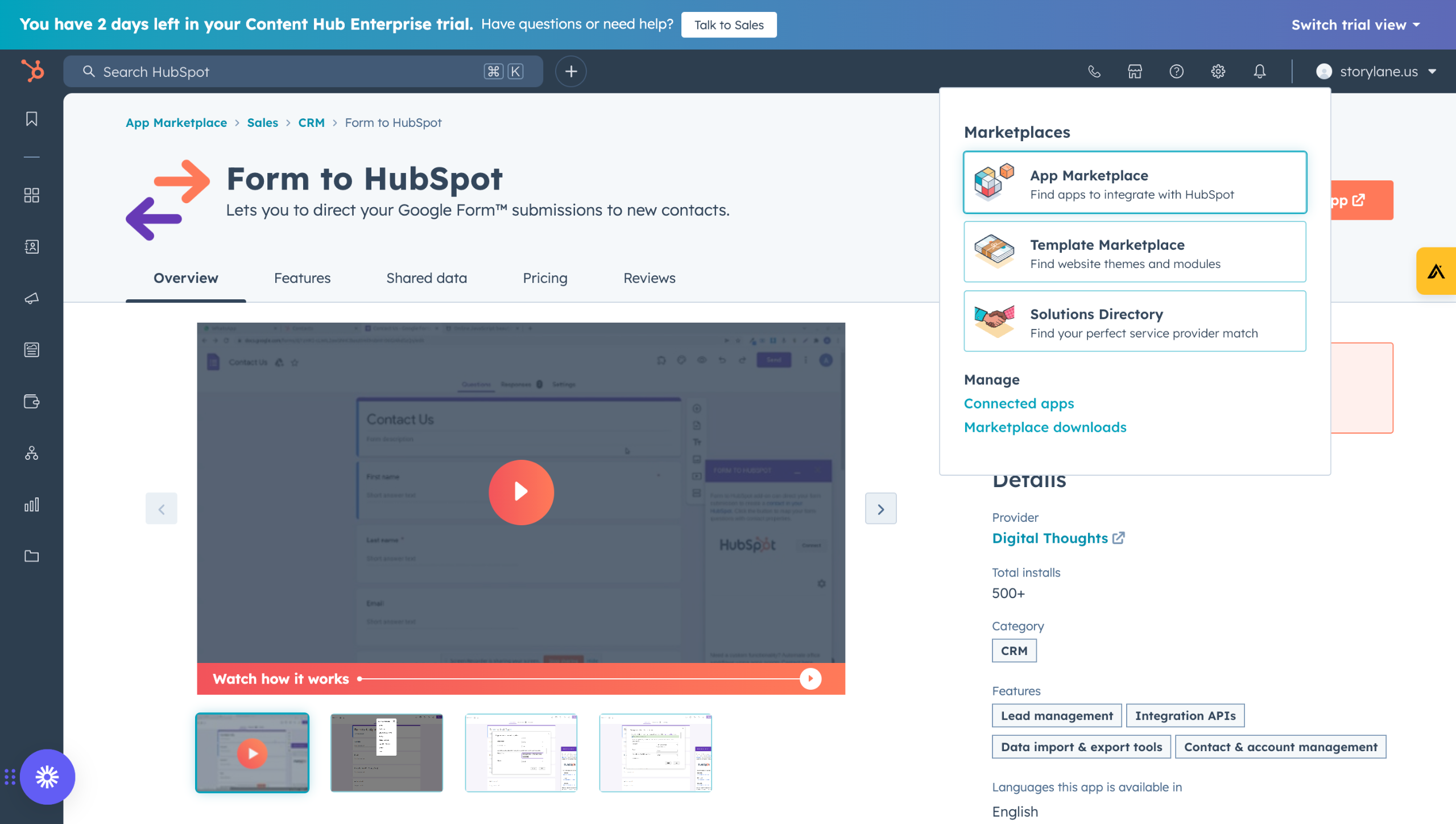
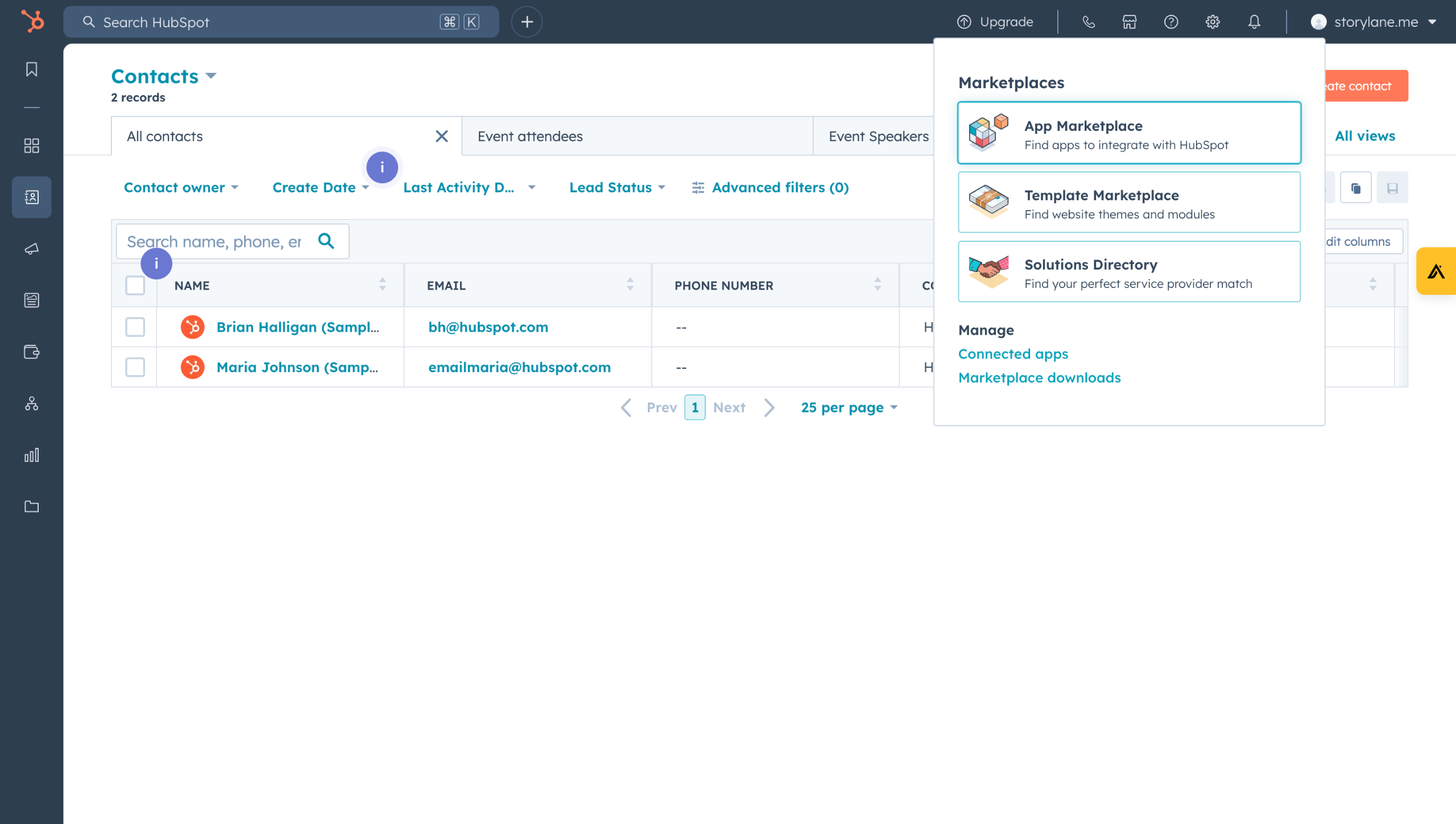
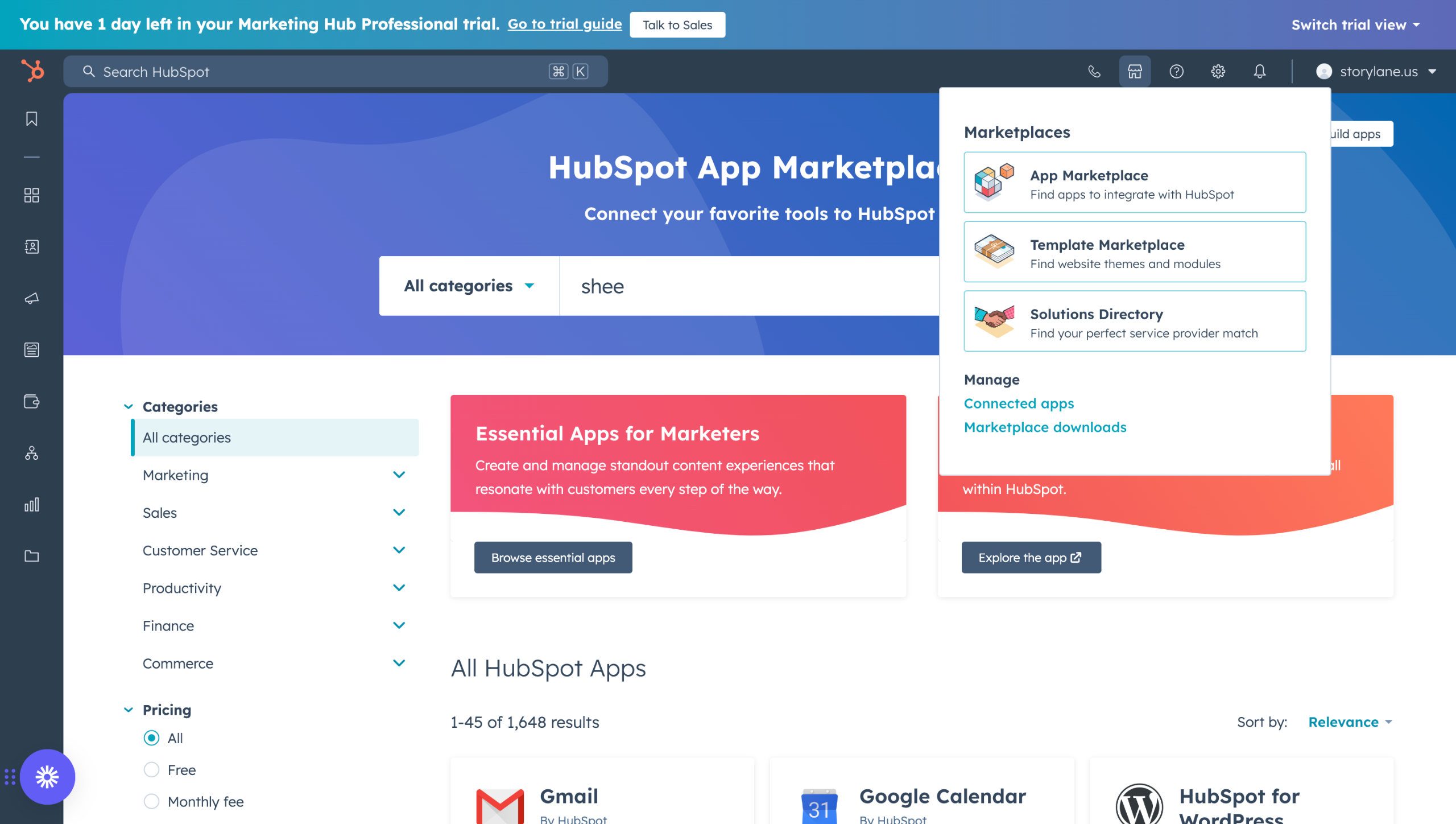
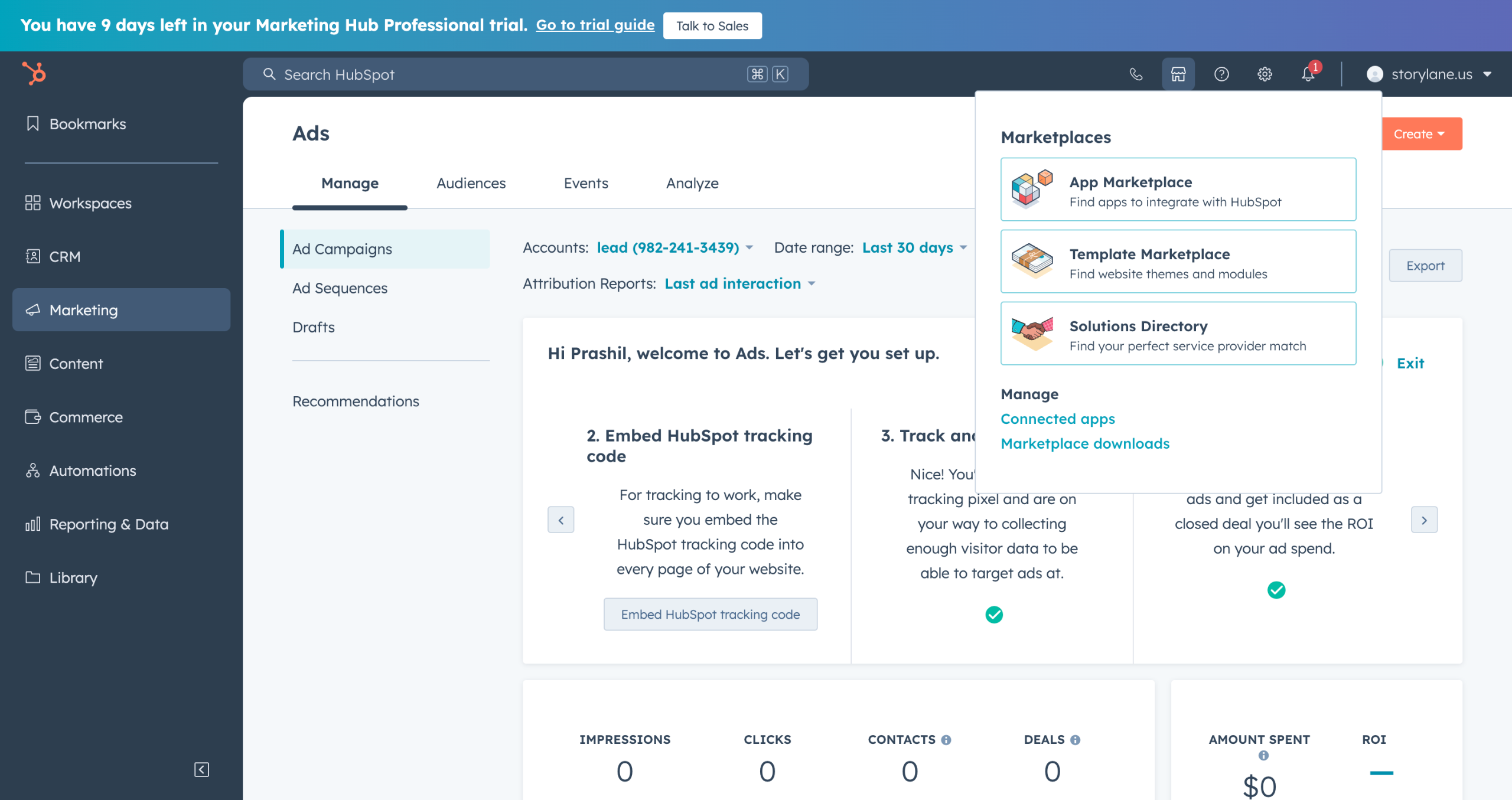
Head over to App Marketplace on the top right. (store icon)
Search for "Google Ads" in the search bar and select it.
Hit the Install app button to start the installation.
Click on Google Ads tile and Sign in to your google account when it pops up.
Grant the required access by hitting Allow.
Check the Ad account box and enable Auto Tracking.
Hit Next, once you see "1 account connected" on the Google Ads tile.
Select your Ad Pixel and hit Next.
Choose between the two to suit your needs for revenue projections.
You will find your Ad accounts in the Marketing>Ads Section (Left pane)
Quick answer: To integrate Google Ads, navigate to the HubSpot App Marketplace using the store icon, search for Google Ads, and install the app. Sign in to your Google account, grant access, and enable Auto Tracking. Connect your ad account, select your Ad Pixel, choose revenue projection settings, and view your accounts in the Marketing Ads section.
About this Google tutorial
Connect Google Ads to HubSpot easily. Install the app, grant access, configure tracking, and manage your ad accounts seamlessly. This guide covers hubspot google ads integration in 10 steps, starting with "Head over to App Marketplace on the top right. (store icon)" and finishing with "You will find your Ad accounts in the Marketing>Ads Section (Left pane)". The interactive demo above is a click-through copy of the real Google interface, so you can rehearse each step before doing it in your own account.
Frequently asked questions
How many steps does hubspot google ads integration take?
10 steps. Each one is listed in order above, and the demo highlights exactly where to click.
Can I try it without changing my own account?
Yes. Clicking through the demo doesn't touch your Google data or settings. Once you know the flow, repeat it in your own workspace.
This tutorial is filed under Google and HubSpot. Related guides: Google forms hubspot integration, Google search console integration hubspot and Google sheets hubspot integration. Last reviewed 05 Oct 2026.

Create your first interactive demo in minutes
No credit card required • Start building today