How to Keep Formatting When Converting to DocuSign
- George Apostolov
How to Keep Formatting When Converting to DocuSign: step-by-step guide
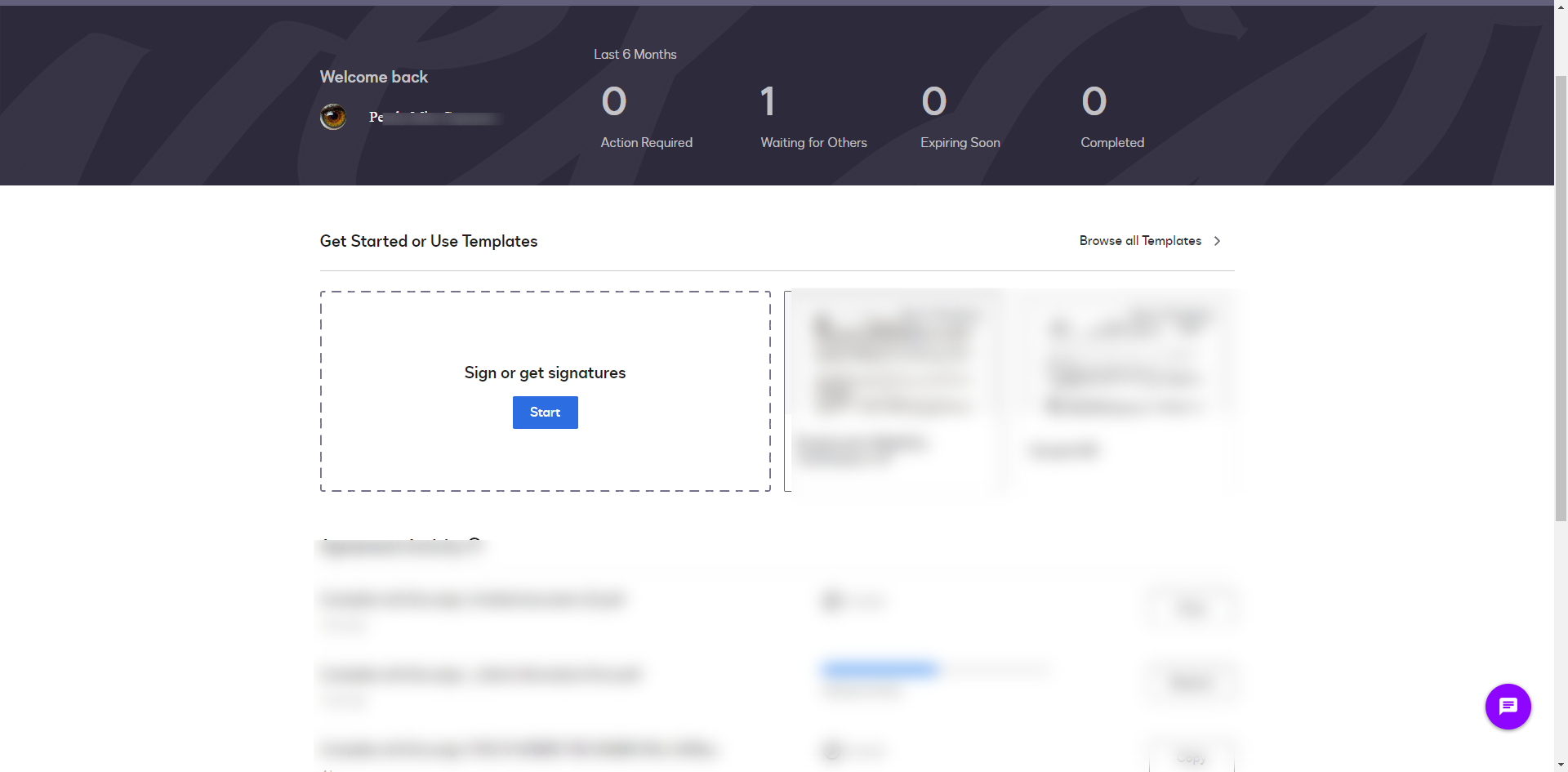
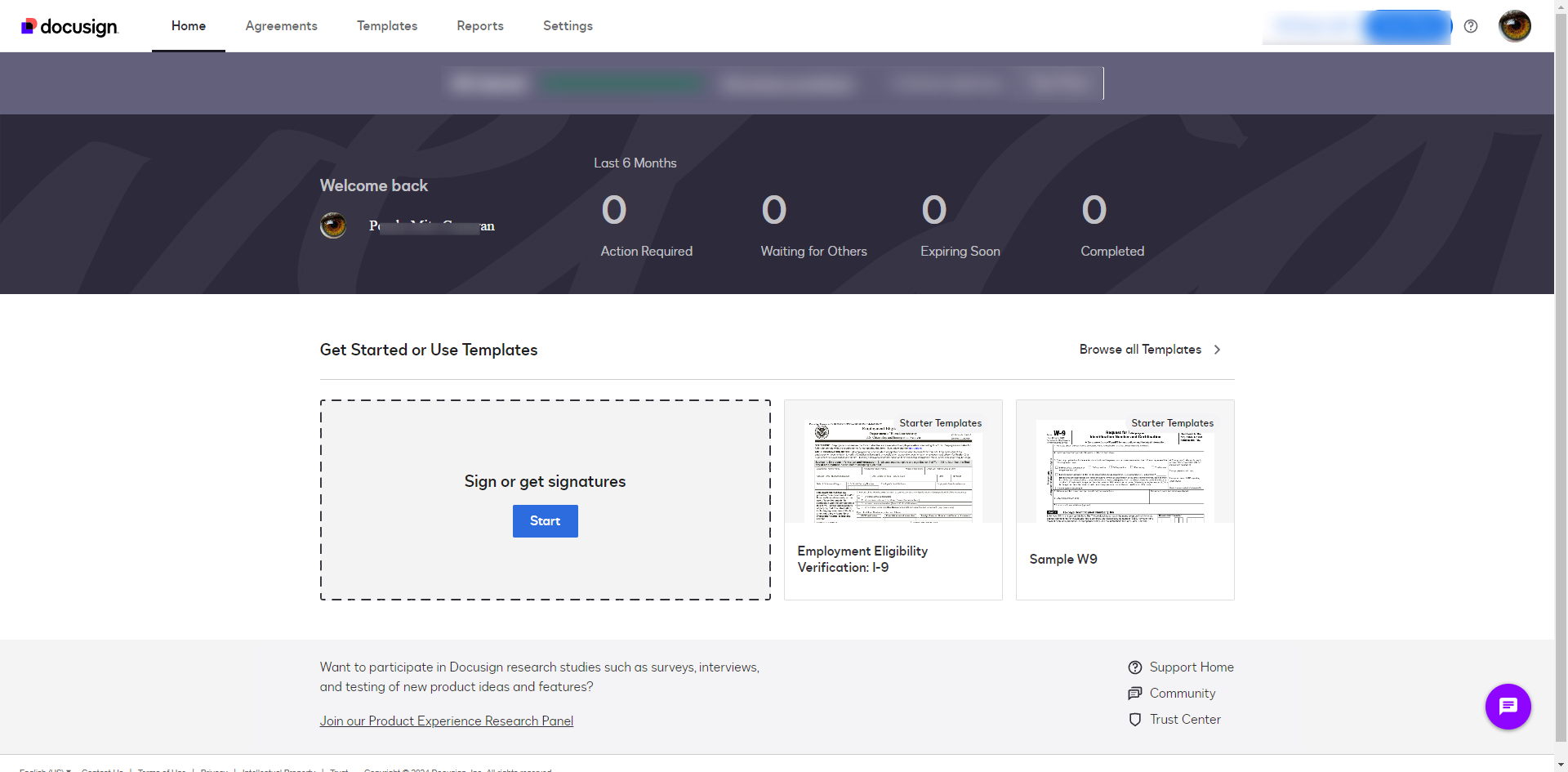
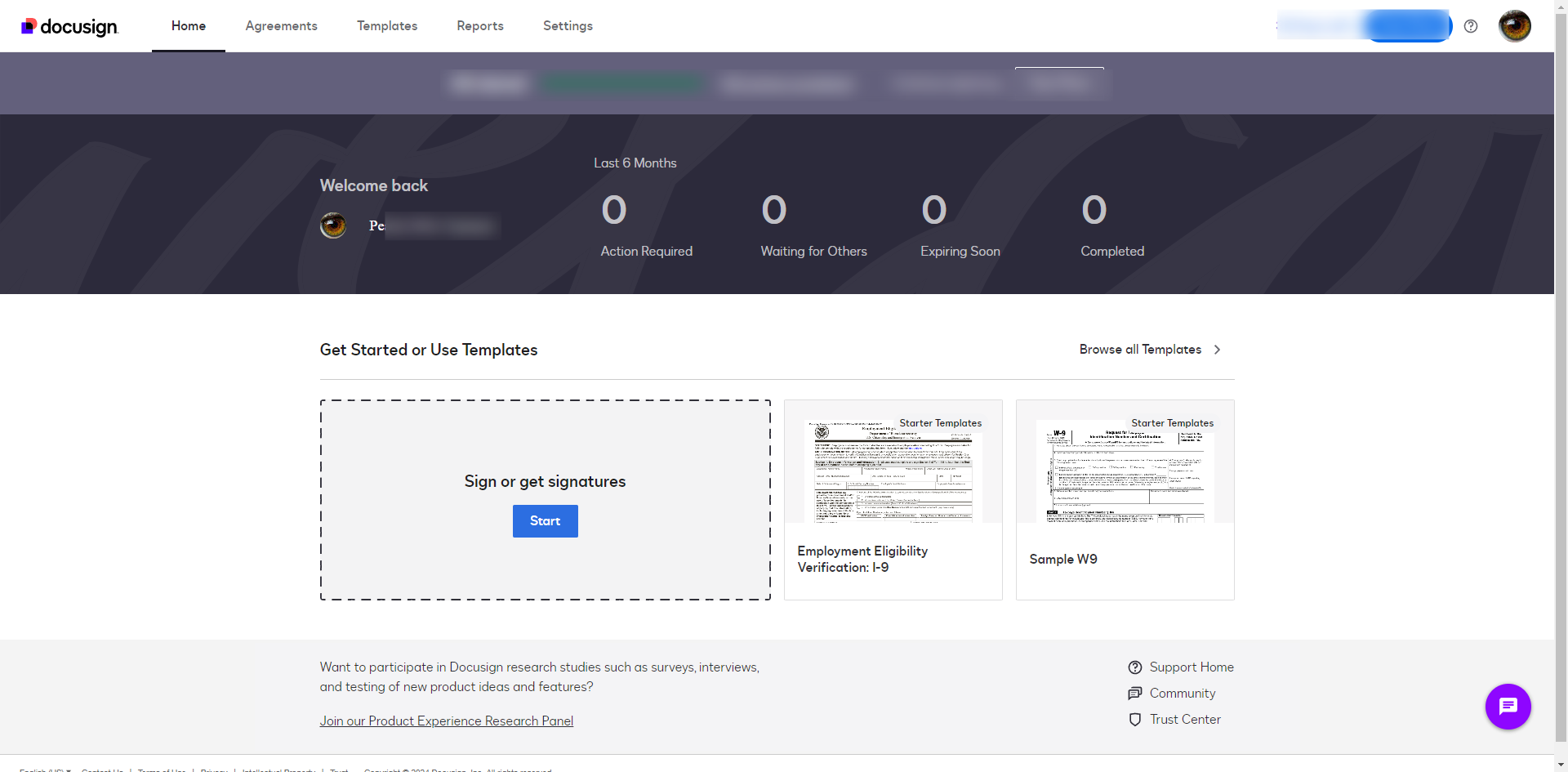
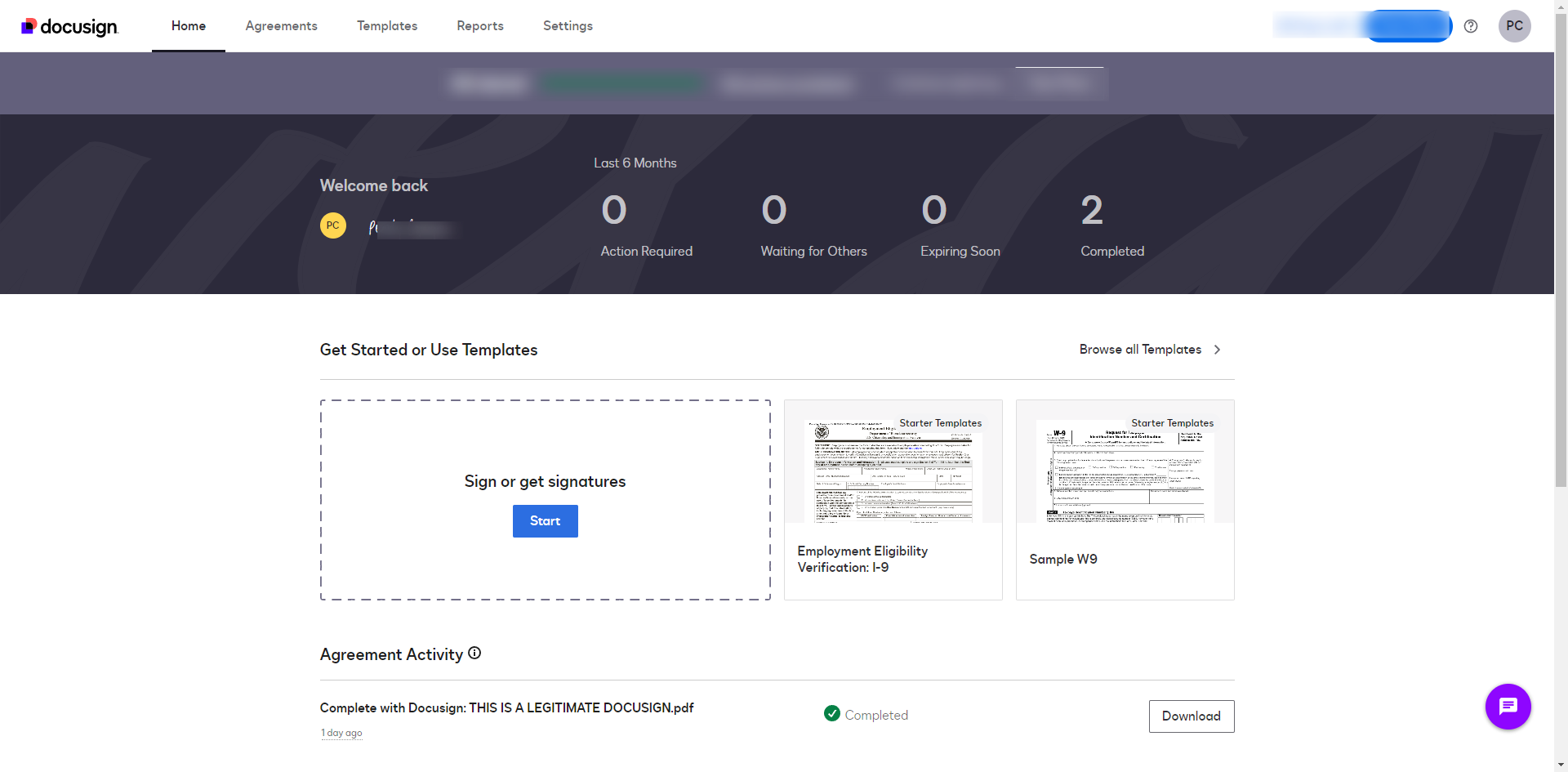
Click ‘Start' to add a new document.
Click 'Upload' and select the document you want to send. Ensure the file you upload is the final version with the correct formatting.
Click the vertical ellipsis.
Select 'View Document'.
Review your document to make sure it’s formatted correctly and ensure your document is in a format that DocuSign supports, such as PDF, Word (DOC/DOCX), or other standard file types.
Enter the email addresses of the people who need to sign the document.
Click 'Next' to enter the document editor.
Drag and drop signature and other necessary fields onto the document. Be careful to place fields without altering the document layout.
Click the 'Preview' option to review how the document looks with the fields added. This helps you ensure the formatting is intact.
PDFs are less likely to have formatting issues compared to Word or other formats. Convert your document to PDF before uploading to DocuSign if it isn’t already.
Click 'Formatting'.
Use standard fonts that are more likely to be preserved when converting to PDF and uploading to DocuSign.
Once you're done, click 'Send'.
By following these steps, you can ensure that your document’s formatting remains consistent when converted and sent through DocuSign.
Quick answer: To keep formatting when converting to DocuSign, start a new document, upload your final file, and view it. Enter signer emails, open the editor, place fields carefully, and preview the layout. Use supported files like PDF or Word, standard fonts, click formatting, and send your document.
About this DocuSign tutorial
Ensure your document layout stays consistent in DocuSign by uploading the final version, checking formatting, using standard fonts, and previewing. This guide shows how to keep Formatting When Converting to DocuSign in 14 steps, starting with "Click ‘Start' to add a new document" and finishing with "By following these steps, you can ensure that your document’s formatting remains consis...". The interactive demo above is a click-through copy of the real DocuSign interface, so you can rehearse each step before doing it in your own account.
Frequently asked questions
How many steps does it take to keep Formatting When Converting to DocuSign?
14 steps. Each one is listed in order above, and the demo highlights exactly where to click.
Can I try it without changing my own account?
Yes. Clicking through the demo doesn't touch your DocuSign data or settings. Once you know the flow, repeat it in your own workspace.
This tutorial is filed under DocuSign. Related guides: How to Push Docusign to Google Drive Using Zapier, How to Reassign a DocuSign and How to Send a Contract via DocuSign. Last reviewed 05 Oct 2026.

Create your first interactive demo in minutes
No credit card required • Start building today