How to Reassign a DocuSign
- George Apostolov
How to Reassign a DocuSign: step-by-step guide
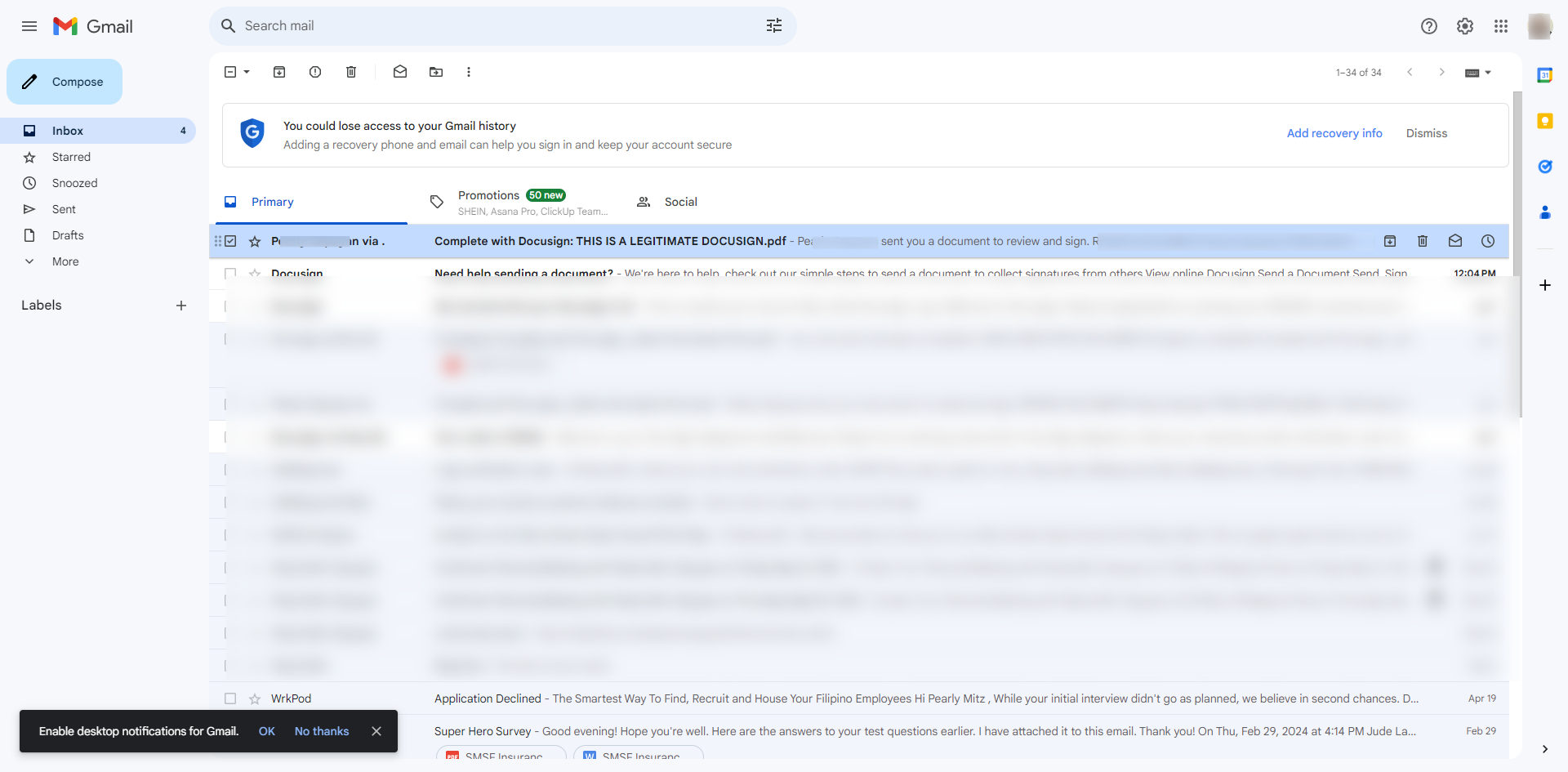
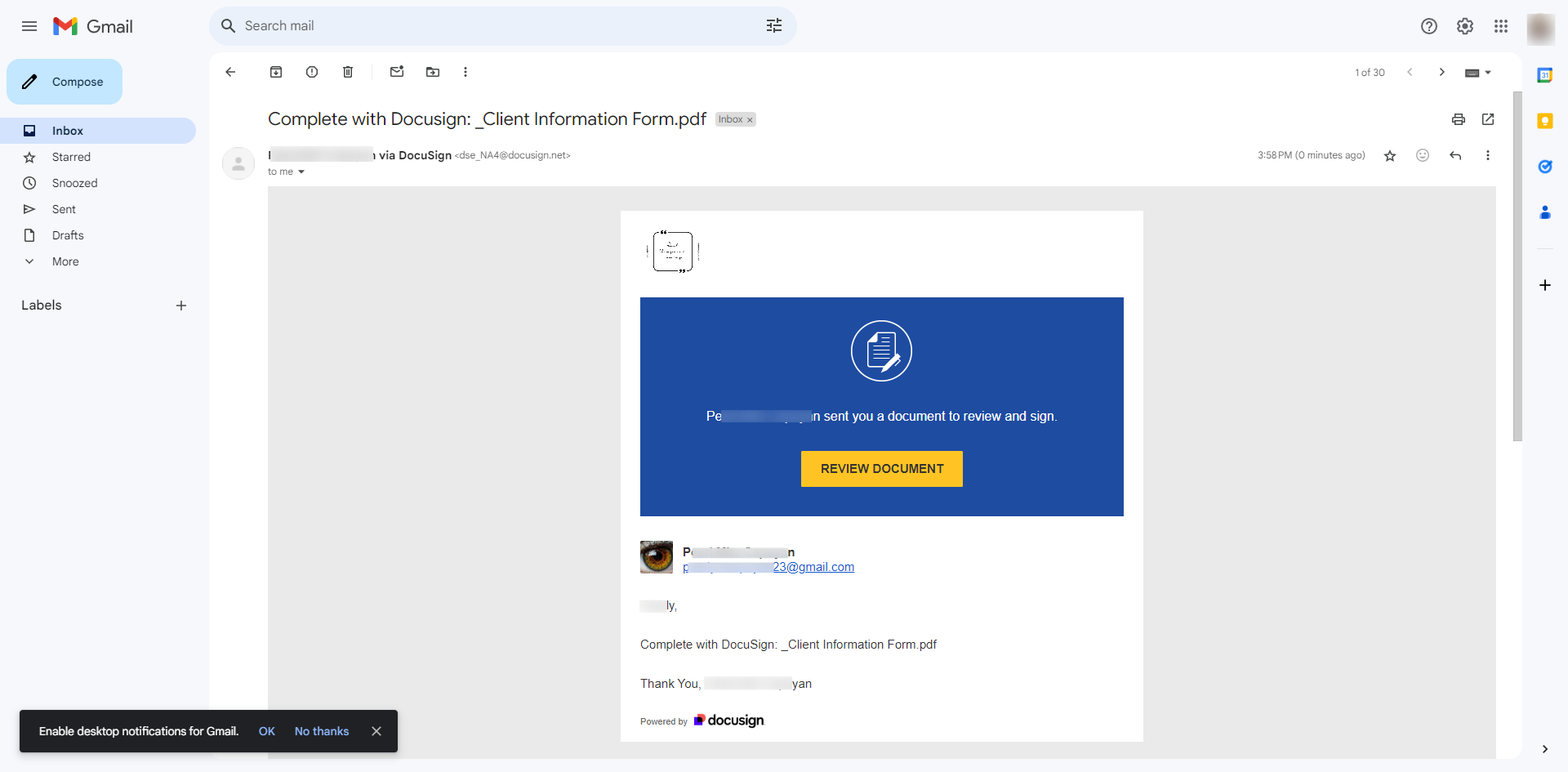
Go to your Google mail and open the email that was assigned to you by clicking 'Review Document'.
Select the drop-down menu for 'Other Actions'.
Select 'Assign to Someone Else'.
Enter the new recipient’s information such as name and email.
Provide a reason for assigning someone else in the empty field.
Confirm the reassignment, and the document will be sent to the new recipient.
By following these steps, you can easily reassign a DocuSign document to another signer.
Quick answer: To reassign a document, open the assigned email in Gmail, select the Other Actions drop-down menu, and choose Assign to Someone Else. Next, enter the new recipient's name and email, provide a reason for the reassignment in the empty field, and confirm to send the document to the new signer.
About this DocuSign tutorial
Reassign a DocuSign document to a new recipient by opening the email, selecting Other Actions, entering their details, and confirming the transfer. This guide shows how to reassign a DocuSign in 7 steps, starting with "Go to your Google mail and open the email that was assigned to you by clicking 'Review..." and finishing with "By following these steps, you can easily reassign a DocuSign document to another signer". The interactive demo above is a click-through copy of the real DocuSign interface, so you can rehearse each step before doing it in your own account.
Frequently asked questions
How many steps does it take to reassign a DocuSign?
7 steps. Each one is listed in order above, and the demo highlights exactly where to click.
Can I try it without changing my own account?
Yes. Clicking through the demo doesn't touch your DocuSign data or settings. Once you know the flow, repeat it in your own workspace.
This tutorial is filed under DocuSign. Related guides: How to Send a Contract via DocuSign, How to Send a DocuSign and How to Send DocuSign to Multiple Signers. Last reviewed 05 Oct 2026.

Create your first interactive demo in minutes
No credit card required • Start building today