How To Make A Vision Board On Notion
- George Apostolov
How To Make A Vision Board On Notion: step-by-step guide
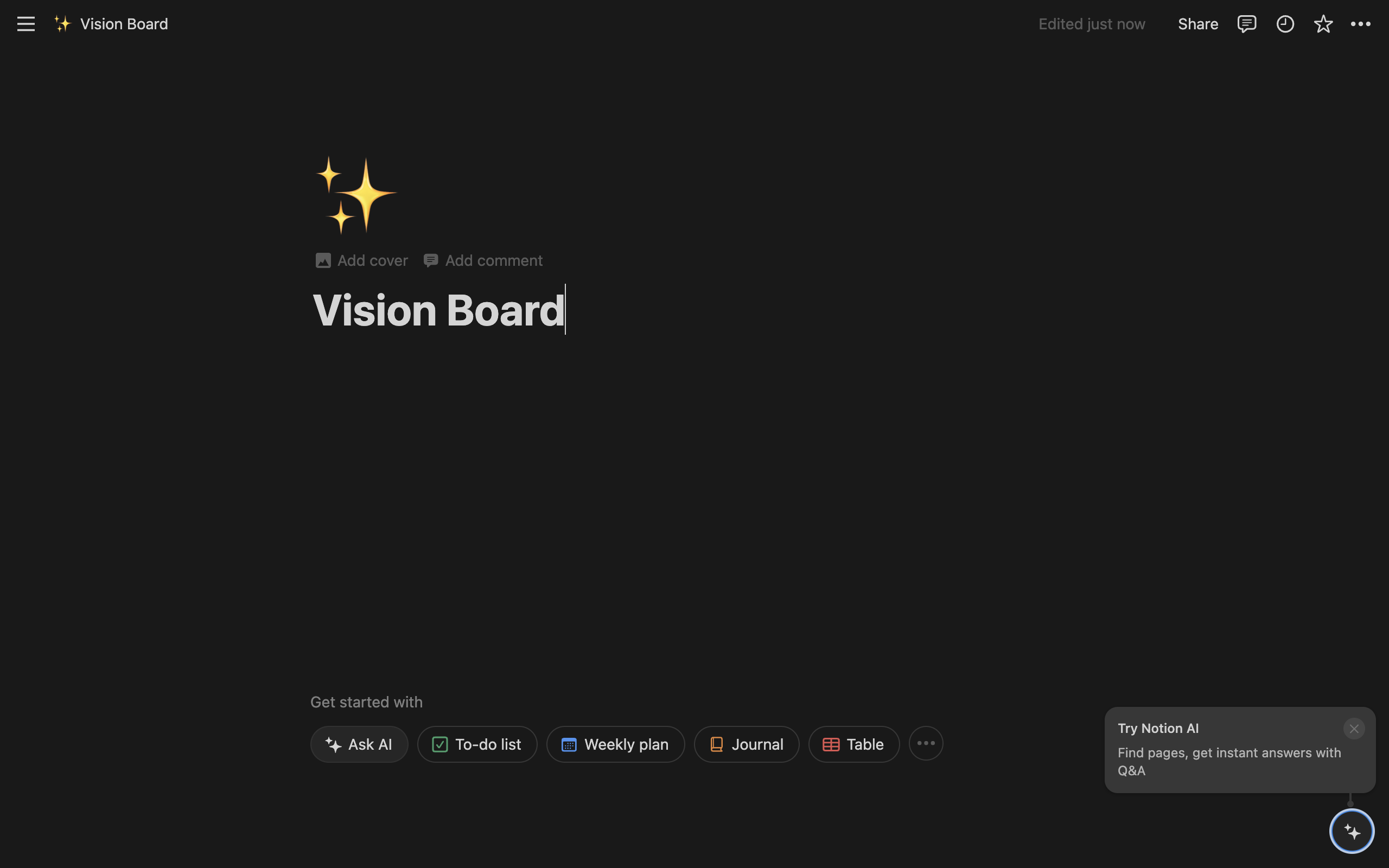
Begin by creating a new page and entering its title. Also consider adding an icon and a banner if you wish.
Now, the most important step for any vision board is to find and collect images that suit your vision and style. Use tools like Pinterest, Google Images, etc to collect them.
Now, back inside Notion, use a slash command (/image) to search for and insert an Image Block.
You can then upload an image to this block or choose to insert using a link instead.
An upload block however, only allows you to insert one image at a time. For a vision board, this may seem too slow.
Instead, you can drag and drop your images directly into Notion, multiple at a time.
Initially unless you have created columns the images will appear in a line. To create columns, simply hover on an image and then drag it next to another using the 6 dotted handle.
You can create as many columns as you wish and resize your images to fit perfectly!
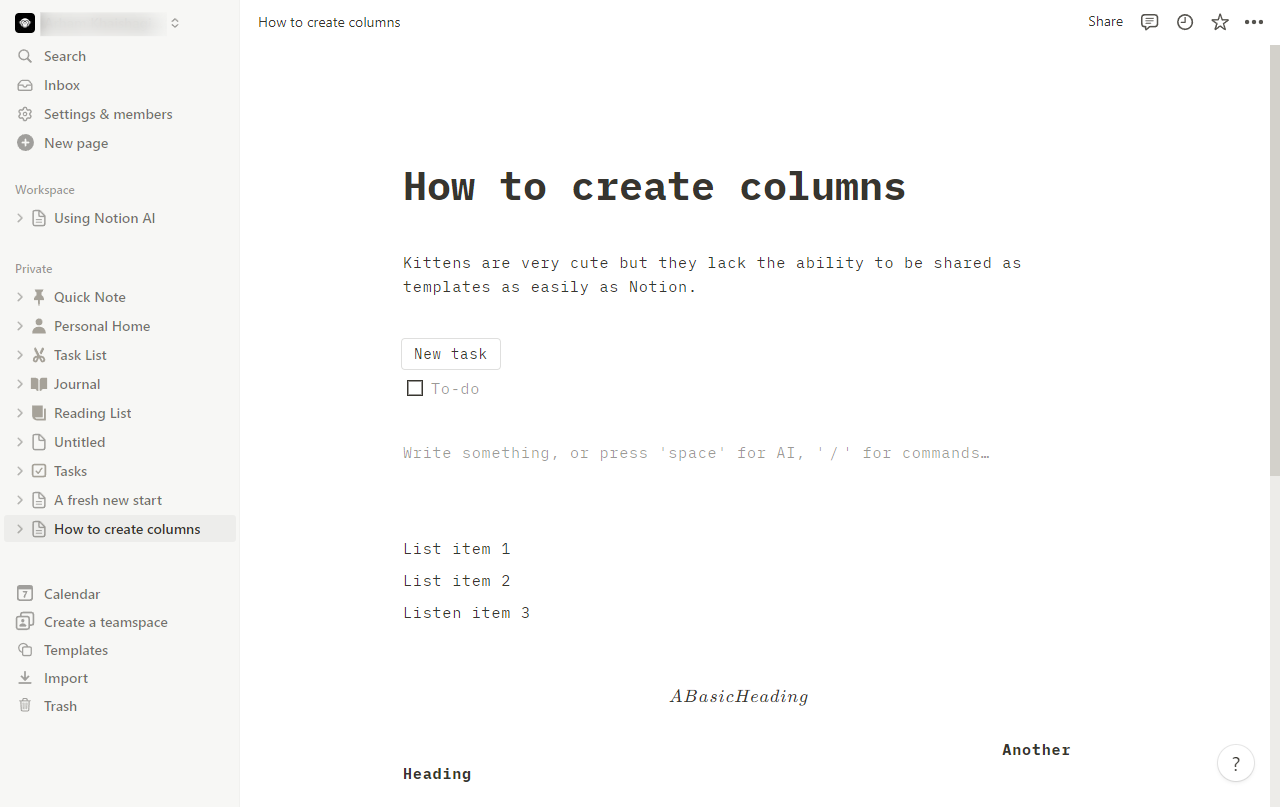
Use the spaces in between to add more elements just like any other Notion page. This includes text blocks and headings.
Your Vision Board should now be ready to inspire!
Quick answer: To make a vision board in Notion, create a new page with a title, icon, and banner. Collect style-matched images from Pinterest or Google Images. Insert them using image blocks, or drag and drop multiple images at once. Arrange the images into columns using the handle, resize them, and add text blocks and headings.
About this Notion tutorial
Design an inspiring digital vision board in Notion by collecting images, dragging them into pages, arranging columns, and adding text. This guide shows how to make A Vision Board On Notion in 10 steps, starting with "Begin by creating a new page and entering its title. Also consider adding an icon and a..." and finishing with "Your Vision Board should now be ready to inspire!". The interactive demo above is a click-through copy of the real Notion interface, so you can rehearse each step before doing it in your own account.
Frequently asked questions
How many steps does it take to make A Vision Board On Notion?
10 steps. Each one is listed in order above, and the demo highlights exactly where to click.
Can I try it without changing my own account?
Yes. Clicking through the demo doesn't touch your Notion data or settings. Once you know the flow, repeat it in your own workspace.
This tutorial is filed under Notion. Related guides: How to make columns in notion, How To Make Flashcards On Notion and How To Make Notion Dark Mode. Last reviewed 05 Oct 2026.

Create your first interactive demo in minutes
No credit card required • Start building today