How To Make Accordion In Webflow
- George Apostolov
How To Make Accordion In Webflow: step-by-step guide
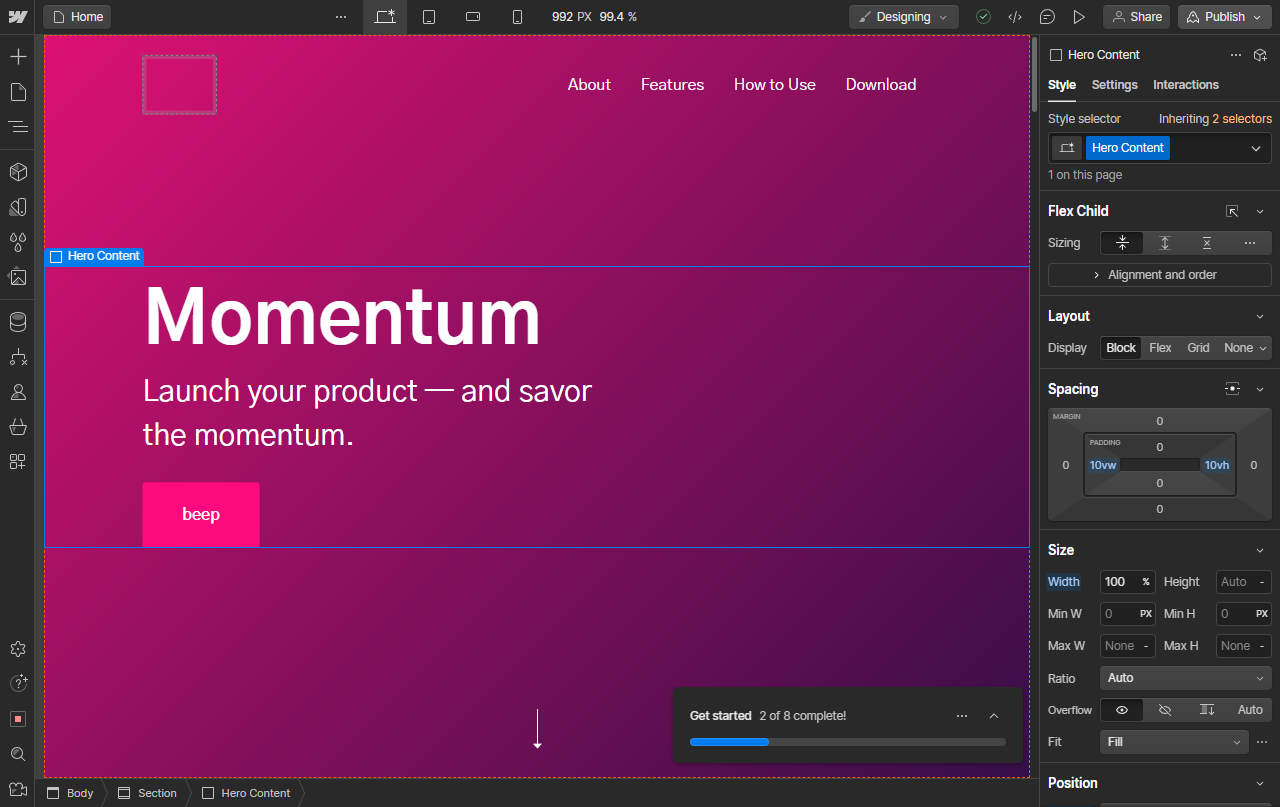
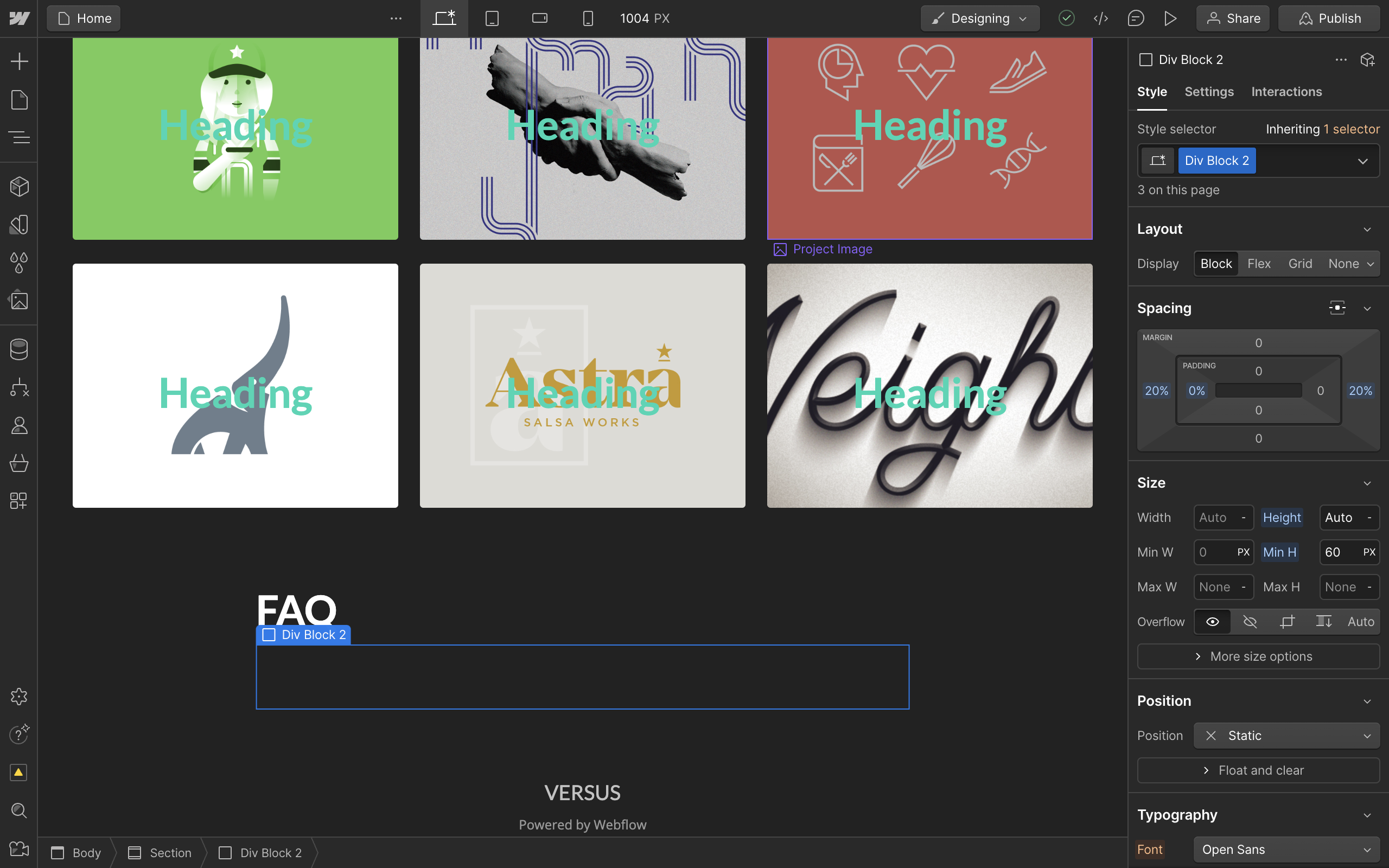
Begin by inserting a wrapper element positioned correctly to contain your accordion.
Now to create the actual accordion, go to the Add Elements tab from the left sidebar menu.
Search for the Dropdown element. This element contains most of the functionality required from an accordion so it serves as a great starting point. Simply drag and drop it to insert.
With the dropdown element inserted, adjust its width to resemble an accordion.
Now, lets change the text to be an actual question or heading.
Simply double click and edit the text.
At this point, use the Preview mode from the top right button to see how it works.
Notice that our default list overflows onto other elements.
Back inside the designer, go to the Navigator tab from the left sidebar menu.
Select the Dropdown List under the Dropdown Toggle.
Locate the Position section on the right sidebar menu.
Set this to Static to fix the overflow.
Also consider changing the background and colors of your dropdown list.
You can also choose to delete the links and replace it with another form of content in your accordion.
For our example, we'll add a paragraph to open up under the dropdown.
Use the Navigator to make sure the paragraph is placed inside the Dropdown List.
If not, simply drag it to the correct position.
Back inside the Preview mode, click on the accordion to expand like a dropdown.
This makes our answer reveal below it.
We can now duplicate this to create an entire accordion section. To do so, simply select and copy the wrapper element that contains all elements and paste.
You now have a list of FAQs in your accordion that will each expand on click.
You now have a simple yet fully functional accordion in Webflow. You can continue modifying it by adding styles, animations, etc.
Quick answer: To make an accordion in Webflow, insert a wrapper, add a Dropdown element, adjust its width, and edit the text. Fix overflows by setting the Dropdown List position to Static, add paragraph content, and duplicate the wrapper to create a full FAQ section.
About this Webflow tutorial
Create a fully functional interactive accordion in Webflow by using dropdown elements, fixing list overflows, and adding custom content. This guide shows how to make Accordion In Webflow in 22 steps, starting with "Begin by inserting a wrapper element positioned correctly to contain your accordion" and finishing with "You now have a simple yet fully functional accordion in Webflow. You can continue modif...". The interactive demo above is a click-through copy of the real Webflow interface, so you can rehearse each step before doing it in your own account.
Frequently asked questions
How many steps does it take to make Accordion In Webflow?
22 steps. Each one is listed in order above, and the demo highlights exactly where to click.
Can I try it without changing my own account?
Yes. Clicking through the demo doesn't touch your Webflow data or settings. Once you know the flow, repeat it in your own workspace.
This tutorial is filed under Webflow. Related guides: How To Make Grid Responsive Webflow, How To Make Navbar Sticky Webflow and How To Move Elements In Webflow. Last reviewed 05 Oct 2026.

Create your first interactive demo in minutes
No credit card required • Start building today