How to Make Video in Canva
- George Apostolov
How to Make Video in Canva: step-by-step guide
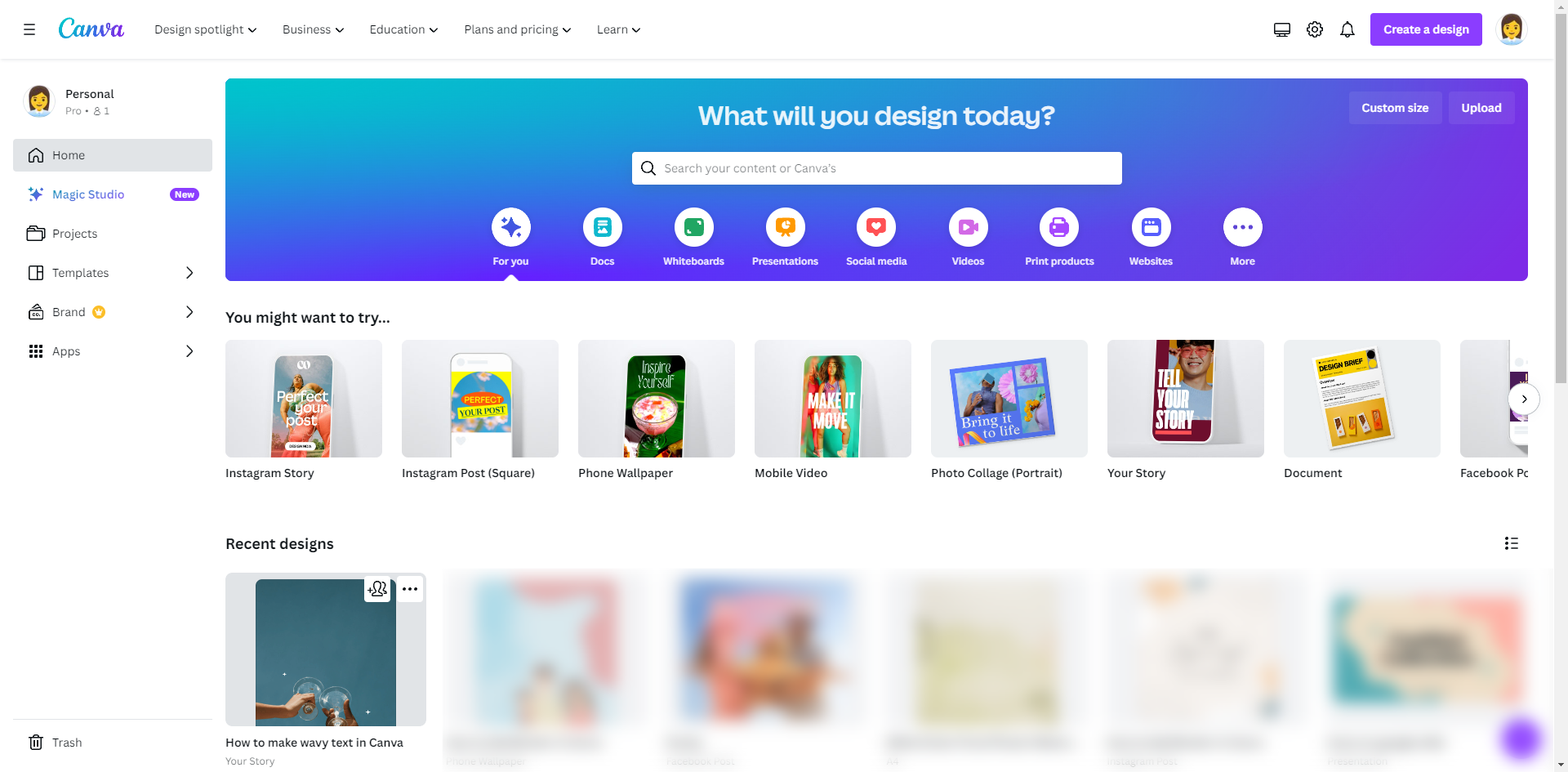
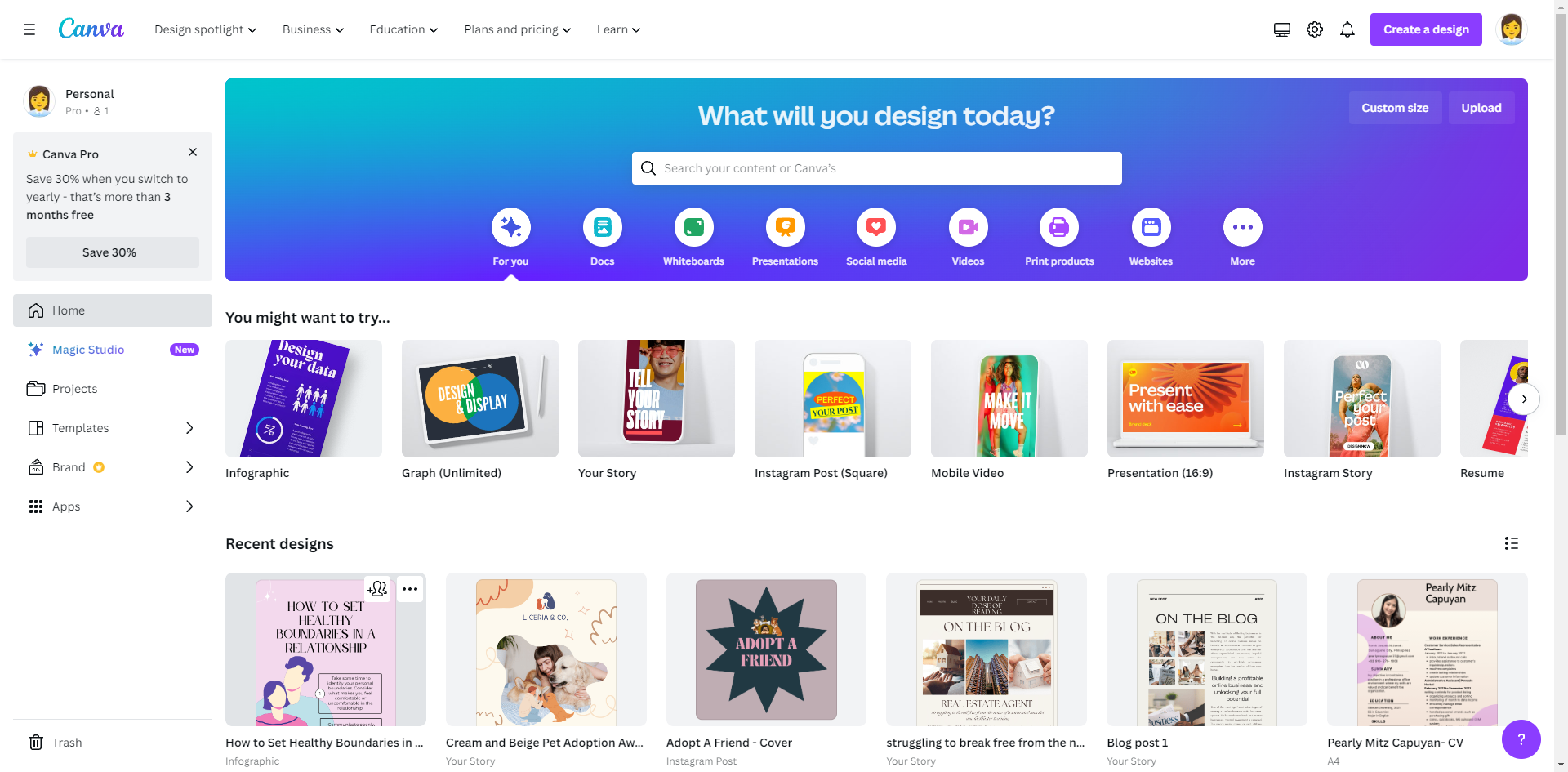
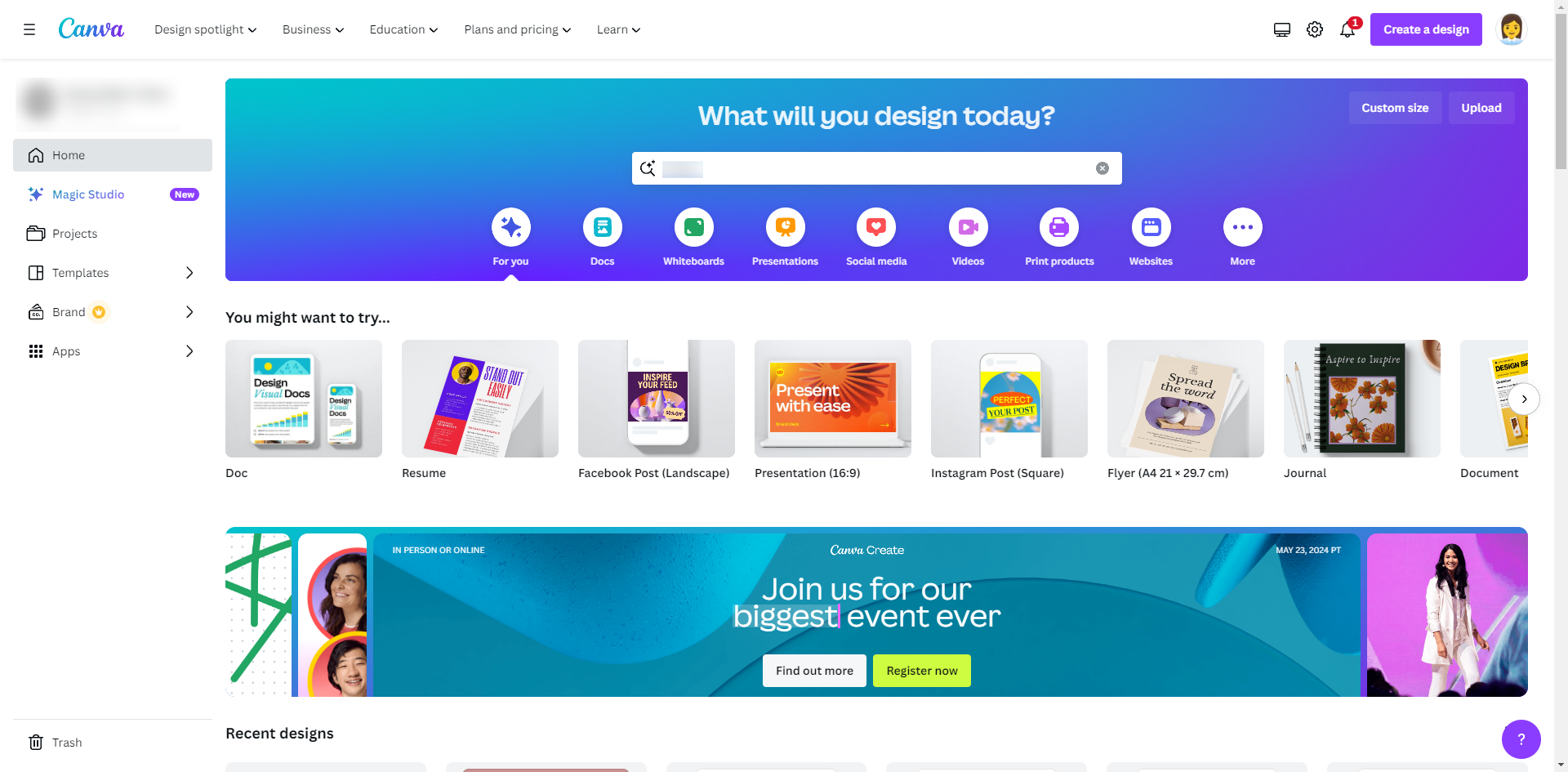
On the Canva homepage under the search bar, click 'Videos'.
Click ' Customise this template' and proceed.
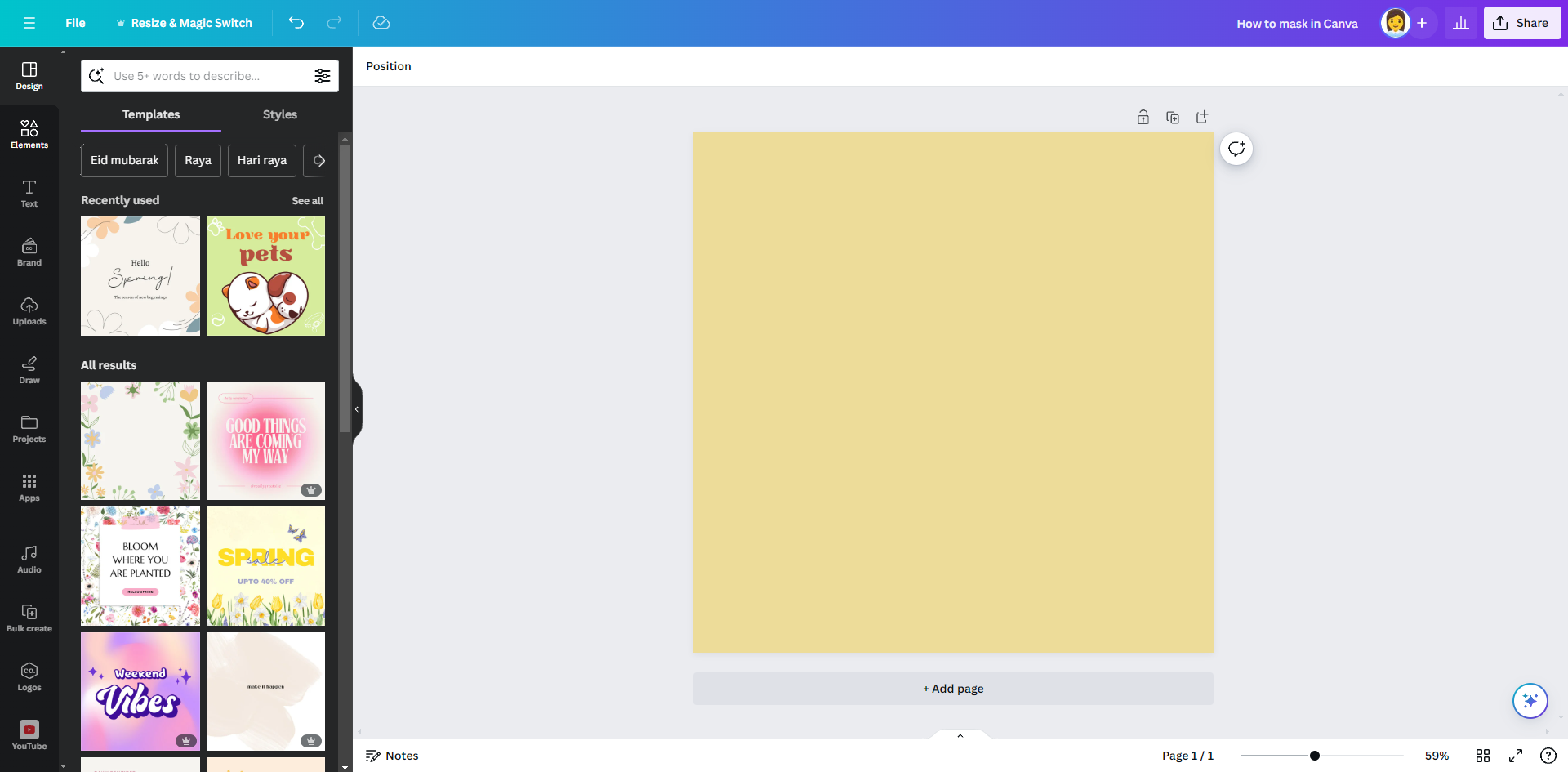
Add titles, captions, or other text overlays to your video.
Customise the background colour or apply filters and effects to your video to give it a unique look and feel
Use the timeline at the bottom of the editor to manage the timing and sequence of your video elements.
You can also add another scene by clicking the 'Add' icon.
By clicking the video, a floating bar appears then you can select 'Add transition'.
Choose any transitions that you feel like fits your video.
You can trim video clips and adjust the duration of each scene.
After adding an animation, go to the edit toolbar and click 'Apps'.
Choose 'Audio' to add in your video.
Click the audio that you prefer for your scene.
Click your audio, on the floating bar and choose the 'Volume' option.
Adjust the volume levels and timing of the audio to complement your video content.
Click 'Share' once you are satisfied with your video.
Quick answer: To make a video in Canva, click Videos on the homepage, select a template, add text, customize backgrounds, and manage elements on the timeline. Add scenes, transitions, and trim clips. Then, add audio from Apps, adjust volume, and click Share when finished.
About this Canva tutorial
Create and edit custom videos in Canva by adding text, filters, transitions, and audio tracks, then share your finished project. This guide shows how to make Video in Canva in 15 steps, starting with "On the Canva homepage under the search bar, click 'Videos'" and finishing with "Click 'Share' once you are satisfied with your video". The interactive demo above is a click-through copy of the real Canva interface, so you can rehearse each step before doing it in your own account.
Frequently asked questions
How many steps does it take to make Video in Canva?
15 steps. Each one is listed in order above, and the demo highlights exactly where to click.
Can I try it without changing my own account?
Yes. Clicking through the demo doesn't touch your Canva data or settings. Once you know the flow, repeat it in your own workspace.
This tutorial is filed under Canva. Related guides: How to Make Wavy Text in Canva, How to Mask in Canva and How to Match Colours in Canva. Last reviewed 05 Oct 2026.

Create your first interactive demo in minutes
No credit card required • Start building today