How To Merge Contacts In Pipedrive
- George Apostolov
How To Merge Contacts In Pipedrive: step-by-step guide
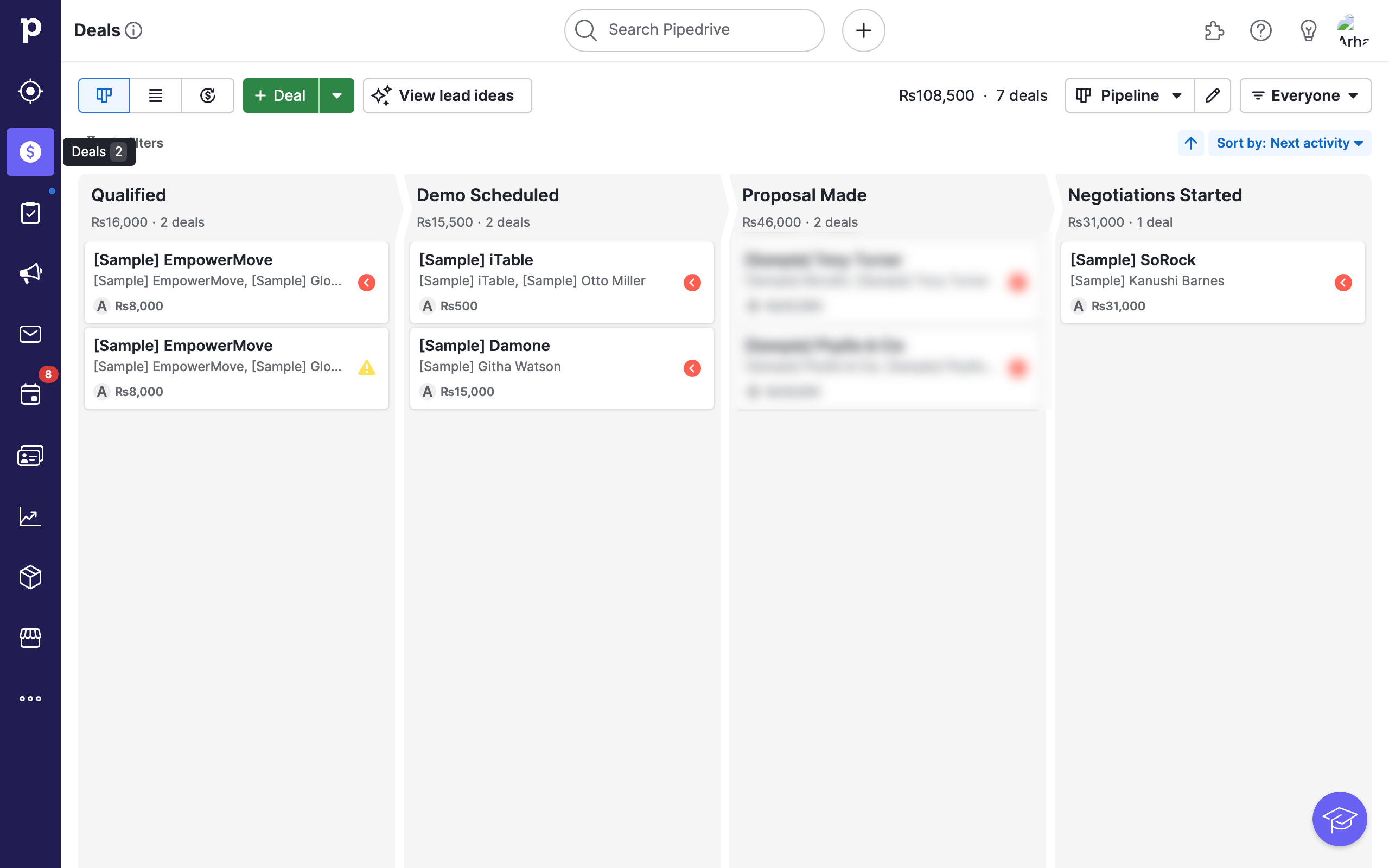
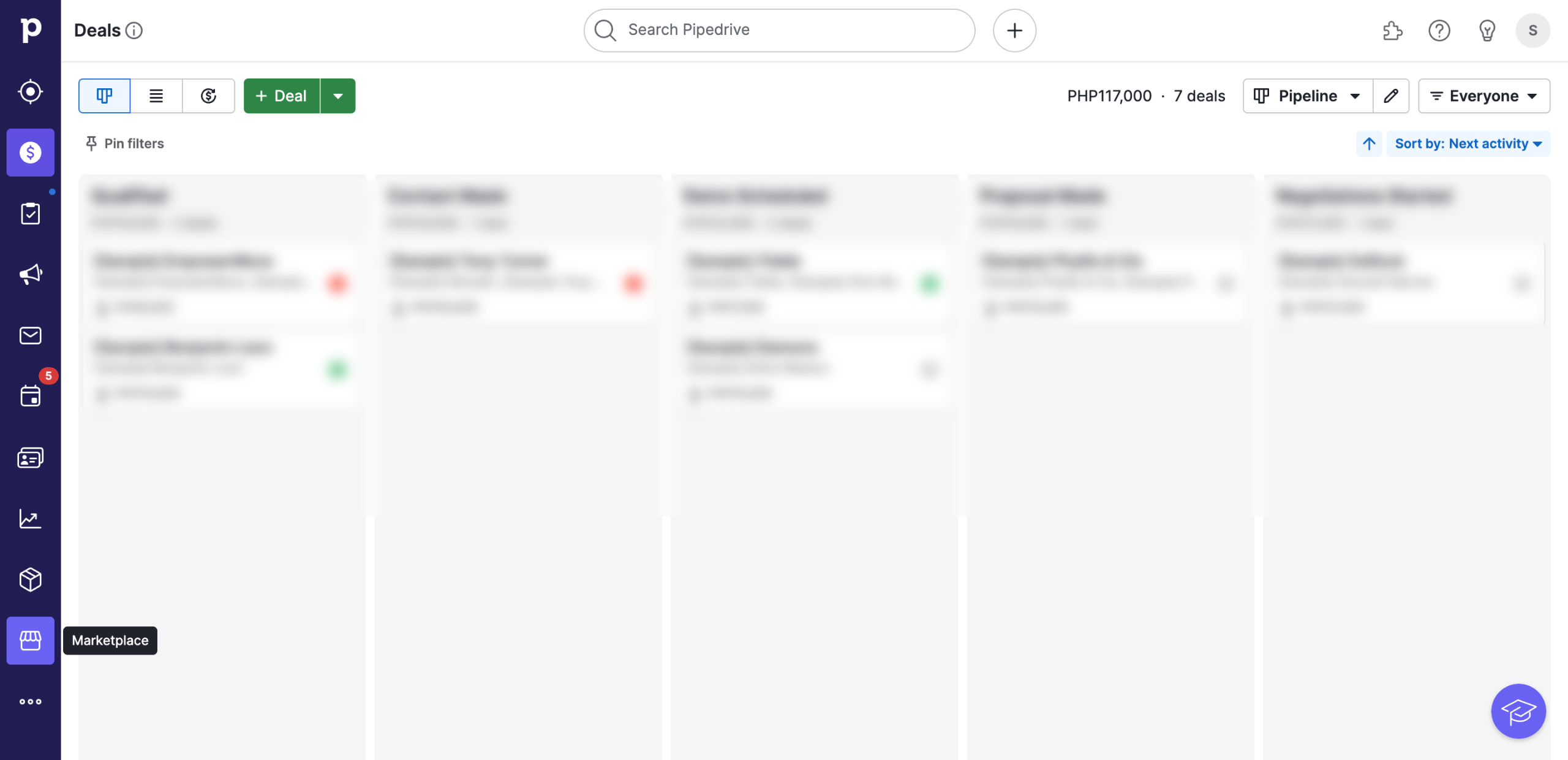
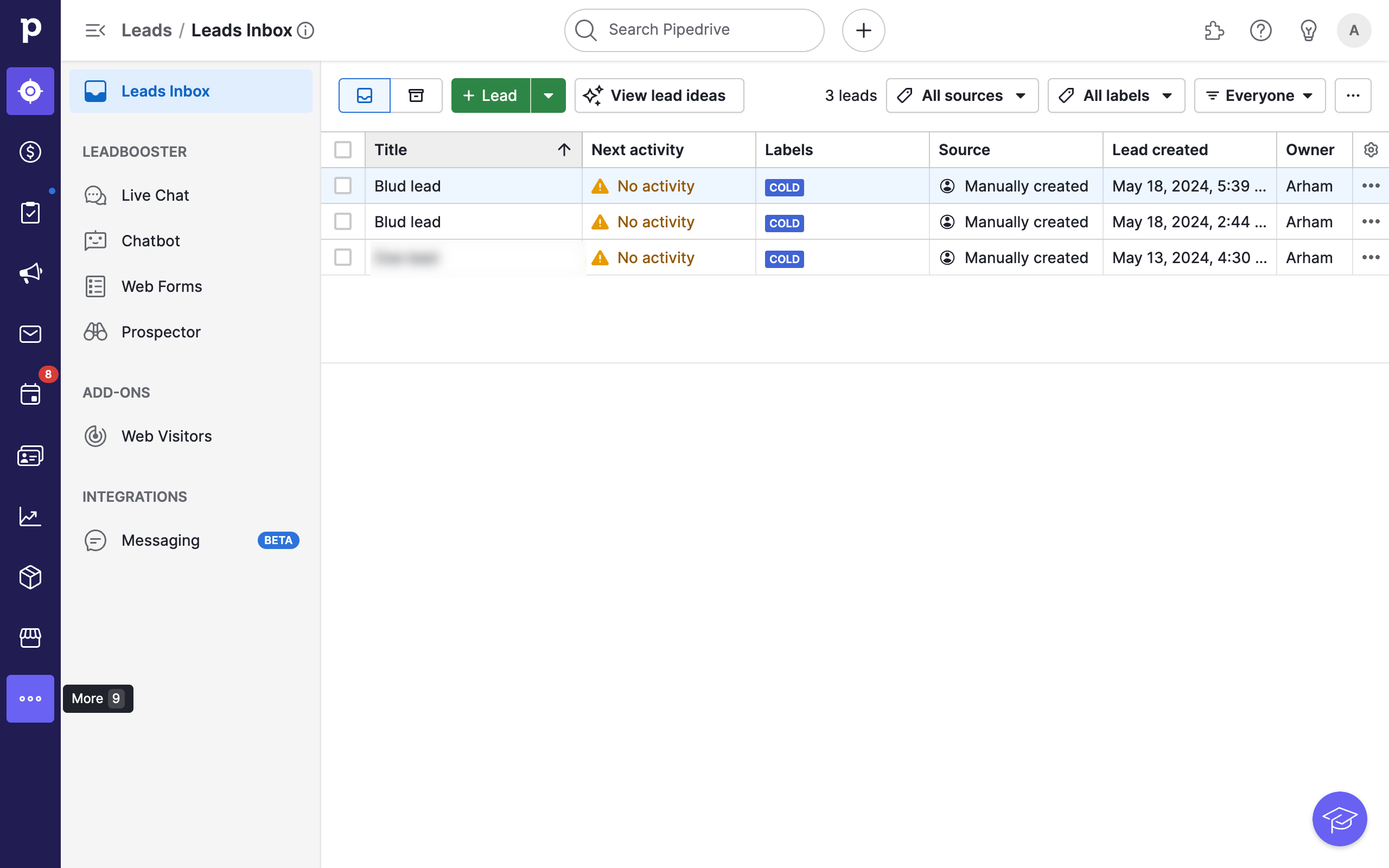
Go to the three dotted icon in the left sidebar menu for More options.
If you do not see the option to Merge duplicates, click on any visible item from the list.
Selecting any other item will bring you to the Tools and apps menu, locate the Merge duplicates option under it and click.
This option will display a list of all possible duplicates and allow you to review them. To verify, click on Preview.
Confirm if you wish to merge then click on Merge.
Confirm your choice by clicking on Merge once more.
You can then open their detailed view to see the changes.
Also note that from any detailed view, you can also manually merge contacts. To do so, go to the three dotted icon for more options on the top right (sometimes also located at the bottom).
Select Merge.
Choose a contact you wish to merge with manually.
Choose which action to perform to resolve conflicts.
Proceed to Preview and Merge same as previously.
Quick answer: To merge duplicates in Pipedrive, open the More options menu in the left sidebar, navigate to Tools and apps, and select Merge duplicates. Review potential duplicates, click Preview, and confirm by clicking Merge twice. Alternatively, use the top-right more options menu within any contact's detailed view to manually select, resolve conflicts, preview, and merge.
About this Pipedrive tutorial
Combine duplicate contacts in Pipedrive using the tools menu or detailed contact views to review, resolve conflicts, and merge records efficiently. This guide shows how to merge Contacts In Pipedrive in 12 steps, starting with "Go to the three dotted icon in the left sidebar menu for More options" and finishing with "Proceed to Preview and Merge same as previously". The interactive demo above is a click-through copy of the real Pipedrive interface, so you can rehearse each step before doing it in your own account.
Frequently asked questions
How many steps does it take to merge Contacts In Pipedrive?
12 steps. Each one is listed in order above, and the demo highlights exactly where to click.
Can I try it without changing my own account?
Yes. Clicking through the demo doesn't touch your Pipedrive data or settings. Once you know the flow, repeat it in your own workspace.
This tutorial is filed under Pipedrive. Related guides: How To Merge Deals In Pipedrive, How to Add the Pipedrive Power-Up to Trello and How to Push Pipedrive Deal Data to Google Sheets Reporting Through Zapier. Last reviewed 05 Oct 2026.

Create your first interactive demo in minutes
No credit card required • Start building today