How to Organize ClickUp
- George Apostolov
How to Organize ClickUp: step-by-step guide
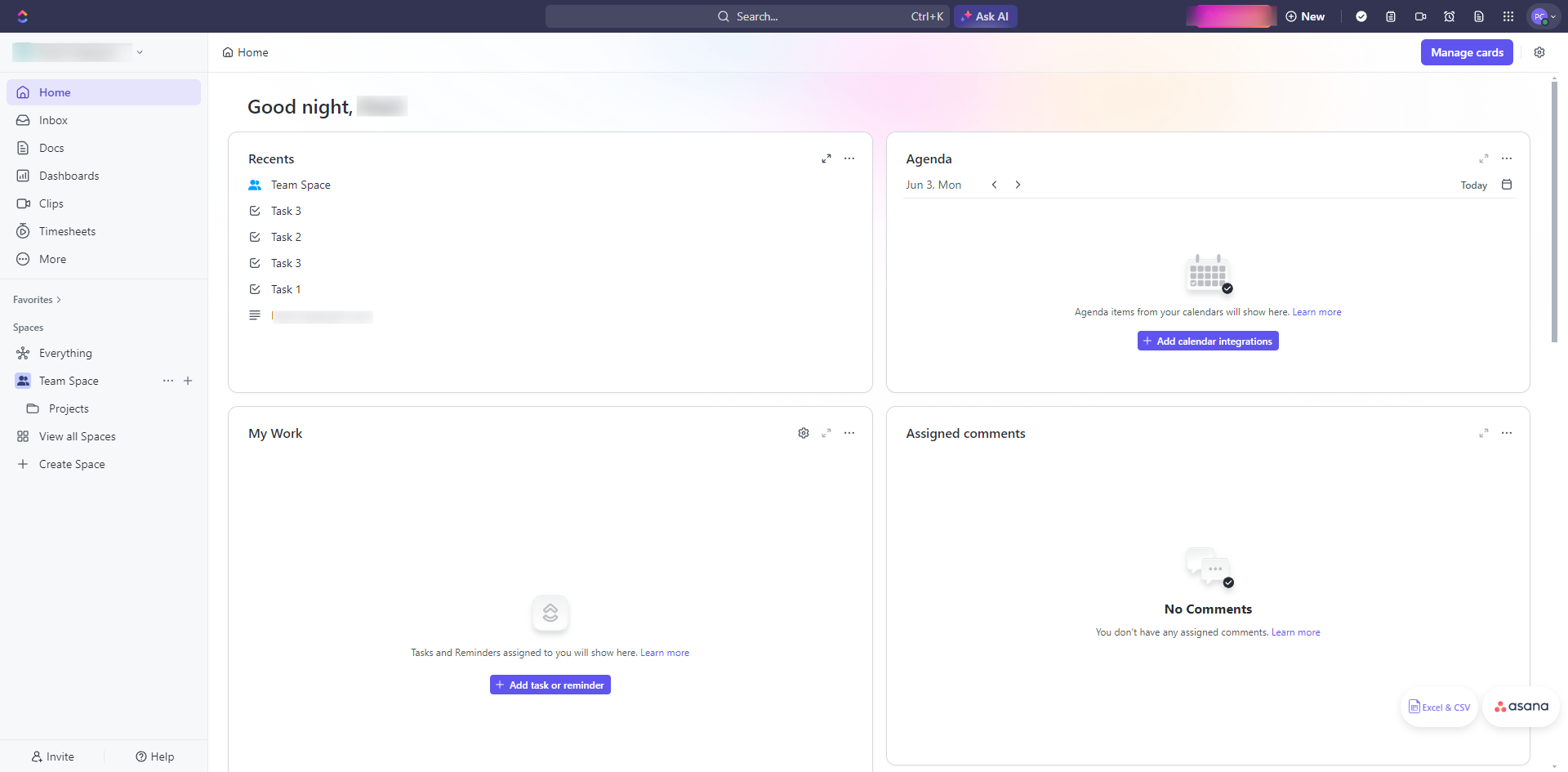
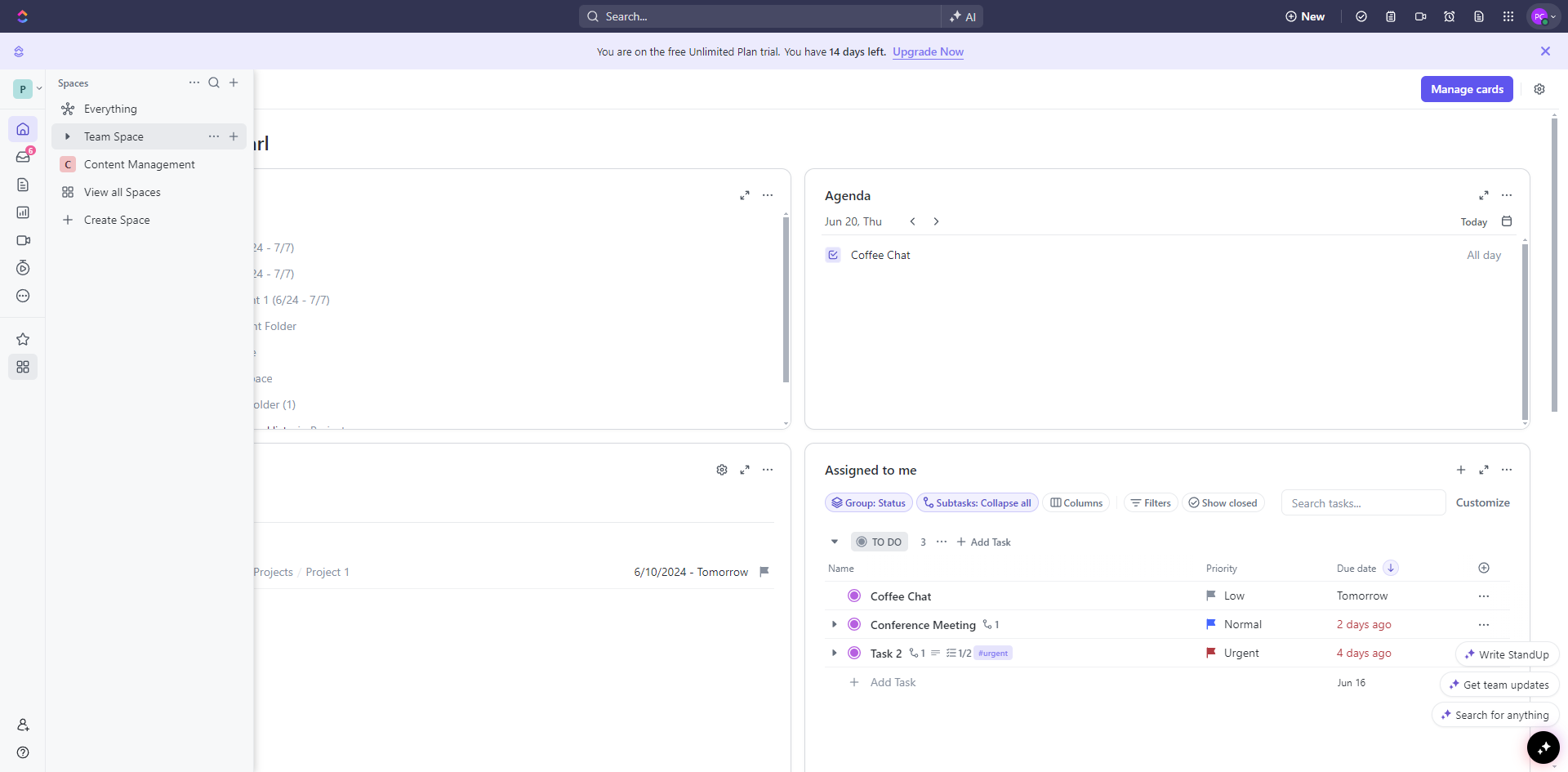
Spaces are the highest level of organization in ClickUp. Click the ellipsis icon to create a space.
Set up folders or projects. They help organize projects or sub-teams within a Space. Click '+Create new' and choose 'Folder'.
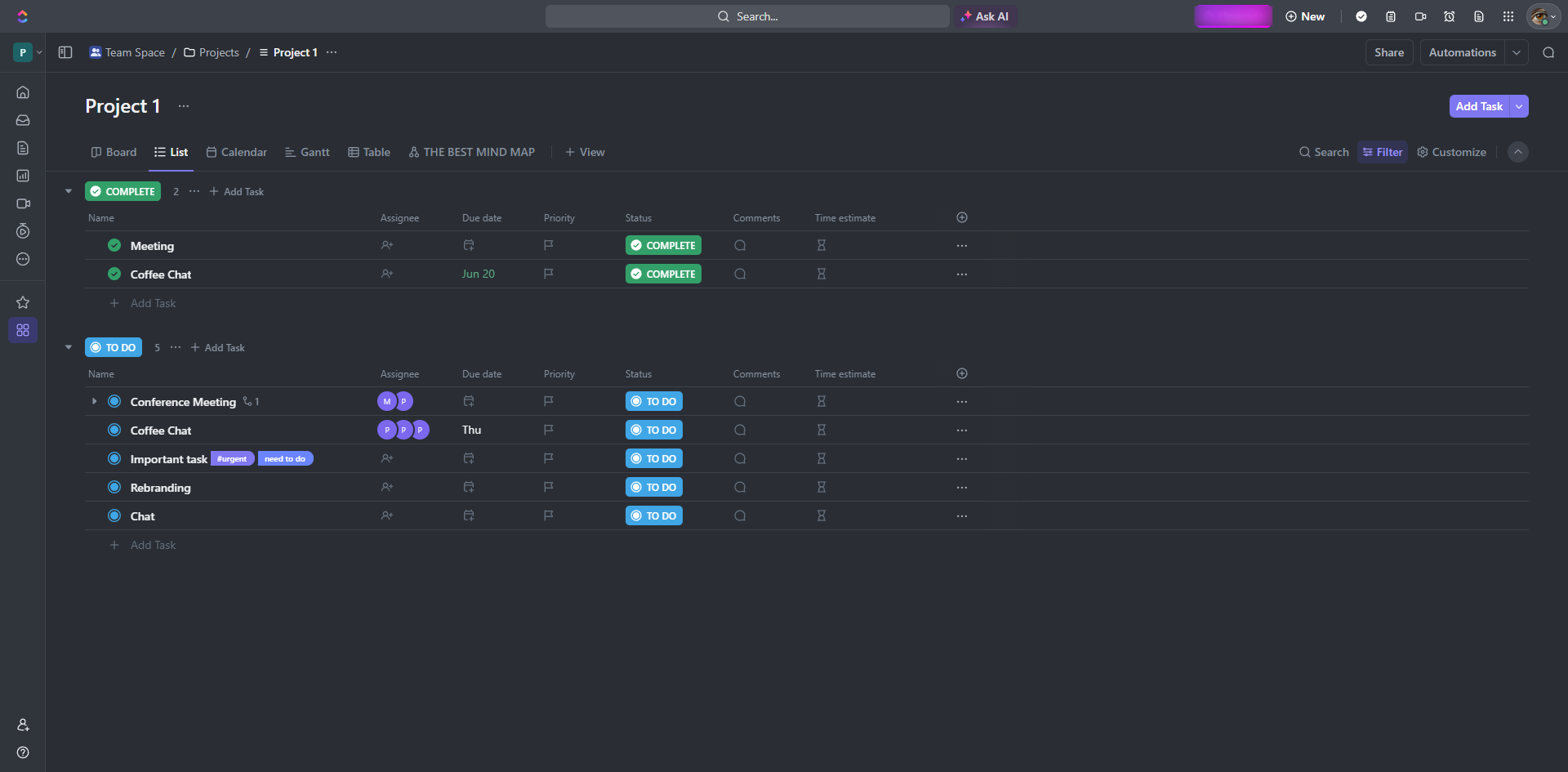
Inside a folder, set up your List and start adding tasks to it.
Create a task by clicking the '+Add task'. Tasks are the fundamental building blocks of ClickUp. They represent individual work items that need to be completed.
Break down complex tasks into smaller, manageable subtasks.
Click '+View' to add and use different views to see tasks from various perspectives and manage workflows more effectively.
Implement custom fields by clicking the add icon. Custom fields allow you to add specific data points to tasks that are unique to your workflow.
To set up automations, click 'Automations'.
Click the 'Share' option to ensure everyone is on the same page by using ClickUp's collaboration features.
Click 'Invite' and start inviting team members to collaborate effectively. By following these steps, you can organize your ClickUp workspace to improve efficiency and streamline workflows.
Quick answer: To organize ClickUp, create spaces using the ellipsis icon, set up folders, and add lists. Next, create tasks, add subtasks, and use views. Finally, implement custom fields, set up automations, share workspaces, and invite team members.
About this ClickUp tutorial
Streamline your projects by organizing spaces, folders, lists, and tasks in ClickUp for better team collaboration. This guide shows how to organize ClickUp in 10 steps, starting with "Spaces are the highest level of organization in ClickUp. Click the ellipsis icon to cre..." and finishing with "Click 'Invite' and start inviting team members to collaborate effectively. By following...". The interactive demo above is a click-through copy of the real ClickUp interface, so you can rehearse each step before doing it in your own account.
Frequently asked questions
How many steps does it take to organize ClickUp?
10 steps. Each one is listed in order above, and the demo highlights exactly where to click.
Can I try it without changing my own account?
Yes. Clicking through the demo doesn't touch your ClickUp data or settings. Once you know the flow, repeat it in your own workspace.
This tutorial is filed under ClickUp. Related guides: How to Push ClickUp Time Tracking Data to Google Sheets Through Zapier, How to Recover Deleted Tasks in Clickup and How to Remove Someone from Clickup. Last reviewed 05 Oct 2026.

Create your first interactive demo in minutes
No credit card required • Start building today