How to Organize Complex Coda Docs
- George Apostolov

This guide is an interactive LiveDemo. Create interactive demos of your own product: Interactive demo software · Interactive customer onboarding guides · Start free
How to Organize Complex Coda Docs: step-by-step guide
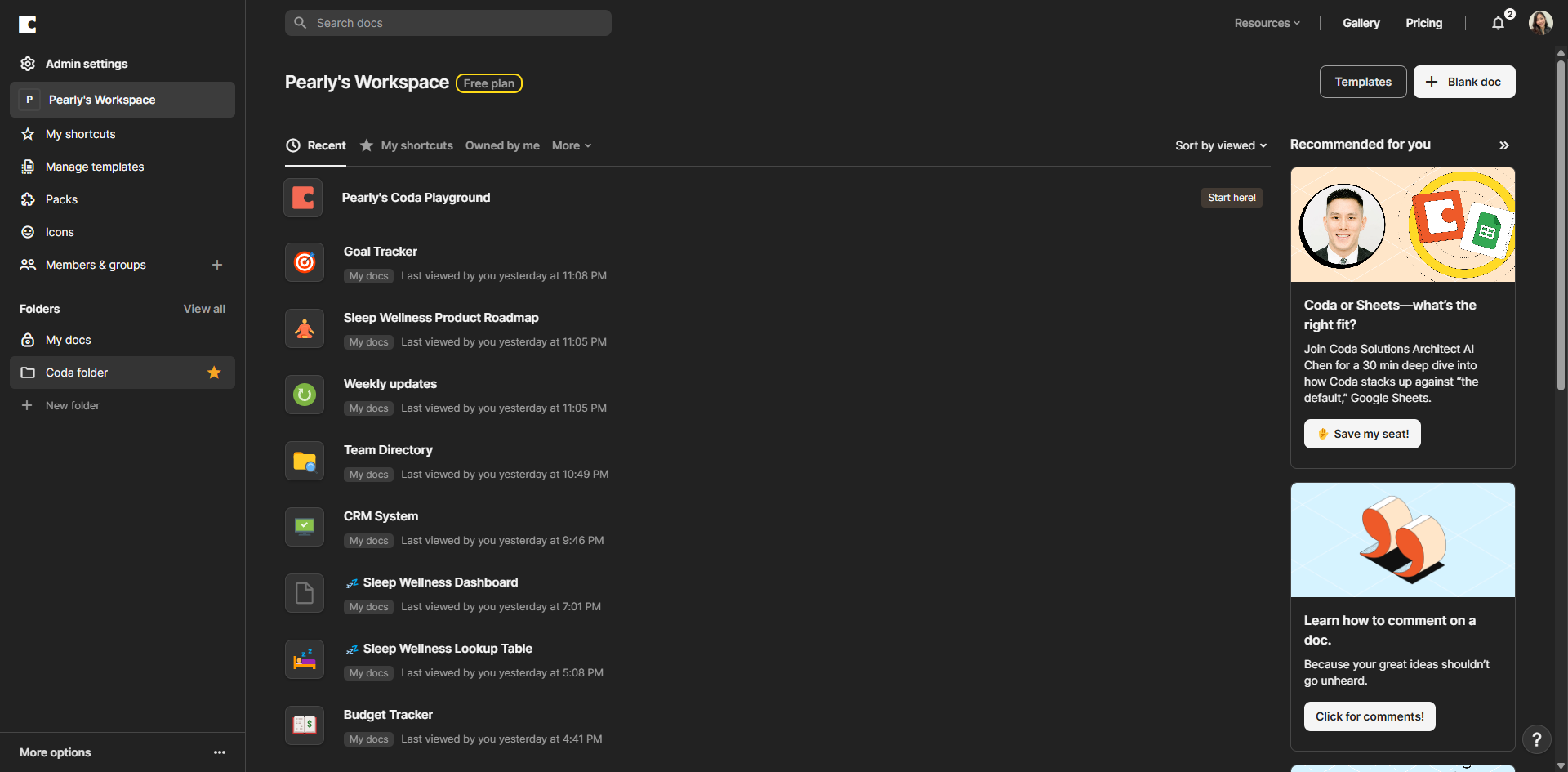
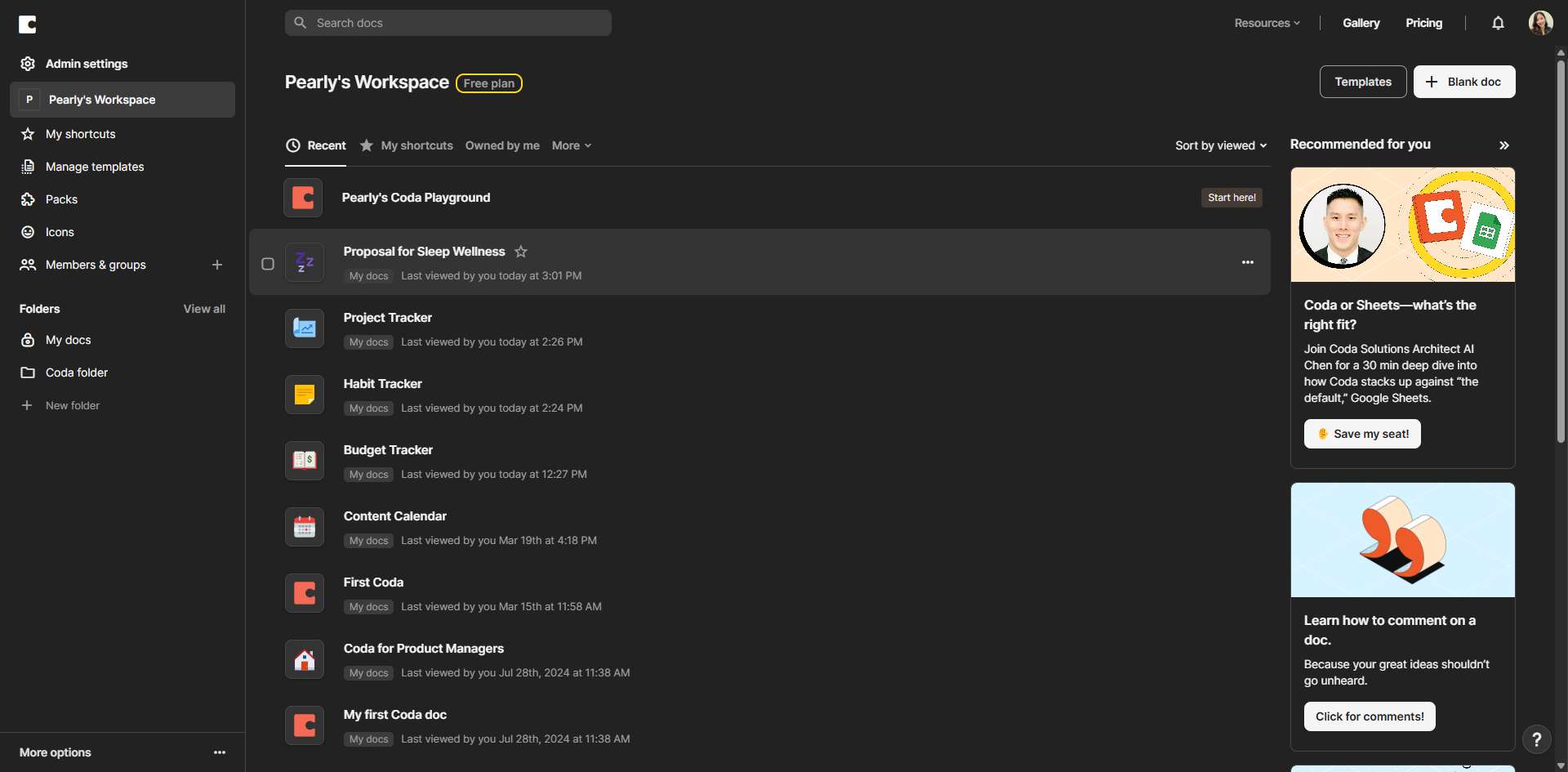
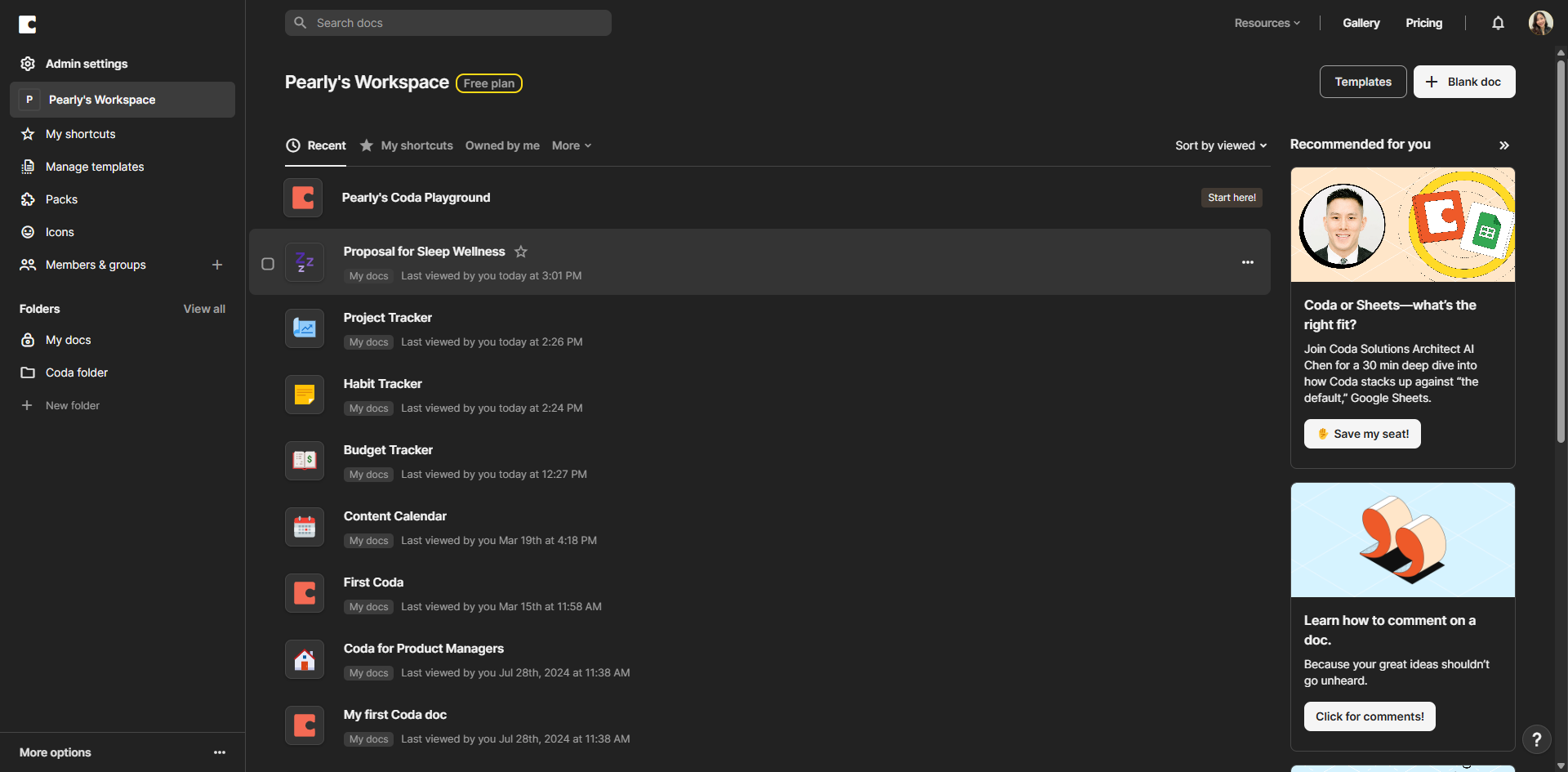
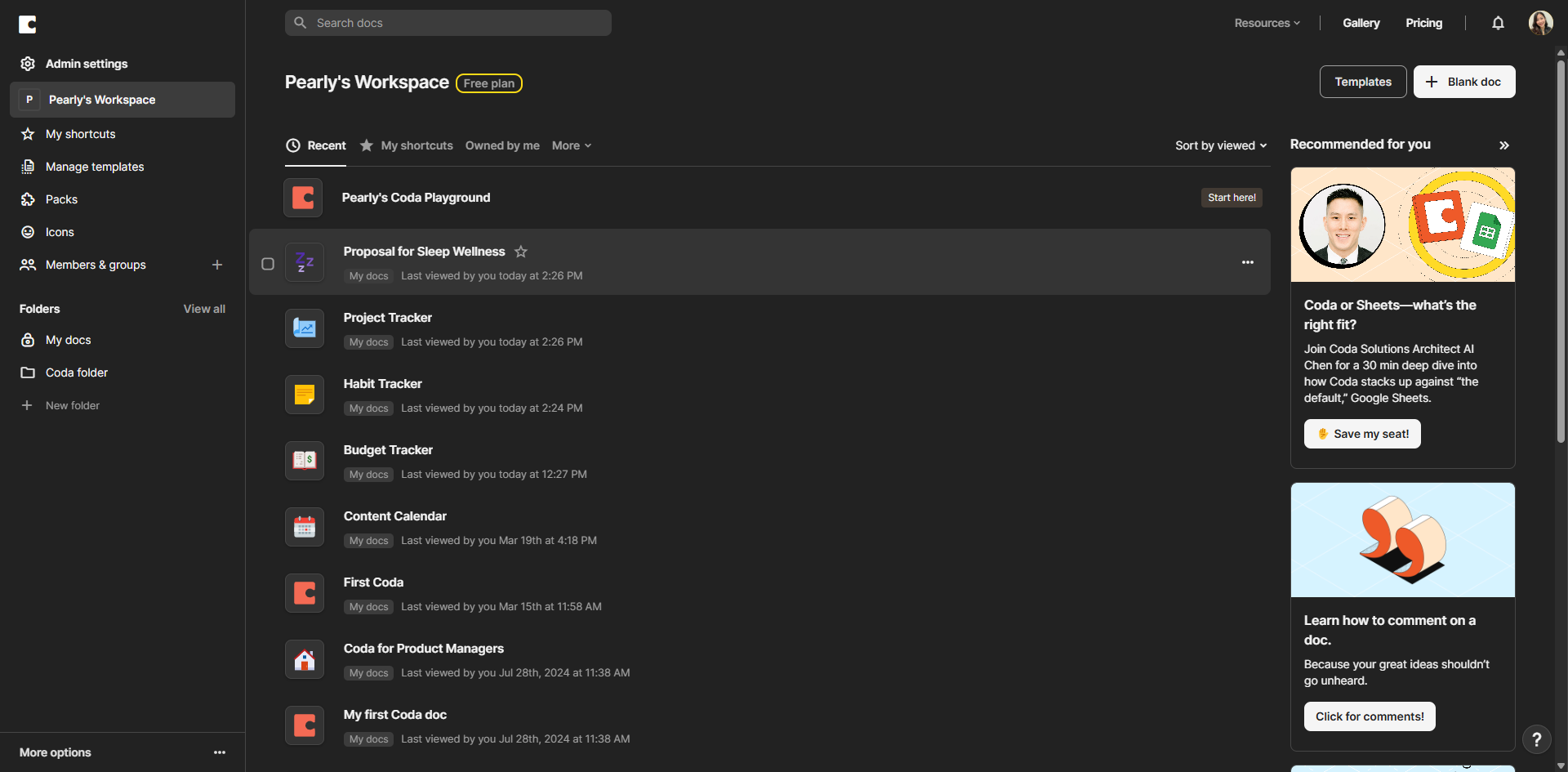
Head over to the left-side panel, then click the 'Show Pages' icon.
After that, click the 'More Options' button next to the main page of your doc.
Hover your mouse cursor over 'Add Subpage' and then tap 'New Page'.
Following that, come up with a unique subpage name and then enter it into the provided input field.
Subsequently, use the floating options above the title to add an icon and cover or configure other layout and page settings.
Paste the content of the subpage into the entry box right below the title.
Review the format of the content, then use the options in the floating toolbar to make adjustments if necessary.
Once done, head back to the left-side panel and select the main page.
After completing these steps, a shortcut to the newly created subpage will be added to the main page of your doc. Repeat the same series of steps until every section of your Coda doc is organized into individual subpages.
Quick answer: To organize complex documents in Coda, open the left-side panel to show pages, click More Options next to the main page, add a new subpage, enter a unique name, customize icons and layout, paste and review your content, and select the main page to view the new subpage shortcut.
About this Coda tutorial
Structure your Coda docs efficiently by creating subpages, adding custom titles, configuring layouts, and organizing sections into shortcuts. This guide shows how to organize Complex Coda Docs in 9 steps, starting with "Head over to the left-side panel, then click the 'Show Pages' icon" and finishing with "After completing these steps, a shortcut to the newly created subpage will be added to...". The interactive demo above is a click-through copy of the real Coda interface, so you can rehearse each step before doing it in your own account.
Frequently asked questions
How many steps does it take to organize Complex Coda Docs?
9 steps. Each one is listed in order above, and the demo highlights exactly where to click.
Can I try it without changing my own account?
Yes. Clicking through the demo doesn't touch your Coda data or settings. Once you know the flow, repeat it in your own workspace.
This tutorial is filed under Coda. Related guides: How to Organize Your Coda Workspace, How to Pull Google Search Console Data Into Coda and How to Reference Cells in Coda. Last reviewed 05 Oct 2026.

Create your first interactive demo in minutes
No credit card required • Start building today