How to Put an Unsubscribe Link in Klaviyo
- George Apostolov
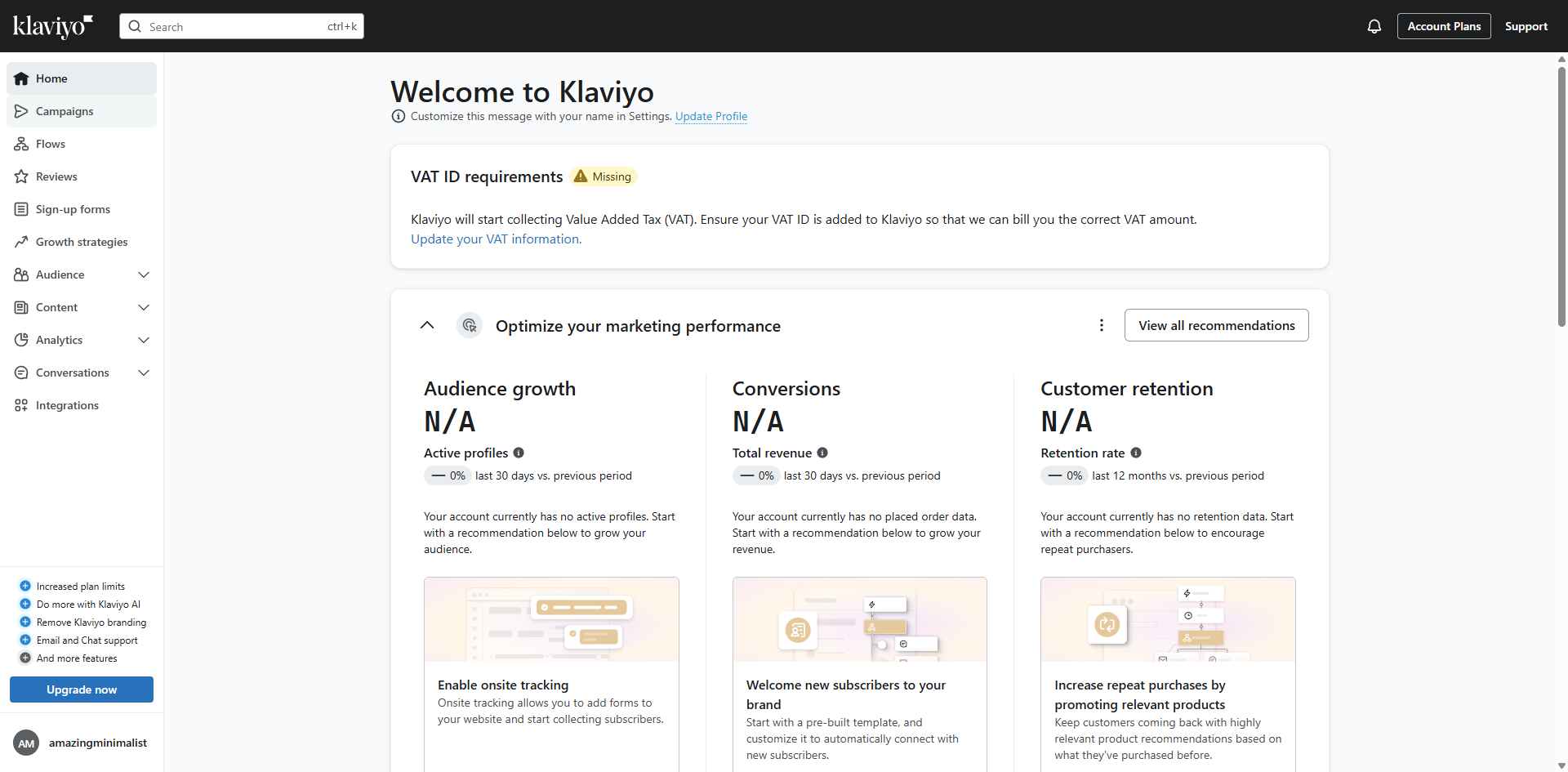
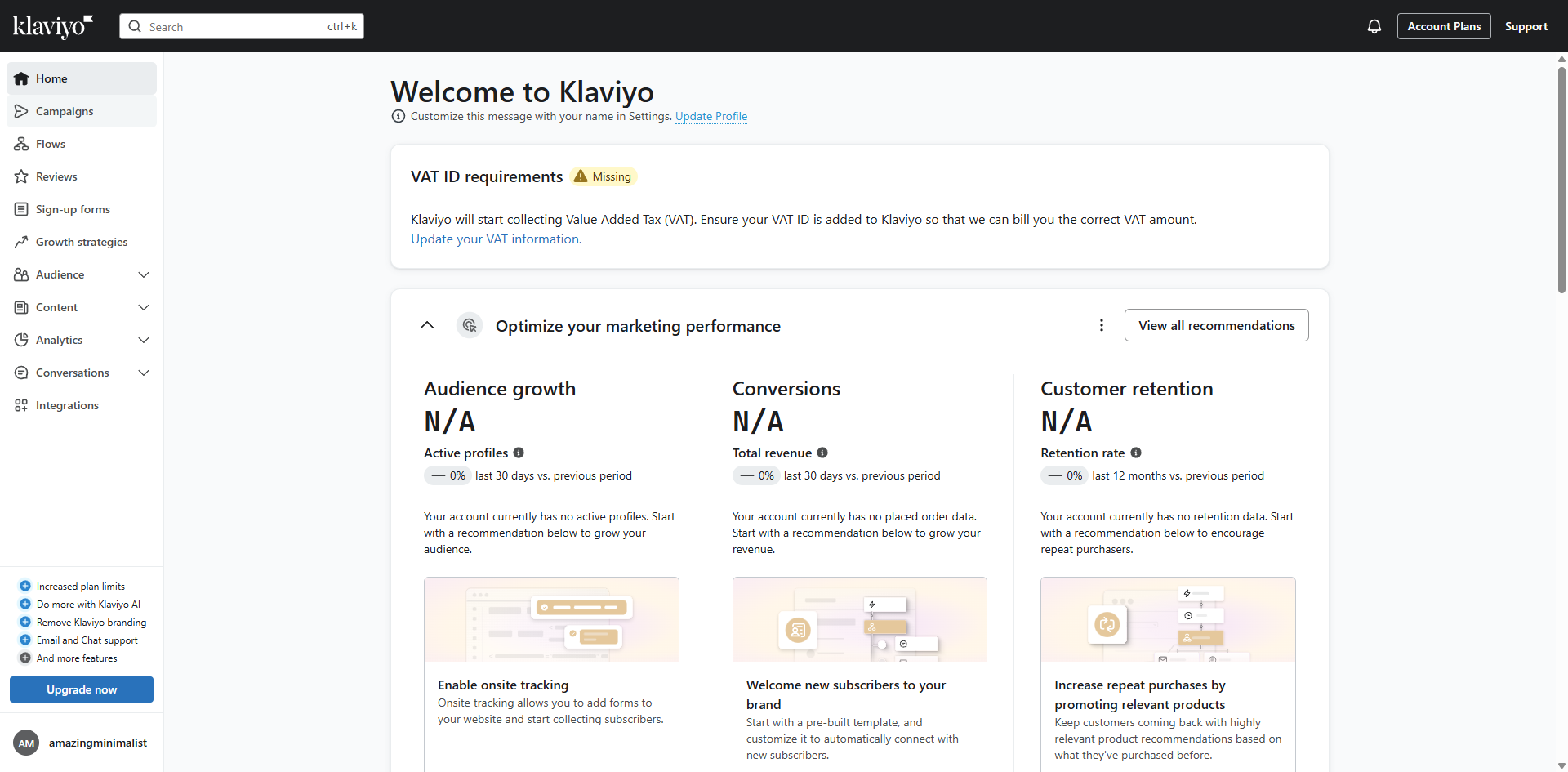
How to Put an Unsubscribe Link in Klaviyo: step-by-step guide
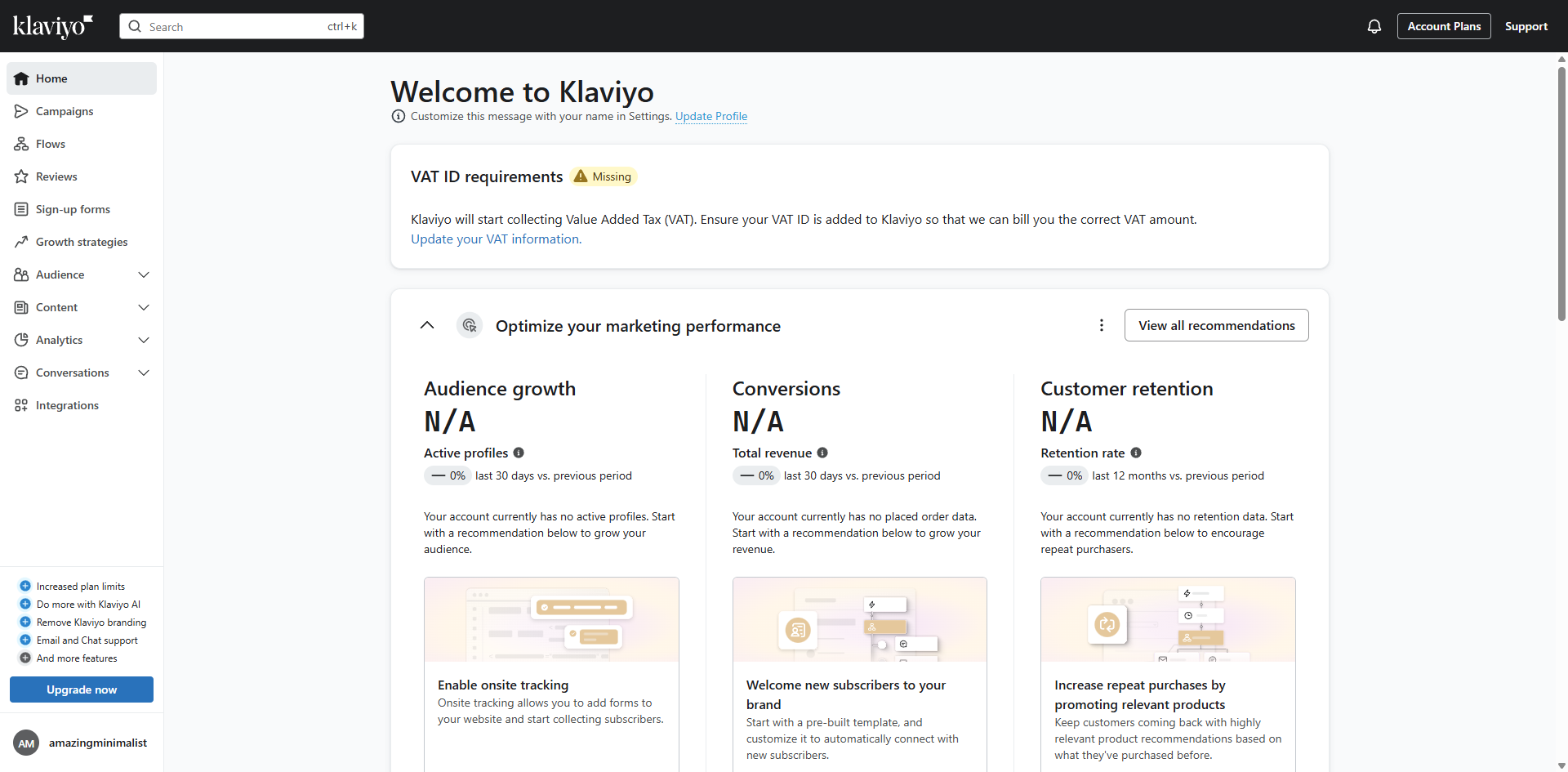
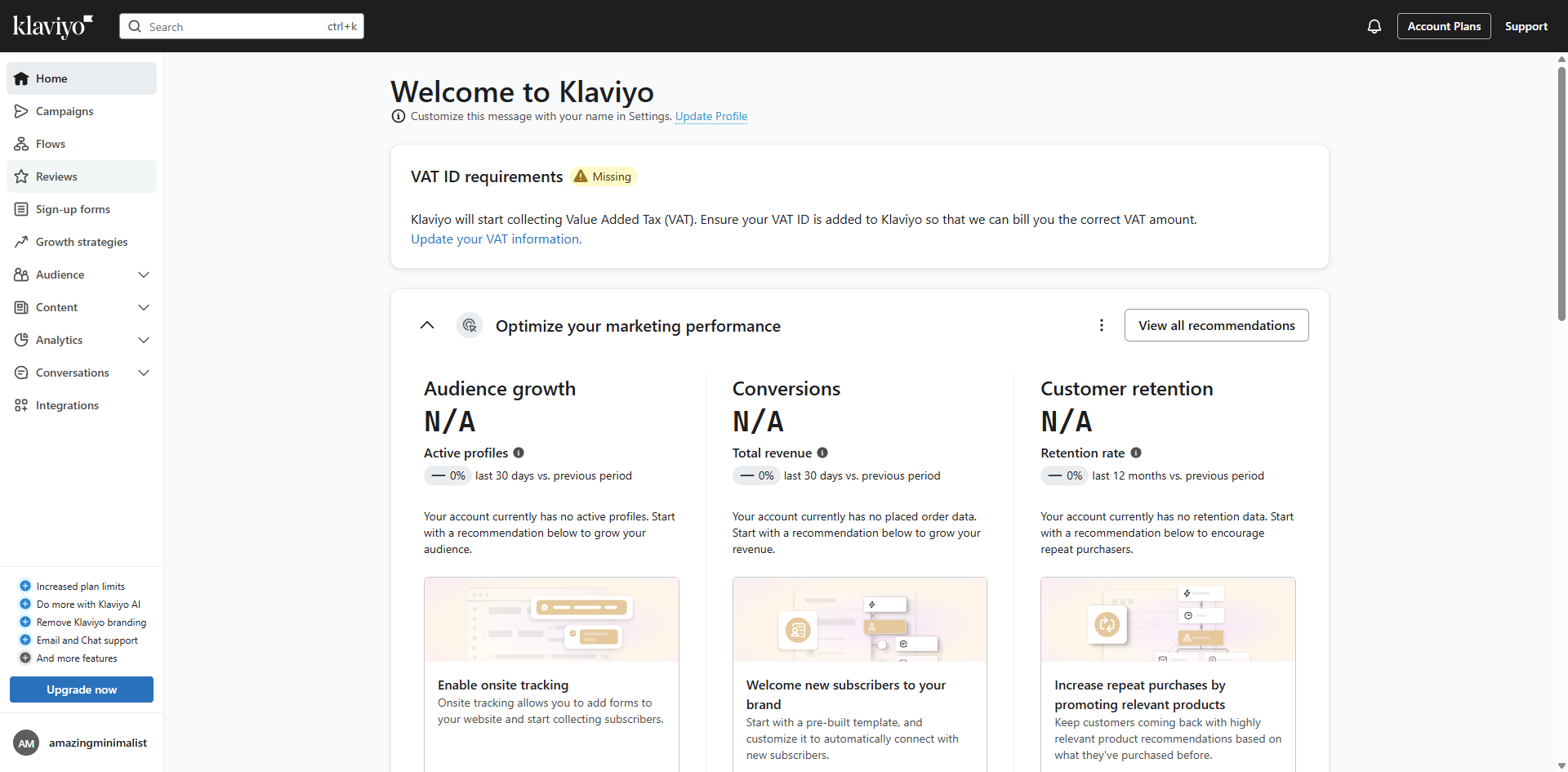
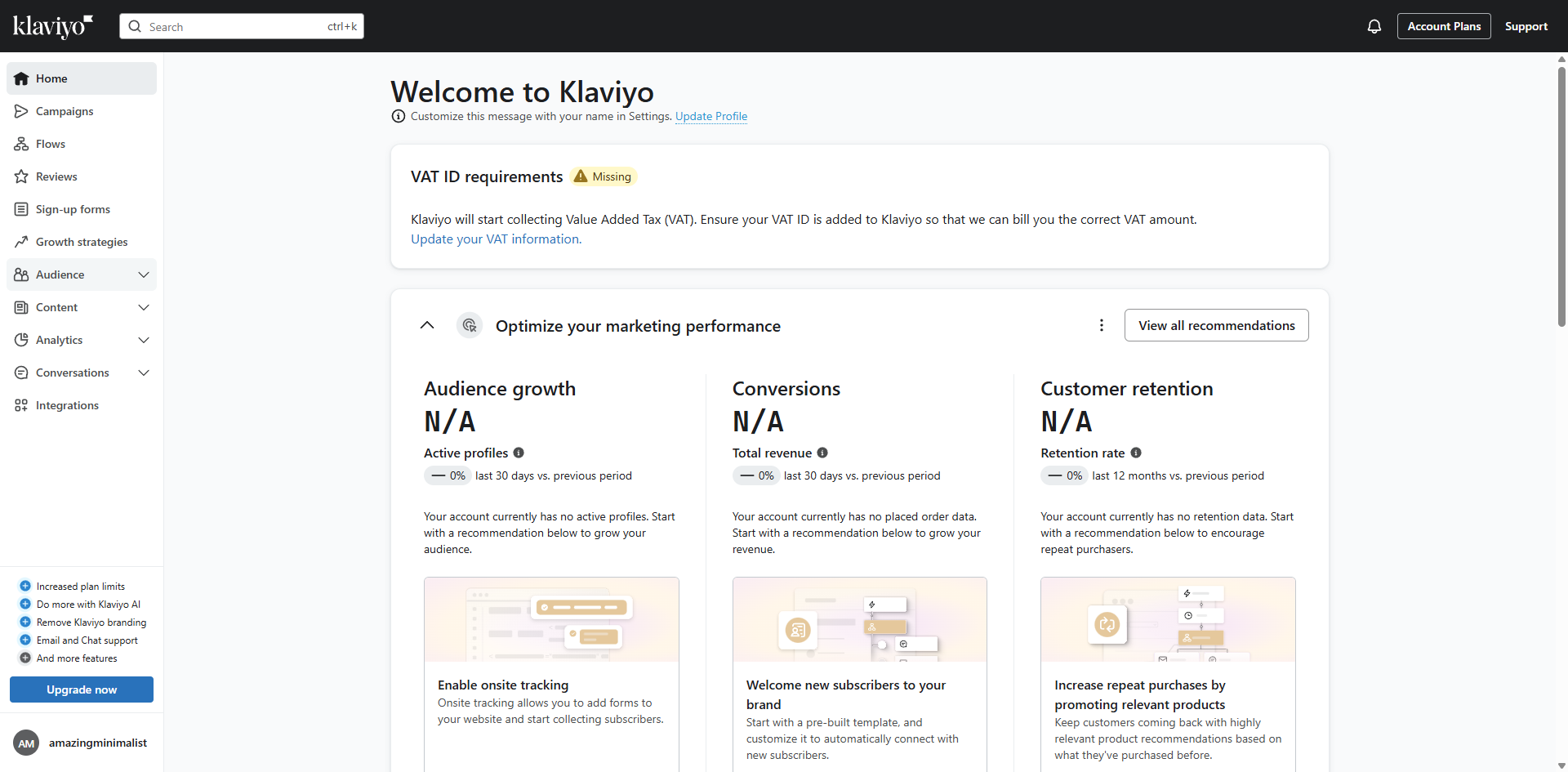
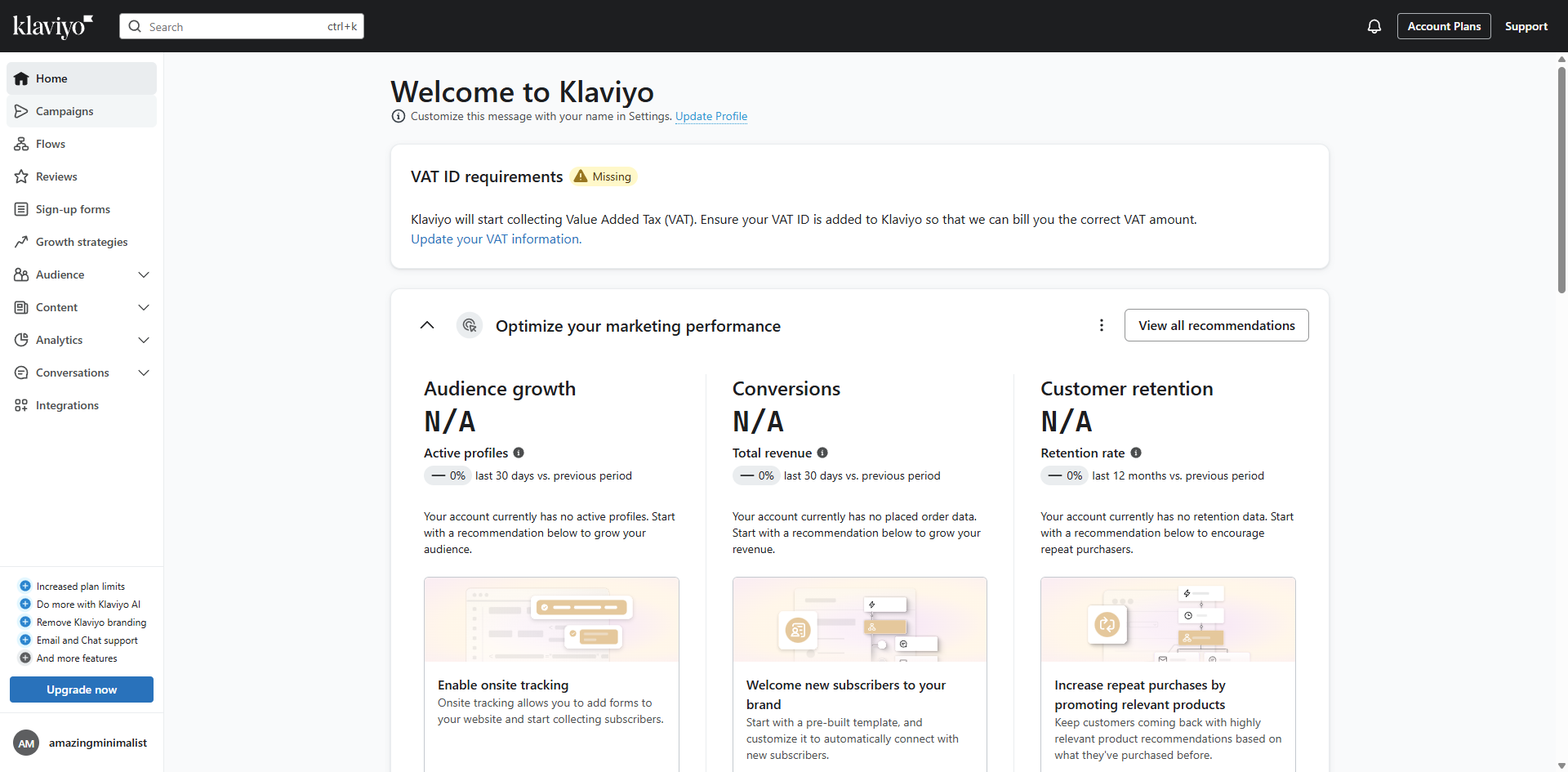
Navigate to the 'Campaign' section in your Klaviyo dashboard.
Choose the email campaign you want to add an unsubscribe link to.
Click 'Edit' to open the email editor where you'll customize your content.
Scroll to the bottom of your email and click 'Text' to add a new text block where your unsubscribe link will live.
Type something like "Don't want these emails? Click here to unsubscribe" in the text block.
Format your unsubscribe text using the styling options, keep it visible but not distracting from your main content.
Highlight the words "Click here" (or whatever text you want as your link) and click the link icon in the toolbar.
In the URL field, enter "unsubscribe_url" - this Klaviyo tag automatically generates a unique unsubscribe link for each recipient.
Click 'Apply' to save your link settings.
That's it! You've successfully added a functional unsubscribe link that keeps you compliant with email regulations and respects your subscribers' choices.
Quick answer: To put an unsubscribe link in your emails, navigate to Campaigns in Klaviyo, select your campaign, and open the editor. Add a text block at the bottom, type your unsubscribe text, highlight the link text, and enter the unsubscribe_url tag using the link icon. Finally, apply your settings to save the link.
About this Klaviyo tutorial
Add a functional unsubscribe link to your Klaviyo email campaigns by using the unsubscribe_url tag to ensure compliance. This guide shows how to put an Unsubscribe Link in Klaviyo in 10 steps, starting with "Navigate to the 'Campaign' section in your Klaviyo dashboard" and finishing with "That's it! You've successfully added a functional unsubscribe link that keeps you compl...". The interactive demo above is a click-through copy of the real Klaviyo interface, so you can rehearse each step before doing it in your own account.
Frequently asked questions
How many steps does it take to put an Unsubscribe Link in Klaviyo?
10 steps. Each one is listed in order above, and the demo highlights exactly where to click.
Can I try it without changing my own account?
Yes. Clicking through the demo doesn't touch your Klaviyo data or settings. Once you know the flow, repeat it in your own workspace.
This tutorial is filed under Klaviyo. Related guides: How to Reauthenticate Klaviyo in Shopify, How to Remove Double Opt-in Klaviyo and How to Remove Profiles from Klaviyo. Last reviewed 05 Oct 2026.

Create your first interactive demo in minutes
No credit card required • Start building today