Scheduling slack messages
- George Apostolov
Scheduling slack messages: step-by-step guide
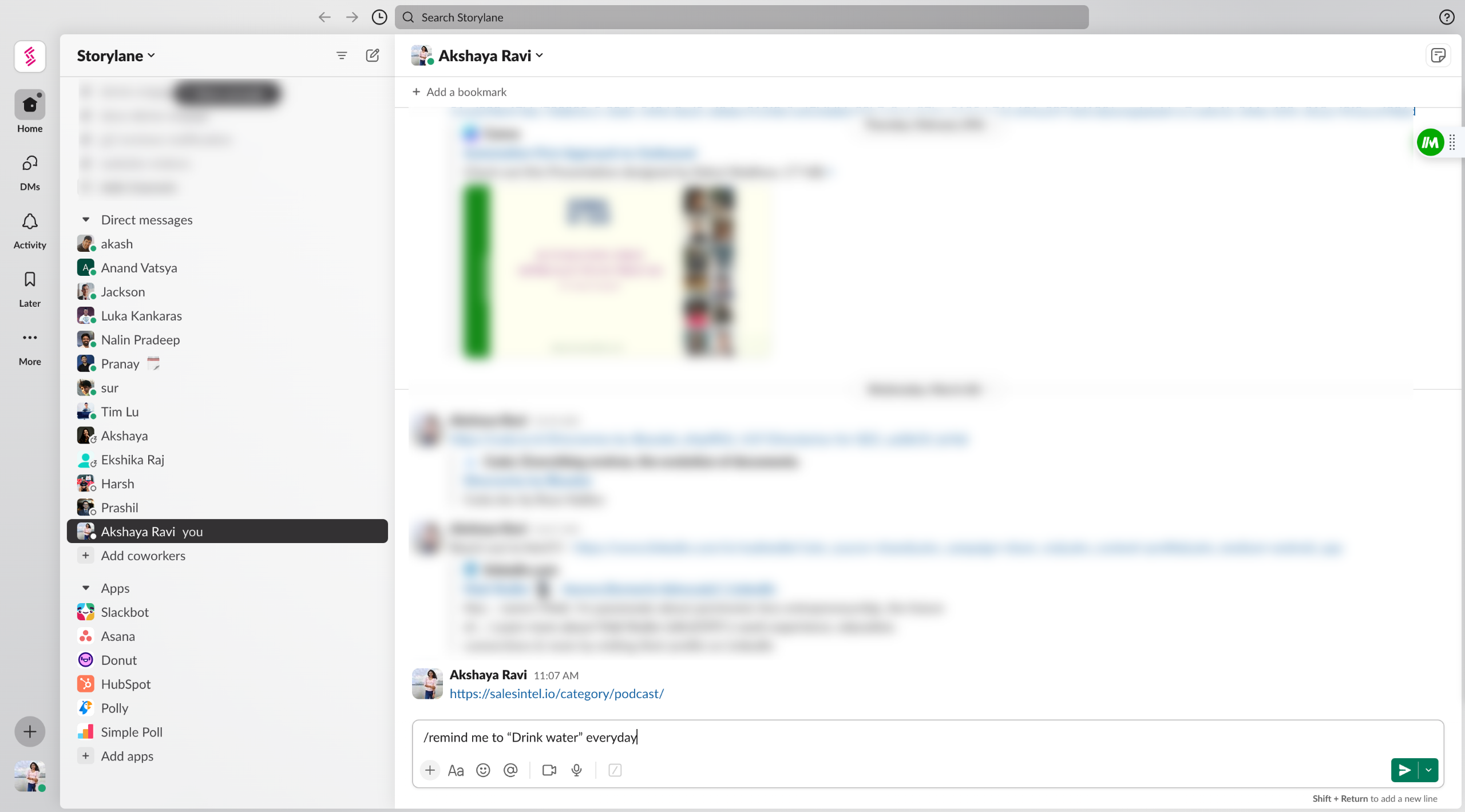
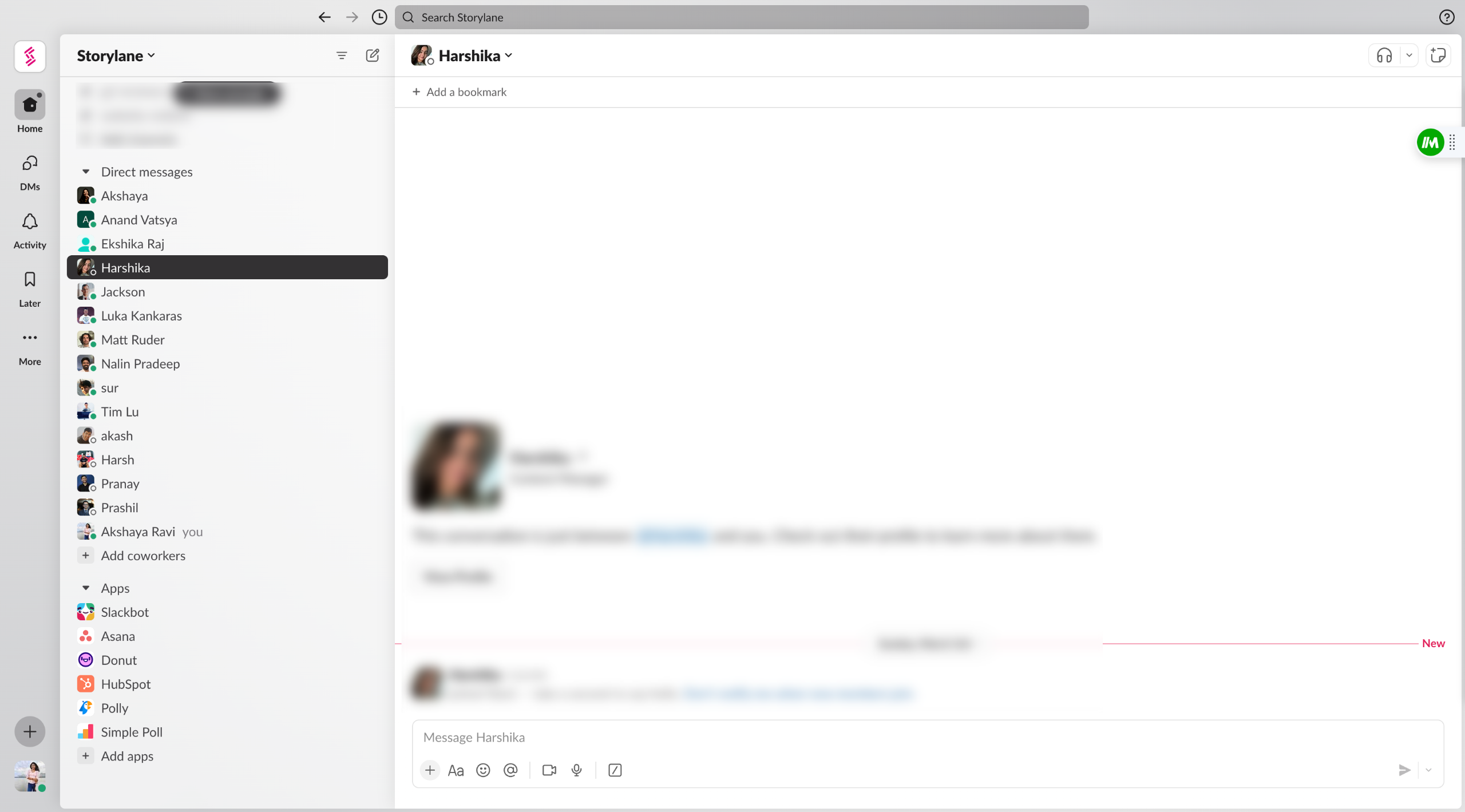
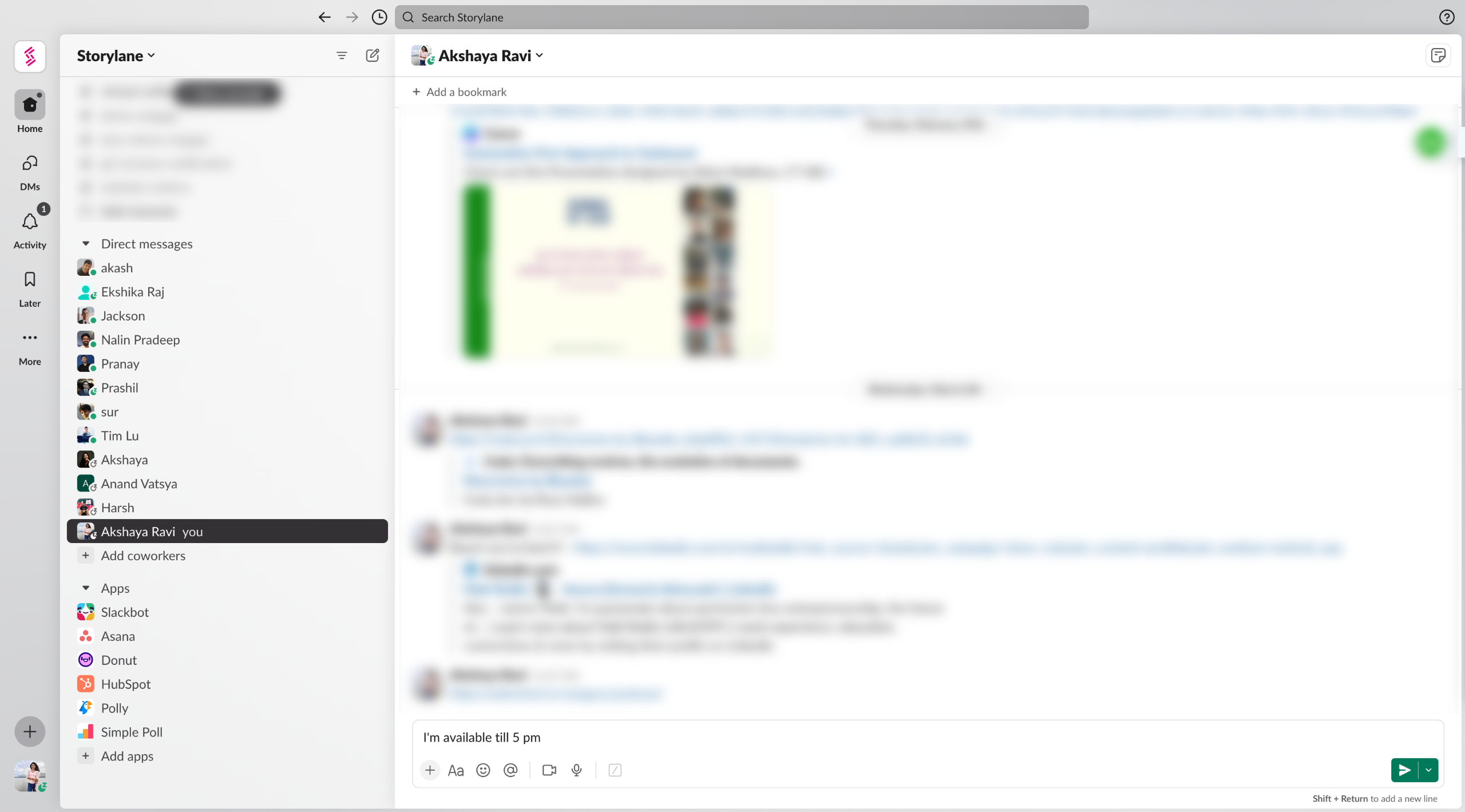
Type in the message that you want to schedule for later
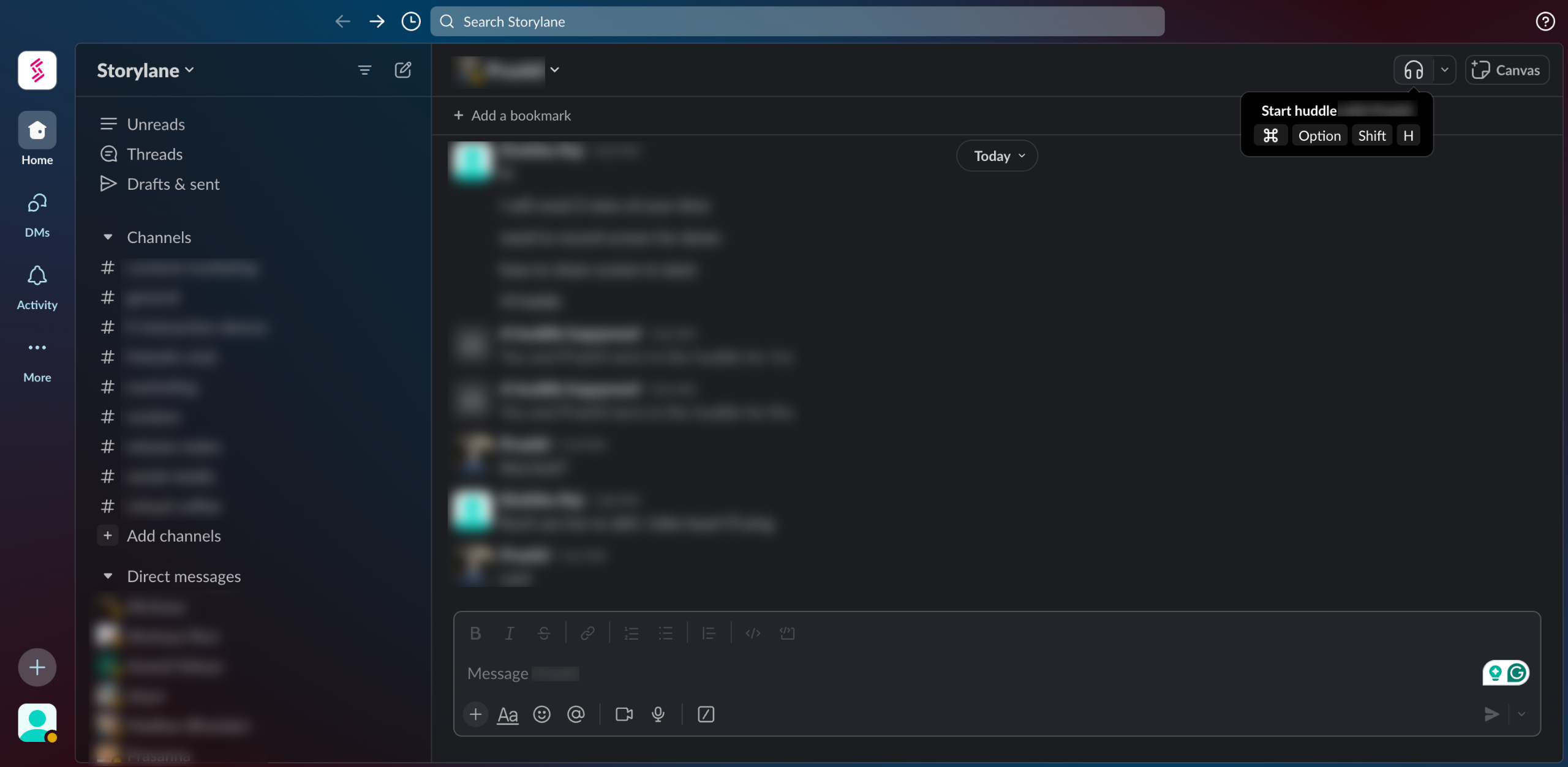
Click the drop down menu near 'Send' button
Enter the time when your message should be sent
You can view all your scheduled messages in 'Draft & sent' option
This is how it looks :)
Quick answer: To schedule messages in Slack, type your message, click the drop-down menu near the Send button, and enter the desired sending time. You can then view all your scheduled messages in the Draft and sent option.
About this Slack tutorial
Schedule messages in Slack by selecting the send time from the drop-down menu, and view pending items in Draft and sent. This guide covers scheduling slack messages in 5 steps, starting with "Type in the message that you want to schedule for later" and finishing with "This is how it looks :)". The interactive demo above is a click-through copy of the real Slack interface, so you can rehearse each step before doing it in your own account.
Frequently asked questions
How many steps does scheduling slack messages take?
5 steps. Each one is listed in order above, and the demo highlights exactly where to click.
Can I try it without changing my own account?
Yes. Clicking through the demo doesn't touch your Slack data or settings. Once you know the flow, repeat it in your own workspace.
This tutorial is filed under Slack. Related guides: Slack - How to set a reminder, Setting OOO in slack and How to Share Screen on Slack. Last reviewed 05 Oct 2026.

Create your first interactive demo in minutes
No credit card required • Start building today