Google Search Console - How To Set Up GSC
- George Apostolov
Google Search Console - How To Set Up GSC: step-by-step guide
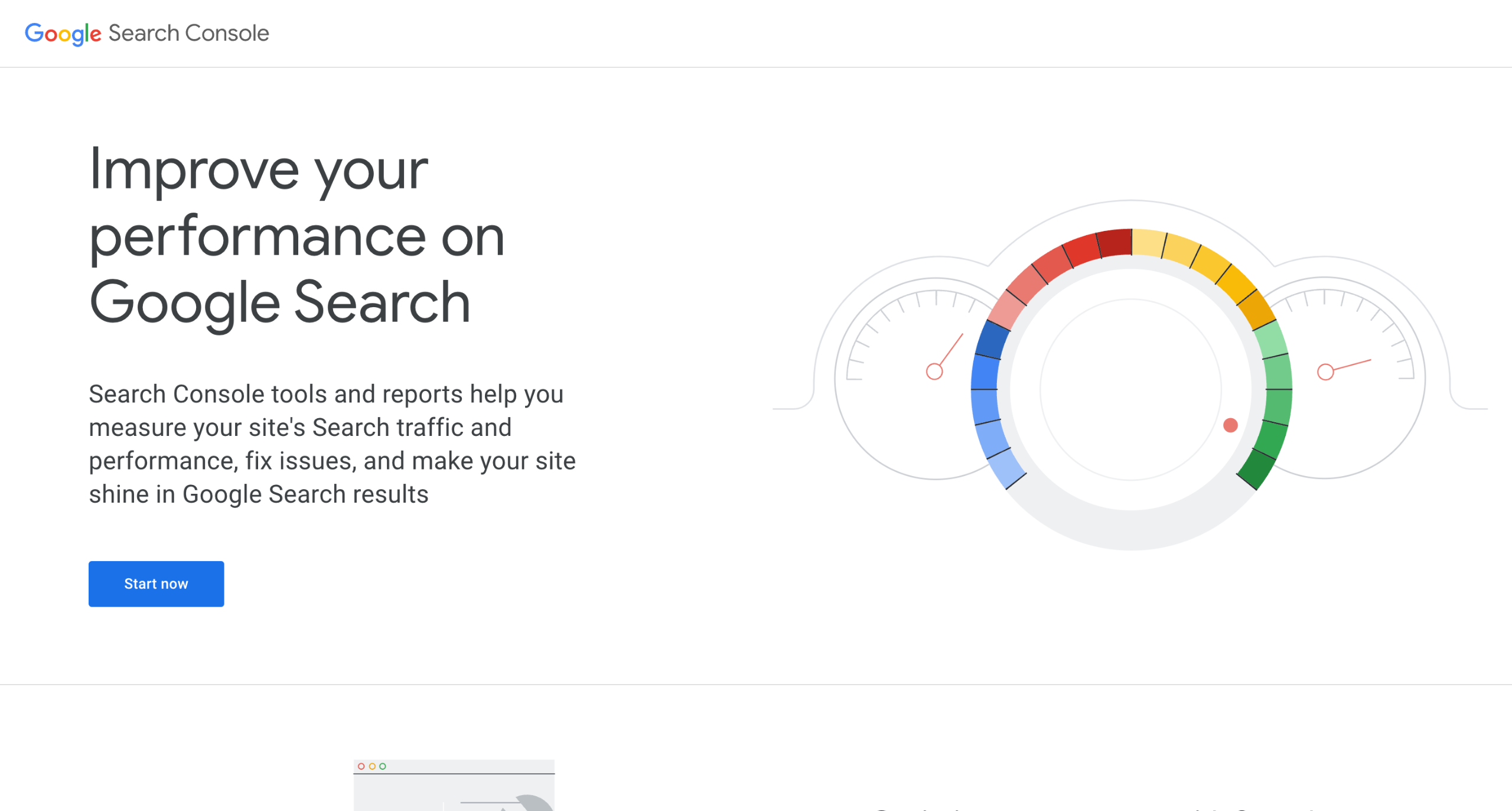
Sign in to Google Search Console and Click "Start now
If you want stats for all subdomains to be gathered in one property, choose domain.
If you have many different subdomains and want separate stats for each, choose URL prefix.
Google Search Console will provide you with a txt DNS record value. Click on Copy to copy it to clipboard
Once you are done with adding DNS record on your domain name provider. Click Verify
If you selected URL Prefix in the earlier step: Download the HTML file and upload to your website backend.
Verify
If everything is set up correctly, it should be verified immediately. Otherwise, it may take a few hours.
Quick answer: To set up Google Search Console, sign in and click Start now. Choose between a domain property for all subdomains or a URL prefix property for separate stats. Add the provided TXT DNS record to your domain provider and click Verify, or upload the downloaded HTML file for URL prefix, then complete verification.
About this Google tutorial
Complete your Google Search Console setup by verifying your domain or URL prefix using DNS records or an HTML file upload. This guide covers google Search Console - How To Set Up GSC in 8 steps, starting with "Sign in to Google Search Console and Click ' Start now" and finishing with "If everything is set up correctly, it should be verified immediately. Otherwise, it may...". The interactive demo above is a click-through copy of the real Google interface, so you can rehearse each step before doing it in your own account.
Frequently asked questions
How many steps does google Search Console - How To Set Up GSC take?
8 steps. Each one is listed in order above, and the demo highlights exactly where to click.
Can I try it without changing my own account?
Yes. Clicking through the demo doesn't touch your Google data or settings. Once you know the flow, repeat it in your own workspace.
This tutorial is filed under Google. Related guides: How to Set Up Google Search Console WordPress, How to Set Up Recurring Data Imports Into Coda Using Google Sheets and Google Analytics - Share a Dashboard. Last reviewed 05 Oct 2026.

Create your first interactive demo in minutes
No credit card required • Start building today