How to Share the Screen in GoTo Meeting
- George Apostolov
How to Share the Screen in GoTo Meeting: step-by-step guide
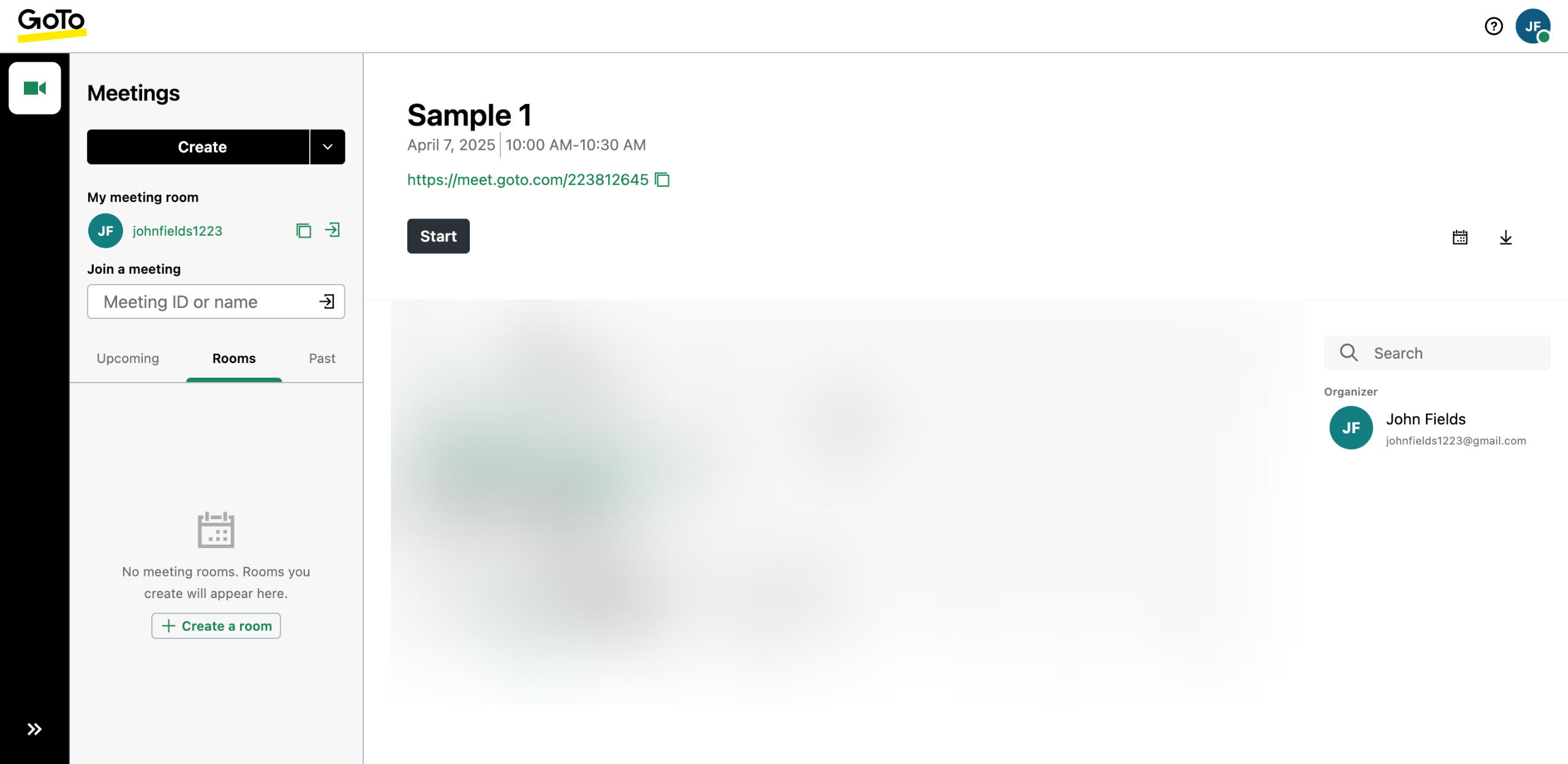
Inside GoTo Meeting's main dashboard, find the meeting you want to start and then click its corresponding 'Start' button.
After that, configure the necessary settings according to your liking and then tap 'OK, I'm Ready'.
Go to the menu bar at the bottom section, then find 'Share'. Click the upward caret next to it.
Subsequently, choose 'Share Screen' from the list of options.
Choose the screen you want to share and then tap 'Share' to proceed.
After completing these steps, your screen will be shared during your Go-To meeting.
Quick answer: To share your screen in GoTo Meeting, start your meeting from the dashboard and click 'OK, I'm Ready'. Next, click the upward caret next to 'Share' in the bottom menu bar, select 'Share Screen', choose the desired screen, and click 'Share'.
About this tutorial
Broadcast your display during a virtual call by configuring your meeting settings, selecting the share option, and choosing the screen. This guide shows how to share the Screen in GoTo Meeting in 6 steps, starting with "Inside GoTo Meeting's main dashboard, find the meeting you want to start and then click..." and finishing with "After completing these steps, your screen will be shared during your Go-To meeting". The interactive demo above is a click-through copy of the real product interface, so you can rehearse each step before doing it in your own account.
Frequently asked questions
How many steps does it take to share the Screen in GoTo Meeting?
6 steps. Each one is listed in order above, and the demo highlights exactly where to click.
Can I try it without changing my own account?
Yes. Clicking through the demo doesn't touch your data or settings. Once you know the flow, repeat it in your own workspace.

Create your first interactive demo in minutes
No credit card required • Start building today